
WordPress 7.1 continues the momentum launched three months earlier by version 7.0, particularly around artificial intelligence: AI connectors are now open to plugins, which can register their own connectors.
But that’s not all. This new version makes the editor much more responsive, improves collaborative notes, adds two new blocks, and simplifies media management.
In this post, we offer a complete breakdown of what’s new in WordPress 7.1, to help you understand what will really change in how you use the CMS.
Let’s dive in! 🚀

WordPress 7.1: context for this major release
WordPress 7.1 will be released on August 19, 2026, three months after WordPress 7.0. It’s the second major release of the year. A third and final release is expected in 2026: WordPress 7.2, due on December 10.
This update also merges ten versions of the Gutenberg plugin into WordPress Core (from version 22.7 to version 23.6).
As always, take the time to back up your site before updating, and consider waiting a few days after the release if you’d rather play it safe.
What’s new in WordPress 7.1
AI connectors open up to plugins
The Settings > Connectors menu, introduced in WordPress 7.0, now has an API that lets plugins register their own connectors and add entries to that page, so any plugin can integrate with the connector system.
In practical terms, the native opening of WordPress to artificial intelligence that began with version 7.0 keeps taking shape, this time on the plugin developers’ side.
An editor that goes responsive, style by style
WordPress 7.1 lets you set a block’s appearance based on screen size, directly in the editor, for both global styles and individual blocks.
To try out this feature, turn on the “Responsive styles” option in the “View” menu of the content editor, then select the device you want to apply settings that will only be visible on that type of screen.

Another handy addition: you can now manually resize the preview window using drag handles to see how your content looks, instead of being limited to the “Desktop,” “Tablet,” and “Mobile” options.
Much more complete collaborative notes
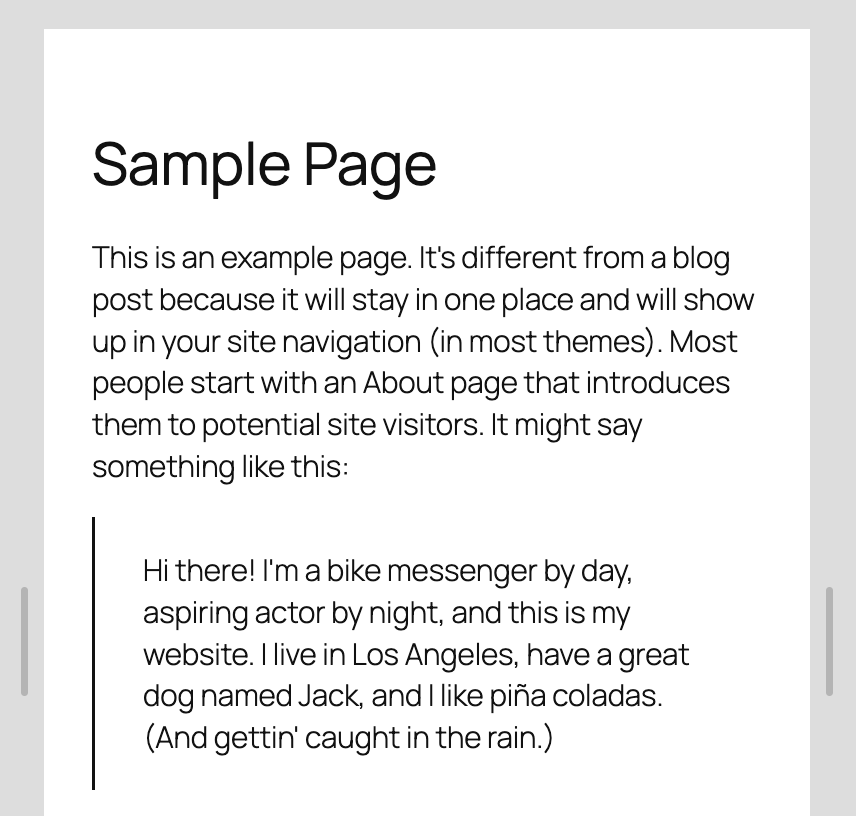
Notes, which let you communicate directly within the editor, go further with this release:
- you can now format them with bold, italics, emojis, or links
- you can type “@” in a note to bring up the list of collaborators and mention one directly, so your note reaches the right person
- several conversations can now be open on the same block
- you can add a note to a selected portion of text (inline), rather than to an entire block
- long notes are now collapsed by default, with a “Show more” button to expand them.

Two new blocks: Playlist and Tabs
WordPress 7.1 expands its block library with two highly anticipated additions.
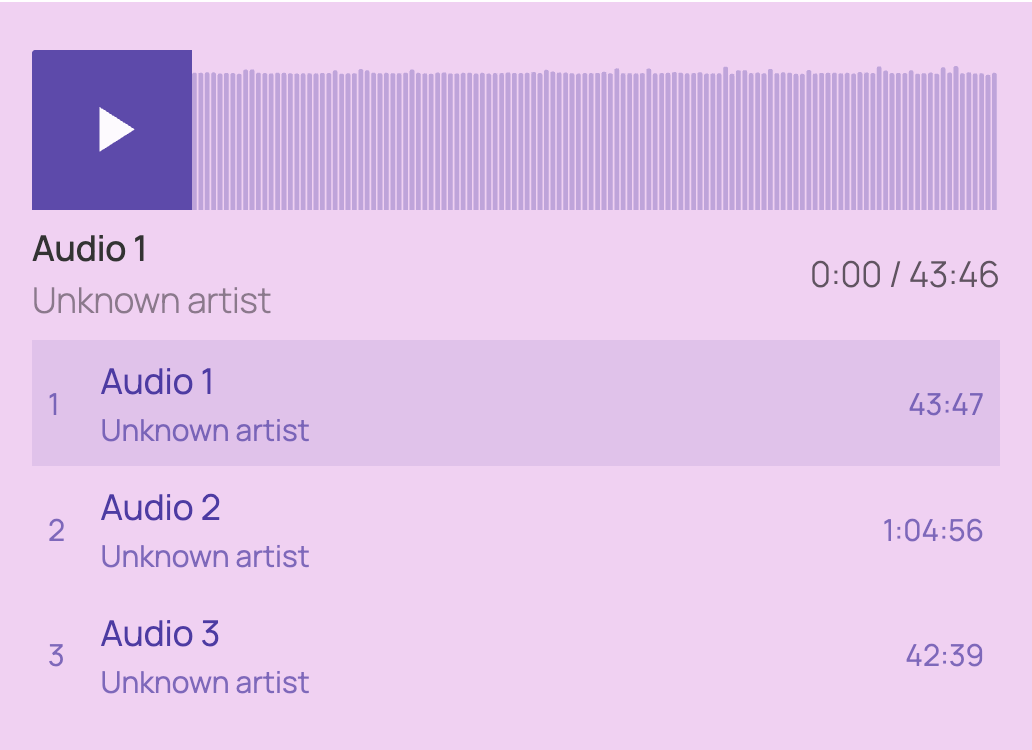
The Playlist block allows you to add a selection of audio files to a post or page. It’s especially useful for showcasing podcasts, music, or any other audio content, without needing a third-party plugin.
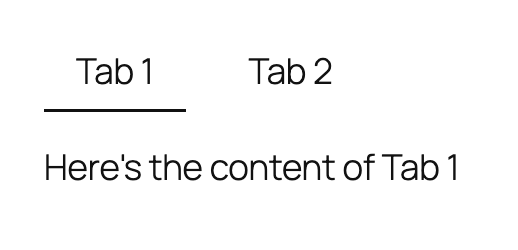
The Tabs block, for its part, allows you to organize content into clickable tabs.
Significantly improved media management
Several changes introduced by WordPress 7.1 make it easier to work with images and media files:
- A new “Edit media” pop-up window, dedicated to image editing, replaces the old cropping tool. Among other things, it lets you crop, rotate, or edit images’ metadata. It works with the Image and Cover blocks.

- Gallery blocks can now automatically pull in and sort media files already attached to the current post.

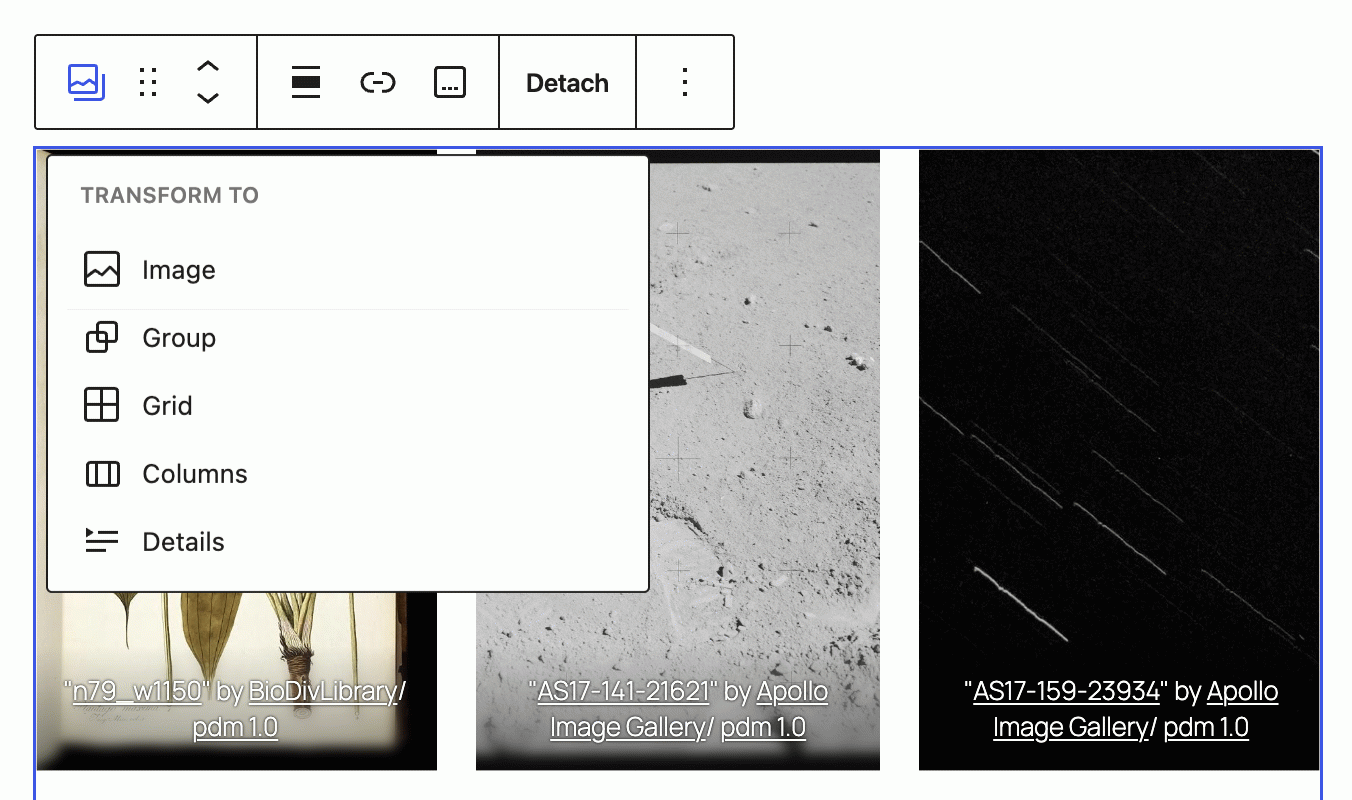
- You can turn a gallery or columns into a Grid block with one click, without losing any content.
- Once images have been added to a post, the block inserter (“Media” tab) now automatically displays them in a new “Attached images” section, making them easier to find.

- The media library’s grid view now automatically loads more items as you scroll, without needing to click the “Load more” button. This feature can be turned off in your user profile by checking the “Disable infinite scrolling in the media library grid view” box.
- Background gradients and background images can now be combined, using independent “Image” and “Gradient” settings in the “Background” menu. For now, this applies to the Group, Accordion, and Quote blocks.

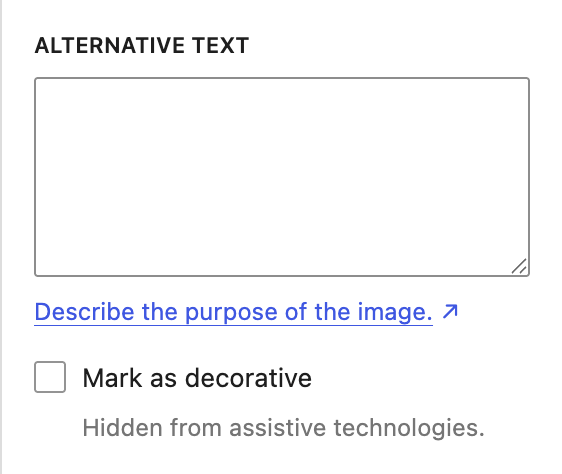
- A new Image block option lets you hide purely decorative images from screen readers to improve your WordPress site’s accessibility.
A more consistent admin and site editor
WordPress 7.1 also brings its share of tweaks to the admin area and site editor:
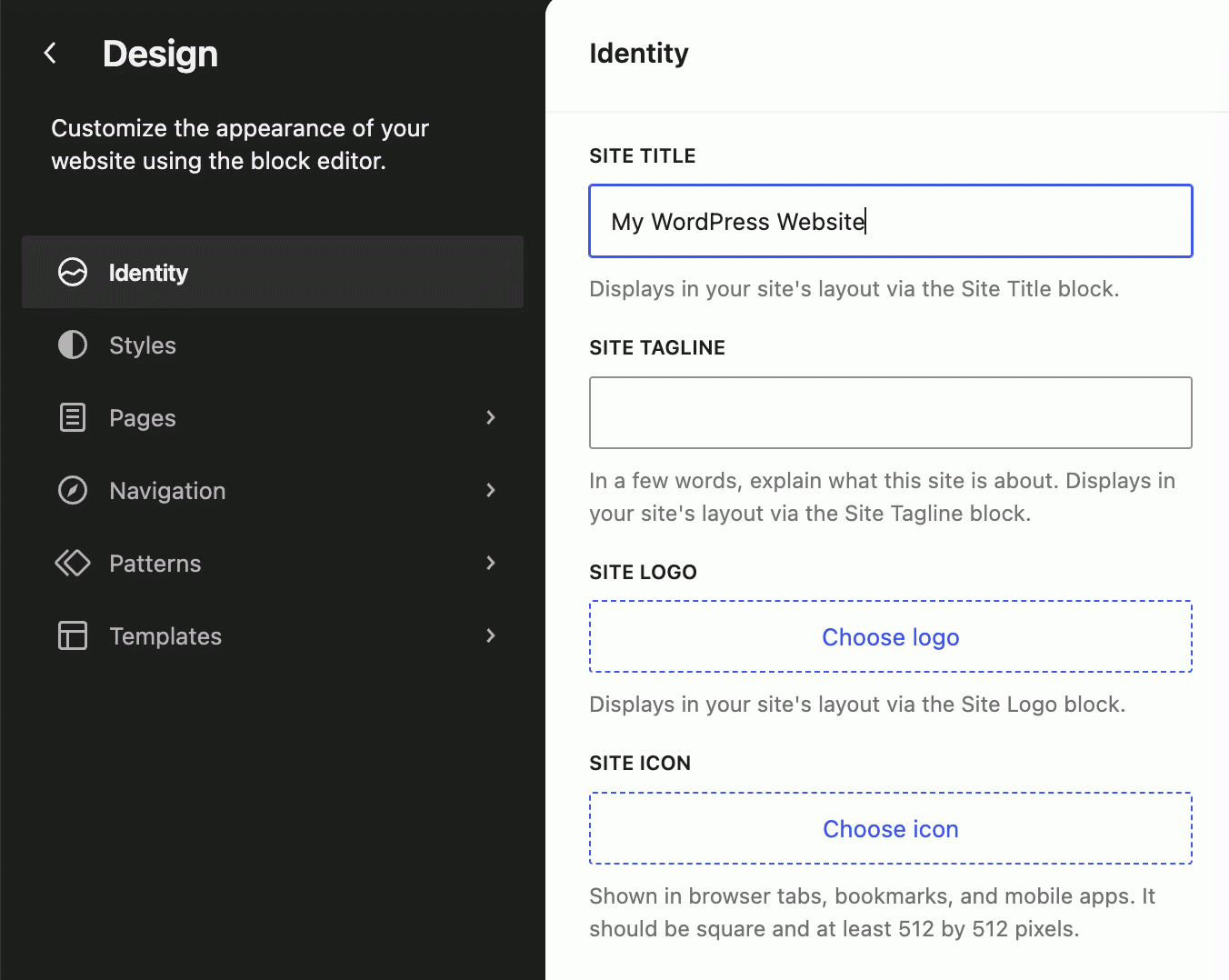
- Settings related to site identity (title, tagline, logo, icon) are now grouped together in the site editor, in an “Identity” section.
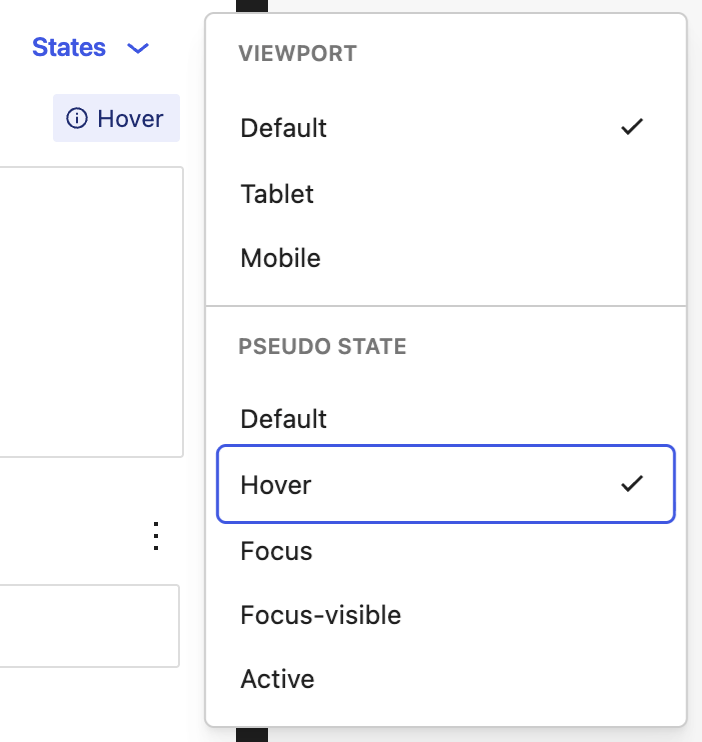
- You can set how blocks behave depending on the screen they’re displayed on (tablet or mobile), either in global styles (via the “States” button) or on individual block instances.
- In global styles, you can also set options based on user interactions, such as a button’s color changing on hover or focus, for example.
- Navigation through the command palette (available via the Ctrl/Cmd+K keyboard shortcut) has been optimized: results are now grouped into “Recent,” “Matching,” and “Suggestions” sections.

- The site editor now fully reflects the admin color scheme selected in the Users > Edit > Administration Color Scheme menu, including the background color.

- Editing a template, template part, or pattern now brings up the same “Revisions” panel that was previously only available for posts and pages, so you can view and restore earlier versions of your templates.
- Finally, the admin toolbar is now permanently visible at the top of the screen, in both the site editor and the block editor, for example.

Conclusion
With this 7.1 release, WordPress confirms the direction set with 7.0: opening the CMS further to artificial intelligence, this time by giving plugins the means to connect to it themselves.
The rest of the updates point in the same direction: a more flexible editor with advanced responsive styles, smoother collaboration (thanks to richer notes), and more comfortable day-to-day media management.
As always, take the time to back up your WordPress site before updating, and consider waiting a few days or weeks after release if you’d rather be cautious.
With that, we’ll see you before the end of the year to break down what’s new in WordPress 7.2. 😉
Questions about WordPress 7.1?
What is the release date of WordPress 7.1?
WordPress 7.1 is expected on August 19, 2026, three months after the release of WordPress 7.0.
Will there be other major WordPress releases in 2026?
WordPress 7.1 is the second major release of 2026. A third release, WordPress 7.2, is planned for December 10.
How many Gutenberg versions are merged into WordPress 7.1?
WordPress 7.1 merges ten versions of the Gutenberg plugin into WordPress Core, from version 22.7 to version 23.6.
Will my site be compatible with WordPress 7.1?
In the vast majority of cases, yes. WordPress is designed to maintain maximum backward compatibility between versions. A site running WordPress 7.0 should therefore continue to work properly after the update.
That said, incompatibilities can occur if some of the plugins you use are no longer maintained, or if your theme relies on outdated features. So remember to back up your site before updating, to avoid any unpleasant surprises.

Receive the next posts for free and access exclusive resources. More than 20,000 people have done it, why not you?


Continue reading
Articles posted in WordPress NewsWeglot 2.0 on WordPress: what does this new version really change?
“It doesn’t break three legs to a duck.” Just a few years ago, that is more or less what a machine translation tool would have served you if you had asked it to translate the French idiom “Ça ne casse…
WordPress 7.0: AI is coming, and major changes are on the horizon
WordPress 7.0 marks a deeper evolution of the CMS than previous major versions, particularly with the arrival of artificial intelligence. With this update, WordPress is no longer just improving its editor or adding a few customization options. The CMS now…
What if WordPress moved on from blogging?
No, you’re not dreaming. This provocative questioning is very serious. Isn’t it time to remove the “blog” feature from the WordPress core? The idea came to me while reading this article by Jack Kitterhing on WordPress user experience. Let me…