
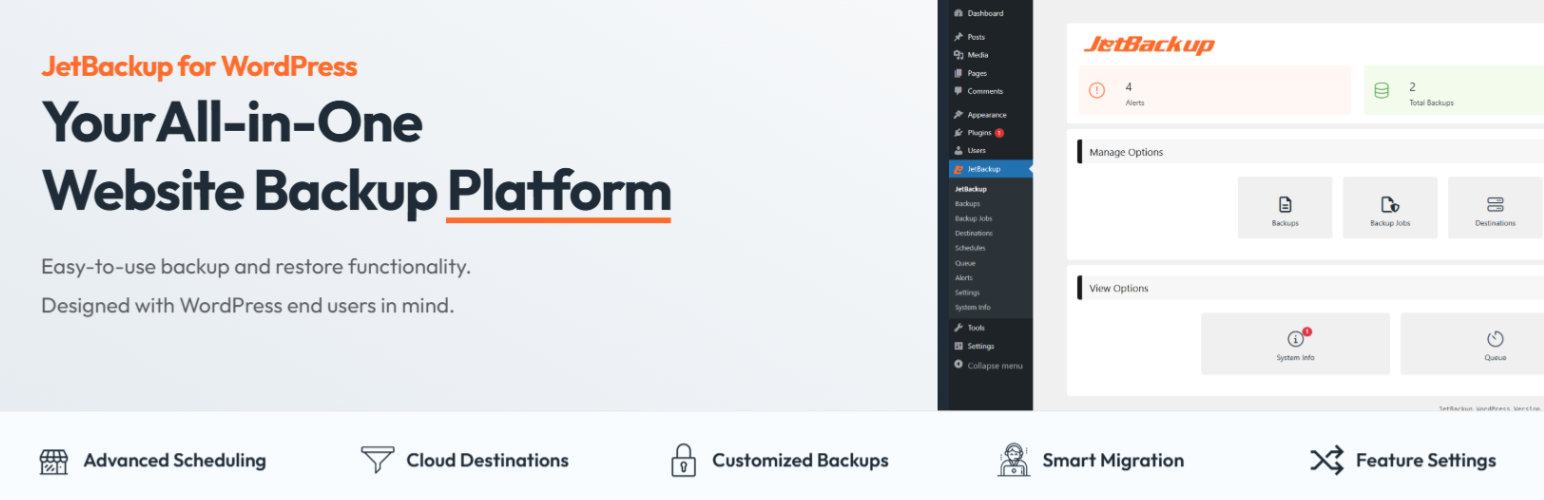
In the WordPress ecosystem, backup is a crucial issue for any website. JetBackup is emerging as a complete, high-performance solution for effectively protecting your site.
This plugin meets the needs of WordPress site creators, developers, and site owners looking for a reliable and intuitive backup solution.
With over 100,000+ active installations and an average rating of on the official directory, JetBackup reviews testify to its quality and effectiveness.
It offers essential features such as unlimited backups, simplified migrations, and advanced automation options, adapting to all types of web projects.
Advantages and disadvantages
| Advantages | Disadvantages |
|---|---|
| Unlimited backups: you can create an unlimited number of file and database backups | Free version limitations: only one site supported and advanced features reserved for the paid version |
| Easy site migration: comprehensive tools for migrating a site from one host or domain to another, with data refactoring | System resource consumption: may require significant resources for large databases and complex sites |
| Cloud integration (PRO): upload backups to Dropbox, Google Drive, Amazon S3, etc. | Complexity for novice users: some advanced features can be difficult to configure |
| Automated backups : Customizable scheduling with multiple backup profiles | Price: comprehensive features available only in the paid version |
| Email notifications: alerts on backup activity | Performance risk: can potentially impact site performance during backups |
| Restoration flexibility: detailed options for restoring specific backups | Potentially limited compatibility: may encounter problems on certain server configurations |
JetBackup in numbers
| Latest version | 3.1.19.8 |
| Date of last update | |
| Active installations | 100,000+ |
| Average rating | |
| Supported sites (Pro version) | Unlimited |
| Backup type | File, database, mixed |
| Cloud storage | Dropbox, Google Drive, Amazon S3 |
| Backup modes | Automatic and Manual |
JetBackup plugin prices
| Starter Plan | Solo Plan | Admin Plan | Pro Plan |
|---|---|---|---|
| Free | $19.95/year | $49.95/year | $99.95/year |
|
|
|
|
JetBackup user reviews
JetBackup is a WordPress backup plugin that is particularly appreciated by users for its simplicity and efficiency.
Feedback highlights its ease of configuration, fast migration features, and reliable automatic backups.
I’ve tried several backup plugins, but this is the best. Easy to configure and very reliable.
freemus
I am very satisfied with this plugin. The automatic backups work perfectly and restoration is simple.
caykhe36
Very good plugin for backups and migrations. Customer support is also excellent.
elialum
More JetBackup testimonials
Find out how JetBackup ranks in terms of user satisfaction on various customer review platforms.
| Platform | Rating |
|---|---|
| WP.org | |
| TrustPilot | 2,5 out of 5 |
| Capterra | 4.5 out of 5 |
Alternatives to JetBackup
UpdraftPlus

UpdraftPlus is one of the most popular and widely used WordPress backup plugins, with over 3 million sites relying on it.
It offers programmable automatic backups and seamless integration with many cloud storage services like Google Drive, Dropbox, Amazon S3, and others.
The plugin also makes it easy to restore backups with a few clicks, and includes site migration tools in its premium version.
BlogVault
BlogVault is a premium backup plugin offering automated, incremental backups, stored on BlogVault servers for maximum security.
It features integration with Google Drive and Dropbox, and allows instant restoration in the event of problems.
BlogVault is particularly suited to mission-critical sites, including WooCommerce stores, and offers additional features such as uptime monitoring and staging site creation.
Jetpack VaultPress Backup

Jetpack VaultPress Backup, developed by the team behind WordPress.com and WooCommerce, offers real-time backups and multiple copies of your backups stored on Automattic servers.
This plugin is designed to ensure complete protection of your data, including files and database, and enables easy restoration in the event of problems.
It also includes additional security and maintenance features in some of its offerings.
JetBackup FAQs
How do I install the JetBackup plugin on WordPress?
To install the JetBackup plugin on WordPress, you need to follow these steps:
- Go to your WordPress dashboard.
- Go to Plugins > Add New.
- Search for “JetBackup” and click on “Install now.”
- Once installed, click on “Activate” to activate the plugin.
What are the main features of the JetBackup plugin?
The JetBackup plugin offers several key features, including:
- Unlimited backup creation: You can create as many backups as you need
- File and database backup and restore: Back up your files, your database, or both
- Site migration: Transfer your site to a new host or domain
- Scheduled automatic backups: Schedule regular backups with customizable frequencies
- Integration with cloud services: Store your backups on services such as Dropbox, Google Drive, and Amazon S3
How do I set up automatic backups with JetBackup?
To set up automatic backups with JetBackup, follow these steps:
- Go to the “Backups” section of the JetBackup plugin in your WordPress dashboard.
- Click on “Add a new backup.”
- Select the backup frequency (e.g. daily, weekly, monthly).
- Choose the backup time and the items to be backed up (files, database, or both).
- Configure backup destinations, including cloud services if required.
How do I restore a site with JetBackup?
To restore a site with JetBackup, proceed as follows:
- Go to the “Backups” section of the JetBackup plugin.
- Select the backup you wish to restore.
- Click on “Restore” and follow the instructions to restore the files and/or database.
- You can also specify which parts of the site are to be restored, such as databases or specific files.
Which cloud services does JetBackup support?
JetBackup supports several cloud services for backup storage, including:
- Dropbox
- Google Drive
- Amazon S3
- OneDrive
- Box
- pCloud
You can configure these cloud destinations in the plugin settings to store and import your backups.
How do I manage backup notifications with JetBackup?
With JetBackup, you can receive email notifications of backup activities. You can enable or disable these notifications in the plugin settings.
In addition, you can configure other notification methods such as Slack, Google Hangouts, or Syslog, depending on your needs.
What are the most common problems with JetBackup and how can they be solved?
Here are some common problems and their solutions:
- Memory problems: Adjust the number of database rows processed at a time in JetBackup settings to avoid memory problems.
- Download errors: Check download settings and adjust the frequency of requests if necessary to avoid rate-limiting errors from cloud services.
Thank you for visiting this page dedicated to JetBackup 🙏
The WPMarmite team hopes you’ve been able to find out more about this WordPress plugin!
To find out more, visit the official website and their social networks:
You can also share your experience with JetBackup by writing a review below. 👇
Found an error on this page? Click here to report it.

