When you think about it, sending a newsletter should be child’s play (or close to it). You write, you proofread, you click “Send,” and that’s it: off it goes, like a letter in the mail.
Except a real email marketing strategy doesn’t stop there. You need to collect and manage your subscribers, segment them, automate some of your emails, create forms, and analyze your results.
All in all, that’s quite a lot. And what seemed so simple is starting to get a little more complicated.

MailerLite makes this very simplicity its main selling point. Its promise?
To bring together everything you need to grow your email marketing in one easy-to-use tool, even as your needs evolve.
It’s an appealing promise. But does it really hold up once you’re logged into the interface? To find out, we put MailerLite through its paces: ease of use, email creation, automations, forms, WordPress integration, statistics, and pricing.
Read on for our full MailerLite review. Ready to find out whether MailerLite really keeps email marketing as simple as it should be?
Let’s go!
- What is MailerLite?
- Is MailerLite easy to use?
- How do you create and send a newsletter with MailerLite?
- Automations, forms, and landing pages: what can you do with MailerLite?
- How do you connect MailerLite to WordPress and your other tools?
- Statistics, deliverability, and GDPR: is MailerLite reliable?
- How much does MailerLite cost?
- How good are MailerLite’s support and customer reviews?
- Our final MailerLite review: should you use it?
Transparency note: This article is sponsored and contains affiliate links to MailerLite. If you sign up for a plan through these links, WPMarmite may earn a commission, at no extra cost to you. This partnership helps fund our editorial work without influencing our opinion: we remain free to highlight both the strengths and the limitations of the tool.
What is MailerLite?

MailerLite is email marketing software that brings together a suite of digital marketing tools to “grow your audience faster and drive revenue smarter,” according to its homepage.
Founded in 2010 in Lithuania, MailerLite claims more than one million users. Its name sums up its positioning: “Lite” as in lightweight… and definitely not as in a watered-down version!
The company has made simplicity its philosophy. As its About page explains, it avoids unnecessary features and complex processes, and focuses entirely on building a solution its customers need and enjoy using.
That’s an important nuance, because MailerLite is actually much more than a simple newsletter tool.
For example, the platform lets you:
- create and send email campaigns
- manage and segment a subscriber list
- build automations
- create forms and pop-ups
- design landing pages, a website, or a blog
- sell digital products, newsletters, and subscriptions
- track the performance of your campaigns
- connect to many third-party services through hundreds of integrations.
Now that the introductions are out of the way, let’s get down to business: getting started with the tool. So, does the much-touted simplicity really deliver on this front?
The company behind MailerLite also offers another tool called MailerSend, which focuses on sending transactional emails triggered by an action (order confirmation, password reset, etc.). Here, we’re focusing solely on MailerLite. To learn all about its little brother, check out our MailerSend review.
Is MailerLite easy to use?
Creating an account and getting started
To see what MailerLite is made of, you first need to create an account.
To do this, click “Sign up” in the top right corner of the homepage, then fill out a quick form with a few details (name, email address, password):

Next, you enter a name for your account, then answer a few questions to “make MailerLite more useful to you” (number of newsletter subscribers, your industry, your address, and your main priority when using the tool):

The bottom line: the very well-guided signup process takes less than a minute in total (you can even sign up with a Google, Apple, Microsoft, or GitHub account to go even faster).
The basic promise (that famous simplicity) is kept. After these first few clicks, you land on your MailerLite admin interface (your customer account, in other words):

A clean, intuitive interface
Once you’re logged in, MailerLite gives off a rather reassuring impression. The interface is clean, bright, and uncluttered, with plenty of white space and a few touches of green to highlight important actions.
Nothing spectacular, but that’s exactly what we like about it: the information stays front and center, with a clear hierarchy that helps you find your way around quickly.
The main navigation fits into a sidebar on the left. It groups the tool’s main features in a fairly logical way:
- Dashboard: an overview of your activity
- Subscribers: managing subscribers and segments
- Campaigns: creating and tracking newsletters
- Automations: automated workflows
- Forms: forms and pop-ups
- Sites: landing pages and websites
- Products: selling products.

Settings you use less often (Account settings, Integrations, File manager, etc.) are tucked away at the bottom. So you quickly understand where to go, even the first time you log in.
The central dashboard also contributes to this simplicity, the common thread of this review, as you’ve probably gathered.
A checklist guides you through four initial steps (creating an email, setting up your brand styles, adding subscribers, and connecting your domain), while the “Performance overview” section then brings together your key metrics:
- subscribers
- emails sent
- opens
- clicks
- automation performance.
Without further ado, let’s move on to the heart of the matter: creating a newsletter.
How do you create and send a newsletter with MailerLite?
How good is the email editor?
To write your first newsletter with MailerLite, head to the “Campaigns” menu in the left sidebar.
Then choose the type of campaign you want to send. In our case, it’s a “Regular campaign,” which lets you send a one-off newsletter to a selected group of subscribers:

Right after that, it’s time to pick the template of your choice, with 130 options spread across 15 categories (Black Friday, Blog and updates, E-commerce, Business, Products, Survey and quizzes, etc.):

Once you’ve found what you’re looking for, you land in MailerLite’s drag-and-drop editor. Spoiler alert: it’s one of the tool’s strong points.
Its principle shouldn’t throw you off, since it works in a way similar to the WordPress block editor (Gutenberg).
You add blocks from the left-hand panel, then arrange them to build your email: text, image, button, columns, divider, social media, etc.

In practice, the editor strikes a good balance between a quick learning curve and freedom to customize.
You can produce a newsletter with a clean design while keeping enough control to avoid feeling like you’re sending the same template as everyone else, thanks to the style settings on the right of the screen (you can even apply global style settings specific to your brand):

All text can be customized in WYSIWYG mode (What You See Is What You Get), with your changes visible in real time.
The footer can also be edited directly, and all emails are responsive by default. Finally, you can send a test email to check how your creation looks.
If needed, you can also send two versions of your email campaign as an A/B test. Four types of tests are available: subject line, sender, content, and send time. To do this, choose the “A/B split campaign” option when selecting your campaign type.
How do you manage and segment your subscribers?
A subscriber list really comes into its own when you start organizing it and using it smartly.
MailerLite centralizes this in the “Subscribers” menu, where you can add your contacts and sort them according to different criteria.
To build your list, you have several options: import a CSV or TXT file, copy and paste your contacts from Excel, bring them over from Mailchimp, or use the API.
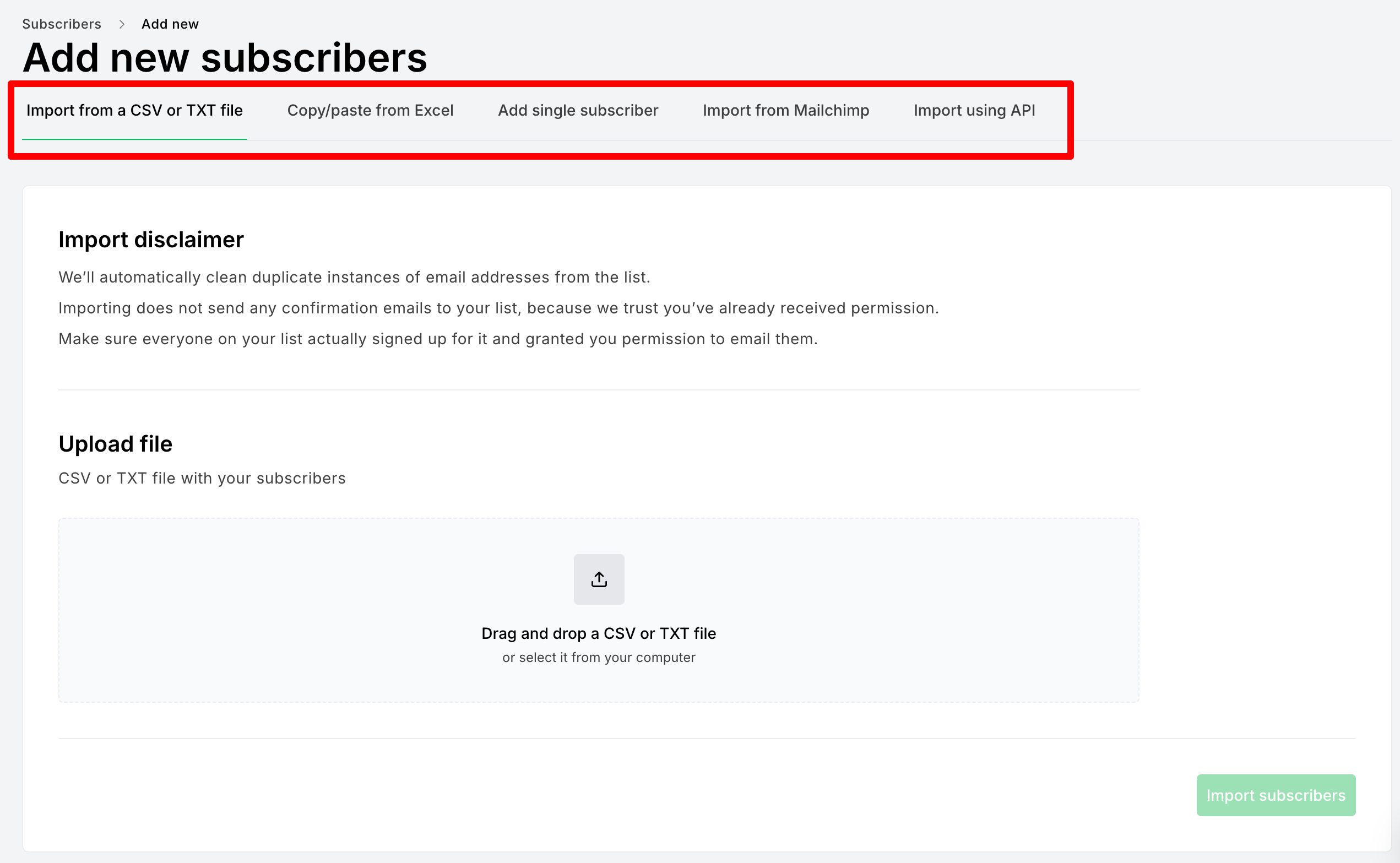
To organize your contacts, MailerLite distinguishes between two concepts:
- A “Group” is a list with no membership rules. You can add or remove subscribers manually, through an automation, or via an integration.
- A “Segment,” on the other hand, is based on one or more conditions and updates automatically.
Let’s take an example. You could create a “WordPress Newsletter” group for people who signed up through a specific form.
At the same time, a segment can automatically bring together all your subscribers who signed up less than 60 days ago. On day 61, they’ll leave it without you having to lift a finger.
This simple distinction is well thought out: Groups let you organize your audience easily, while Segments add a layer of dynamic targeting that’s much more useful for personalizing your campaigns.
You now know how to create and send a one-off campaign. But MailerLite has more up its sleeve, as you’ll see just below.
Automations, forms, and landing pages: what can you do with MailerLite?
How do you create an automation with MailerLite?
Now, picture the following scenario. A reader signs up for your newsletter from your WordPress site.
You want to send them a welcome message right away, wait two days, send them a second email, then take a different action depending on their behavior.
Doing it manually would be a strange idea… and a huge waste of time!
MailerLite lets you build this scenario with its automation editor, available from the “Automations” menu in your account.
Just like with a regular campaign, you can either start from scratch or use a template to design your first automation:

Once you’ve made your choice, you get a visual builder. Your workflow (automation) reads from top to bottom, like a diagram. This visual representation helps a lot.
From the left sidebar, you first choose a trigger, such as clicking a link or filling out a form.
Then you stack up the steps (email, delay, condition, or action) by dragging and dropping them onto the diagram:

The result: your workflow comes together quickly and stays easy to read. For most needs (welcome sequence, lead magnet, follow-up, or post-purchase emails), it does the job very well.
For very sophisticated scenarios, MailerLite reaches its limits. For example, there’s no trigger based on pages visited, no lead scoring, and no CRM (a tool for managing customer relationships).
This choice mainly reflects the tool’s positioning: MailerLite aims more to make automation accessible than to become a marketing automation lab.
How do you create a signup form?
After newsletters and automations, it’s time for forms. They’re a must for collecting your first email addresses and building your subscriber list.
Here, MailerLite offers three options, available from the “Forms” menu:
- Pop-ups, with the ability to fine-tune when they appear.
- Embedded forms, which mainly let you offer a newsletter signup form.
- Promotional pop-ups, to display important information such as announcements or new discounts.
For this test, we created an embedded form called “WordPress Newsletter.”
You first choose the group new subscribers will be added to, then you customize your form’s fields and appearance (along with its confirmation message):

The real benefit lies in how smoothly everything connects. A visitor fills out your form on your WordPress site, joins the matching group in MailerLite, then automatically triggers the sequence you just built. No need to pass your contacts through three different tools.
How do you create a landing page without WordPress?
Another feature in MailerLite’s toolkit: the tool includes a landing page builder (in the “Sites” menu). The principle is the same as for MailerLite’s other marketing tools.
The visual editor lets you start from a ready-made template, then add the sections you need for a lead capture page, a promotion, or a sales page.

A/B testing then lets you compare different variants, if needed. You can also connect the page to your domain name and measure visits and conversions with analytics data.
Is it enough to replace WordPress? It all depends on how you use it. For a strategic page meant to live on your site for the long term, we think it’s better to keep the control offered by the native WordPress editor or a page builder (Elementor, Divi Builder, etc.).
On the other hand, for quickly publishing a page tied to a campaign without touching your main site, the Landing Page feature can make sense. It’s a complementary tool, not necessarily a replacement.
Speaking of which, let’s now look at how MailerLite gets along with WordPress and the rest of your ecosystem.
Good to know: MailerLite also offers its own drag-and-drop website builder. And through the “Products” menu, you can also sell digital products (ebooks, templates, etc.) and bookings (paid consultations, webinars, discovery calls, etc.) by connecting Stripe to MailerLite.

How do you connect MailerLite to WordPress and your other tools?
How do you integrate MailerLite with WordPress?
Remember the form we created earlier? It’s time to display it on WordPress, right?
The easiest way to do this is with the official MailerLite – Signup forms plugin.

Install and activate it from your WordPress admin, under Plugins > Add Plugin:

Once the plugin is activated, you need to generate an API key in a few clicks from your MailerLite dashboard, under Integrations > API:

Once that’s done, paste it into the field provided in the MailerLite > Settings menu of your WordPress dashboard:

Your forms then show up in WordPress. To add one to the content of your choice (page, post), add the “MailerLite Signup forms” block in the WordPress block editor, then select the form you want:

On the visitor side, each signup goes straight into the right group… and, for example, triggers the automation we created just before.
Note that you can also create a form directly in the WordPress interface with the MailerLite plugin.
However, the interface is much less visual than in your MailerLite dashboard. The plugin integrates natively with WordPress and uses the old WordPress editor (TinyMCE), which is far less visual. So forget drag and drop and real-time previews: the whole thing is much less intuitive.

If you run a WooCommerce store, you’ll be glad to know that MailerLite offers an official integration through the MailerLite – WooCommerce integration plugin.

This integration lets you:
- automatically sync your WooCommerce customers with your MailerLite subscribers
- import your WooCommerce products directly into your email campaigns
- send abandoned cart reminder emails
- track purchases linked to your campaigns, etc.
What integrations does MailerLite offer?
MailerLite doesn’t lock you into its own ecosystem, either. Its catalog includes more than 150 integrations, including WordPress, WooCommerce, Slack, Stripe, Canva, Make, and Zapier.

The catalog mixes official connectors and third-party solutions, whose maintenance can vary. In short, integration is easy with common tools.
For everything else, you’ll need to go through Zapier, Make, or the REST API to build your own integration.
MailerLite also offers its own MCP server
More unusually, MailerLite offers an MCP server (Model Context Protocol). If that acronym doesn’t ring a bell, think of it as a kind of standardized bridge between MailerLite and an AI assistant.
Once you’ve authorized the connection, your assistant can interact with some of your account’s data and features.
MailerLite notably documents connections with ChatGPT, Claude, Cursor, and VS Code.
You can then use natural language prompts to work on your subscribers, campaigns, or statistics.
However, keep the following point in mind: you’re granting the AI tool of your choice access permissions to your account.
MailerLite states that the connection remains under your control and that data isn’t sent to the assistant on its own initiative.
Is it essential today, especially if you’re new to email marketing? No. Is it promising? In our opinion, yes.
Few email marketing tools highlight this kind of integration so prominently.
Creation, automation, integrations: the picture looks pretty solid. But your emails still need to reach their destination, and your data needs to be handled properly.
Statistics, deliverability, and GDPR: is MailerLite reliable?
Are the statistics detailed enough?
MailerLite brings together the main metrics you need after sending a campaign: opens, clicks, unsubscribes, bounces, and link activity.

If needed, you can even create your own custom reports, with the metrics that matter most to your business.
If you run a connected store, purchase and revenue data can also enrich your analysis.
On this point, our impression is pretty similar to the one we had with automations: MailerLite provides what most of its target audience really needs, without trying to turn its dashboard into a business intelligence tool.
For a blogger, a creator, or a small business, that seems like the right compromise to us.
Teams that want to cross-reference many datasets or build very advanced reports will run into more limitations, however.
What tools does MailerLite offer to improve deliverability?
Deliverability refers to your emails’ ability to reach the inbox rather than the spam folder.
And let’s be clear: no software can guarantee perfect deliverability on its own.
Your domain, your sender reputation, the quality of your list, and subscriber engagement also come into play.
MailerLite lets you authenticate your domain and also relies on MailerCheck, a tool designed to clean subscriber lists.
MailerCheck can verify an entire list or a few individual addresses, or check new addresses in real time via its API.
In particular, MailerCheck detects addresses likely to bounce, full mailboxes, disposable addresses, typos, and catch-all addresses.
By weeding out low-quality contacts before sending, you reduce bounces and protect your sender reputation, two key factors for deliverability.

Is MailerLite GDPR compliant?
For a tool that handles your subscribers’ data, there’s no avoiding the topic of the GDPR (General Data Protection Regulation).
MailerLite says it stores its data in the European Union. Its documentation specifies that its services rely on data centers located in Germany and the Netherlands, with ISO/IEC 27001:2022 certification.
The company itself also holds this certification and provides a Data Processing Addendum (DPA) governing data processing.
For European users, this positioning is reassuring. Having a European infrastructure also makes things easier to assess compared to some solutions that rely entirely on American infrastructure.
Still, keep one rule in mind: MailerLite can help you comply with the GDPR, but it can’t be compliant on your behalf.
How you collect consent, use data, and inform your subscribers remains your responsibility.
After the technical side, let’s move on to a much more practical question: how much does MailerLite cost?
How much does MailerLite cost?
MailerLite offers a free version, called “Free.” It notably lets you send 2,500 emails/month and run 3 automations, for up to 250 subscribers.
The “Free” plan includes many essential features, such as email campaigns, all three types of email editors (drag and drop, custom HTML, and rich text), automations, signup forms, a landing page and a website, unlimited segments, selling digital products or managing bookings, MCP access, and more than 100 integrations.
If this starting point isn’t enough, MailerLite offers 3 paid plans, whose price goes up with the number of subscribers on your list:
- “Comfort” ($10.80/month) for 500 subscribers and 5,000 emails
- “Power” ($22.50/month) for 500 subscribers and unlimited emails
- “Enterprise” for a custom sending volume.
For a more detailed look at what each plan includes, check out MailerLite’s pricing page, with a (non-exhaustive) comparison table below:

Note that annual billing saves you 10% and that every new account gets a 14-day free trial of premium features.
Is MailerLite’s free plan still worth it?
Since June 2026, the “Free” plan only allows 250 subscribers and 2,500 emails per month (that’s ten campaigns a month at most for a full list), compared to 500 subscribers and 12,000 emails before.
In return, MailerLite has opened up more features to free accounts:
- custom templates
- HTML editor
- promotional pop-ups
- other tools that used to be more restricted.
“Free” now looks more like an extended MailerLite trial than a plan you can build a newsletter on for the long term.
For a new WordPress site collecting its first email addresses, it’s enough. If you already have a few hundred subscribers, you’ll need to upgrade to “Comfort” almost immediately.
In our view, 250 subscribers isn’t much. It’s one of the main limitations of the plan right now.
Especially since, on the free plan, you can’t remove the MailerLite logo from your emails, for example, which can be a major drawback.
Which pricing plan should you choose?
Can’t decide between MailerLite plans? Here’s our take depending on your situation:
- you’re just getting started: “Free” is enough to learn the ropes, but you’ll hit its limits quickly
- you publish a regular newsletter: “Comfort” offers excellent value for money. It’s primarily suited to solopreneurs and small teams
- you run multiple sales funnels: go for the “Power” plan. According to MailerLite, this plan is primarily aimed at busy marketers with multiple revenue streams and sales funnels
- your list has more than 200,000 subscribers: choose the “Enterprise” plan, a custom solution for businesses that need dedicated services and support.
A good tool also means a team that can help you when something goes wrong. Let’s see how good the support is.
How good are MailerLite’s support and customer reviews?
Our experience with customer support
MailerLite’s support depends on your plan. Free accounts notably have access to the community and get chat support during the 14-day trial.
Paid plans give you access to additional levels of support, with 24/7 email and live chat support on the “Power” plan (only email support is available on the “Comfort” plan).
The company advertises an average live chat response time of 5 minutes.
For our test, we wanted to check that and put the chat support, called LiteBot, through its paces.
It’s an AI-powered live chat that handles initial questions. If needed, the conversation can also be handed over to a “human” member of the MailerLite team.
In our case, we got an almost instant (under 10 seconds) and relevant answer to our question.

Documentation is also a big part of the MailerLite experience. The knowledge base is extensive and covers everything from your first campaigns to automations, integrations, and deliverability questions.
MailerLite also has a very rich YouTube channel (nearly 350 videos) that’s updated frequently:
What do users think of MailerLite?
To round out our own review of MailerLite, we also looked at what customers say about this email marketing software.
And the feedback is very positive overall. At the time of writing, MailerLite has a rating of 4.6/5 based on more than 1,100 reviews.

What’s interesting isn’t so much the rating as what keeps coming up in the reviews. Simplicity, easy-to-use automations, and value for money are regularly praised.
There are criticisms too. Some users would like more advanced reporting or automation features.
The recent reduction in the free plan’s limits has also ruffled a few feathers.
This feedback largely confirms our own take on the product. Simplicity really is its main strength, but it also determines where the most demanding users may feel constrained.
With that, it’s time for the final verdict in our last section.
Our final MailerLite review: should you use it?
MailerLite pros and cons
| Pros | Cons |
| Clear, clean, and intuitive interface | Free plan limited to 250 subscribers and 2,500 emails/month |
| Drag-and-drop email editor that’s very pleasant to use | Automations less suited to very advanced scenarios |
| Lots of email customization options | |
| All-in-one tool: newsletters, automations, forms, landing pages, and online sales | |
| Simple, effective segmentation with Groups and Segments | |
| Reassuring environment for GDPR and European users |
When do we recommend MailerLite?
After our test, MailerLite seems particularly well suited to beginners and intermediate users.
If you’re new to email marketing, its clear interface and visual editors let you create your first campaigns and automations without facing too steep a learning curve.
But let’s not reduce MailerLite to a tool for beginners. An experienced user can definitely find what they need if they’re mainly looking for efficiency and don’t need very sophisticated marketing machinery.
Segmentation, A/B testing, automations, landing pages, and integrations already give you plenty to build a solid email strategy.
Ultimately, that’s where MailerLite seems most relevant to us: you can start with simple needs, then gradually ramp up without having to switch tools as soon as your strategy grows.
When is MailerLite less suitable?
MailerLite becomes less relevant when this ramp-up leads you toward very advanced needs.
Marketing automation specialists building complex scenarios, large teams that need advanced CRM logic, or users who require very detailed reporting may end up feeling limited.
The same goes if you want to keep a list of several hundred subscribers for free: the 250-contact limit of the Free plan clearly works against it.
The WPMarmite verdict
So, does MailerLite manage to stay simple without becoming too limited? After testing it, our answer is a clear yes for most WordPress users.
We liked MailerLite for its quick learning curve and the consistency of its interface. You easily find your way around and, above all, you can create a polished newsletter, connect a form to WordPress, and build your first automation without spending hours figuring out how each tool works.
We also appreciated that this simplicity doesn’t come at the expense of features: segmentation, A/B testing, landing pages, integrations, and automations already leave plenty of room to grow. All from a European company that takes data protection seriously.
A few minor drawbacks, though: the free plan limited to 250 subscribers and less advanced automations for very demanding needs are its main weak points. But neither really dented our overall positive impression during this test.
If you’re looking for an email marketing tool that’s easy to use, comprehensive, and able to support you beyond your first newsletters, MailerLite is definitely one of the solutions we recommend for a WordPress site.
