A failure, a service that shuts down, or an unexpected traffic spike. And bam: suddenly, your entire site can collapse due to an issue with your hosting server.
That is every WordPress webmaster’s nightmare. The kind of thing that can happen… but we prefer to leave it to others.

It is precisely to avoid these unpleasant surprises that the Cloudways hosting platform created Cloudways Copilot.
This intelligent assistant automatically takes care of monitoring your server for you. As soon as it detects potential problems, it explains them clearly to you, and most importantly it resolves them automatically, with one click.
Want to know more? Let’s board immediately to discover our opinion on Cloudways Copilot.
After reading this content, you will know what Copilot is and how it works. You will learn about its benefits for your business, its pricing, and how to use it if needed.
Ready? Take off immediately!
- What is Cloudways Copilot?
- What are the features of Cloudways Copilot?
- How does Cloudways Copilot work?
- Why use this tool?
- Who is Cloudways Copilot intended for?
- How to use Cloudways Copilot step by step?
- How much does Cloudways Copilot cost?
- What future developments are planned for the tool?
- Our final opinion on Cloudways Copilot
This page is sponsored. Some links to Cloudways are affiliate links. If you purchase hosting from them, WPMarmite will earn a commission.
Thanks to affiliation, WPMarmite is able to remunerate the research and writing work of the blog’s editors. That said, we remain impartial. If a product is not worth it, we say so (or we simply don’t talk about it).
What is Cloudways Copilot?
Presentation of Cloudways Copilot
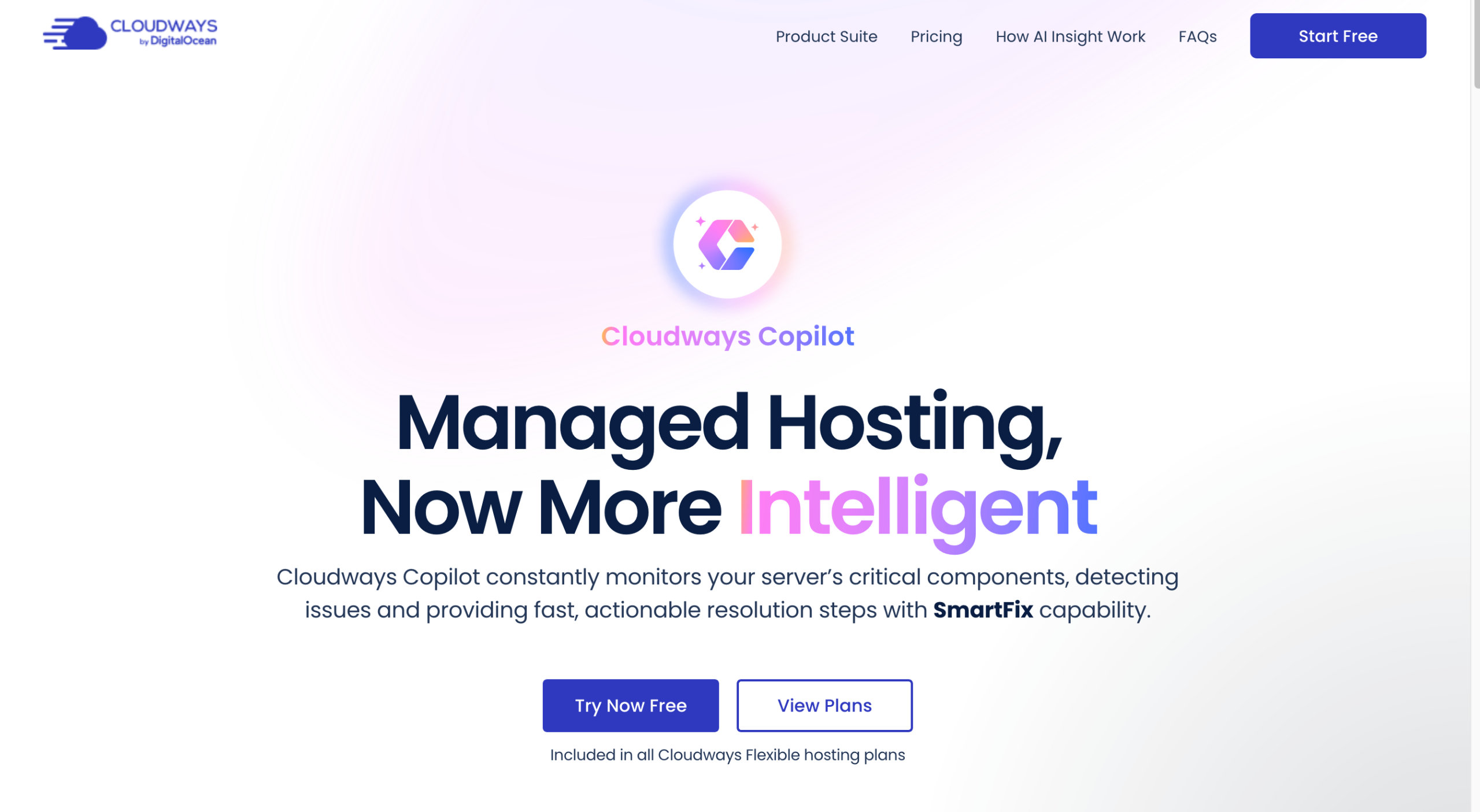
Cloudways Copilot is a generative AI-based advanced monitoring toolbox integrated into the Cloudways hosting platform. This assistant operates 24/7.
It automatically helps you diagnose and resolve server issues in real time, thanks to clear and concrete recommendations that don’t require complex manual troubleshooting.
Its main goals? To reduce incidents on Cloudways servers, improve their stability, and save you (a lot of) time by automating monitoring and the resolution of common server problems.
Cloudways claims that thanks to its Copilot system, server issues can be resolved up to four times faster than with a traditional support system managed by humans or bots:

Officially available since August 2025 on all Cloudways “Flexible” hosting plans, Copilot should not be confused with the already existing Cloudways bot.
In addition to monitoring your servers and notifying you of problems, which Cloudways already offers by default, Copilot goes further.
“Think of it as upgrading from a simple alert system, to having an intelligent assistant that tells you both what’s wrong and how to fix it”, Cloudways specifies.
Why launch this tool?
Based on the principle that “AI is reshaping the way technology is being adopted”, several reasons led Cloudways to offer the Copilot tool to its users:
- simplify complex workloads and make powerful technological tools accessible to small and medium businesses to help them gain efficiency
- offer an automated technical assistant to users who don’t master advanced server concepts
- reduce the user’s time lost with technical support and frustration with difficult-to-understand technical errors
- allow its users to focus on what matters most: developing their business and increasing profitability.
Driven by the desire to “create something meaningful for users”, Cloudways’ technical team has a long-term vision for its Copilot tool summarized as follows: “to offer a hosting platform that’s not just fully managed, but intelligent. It thinks, analyzes, and guides users through their hosting journey, breaking down complexity and making adoption of generative AI solutions easier for SMBs.”
What is Cloudways?
Before moving on, let’s have a quick reminder about Cloudways by DigitalOcean. It is a managed cloud hosting platform created in 2011.
It relies on the technical infrastructure of five major hosting server providers (you can choose whichever you want):
- Amazon Web Services (AWS).
- Google Cloud Engine.
- Linode.
- Vultr.
- Digital Ocean.
After continuous growth, the company was acquired in 2022 by DigitalOcean, an American cloud infrastructure provider. To date, it claims to serve more than 100,000 customers worldwide.
What are the features of Cloudways Copilot?
Still with me? Let’s continue with the key features of Cloudways Copilot. You’ll see, it has several handy options.
Real-time server monitoring
First of all, Cloudways Copilot’s generative AI continuously monitors your WordPress site hosting server, 24/7, all year round, to detect potential technical issues.
Specifically, the toolbox acts on the following aspects:
- the hosting itself: DDoS/DoS attacks, crawling by bots, unavailable services
- your application stack: Apache, Nginx, MySQL, PHP-FPM, etc.
- disk space: you receive an alert if usage exceeds 95%, thus preventing storage-related outages
- disk index nodes (inodes): Cloudways Copilot reports inode overload even when disk space is free
- backups: monitoring of failed or corrupted backups.
This comprehensive server monitoring is essential to understand what causes slowness, crashes, errors (500, 502, 503), etc.

Anomaly detection with intelligent AI alerts
Next, Cloudways Copilot analyzes the situation and tells you:
- what is happening
- why it’s happening
- the impact on your WordPress site
- what needs to be done to fix it.
As Cloudways by DigitalOcean notes, “Cloudways Copilot’s AI is designed to examine issues as they arise and provide comprehensive information that identifies not only what happened but why. You will receive detailed analysis including root cause analysis and step-by-step resolution recommendations.”
One-click automated problem resolution with Cloudways Copilot
Finally, once a server issue is reported by the AI, it’s time to fix it. That is where the SmartFix feature comes into play. It is the major strength (and added value) of Copilot.
Thanks to SmartFix, you can automatically apply the necessary steps to fix a problem with one click after reviewing the actions to be taken.
Some concrete examples of SmartFix usage include:
- clearing logs and cache to free up space
- automatically restarting failing services
- applying temporary DDoS protection
- repairing corrupted backups.
No technical knowledge of server infrastructure is required. Furthermore, you remain in control. If you wish, you can choose to apply fixes manually or let SmartFix handle it automatically.

How does Cloudways Copilot work?
Now, you are up to speed on Cloudways Copilot’s technical presentation and main features.
Let’s continue analyzing this AI monitoring tool with a detailed look at the workflow of Cloudways by DigitalOcean’s toolbox.
Ultimately, how does it manage to coordinate all these options to make it simple and understandable for you? Well, let’s say its operating mode can be likened to a slide, with four sequential steps:
- Copilot identifies a server problem (lack of disk space, web stack failure, backup issue, etc.).
- The AI determines the cause of the problem and generates detailed information.
- Cloudways Copilot tells you exactly the steps to follow to fix the problem manually.
- With one click, the SmartFix feature allows you to automatically apply the necessary steps to fix the problem after verifying its operation.
You see, everything flows. Without any effort on your part, you’ve smoothly arrived at the bottom of the slide.
Why use this tool?
Save time
Basically, Cloudways Copilot is a tool designed to save you valuable time. With it, there is no need to start a personalized chat with support. Everything happens automatically in the background, on your client interface.
According to data provided by Cloudways, you can resolve common server issues yourself in 5 to 6 minutes on average.
These figures contrast with the average time required to manually diagnose and resolve an issue with Cloudways human support help: 30 to 40 minutes.
One Copilot user, for example, saved their support team 15 hours/month thanks to Cloudways’ AI tool:
Very quickly, the difference can be considerable, especially if you manage a large portfolio of sites, whether for yourself and/or your clients.
If needed, Cloudways support team remains available 24/7, and can take over whenever you wish.
Increased reliability and security
Cloudways Copilot acts like a proactive monitoring system. This preventive approach has a direct effect on the reliability and security of your site.
Copilot continuously monitors essential services of your hosting server: MySQL, PHP-FPM, Nginx, CPU, RAM, storage, etc.
It identifies and mitigates DDoS attacks before they cause major outages, and guarantees the integrity of backups for safe restoration.
In case of anomaly, the tool immediately alerts you, and you can solve the detected problem with one click. This brings direct benefits for your peace of mind (less stress) and your WordPress site, of course:
- downtimes are less frequent, with fewer slowdowns on your page, since you fix problems faster
- your site becomes more stable
- many exploitation vulnerabilities are prevented.
On WordPress, many outages are related to server malfunction that Copilot can detect well before it becomes critical. If you have ever faced a White Screen of Death, you probably know what I’m talking about…
Also recall that every minute your site is down represents financial loss.
The sooner you address a technical problem, the more you take care of your wallet. According to a recent study, the average cost of service interruption now reaches $9,000 per minute for large companies!

No configuration required with Cloudways Copilot
Another notable asset of Copilot: it requires no settings, no installation, no server skills.
It works immediately after activation, with no need to configure alert thresholds, modify system files, or install an external tool (the tool is directly integrated into the heart of the Cloudways hosting platform).
As a result, the benefits are immediate for you. Everything is calibrated by Cloudways, with thresholds adapted to each server type.
Finally, Cloudways notes that its tool “is designed to have no impact on your server’s performance. Most of its activity takes place entirely on Cloudways infrastructure: it remotely analyzes metrics and server logs, thereby preserving your website’s performance.”
Who is Cloudways Copilot intended for?
No transition, let’s now move to the core target of Cloudways Copilot. Several types of users can benefit from the recommendations offered by the AI tool:
- agencies and freelancers with a portfolio of several sites. Copilot helps avoid sudden emergencies, reduce support tickets, and be alerted before outages
- developers who prefer to focus on coding and deploying features rather than solving server problems
- ecommerce store managers (such as WooCommerce)
- webmasters with high-traffic sites.
Alright, it’s time now to show you how to configure and use Copilot on your Cloudways by DigitalOcean hosting interface.
How to use Cloudways Copilot step by step?
Step 1: Choose a Cloudways hosting plan and create an account
To start using Cloudways Copilot, you must have a “Cloudways Flexible” hosting plan.
With this plan, you choose your hosting server and cloud provider (Digital Ocean, Vultr, Linode, AWS, or Google Cloud).
You pay based on usage depending on the chosen cloud provider, processor, RAM, bandwidth, and storage. Prices start at $14/month.
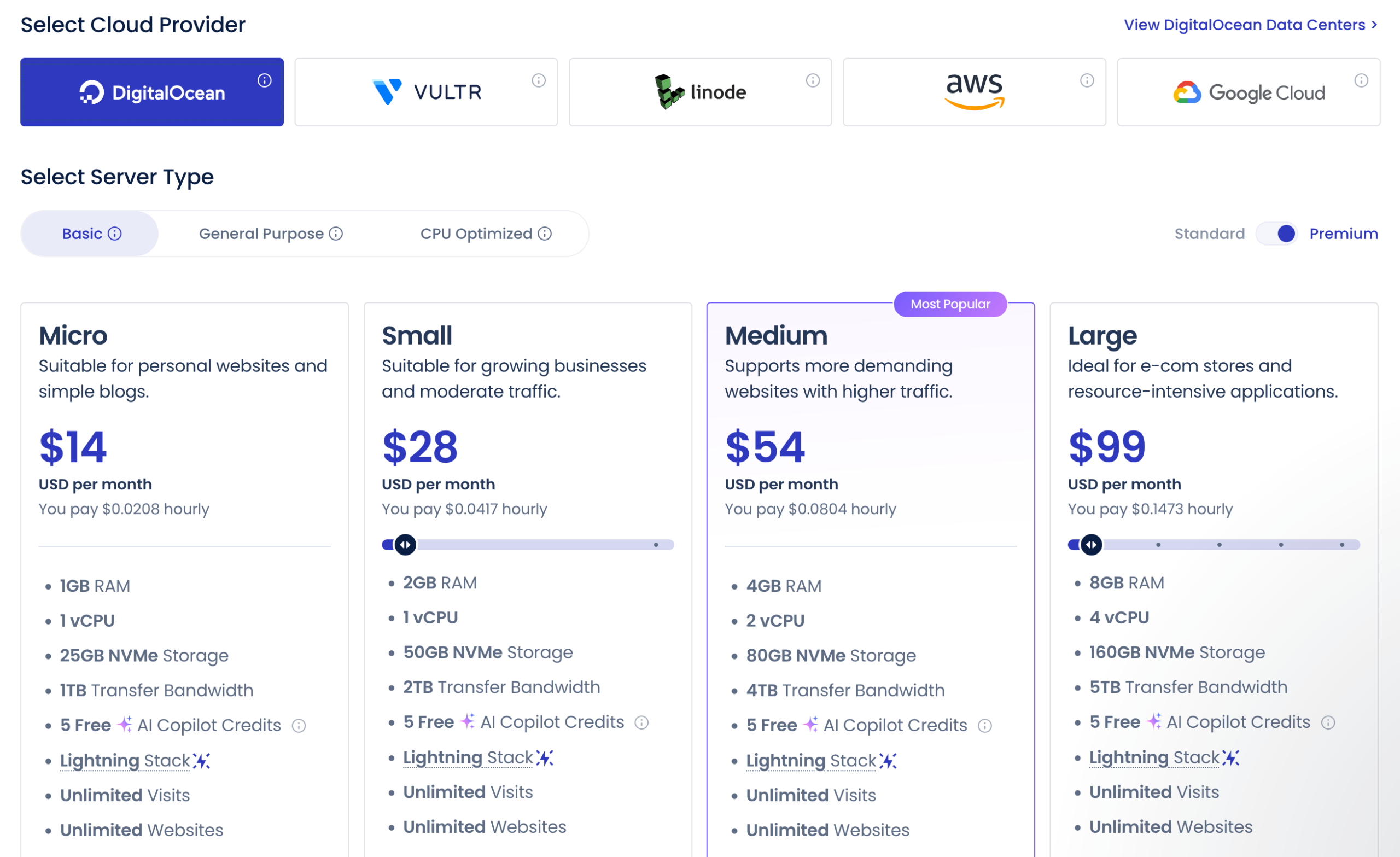
Once you have made your choice, click the “Try now free” button on the Cloudways homepage to create an account.
Fill in the required information in the form (first name, last name, email, password, etc.) or log in using a Google, GitHub, LinkedIn, or DigitalOcean account.
Cloudways offers a free trial of its services, which also lets you test Copilot at no cost.
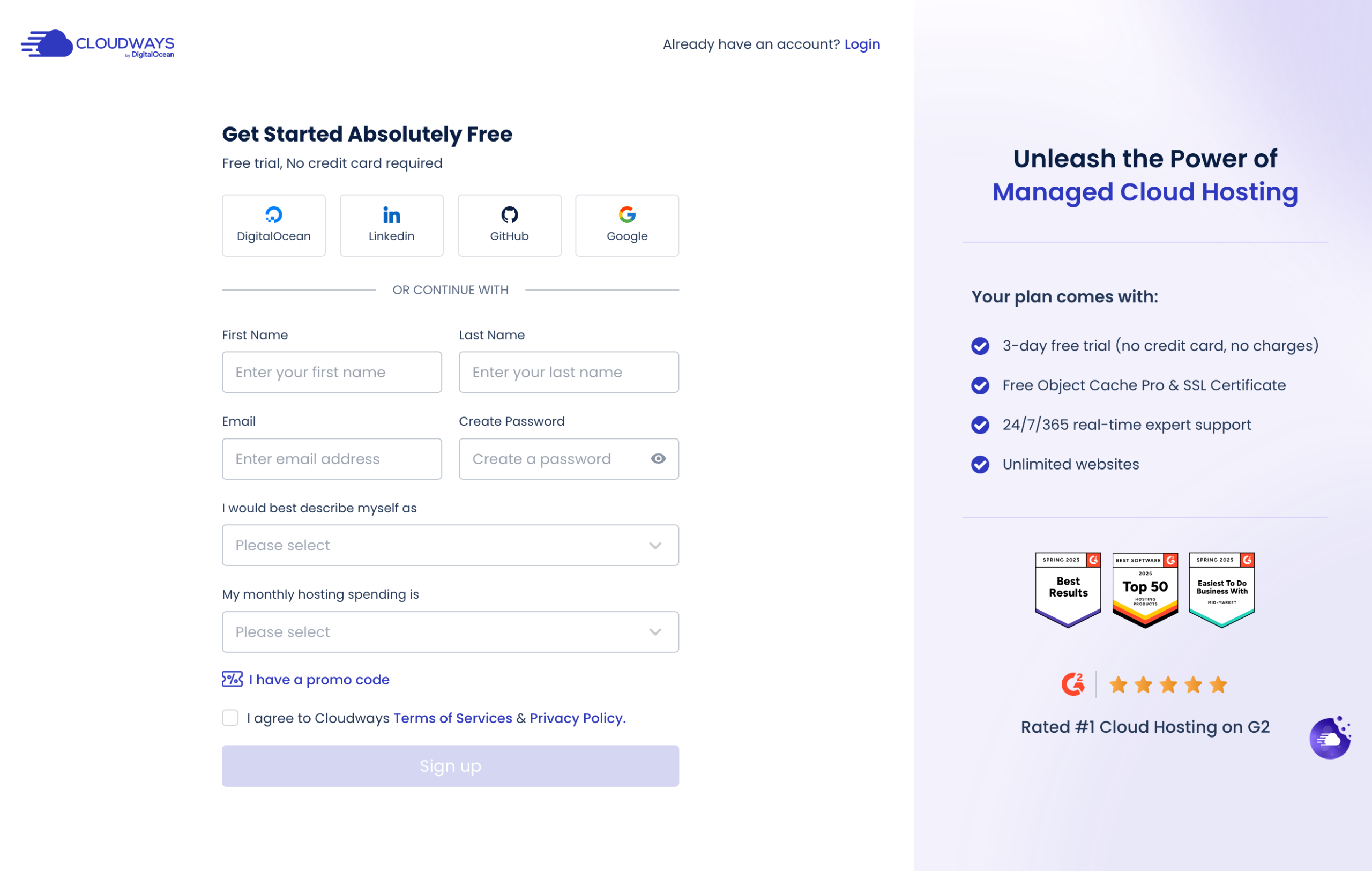
Once on your dashboard, you can access the information provided by Copilot at the top of the page, in a dedicated box:

Step 2: Understand the dashboard’s operation
The box dedicated to Copilot informs you about various items:
- problems detected on your hosting server (disk space, server, webstack, and backup). Phew, no problems reported for me yet ^^ (number 1 on the screenshot)
- the number of usage credits remaining (number 2)
- settings (number 3), which allow you to monitor the total number of open and resolved incidents each month, activate/deactivate Insights for your servers, or disable Copilot entirely
- display all reported information, the insights (number 4).

Step 3: Read and understand alerts
If a technical malfunction is reported to you, it will be listed next to what Copilot analyzes (for example, “Disk usage” or “Host health”).
Simply click on the shown number to get a concrete analysis (insight) of the issue:

By clicking on the problem, you get a detailed report:

Step 4: Use SmartFix
Finally, Copilot shows you the steps to take to solve the issue manually.
But if you wish, remember: you can use the SmartFix feature to automatically fix the malfunction with one click. To do this, click the associated button:
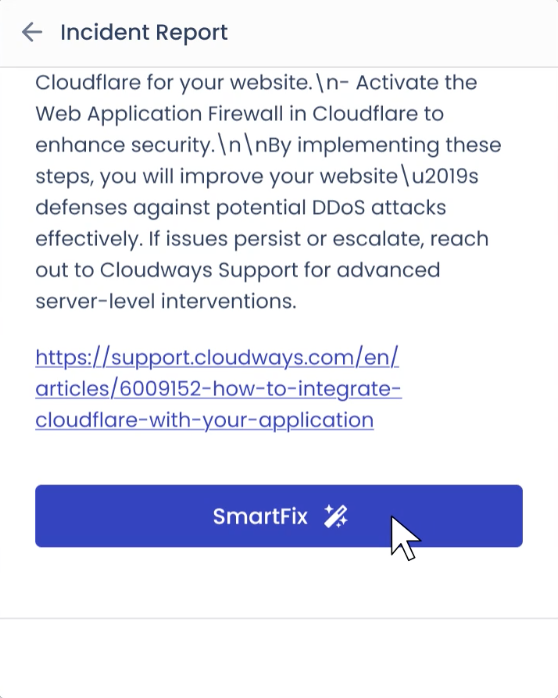
It takes only a few seconds for the tool to fix it.
How much does Cloudways Copilot cost?
Let’s now move to the question of price. If the tool interests you, you might want to know how much Cloudways Copilot costs?
You will have to choose, depending on your needs, one of the following plans:
- “Starter”: $0.00/month for 5 AI credits (valid for 6 months)
- “Growth”: $9.99/month for 12 AI credits
- “Scale”: from $19.99/month for 25 credits, up to $79.99/month for 100 credits.

Whatever the plan chosen (“Starter”, “Growth”, or “Scale”), credits reset every month.
Keep in mind that consulting an AI Insight report costs one credit, just like using a SmartFix. Credits are directly viewable on your Cloudways dashboard.
What future developments are planned for the tool?
While Cloudways is a tool just coming out of its shell at the time of writing, its creators have plenty of ambition for it, with well-established future development perspectives:
- bulk maintenance operations: Copilot will allow you to perform bulk maintenance operations on your applications and servers. For example, perform several application backups with one click
- automation of developer workflows: new tools are planned to automate common developer workflows.
Our final opinion on Cloudways Copilot
It’s time for the debrief and to share our final opinion on Cloudways Copilot.
Powerful, easy to use, and useful for ensuring server performance and site stability, Copilot is still a young and imperfect tool.
However, it is very promising and already effective at significantly reducing the risks of outage, slowdowns, or server crashes.
One of its major strengths remains its proactivity. Unlike a classic monitoring tool such as Uptime Robot or New Relic, it is capable of explaining the diagnosed problems to you, and most importantly of resolving them in one click.
Saving you very precious time, even if you don’t have technical knowledge in server management.
If you are already hosting sites with Cloudways or plan to do so, we recommend using Copilot, especially if you handle maintenance for one or multiple important sites (high traffic, online stores, client sites).
To start taking advantage of it, simply scroll down below:
