A 32% increase in bounce time — that hurts, doesn’t it? According to Google, that’s what you risk if the loading time of a page on your WordPress site increases from 1 second to 3 seconds.
Nobody wants a slow site. It’s bad for your SEO, it’s bad for the user experience, and it’s bad for your bottom line.
Just think: an e-commerce site that loads in less than a second converts twice as many visitors as one that loads in five seconds!

A fast site starts with the foundations: a clean technical infrastructure, with a quality host. A plugin can’t correct a faulty infrastructure.
To do things right, your site needs to be optimized on three levels: network infrastructure, hosting server, and application tools.
SiteGround acts on all three layers, using a multi-level optimization approach. In this article, you’ll find out in detail how it all works.
Transparency : This page is sponsored. Some links to SiteGround are affiliate links. If you purchase hosting from them, WPMarmite will receive a commission.
Thanks to affiliation, WPMarmite is able to remunerate the research and writing work of the blog’s editors. But we remain impartial. If a product isn’t worth it, we’ll say so (or we don’t talk about it).
High-performance network infrastructure
Google’s premium network to power SiteGround’s server infrastructure
At SiteGround, the first layer of optimization for your WordPress site is the network infrastructure.
The premium web hosting company founded in 2004 runs its service on the Google Cloud Platform (GCP), at the Premium service level.
Google Cloud Premium is simply one of the fastest networks on the market, ensuring optimum availability and reliability.
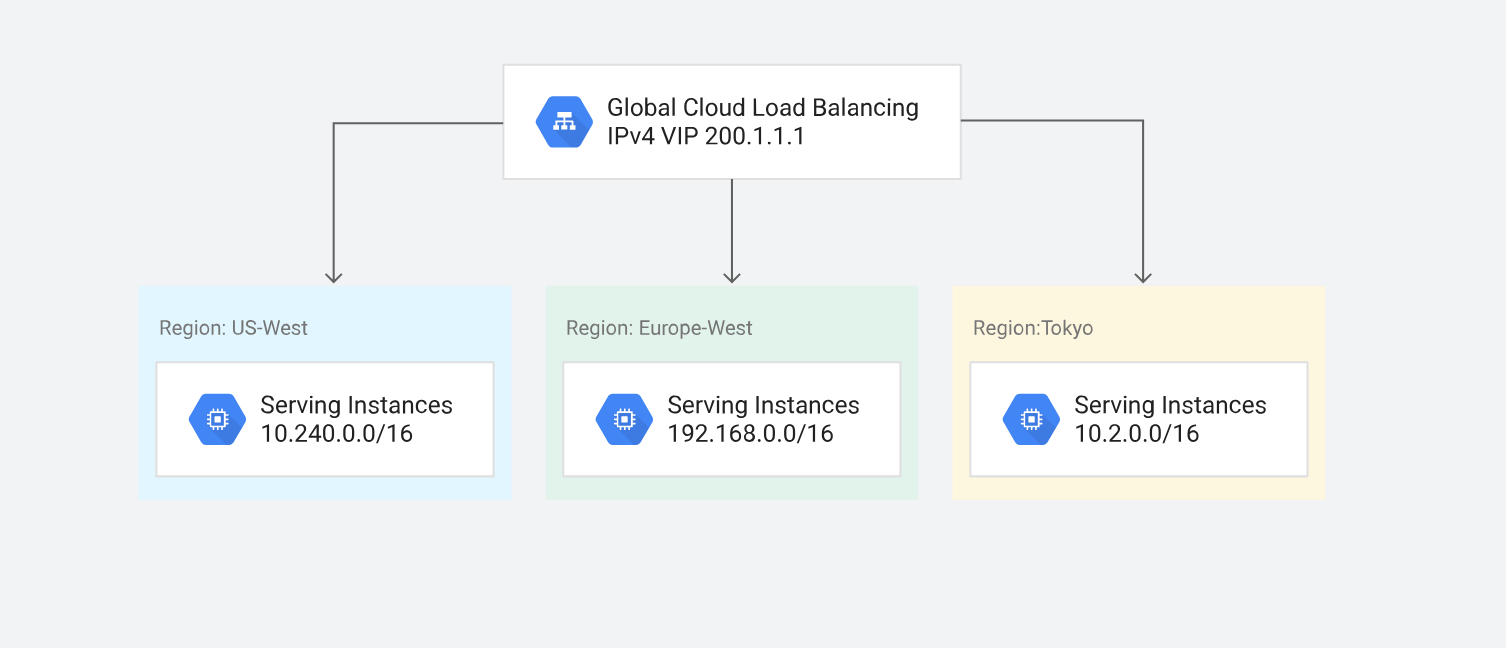
For your information, with the Premium level, routing, security, and networking features are much more advanced than with the Standard level of the Google network. This guarantees superior performance.
How does it all work behind the scenes? Google Cloud Premium is a highly reliable, low-latency, private fiber optic network.
Distributed across the globe, they have over 100 points of presence (POPs) worldwide. This optimizes connectivity and data transfer, giving you a fast network wherever you are.
This globally distributed infrastructure, combined with SiteGround‘s exclusive hosting management platform, means you can host multiple sites in different data centers, all in a single package! (SiteGround offers several data centers in the United States).
Cloud and SSD storage
As the name suggests, the Google Cloud Premium network is cloud-based. This means that the entire infrastructure is based on virtual machines rather than bare metal (physical) servers.
This configuration offers several advantages:
- For SiteGround, launching a new virtual machine is much faster and more efficient than with a physical server.
- Scaling resources such as CPU, RAM, and storage is simpler
- SSD storage of your data is distributed. Your WordPress site data is not stored on a single physical machine. In the event of a breakdown on a hosting server, you can rest easy: your files are protected and won’t be lost.
- SiteGround relies on custom Linux container (LXC) technology built on Google virtual machines. Even when traffic peaks, the stability of your WordPress site is guaranteed.
Last but not least, the use of Google Cloud Premium infrastructure is in line with SiteGround’s long-standing commitment to eco-responsibility.
Google Cloud offsets 100% of the energy consumed by its global activities with renewable energy and respects its commitment to carbon neutrality.

A free, integrated CDN service
After the Google Cloud Premium network, one of the strengths of SiteGround’s infrastructure is its CDN cloud service, integrated free of charge into all its hosting packages.
A CDN is a content delivery network made up of servers (physical or virtual) distributed around the world. The aim is to distribute your site’s resources as quickly as possible, using the server that is geographically closest to your visitor.
As SiteGround explains, this is “a site speed optimization service developed in-house specifically for our customers, who receive traffic from different geographic locations.”
In concrete terms, all the content of your WordPress site is first cached on several servers around the world, hosted entirely in the cloud.
In total, SiteGround relies on more than 170 edge network locations on five continents, all powered by Google Cloud’s internal network.
One location, for example, is available in Paris, and there are multiple locations in border countries (Spain, UK, Italy, Germany, Netherlands, etc.).
Then, content is delivered from the servers geographically closest to your visitors, for ultra-fast loading speeds and minimal latency.
Activating SiteGround’s in-house CDN is very simple, thanks to one-click configuration from the host’s Site Tools interface (Speed > CDN menu):

Thanks to their free CDN features, you can benefit from up to 10 GB of CDN bandwidth per month.
And the use of these resources doesn’t count towards your hosting plan’s storage quota, which isn’t all that common (competitors often charge extra).
A centralized, enterprise-level DNS system
Finally, the third aspect of network infrastructure optimization is based on a centralized, enterprise-level DNS system.
This allows SiteGround to use a separate cluster of multiple servers, without the need to use a DNS service for each of the production servers hosting your website.
A DNS (Domain Name System) server translates a domain name into an IP address. The DNS system indicates on which of the many servers on the internet your website is hosted.
For you, the end user, the benefits are as follows:
- Faster DNS lookup resolution. Thanks to centralized DNS, which operates across five different geographical locations and multiple instances, resolution is handled by the node closest to your visitor, reducing network delays and improving website loading speed.
- Greater redundancy during DDoS attacks. As traffic is attenuated over several servers, the impact and duration of the attack is reduced.
- In the event of a DNS server failure, your visitor will experience no downtime.
Server-side optimization at SiteGround
Everything making sense for you so far? Great! Without further ado, let’s discuss SiteGround’s second layer of load speed optimization.
Here, we’ll be looking at everything to do with server technology. To maximize performance, several aspects are optimized.
A multi-level caching system
First of all, SiteGround uses its proprietary SuperCacher solution to cache your site, making it up to five times more powerful.
Available free of charge on all hosting plans, SuperCacher increases the number of hits (HTTP requests) a server can handle.
This allows you to handle larger traffic peaks, while speeding up the loading speed of your WordPress site pages.
The SuperCacher solution offers three different caching options, all accessible from your Site Tools interface ( Speed > Caching menu):
- Static caching with NGINX Direct Delivery (default setting). When a visitor makes a request for one of your website’s static resources (images, CSS, JavaScript, etc.), Nginx delivers it directly without requesting the file from the server.
- Dynamic caching, a technology that caches the HTML output of your PHP code. This option is active by default on all SiteGround hosting servers.
- Memcached, a memory caching system used by database-driven sites. It is particularly suitable for sites with large databases.

Ultra-fast PHP configuration
Driven by a constant desire to improve page loading speed, SiteGround has developed a custom PHP configuration that uses less memory and enables the server to process a greater number of requests more quickly.
The advantages are many:
- Server stability improves during traffic peaks, as it can handle 20 to 30% more requests.
- TTFB (Time to First Byte) is reduced by 50%, so pages are served even faster.
- Server memory is reduced by up to 15% compared with a conventional PHP configuration, freeing up server resources.
Depending on your hosting package, you may wish to activate the PHP ultra-fast option if this is not already the case by default.
To do so, go to Site Tools and access the Devs > PHP Manager menu:

In particular, you can customize the settings for each of your sites (versions, PHP variables, etc.).
Custom MySQL configuration
Besides speeding up the processing of PHP scripts with the ultra-fast PHP feature, SiteGround also gives their full attention to the database.
To do this, the hosting provider offers its users its own MySQL configuration. Technically, this takes the form of a server-side solution that optimizes database queries.
An innovative approach distributes the server’s RAM and allocates it to MySQL, enabling a much higher number of parallel queries to be processed simultaneously.
Thanks to this process, SiteGround reports that the number of slow requests has been divided by 10 to 20 on its server infrastructure.
This more efficient memory management prevents server overload and helps to handle large database requests made on your site. And, in turn, your pages load faster.
Brotli compression and additional performance options
Last but not least, SiteGround is on the cutting edge to offer you the latest and most innovative speed technologies.
This includes, for example, Brotli, an open-source compression algorithm developed by Google to succeed gzip.
This technology is active by default on all SiteGround hosting servers. It reduces the size of your site’s data (HTML, CSS, JavaScript files, etc.) by 15–20%, for even faster page loading.
At the same time, SiteGround offers its users the latest versions of PHP and MySQL, for the sake of both security and performance.
And you can even take advantage of free monthly performance reports to identify areas for improvement and optimize your site’s loading speed.
WordPress-specific performance tools and features
Having discussed in detail the first two optimization layers relating to network infrastructure and hosting servers, we now come to the third and last, and by no means least: the performance options developed specifically by SiteGround for the WordPress CMS.
What is Speed Optimizer?
Top of the list is the Speed Optimizer plugin. Designed and developed by the SiteGround team of developers, this free, all-in-one plugin improves the performance of your WordPress site by optimizing several aspects: caching, frontend, media, environment, and more.

Winner of two Monster Awards in 2022 and 2024 — an award that recognizes the best WordPress products based on their category — Speed Optimizer is one of the most popular plugins in the WordPress ecosystem.
Active on over a million WordPress sites, Speed Optimizer can be used even if you’re not hosted by SiteGround.
However, some features are only available for websites hosted on the SiteGround platform (e.g. dynamic caching or Memcached), as Speed Optimizer has been designed to integrate primarily with SiteGround servers.
In fact, this is one of its advantages over a third-party solution. Using Speed Optimizer in conjunction with a SiteGround hosting server ensures better performance thanks to seamless integration and avoids any compatibility problems, since integration is native.
Easy to use thanks to its clear, intuitive interface, Speed Optimizer requires no technical expertise on the part of the user. Each option can be activated or deactivated with a single click, as you’ll see below.
What does the Speed Optimizer plugin do?
What exactly can you do with Speed Optimizer? The main features of the plugin are as follows:
- Powerful file-based caching, dynamic caching, and object caching (Memcached). You can also perform automatic or manual cache purging, or exclude specific URLs or message types from caching.
- Front-end optimizations (the visible interface of your WordPress site). For example, you have access to options for minifying and concatenating your CSS and JavaScript files, optimizing fonts by preloading them, and deferring the display of JavaScript files that block display.
- Media optimization with options for compressing your images and using WebP images (these two options are only available to SiteGround customers). In addition, you can also activate lazy loading and resize your images to fit a maximum width.
- Environment optimizations. Here, you can apply the HTTPS protocol with a single click. You can also optimize the use of your site’s resources by, for example, disabling the WordPress Heartbeat API, or scheduling database maintenance. Finally, if you’re hosted by SiteGround, you also have Gzip compression and browser caching enabled by default.
- Speed tests for your site, thanks to the Speed Test feature optimized by Google Page Speed. This will provide you with information on the level of optimization in over 20 different areas, and advice on how to make improvements.
If you enable Speed Optimizer on your WordPress environment, don’t use another loading speed optimization plugin in parallel, such as WP Rocket or NitroPack. You run the risk of duplicating similar features, which could make your site unavailable.
How do I set up and use SiteGround’s Speed Optimizer plugin?
Now that you’re familiar with most of Speed Optimizer’s features, let’s take a look at how to set it up.
If you have just created a new WordPress site at SiteGround, Speed Optimizer is already pre-installed and activated automatically. You can proceed directly to the configuration.
For existing sites or sites hosted elsewhere, install and activate the plugin on your WordPress dashboard via the Plugins > Add Plugin menu.

Then go to the plugin’s dashboard by clicking on the corresponding menu in the sidebar on the left side of your WordPress administration interface:

From this sidebar menu or your dashboard, you can access the optimization menus offered by Speed Optimizer by clicking on them:
- Caching
- Environment
- Frontend
- Media
The “Site Performance” menu, which allows you to set up a Page Speed test for your site, can also be accessed from the left-hand sidebar of your back office.
Each optimization menu on your dashboard has a score (e.g., ⅓) that tells you how many of the recommended optimizations in the corresponding section are already activated, and how many are waiting to be activated.

Once you’ve entered the menu of your choice (e.g., Caching or Environment), you’ll find all the available options, with recommended optimizations.
SiteGround states that these are “features that will have a significant impact on your loading speed, without affecting your website’s functionality or settings.”
To activate the option you’re interested in, nothing could be simpler: tap the little button (which should turn blue) opposite the option name. One click, and that’s all there is to it:

You don’t need to do anything else, and the option is already up and running. If you ever wish to deactivate it, simply click on the little button (which should turn grey again).
We recommend that you activate all the options recommended by Speed Optimizer. Before using Speed Optimizer, back up your WordPress site (files + database) so you can restore it in the event of a problem.
In addition to Speed Optimizer, SiteGround also offers two other WordPress plugins. Security Optimizer protects your site against malicious attacks, while SiteGround Migrator enables you to migrate your site to SiteGround hosting.
Automate your updates with the Autoupdate tool
In order to maintain a high-performance, properly optimized site, it must always be functional. So don’t neglect to update your WordPress installation!
With SiteGround, you can manage this aspect very easily thanks to a dedicated tool called “Autoupdate.”
You’ll find it directly on Site Tools, SiteGround’s web hosting control and management interface.
To access it, go to the WordPress > Automatic Update menu. You’ll find that you can give yourself peace of mind by:
- Setting up automatic updates for the core of your WordPress site (major and minor versions)
- Choosing an update execution time after the release of a new version (Immediate, 24 hours, 48 hours, or 72 hours)

The tool can even automatically update your plugins, if you wish, via the “Update plugins” option.
In the event of a problem, you’re covered. SiteGround performs a full site backup before each automatic update.
If necessary, you can easily restore one of these backups by clicking on the corresponding button in the “Last Backup” tab:

Conclusion
Having a fast website is no longer an option; it’s become a necessity if you don’t want to penalize your SEO and conversions.
That’s why choosing the right web host is so important. Siteground offers you the following advantages for optimizing your page loading speed:
- A multi-level optimization approach: network, server, and applications (WordPress-specific tools and plugins such as Speed Optimizer).
- An all-in-one platform, with native tools developed exclusively for SiteGround users.
- Premium features available free of charge: CDN, multi-layer caching system, and optimization tools.
- Proven results: On average, a site migrated to SiteGround is 85% faster.
Want to take action and improve your page load speed? Click below to check out SiteGround:
