
Backing up and securing a WordPress site is essential for any website owner. UpdraftPlus meets this crucial need with a complete backup and restore solution, acclaimed by over 3,000,000+ users.
With a rating of on the official WordPress directory, this plugin offers effective protection against the risks of data loss, making it quick and easy to back up, restore, and migrate a WordPress site.
Advantages and disadvantages

| Advantages | Disadvantages |
|---|---|
| Automatic and programmable backups (flexible schedules) | Advanced features reserved for the premium version |
| Multi-location cloud backup (Dropbox, Google Drive, etc.) | Additional cost to access certain features |
| Intuitive interface, no technical skills required | Potentially dated graphical interface |
| Site migration and restoration in a few clicks | Limited backup size in the free version |
| Compatible with WordPress sites of all sizes | Limited technical support in the free version |
| Full backup: database, plugins, themes, media | Potentially slower performance with large backups |
| More than 3M+ active installations, a very popular plugin | Requires initial configuration |
UpdraftPlus in numbers
| Latest version | 1.26.2 |
| Date of last update | |
| Active installations | 3,000,000+ |
| Average rating | |
| Launch date | 2011 |
| Publisher | Updraft WP Software |
| Country of origin | United Kingdom |
| License types | 4 (Personal, Corporate, Agency, Enterprise) |
| Supported sites (max) | 35 sites (excluding Enterprise license) |
UpdraftPlus plugin prices
| Personal | Business | Agency | Enterprise | Gold |
|---|---|---|---|---|
| $70/year | $90/year | $145/year | $195/year | $399/year |
|
|
|
|
|
UpdraftPlus user reviews
UpdraftPlus is widely regarded as a reliable and comprehensive WordPress backup plugin, offering a powerful free solution and numerous remote storage options.
Its ease of use and intuitive interface are particularly appreciated, offering users a simple and efficient backup experience. Although it has some limitations for busy e-commerce sites and large sites, it is still recommended for the majority of WordPress users.
I’ve been working with WordPress for a long time and have always used Updraft. The integration with Dropbox is fantastic.
KONG84
One of those must-have applications that installs before I’ve even chosen a theme.
jazzigula
I use it because it can move large sites without a problem,
it’s simple and safe.sothebys
Other UpdraftPlus testimonials
Find out how UpdraftPlus ranks in terms of user satisfaction on various customer review platforms.
| Platform | Rating |
|---|---|
| WP.org | |
| TrustPilot | 4.5 out of 5 |
| G2 | 4.4 out of 5 |
| Capterra | 4.7 out of 5 |
Alternatives to UpdraftPlus
BlogVault
BlogVault is an excellent alternative to UpdraftPlus, offering advanced features for backing up and managing your WordPress site. It features incremental backups, fast and reliable recovery, and a free staging environment.
With 100% site restoration success, BlogVault is used by over 450,000 WordPress sites worldwide. It offers automatic daily and real-time backups, one-click restore and off-site storage on its secure servers.
Jetpack VaultPress Backup

Jetpack VaultPress Backup is a plugin dedicated to backing up and protecting WordPress sites. It offers automated real-time or daily backups, making it easy to restore your WordPress site in the event of a problem.
This plugin is particularly appreciated for its reliability and simplicity, offering one-click restoration and secure cloud storage. It’s the ideal solution for ensuring the protection and continuity of your website.
Duplicator Pro
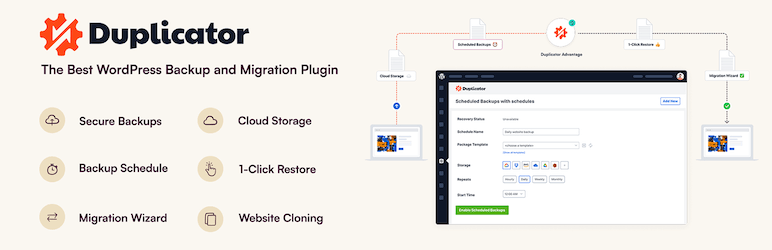
Duplicator Pro is a powerful, user-friendly plugin for backing up, migrating, and cloning your WordPress site. It lets you create manual or scheduled backups and store them on cloud services such as Dropbox, Google Drive, FTP, and Amazon S3.
Duplicator Pro also offers a recovery wizard to restore your backup files step by step, recovery points, and advanced site migration features.
UpdraftPlus FAQs
How do I install and activate the UpdraftPlus plugin?
To install and activate the UpdraftPlus plugin, go to the “Plugins” page in your WordPress dashboard. Search for “UpdraftPlus” in the WordPress.org directory and click on “Install,” then “Activate.”
For the paid version, use the “Download” function and follow the installation instructions.
What are the main features of the UpdraftPlus plugin?
UpdraftPlus offers several key features, including the ability to back up your website to multiple locations such as cloud storage (Google Drive, Dropbox, etc.), a remote server, a local device, or an external hard drive.
It also lets you schedule automatic backups and easily restore a backup of your website. What’s more, it supports incremental backups and automatic deletion of old backups.
How do I set up automatic backups with UpdraftPlus?
To configure automatic backups, go to Settings > UpdraftPlus Backups in your WordPress dashboard. Click on the “Settings” tab and configure backup schedules for files and database.
You can choose intervals ranging from every two hours to monthly. Be sure to click on “Save Changes” once you’ve configured your settings.
How do I restore a backup with UpdraftPlus?
To restore a backup, go to Settings > UpdraftPlus Backups and click on the “Restore” button. UpdraftPlus will scan your server for existing backups.
If you have backed up the files on your computer, you can upload them manually via the “Upload backup files” link. Follow the instructions to restore your site.
What storage locations does UpdraftPlus support?
UpdraftPlus supports a variety of storage locations, including cloud services such as Google Drive, Dropbox, Amazon S3, DreamObjects, and many others.
You can also store your backups on a remote server, local device, external hard drive, or via email.
How do I connect to UpdraftCentral with UpdraftPlus?
To connect to UpdraftCentral, install and activate the UpdraftPlus plugin on your WordPress site. Go to the plugin’s “Settings” page and scroll down to the “UpdraftCentral” section.
Enter your email address and password to create an UpdraftPlus account and connect your site to the UpdraftCentral dashboard by clicking on “Connect this site to UpdraftCentral Cloud.”
What should I do if I have a backup problem with UpdraftPlus?
If you encounter backup problems, first check that the backup settings are correct and that the storage locations are accessible.
Also make sure that file and folder permissions are correct. If the problem persists, consult UpdraftPlus documentation and technical support for further assistance.
Thank you for visiting this page dedicated to UpdraftPlus 🙏
The WPMarmite team hopes you were able to learn more about this WordPress plugin!
To find out more, visit the official website and their social networks:
You can also share your experience with UpdraftPlus by writing a review below. 👇
Found an error on this page? Click here to report it.

