It’s a classic. A WordPress site running smoothly for a few years, without any hiccups.
Until the day when a traffic spike blows all your certainties away. And bam: your pages take forever to load, your visitors leave right after landing on them, and your sales look gloomy.

The blow is hard, but often, the culprit isn’t you or your WordPress site. It’s your hosting. Either because it’s poorly sized for your current needs, or because it’s not powerful enough.
To enjoy a fast site, a quality host is essential. Cloudways, for example, offers dedicated servers, an ultra-responsive infrastructure, and advanced optimization options.
In short, this managed cloud platform is designed to absorb traffic surges without flinching.
Why and how? That’s exactly what you’ll learn after reading this content, which also reveals all the benefits of using Cloudways to take care of your pages’ loading speed.
This page is sponsored. Some links to Cloudways are affiliate links. If you purchase hosting from them, WPMarmite will earn a commission.
Thanks to affiliation, WPMarmite is able to remunerate the research and writing work of the blog’s editors. That said, we remain impartial. If a product is not worth it, we say so (or we simply don’t talk about it).
Cloudways, a platform designed for performance
An infrastructure with dedicated servers
Cloudways is a managed cloud hosting platform that handles all the technical aspects of your WordPress site: installation, updates, security, and scaling.
With cloud hosting, the focus is on performance (among other things). Your site runs on a network of virtual servers, and the system manages workload distribution.
Even in case of traffic spikes, performance remains constant. If a server fails, users stay connected via the other servers. Basically, the infrastructure adapts in real time. Moreover, the servers have dedicated resources (no sharing).
For you, it’s a big plus: your pages’ loading speed is less affected than on a standard shared server, with very high availability (Cloudways claims a 99.9% uptime).
The cloud hosting structure offered by Cloudways is mainly aimed at sites that receive significant traffic such as:
- ecommerce stores (like WooCommerce): Cloudways adapts your resources in real time, ensuring always fast pages and checkout processes,
- agencies managing multiple client sites: with Cloudways, you can organize and isolate your client projects. Each runs on its own server with distinct resources,
- content creators and online media (news sites).
On the other hand, if you have a personal blog with little traffic, there’s no need to bother with cloud hosting. A shared server will do just fine.
Cloud servers from premium providers
Cloud hosting is nothing new. Other hosting providers already offer this type of service.
Where Cloudways stands out is in the flexible and convenient aspect of its service offer.
The cloud hosting it offers relies on the technical infrastructure of five major hosting server providers (you can choose whichever you want):
- Amazon Web Services (AWS).
- Google Cloud Engine.
- Linode.
- Vultr.
- Digital Ocean.
If you know a bit about the cloud server world, you surely know that configuring an AWS or Google Cloud server isn’t as simple as making a coffee.
Some technical knowledge is required to avoid messing things up. To make users’ lives easier, Cloudways holds your hand and lets you launch the server of your choice (DigitalOcean, AWS, Google Cloud, Vultr, or Linode) with a few clicks.
Cloudways takes care of all the technical deployment of the server.

This allows you to benefit from a very high-end network infrastructure without ever having to get your hands dirty.
And for maximum flexibility regarding performance, the platform even offers two types of hosting plans:
- “Cloudways Flexible”: you have full control over server resources and the choice of hosting server (starting at $14/month).
- “Cloudways Autonomous”: a managed web server for high-traffic sites (with automatic scaling), such as large ecommerce stores (starting at $100/month).
Need more details on setting up a server at Cloudways and the pricing? Discover our full review of Cloudways.
High-end performance options
A solid hosting server is the foundation for optimal performance. With Cloudways, you have a rock-solid base to ensure a sturdy foundation.
But behind that, the platform doesn’t stop there. It offers advanced features with each of its plans to take care of your pages’ loading speed:
- latest generation SSD drives to reduce your pages’ loading time
- built-in advanced caches: instantly benefit from ultra-fast loading times thanks to integrated Memcached, Varnish, Nginx, and Redis caches with no complex configuration needed
- PHP 8 compatible servers: enjoy high performance with PHP 8.2 and free, transparent updates to the latest versions
- server environment with dedicated resources
- pre-installation of a custom cache plugin (more on this later)
- integration of Object Cache Pro, to enjoy smoother database loads and faster pages and queries
- possibility to choose your hosting server location depending on the provider chosen.

An optimized server stack
Speaking of hosting provider, note that every server you launch at Cloudways is powered by a fully optimized web application stack with integrated advanced cache and CDN.
In jargon, this is called a webstack, meaning a set of software used for web development, which includes at least:
- an operating system (Debian OS)
- a programming language (PHP)
- database software (MariaDB)
- a web server (Apache/Nginx).
Cloudways offers two types of webstacks:
- A hybrid stack (NGINX, Varnish, and Apache 2), mainly dedicated to applications requiring support for .htaccess files.
- A “Lightning” stack, combining the power of NGINX and Varnish. In the “Lightning” stack, NGINX handles the delivery of static and dynamic content. This stack is mainly intended for modern applications that do not require .htaccess files.
Cloudflare Enterprise to boost your WordPress site
Need to further improve the speed, security, and performance of your WordPress site? Cloudways offers integration with Cloudflare, one of the world’s most famous content delivery networks (CDN).
To enjoy this, you have two options:
- Connect your Cloudways server to your Cloudflare account for free to cache static assets such as images, CSS, and JavaScript files on its global data center network. This requires some somewhat technical manual settings.
- Enjoy even more advanced features with no complex configuration through a dedicated “Cloudflare Enterprise” add-on at $4.99/month for use on fewer than 5 domain names.
The Cloudflare Enterprise plugin notably gives you access to the following performance and security options:
- nearly 300 unique locations worldwide for the global content delivery network (CDN)
- Edge cache, to cache dynamic content and serve your entire WP site from Cloudflare’s Edge network. This optimization technique significantly reduces the initial response time (TTFB)
- Argo Smart routing, to reroute traffic in case of network congestion points
- Web Application Firewall (WAF)
- priority DDoS protection
- image optimization with Polish
- Brotli compression
- mobile optimization with Mirage
- HTTP/3 support, etc.
Cloudways CoPilot
Finally, let’s mention Cloudways CoPilot. It is an advanced AI-powered monitoring toolkit integrated into the Cloudways platform.
While its main purpose is to help you diagnose and resolve issues on your server in real time, Cloudways Copilot also impacts your site’s performance.
Because it can fix problems up to 4 times faster than traditional human support, Cloudways Copilot indirectly takes care of your WordPress site’s performance and page availability.
Thanks to the SmartFix feature, for example, you can automatically fix failing services (e.g., your web stack crash), clear logs and cache to free up space, and more with a single click.

Cloudways Lightning Stack, the secret weapon for ecommerce sites
We touched on it earlier, now let’s look in detail at Cloudways’ Lightning stack. It is one of Cloudways’ key features in terms of performance.
Available since November 2025, this application stack complements the existing one (Hybrid stack) at no extra cost for the user.
Offered on the “Cloudways Flexible” hosting plans, the Lightning stack uses a modern NGINX and PHP-FPM architecture designed for low latency and consistent throughput.
Simply put, it helps improve performance, especially for dynamic or high-traffic websites like ecommerce stores, LMS platforms, and membership sites.
According to independent performance tests reported by Cloudways, using the Lightning stack (instead of the hybrid architecture) would result in significant performance gains both in backend and frontend.
Cloudways notably claims the following results:
- up to 65% faster response times for dynamic workloads,
- up to 33% faster loading of the WordPress admin interface,
- up to 54% more requests handled during load tests without cache,
- reduced processor usage and decreased load spikes during traffic peaks,
- up to 58% more successful WooCommerce transactions.
How to switch to Lightning Stack on Cloudways?
To enjoy this application stack, it’s very simple. You can select it with one click when choosing your flexible hosting plan:
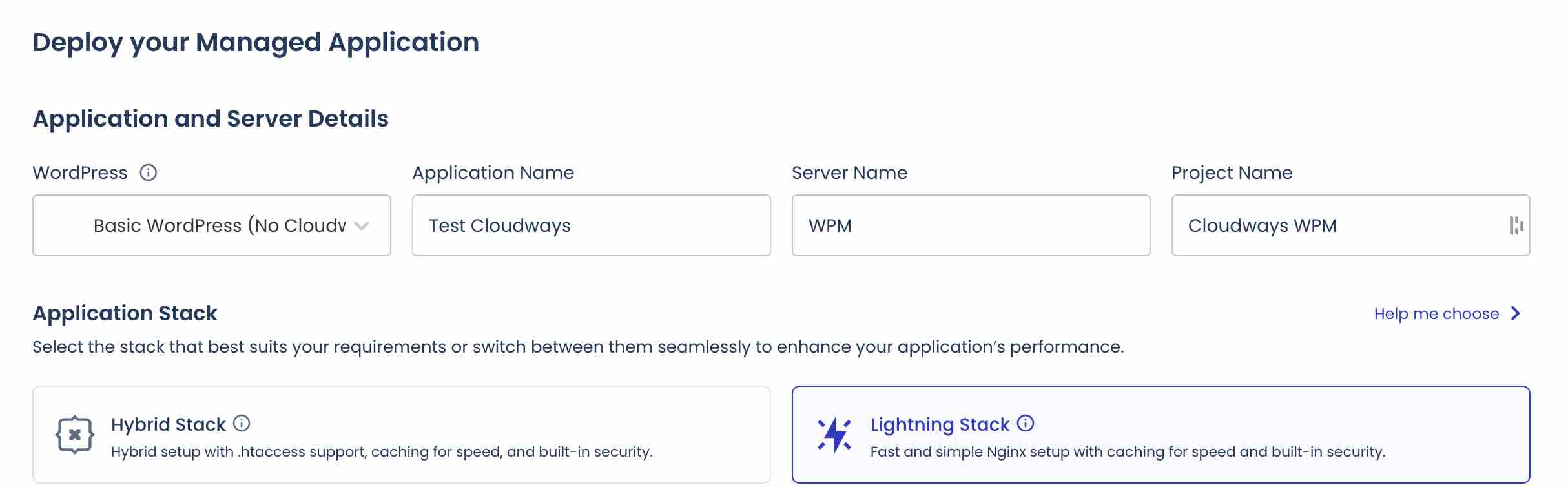
Already hosting a site on Cloudways? The switch is very fast. Once logged into your server admin interface, select your application:

Then, in the “Application Settings” menu, go to the “WebStack” tab and select the “Lightning Stack” stack. Click the “Update Now” button to proceed with the update:

Better safe than sorry: back up your site (files + database) before switching stacks. Cloudways lets you do this for free with its “Safe Updates” feature. You can also safely test the stack change by creating an isolated staging environment with the “Staging Management” feature.

WordPress-specific performance optimizations
So far, we’ve mainly focused on the range of server optimizations offered by Cloudways.
Let’s now look at the options linked specifically to WordPress performance.
What is Breeze?
At the forefront is a custom cache plugin developed by the Cloudways team: Breeze.

This all-in-one free plugin optimizes your site’s performance on multiple levels: caching, database cleaning, code minification, etc.
Active on over 400,000 sites, it can be used on any type of WordPress site (showcase, ecommerce, LMS, etc.), regardless of your host.
What are the features of the Breeze plugin?
Easy to use thanks to a clear and intuitive interface, Breeze requires no technical expertise from the user.
As soon as you activate it, it automatically starts working for you thanks to the following pre-configurations: cache system, Gzip compression, browser cache.
In detail, it offers the following features:
- integration with Cloudflare Enterprise CDN
- integration with Varnish Cache, with no manual settings needed: all parameters are preconfigured
- database optimization
- lazy load of images
- Gzip compression
- minification and concatenation of HTML, CSS, and JavaScript code
- browser caching
- possibility to exclude some URLs and CSS/JavaScript files from cache.
How to configure the Breeze plugin?
Depending on the hosting plan you choose, Breeze may already be active on your site. If not, install and activate it by going to the Plugins > Add Plugins menu:
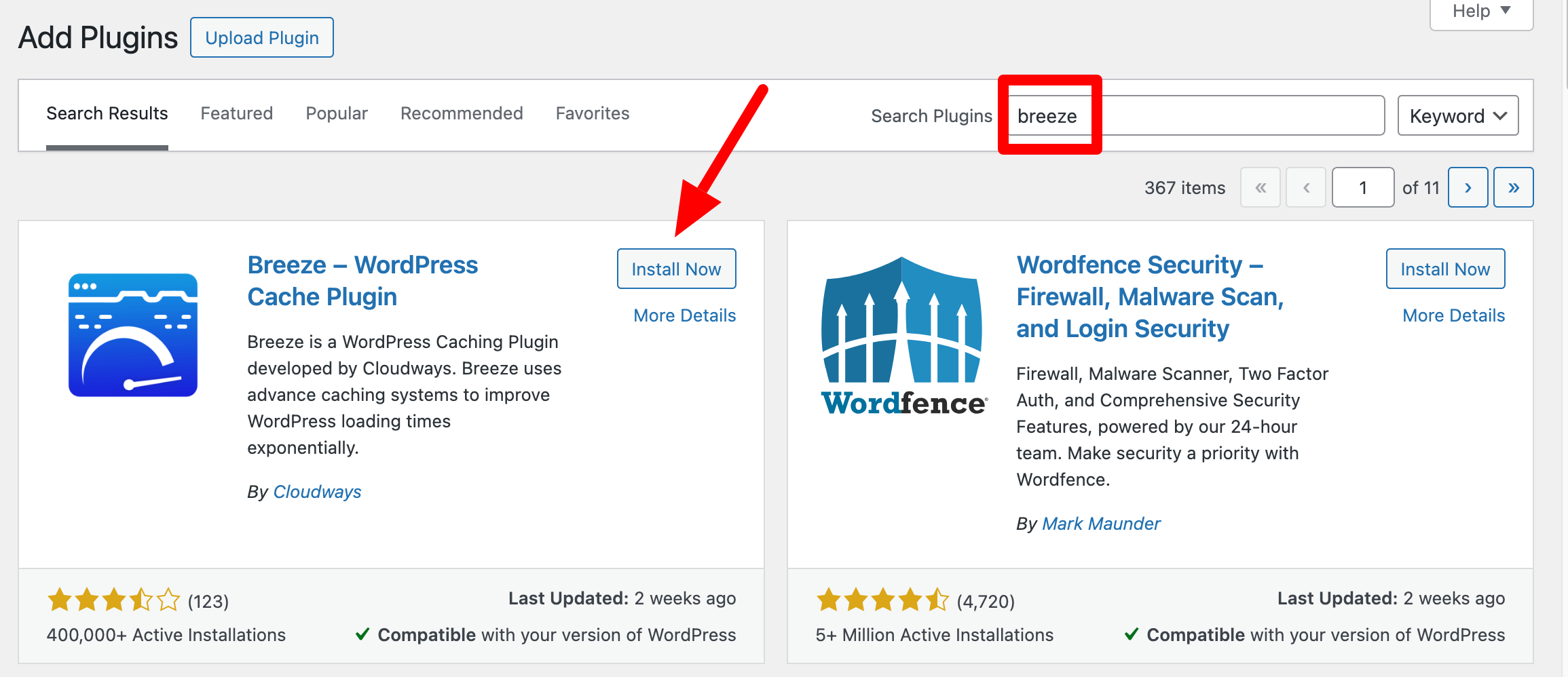
To access Breeze’s options, then go to Settings > Breeze in your WordPress admin interface.
You will then land on the plugin’s settings page, with various menus listed on the left.
To enable an option, just enter the menu of your choice (e.g., “Basic Options”), then check or uncheck the feature you want:
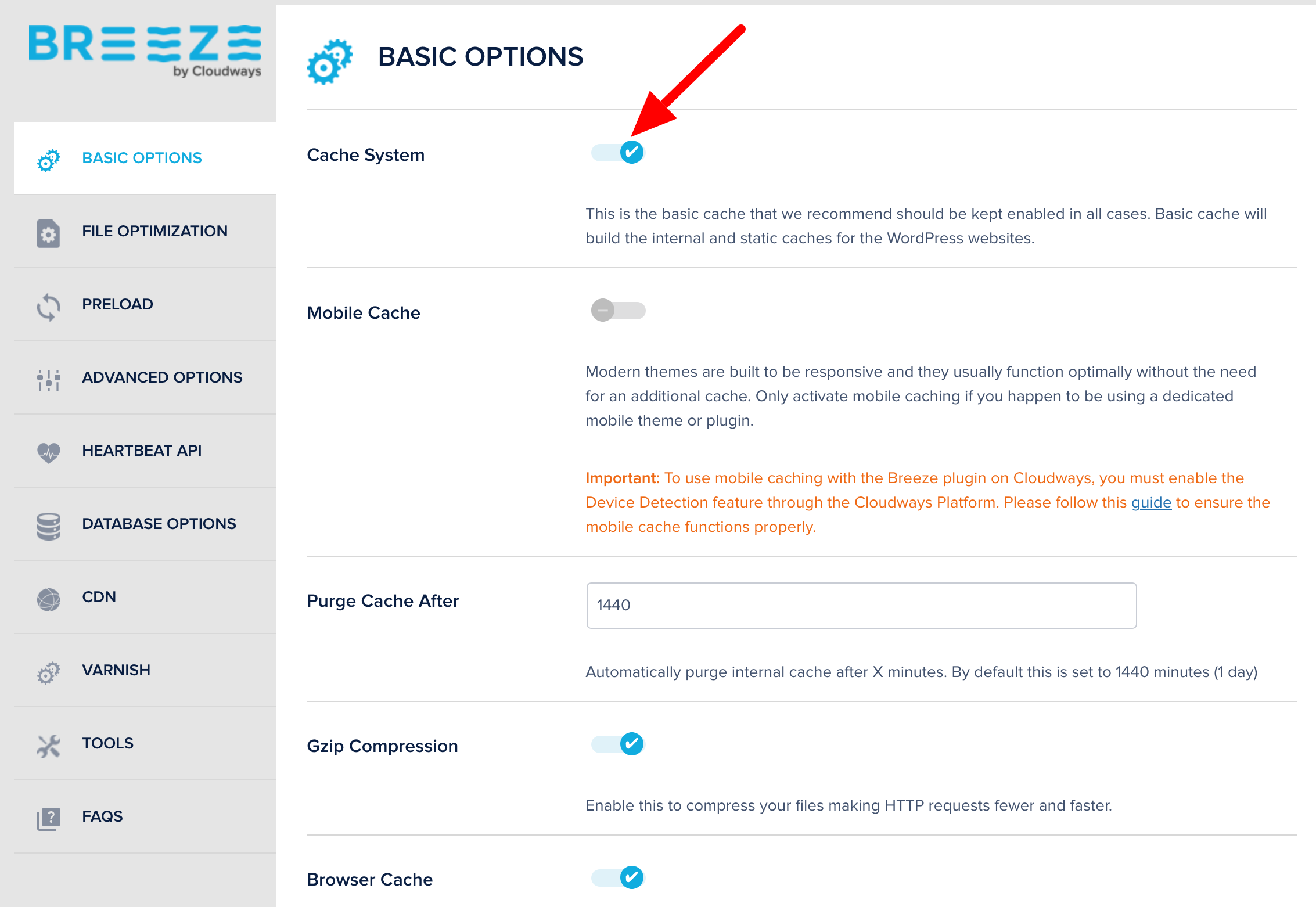
You don’t need to do anything else. If you want to deactivate it, simply click the related checkbox again.
Don’t hesitate, for example, to:
- clean your database (in the “Database Options” menu)
- enable mobile cache and lazy load (in the “Basic Options” menu)
- minify and combine your HTML, CSS, and JavaScript files (in the “File Optimization” menu). In this case, Breeze recommends testing in advance on a staging environment to avoid breaking your live site.
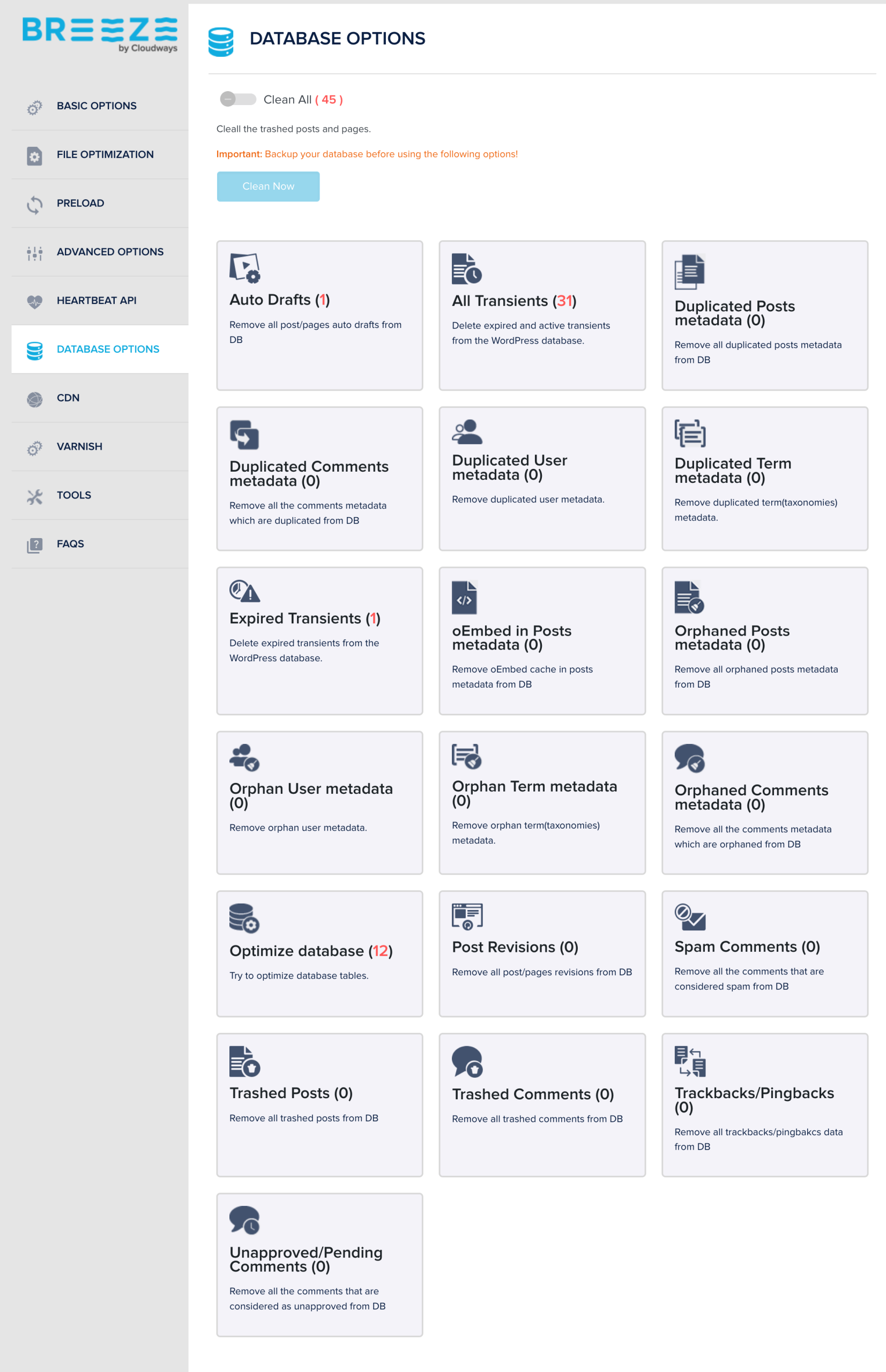
What other options are there to optimize performance with Cloudways?
As you have seen from the start of this article, most performance-related optimizations are automatically enabled on your hosting server so that you don’t have to worry about the technical side.
Nevertheless, it is quite possible, if you wish, to manually adjust some settings on your hosting server. To do so, go to your Cloudways administration interface.
Click on the “My Servers” menu, then select the server of your choice:

In the “Settings & Packages” menu, you will find several settings tabs where you can configure, for example:
- disk space cleaning
- your PHP version
- maximum memory allocated to PHP
- maximum file upload size
- maximum execution time for a request on your application stack.
Advanced parameters are also offered via settings for PHP, MySQL, Nginx, system, and Varnish.
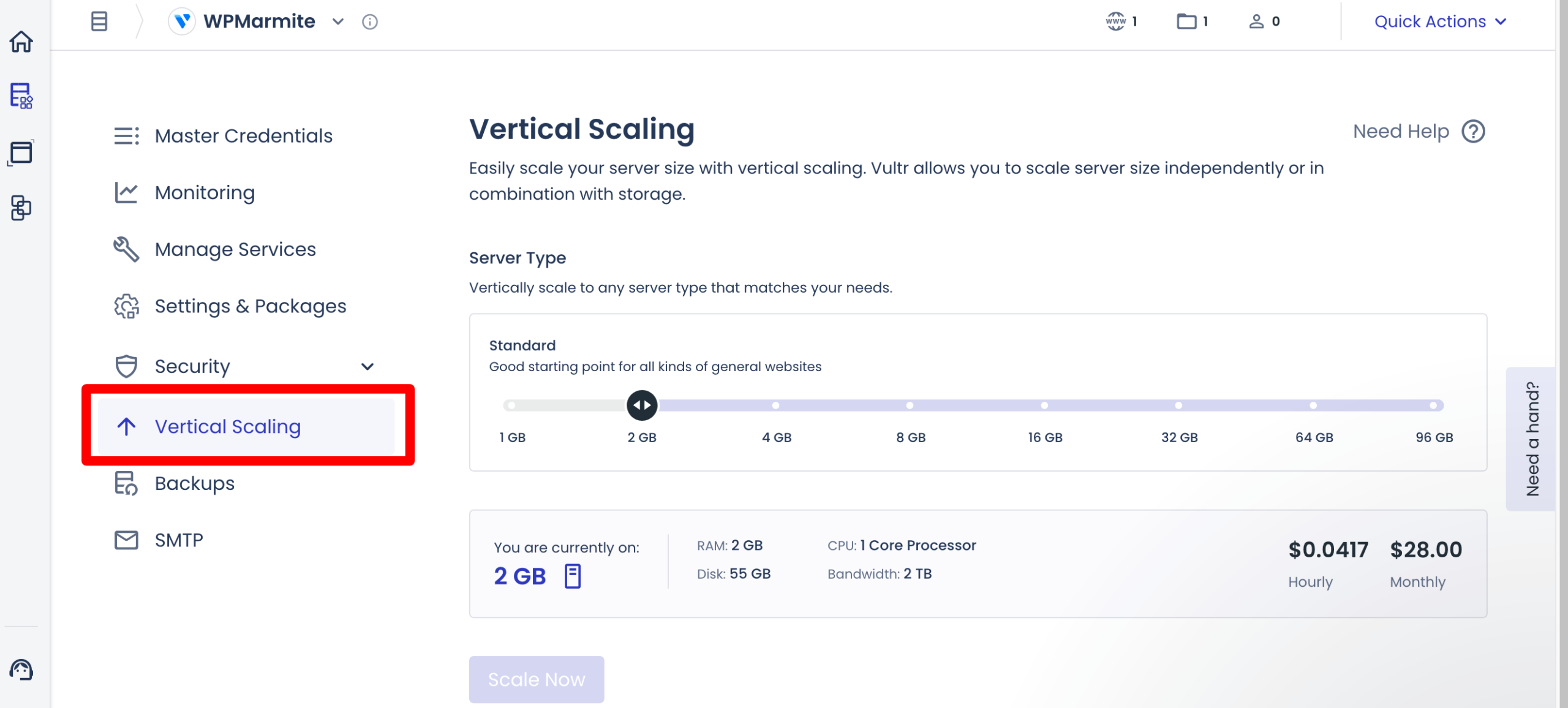
If you chose a “Cloudways Flexible” plan, you can also vertically scale your server (in the “Vertical Scaling” menu) at any time to handle a traffic spike, for example.
In summary, Cloudways offers you a cloud hosting platform designed for performance, ideal for hosting a WordPress site with significant traffic (ecommerce, media, LMS, etc.), without fiddling with server technology.
With dedicated servers (no sharing), an optimized stack, a resilient cloud infrastructure, and a multi-level optimization approach (server and WordPress), you get a fast and stable site.
Ready to take action? Cloudways offers a 3-day free trial to test its services. To take advantage of it, simply click below:
