
In today’s digital environment, the speed of a WordPress site is crucial to maintaining user engagement. WP Super Cache is a powerful caching plugin that optimizes web performance by generating static files, reducing loading time and server load.
With over 1,000,000+ active installations, this plugin effectively meets the needs of WordPress sites looking to improve their speed and user experience.
User reviews of WP Super Cache are largely positive, acknowledging its advanced features such as cache preloading, CDN support, and page compression.
Advantages and disadvantages

| Advantages | Disadvantages |
|---|---|
| Increased performance: Beneration of static HTML files reduces server load | Configuration complexity: Technical configuration interface, requiring server knowledge |
| Flexible caching modes: Adaptable Simple Mode (PHP) and Expert Mode (mod_rewrite) | Resource-intensive: Preloading can overload shared servers |
| Integrated CDN support: Improved content distribution | Manual updates: Some caching tasks require manual intervention |
| Broad compatibility: Works on different types of hosting | Potential plugin conflicts: Risk of incompatibility with other plugins |
| Detailed statistics: Precise monitoring of cache performance | Learning curve: Learning curve for optimal configuration |
| Automatic cache management: Automatic deletion of expired files | Memory consumption: Cache file storage can impact server resources |
WP Super Cache in numbers
| Latest version | 3.1.4 |
| Date of last update | |
| Active installations | 1,000,000+ |
| Average rating | |
| Launch date | January 10, 2005 |
| Number of languages | 31 |
| License type | GPL |
| WordPress version | 6.6+ |
| Minimum PHP version required | 7.2+ |
| Cache distribution mode | Simple and Expert |
WP Super Cache plugin prices
| WP Super Cache |
|---|
| Price: Free |
Features:
|
Benefits:
|
WP Super Cache user reviews
WP Super Cache is a static caching WordPress plugin widely appreciated by users, with an average rating of stars on the official directory.
Users mainly praise its ability to significantly improve website performance by generating HTML files served directly by Apache, without processing heavy PHP scripts.
I feel safe using your plugin now. I’ll get back to you here if I have another question in the future.
Elevated420
It can seem a bit daunting due to the complex configuration options and technical language used in the setup instructions. However, with the right guidance, you can install it in a matter of minutes.
Anonymous user
This plugin is very good, but it lacks an important feature: caching pages in different languages. I have two languages: EN & AR, it doesn’t cache either of them.
Gentlex
Alternatives to WP Super Cache
WP Rocket
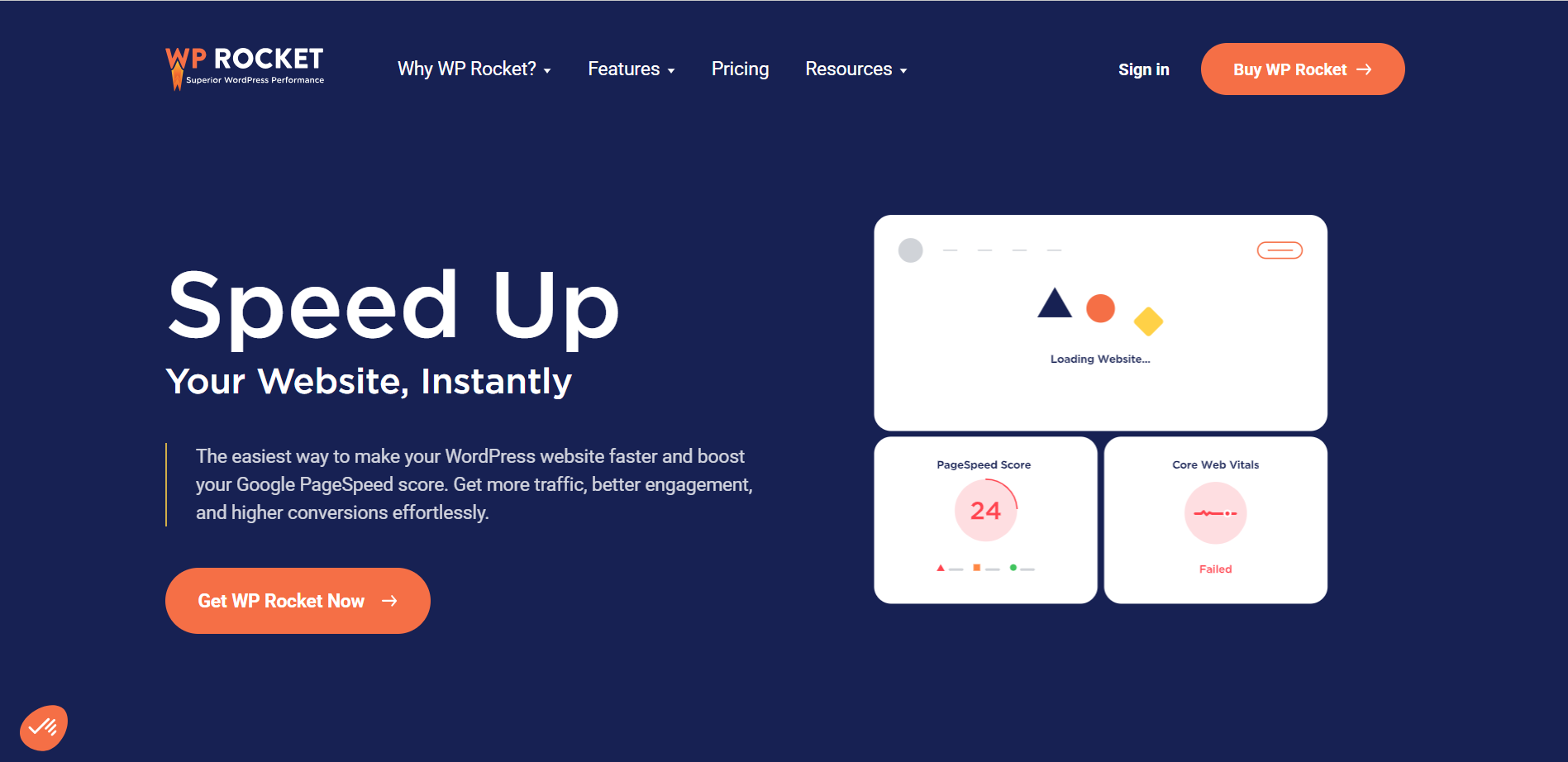
WP Rocket is considered one of the best performance and caching plugins for WordPress. It’s particularly appreciated for its simple and intuitive user interface, even for beginners.
With WP Rocket, you can cache your site with a single click. The plugin automatically activates settings that cover up to 80% of WordPress performance best practices.
These features include page caching, cache preloading, Gzip compression, browser caching, and critical image optimization.
W3 Total Cache
W3 Total Cache is an advanced alternative to WP Super Cache, offering numerous customization options for experienced users.
It includes features such as page caching, Gzip compression, browser caching, and JavaScript minification and optimization options.
W3 Total Cache offers a robust free version, making it attractive to those looking for advanced features at no extra cost.
Breeze by Cloudways

Breeze by Cloudways is a free, simple, and powerful plugin that excels at optimizing the performance of your WordPress site.
It offers file-level caching systems, database cleanup, minification, support for Varnish cache, and simplified CDN integration options.
Breeze is easy to install and configure directly from within WordPress, with default options that work well right out of the box.
WP Super Cache FAQs
How do I install and activate WP Super Cache on my WordPress site?
To install and activate WP Super Cache, first install the plugin from the WordPress plugin library. Once installed, go to Settings > WP Super Cache in your WordPress dashboard menu. Click on the “Easy” tab and check the “Caching on” box.
Then click on the “Update Status” button to activate caching. You can also test caching by clicking on the “Test Cache” button to confirm that everything is working correctly.
What caching modes are available in WP Super Cache?
WP Super Cache offers several caching modes: Simple, WP-Cache, and Expert. Simple mode is recommended for beginners, and requires no modification of your server files.
WP-Cache mode is more advanced and uses mod_rewrite rules to improve performance. Expert mode is the most advanced and requires some technical knowledge, but offers more advanced optimization.
How does WP Super Cache improve the performance of my WordPress site?
WP Super Cache generates static HTML files from your dynamic WordPress pages. These static files are served to offline visitors, reducing the load on your server and speeding up page load times.
By serving static files, your site uses fewer server resources and loads faster, improving your site’s user experience and SEO.
How do I activate compression in WP Super Cache?
To enable compression in WP Super Cache, go to the “Advanced” tab in the plugin settings. Find the “Enable compression” option and check the corresponding box.
Compression allows cached files to be served as compressed files, reducing loading times by making files smaller and faster for browsers to download.
How do I configure preloading in WP Super Cache?
To configure preloading in WP Super Cache, go to the “Preload” tab in the plugin settings. You can set the refresh time for preloaded cache files.
Check the “Preload mode” box and configure preloads for different identifiers, categories, and taxonomies on your site. Finally, click on the “Preload cache now” button to start the preloading process.
Can I integrate WP Super Cache with a CDN?
Yes, you can integrate WP Super Cache with a CDN (Content Delivery Network). To do so, go to the “CDN” tab in the WP Super Cache plugin settings. Check the box next to the CDN option and configure the settings according to the instructions provided.
This will enable WP Super Cache to work in harmony with your CDN to further improve your site’s performance.
How do I solve common problems with WP Super Cache?
If you encounter problems with WP Super Cache, make sure that the plugin is correctly configured and that caching is enabled. Also check that cache files are not corrupted and that mod_rewrite rules are correctly updated.
You can also test caching using the “Test Cache” button to identify potential problems. For more advanced problems, consult the plugin documentation and the WordPress support forums.
Thank you for visiting this page dedicated to WP Super Cache 🙏
The WPMarmite team hopes you’ve been able to learn more about this WordPress plugin!
To find out more, visit the official website and their social networks:
You can also share your experience with WP Super Cache by writing a review below. 👇
Found an error on this page? Click here to report it.

