


It is crucial for many websites. It is in four letters. And we often see it very quickly at the top of the page, when we land on a new site. This essential element is the menu. A website menu…
You’re happily surfing the web, your page is about to be displayed, and then… tragedy strikes. The message ERR_CONNECTION_RESET appears.
Don’t panic: although this common mistake can be frustrating, it’s often easy to solve.

From network problems to incorrect software configurations, a number of factors can cause this error.
In this tutorial, we’ll explore in detail what this error messages means, what the possible causes are, and the simple and effective solutions for quickly resolving the ERR_CONNECTION_RESET error.

What is the ERR_CONNECTION_RESET error?
The ERR_CONNECTION_RESET error occurs when a web browser is unable to establish a stable connection with a server.
In other words, it’s as if the conversation between your computer and the server you’re trying to access was abruptly interrupted before it could even begin.
This error can appear on different browsers (Google Chrome, Firefox, Edge, etc.) and any operating system, and it prevents that great page you’ve been waiting for from loading.
Why does the ERR_CONNECTION_RESET error occur?
The causes of the ERR_CONNECTION_RESET error can vary. Here are the main possibilities:
- A connection problem or network interruption: A poor Wi-Fi connection, a faulty Ethernet cable, or an outage at your ISP may cause this error.
- Problems with the web server: The site you are trying to visit is temporarily down or experiencing technical difficulties, or the server is incorrectly configured or overloaded.
- An incorrectly configured VPN or proxy: These tools modify your network settings and can disrupt the connection.
- Corrupted browser cache or cookies
- Antivirus software or a firewall blocking the connection to the website
- Incorrect network configurations: TCP/IP parameters
- Corrupted system files
- Malicious or obsolete browser extensions
- A misconfigured DNS server
Now that you’ve got an idea of the context of this error, let’s move on to the practical solutions for resolving it. Here are 7 different methods for identifying and correcting the ERR_CONNECTION_RESET error.
How to resolve the ERR_CONNECTION_RESET error
1. Check your Internet connection
The first step is to make sure your Internet connection is stable:
- Test whether other devices (smartphone, tablet, or computer) connected to the same network are also experiencing the problem.
- If you are using Wi-Fi, restart your router. Unplug it for 30 seconds before turning it back on.
- If you’re using a wired connection (Ethernet), check that your cable is securely plugged in, or try another one to detect any hardware problems.
If the ERR_CONNECTION_RESET message is still displayed, the problem may also be due to a fault with your internet service provider (ISP). To check, contact your ISP.
2. Check if the site is accessible
Although the cause of the ERR_CONNECTION_RESET error is often on the client side, it can also come from the server of the site you’re trying to visit.
Fortunately, it’s easy to check:
- Visit an online verification tool such as Is Website Down for Everyone or Just You? or Down For Everyone Or Just Me.
- Type the address of the site you wish to visit in the search bar and click “Check.”
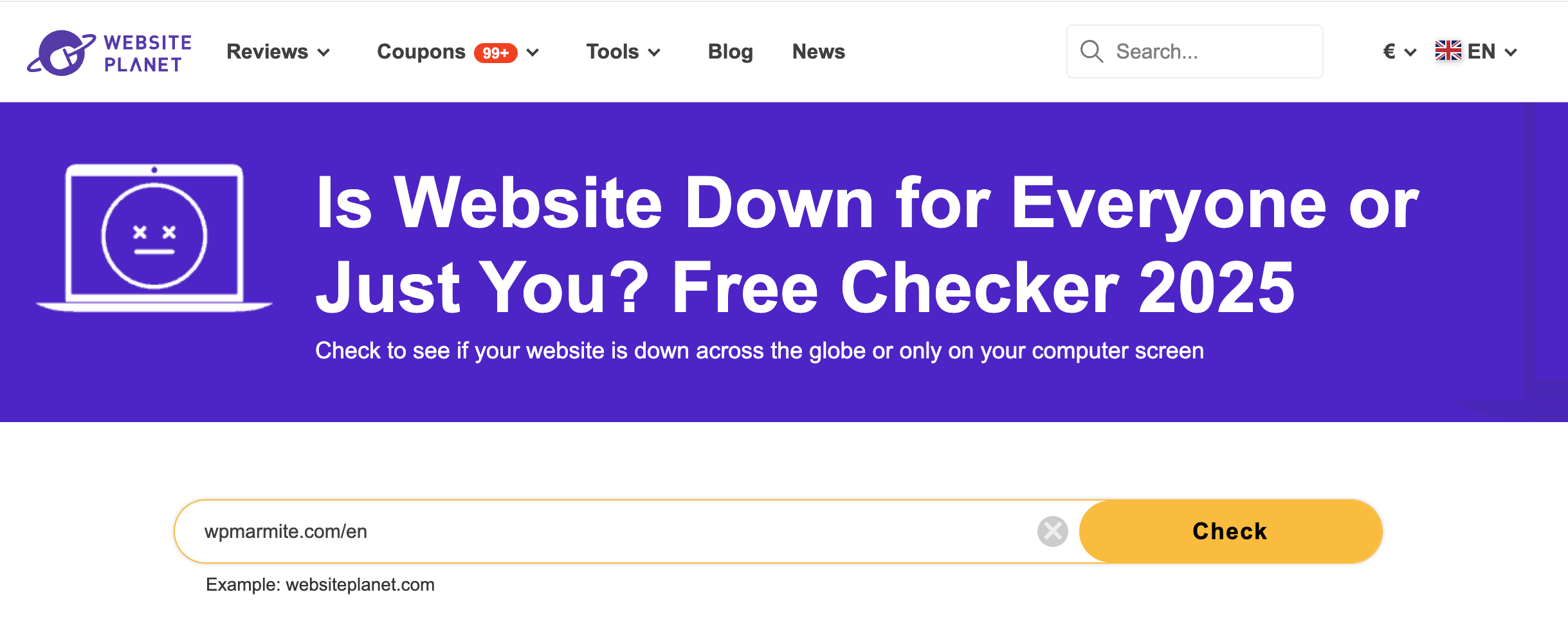
If the site is indeed offline, simply wait (some sites may be temporarily unavailable) or contact the site administrator.
If you are the site owner, contact your web host about server unavailability.
On the other hand, if the site is online, the problem lies elsewhere.
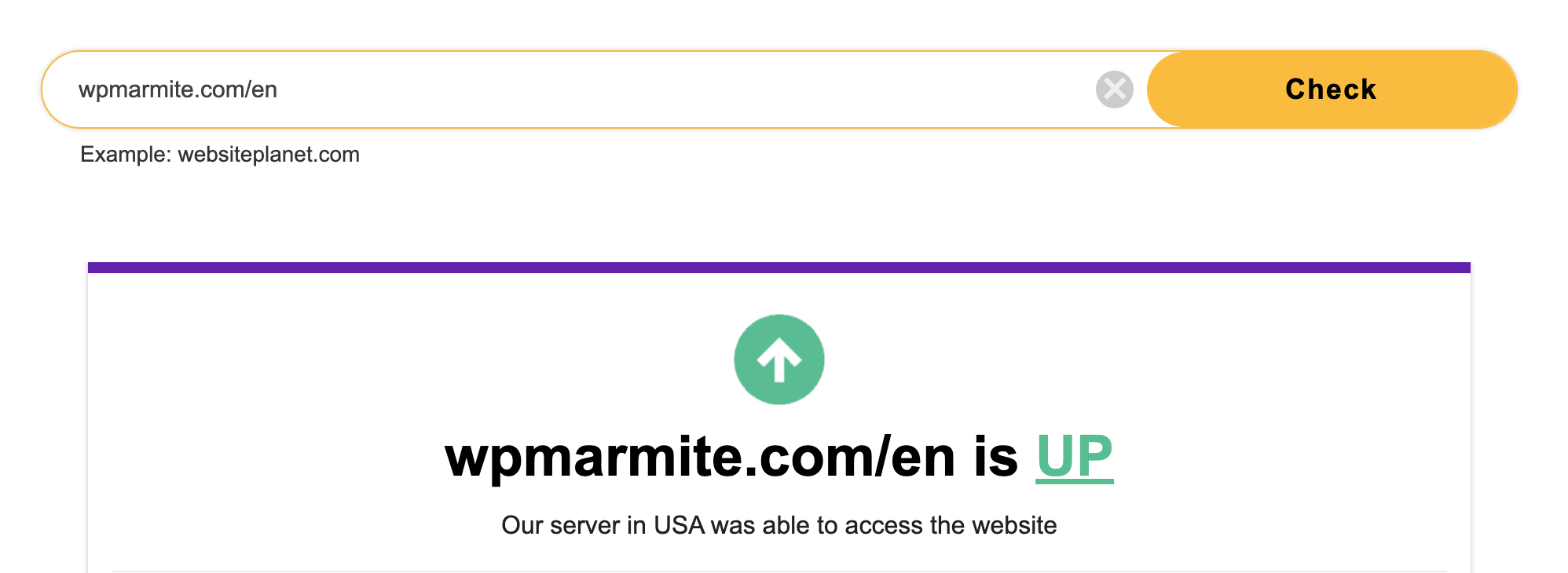
In this case, let’s move straight on to the next solution to correct that pesky ERR_CONNECTION_RESET error.
3. Disable your VPN
Using a VPN allows you to protect your online privacy and access content restricted according to your location.
However, its use can sometimes disrupt the network connection and lead to errors such as ERR_CONNECTION_RESET.
If you’re browsing with a VPN enabled, try disabling it temporarily, then try accessing the site again.
To do this, open your VPN application and disconnect by following the instructions.
If the page loads correctly after this procedure, your VPN is probably at the root of the problem. You can then try modifying your VPN settings or updating it to prevent the error from recurring.
If not, just bear with us and continue reading this tutorial to discover other solutions for correcting that annoying ERR_CONNECTION_RESET error.

4. Clear browser cache
You may have seen it coming: a corrupted cache or cookies can cause the ERR_CONNECTION_RESET error. Here’s how to clean up your browser.
Clear browser cache on Google Chrome:
- Click on the menu at the top right of your browser (icon with three vertical dots).
- Click on “Delete browsing data.”

- Check all boxes.
- Click on the “Delete data” button.
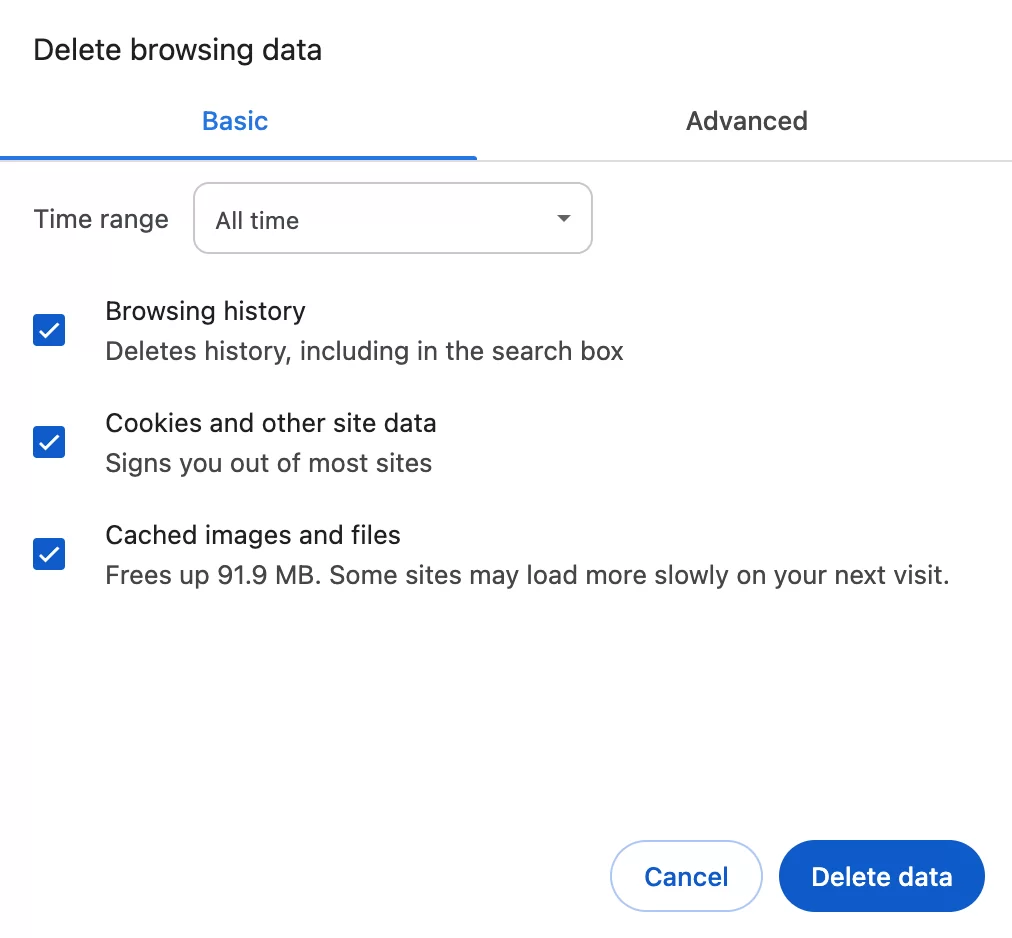
Finally, restart your browser to ensure that the changes take effect.
After this operation, try to access the site again.
Still no luck? Don’t panic, we still have a number of solutions to explore.
5. Temporarily disable your antivirus and firewall software
Security solutions such as antivirus and firewall software are essential for protecting your computer.
That said, these tools may block certain connections even though they pose no danger to your system.
To test whether your antivirus or firewall is at fault:
- Disable it temporarily.
- Try to access the website in question.
- If the error disappears, configure your antivirus or firewall to allow connections to the site in question.
Try to open the page returning an ERR_CONNECTION_RESET error only if you’re sure it’s a trusted site, then remember to reactivate your antivirus and firewall immediately after the test to avoid exposing your computer to threats.
6. Disable your proxy server
If you’re using a proxy, it may be misconfigured and interfere with your connection. You can temporarily disable it to try and resolve the ERR_CONNECTION_RESET error.
Disable your proxy server on Windows:
- Go to Settings > Network & Internet > Proxy.
- Deactivate the “Use proxy server” option.
- Click the “Save” button to confirm proxy deactivation.
Disable your proxy server on macOS :
- Click on the Apple icon at the top left of your screen, then on “System Preferences.”
- Go to the “Network” menu, select your current connection and click on “Details.”
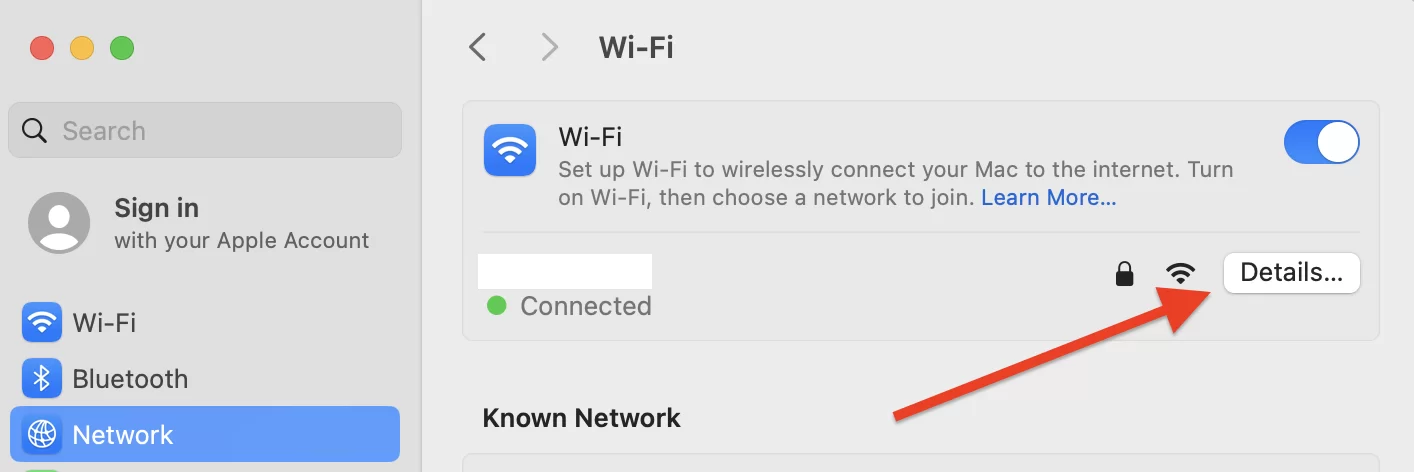
- Go to the “Proxies” tab and deactivate all activated options.
- Confirm by clicking on the “OK” button.
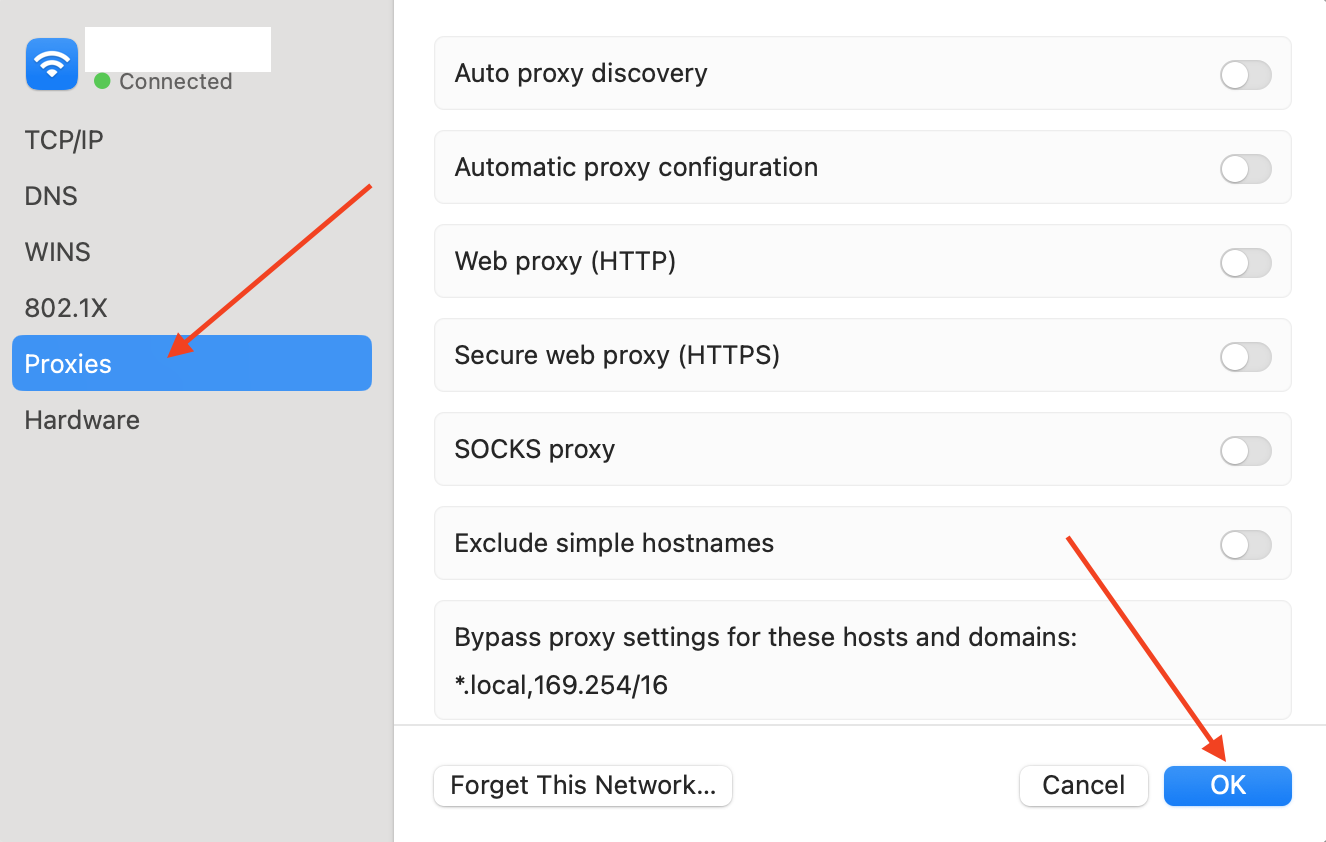
After this modification, try reloading the web page.
7. Reset TCP/IP settings
If the ERR_CONNECTION_RESET error persists, you can try resetting the network parameters to correct it.
Here’s how to reset TCP/IP settings on Windows and MacOS to restore your Internet connection to its default settings.
Reset TCP/IP settings on Windows:
- Open the command prompt in administrator mode.
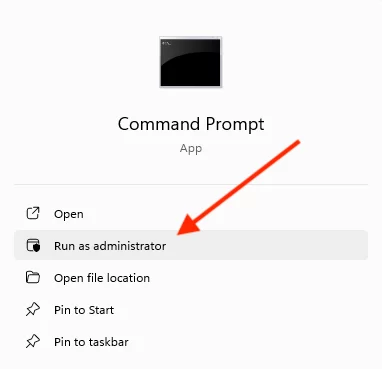
- Type the following commands, pressing “Enter” after each command:
netsh winsock reset
netsh int ip reset
ipconfig /release
ipconfig /renew
ipconfig /flushdns
- Restart your computer.
This operation resets your network settings and corrects any configuration errors.
Resetting TCP/IP settings on MacOS:
- Click on the Apple icon at the top left of your screen, then on “System Preferences.”
- Go to the “Network” menu, select your current connection and click on “Details.”
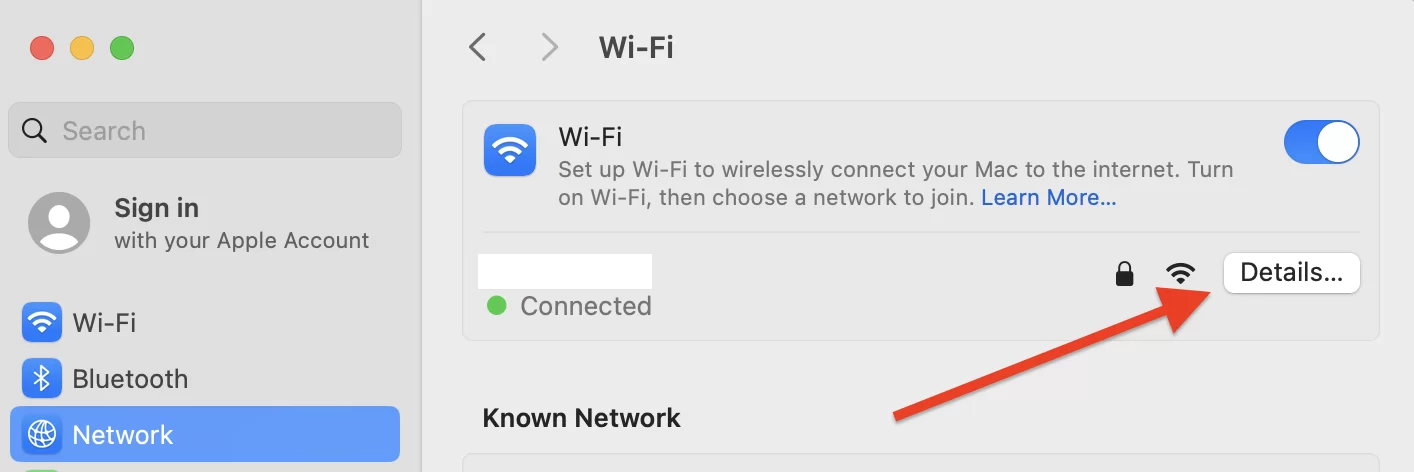
- In the “TCP/IP” menu, click on the “Renew DHCP lease” button.

Conclusion
The ERR_CONNECTION_RESET error may seem frustrating, but it’s usually easy to resolve by following a few quick steps.
In most cases, simply rebooting your router or deactivating a VPN is enough to restore the connection.
If the error persists, the problem may be directly related to the website or to a more advanced network setting. If necessary, don’t hesitate to contact your ISP or a network expert for help.
With these solutions in hand, you’re now ready to correct this error and surf your favorite pages without a hitch.
Have you ever encountered the ERR_CONNECTION_RESET error? If so, what solution have you implemented to resolve it? Also, do you know of any other techniques we haven’t covered in this article?
Tell us all about it in comments. 👇

Receive the next posts for free and access exclusive resources. More than 20,000 people have done it, why not you?
Register



Also it may be IPv6 issue.
You can test is your website accessible via IPv6 with https://ready.chair6.net e.g.
Thanks for pointing that out! IPv6 compatibility can indeed be crucial for website accessibility. Testing your site’s IPv6 support with tools like the one you mentioned is a great way to ensure you’re not missing any visitors due to configuration issues!
Thanks again!