
Does your browser display the ERR_CONNECTION_REFUSED message when you try to access a website?
This error means that the target server – or your own configuration – is actively rejecting the connection request, leaving you at a dead end.
But don’t panic. To help you get out of this, we have designed this guide that will help you identify the source of the problem and fix this error so you can quickly regain access to your favorite site.
Fasten your seatbelts, here we go!

Why the ERR_CONNECTION_REFUSED message appears on your screen
After seeing this frustrating error message, you must first understand what your browser is trying to tell you.
This error means that the destination server actively rejected the connection request.
In other words, the server is reachable, but the requested port is closed or a security device (firewall, antivirus, proxy) is actively blocking the request, which causes the connection to be immediately refused.
The ERR_CONNECTION_REFUSED error is different from an ERR_CONNECTION_TIMED_OUT error for example, where the server does not respond, or from an ERR_CONNECTION_RESET error, related to an interrupted connection between the web browser and the server.
In most cases, this error comes either from the site itself or from a blockage on your network or your computer.
How to fix the ERR_CONNECTION_REFUSED error?
Test the site’s actual availability with an external tool
To get started, use a service like « Down for Everyone or Just Me » or Website Planet, to confirm if the problem comes from your side.
Type the address of the site you want to visit in the search bar, and click “Check”.

Analyze the result: if the site is reported as up, then the problem likely comes from your device, network, or Internet connection. Otherwise, it will be up to the site administrator to take action to fix it.
Once you have identified that the problem is local, it is time to take action by trying the solutions below.
Restart your router
Unplug your router for about 30 seconds, then plug it back in. This resets the connection and can fix some network issues.
You can also test access to the site with your phone using a 4G/5G connection to bypass your Wi-Fi network. If the site works on mobile but not on Wi-Fi, the issue likely comes from your router or your local network.
Finally, check the Ethernet cables and the Wi-Fi signal strength. Instability or brief interruptions can cause connection refusals. Make sure all equipment is properly connected and working reliably.
To learn how to fix major WordPress errors, check out this dedicated guide.
Clear browser cache and cookies
In some cases, corrupted temporary files or outdated data can prevent establishing a proper connection.
Clearing your browser cache allows you to start fresh with a clean configuration and eliminate this potential cause.
To quickly test this, open a private (incognito) browsing window, which will start a session without extensions or cached data.
If the problem persists, clear your cache and delete outdated cookies in your browser settings.
Clearing browser cache on Google Chrome:
- Click on the menu at the top right of your browser (the three vertical dots icon on Google Chrome).
- Click on “Delete browsing data”.

- Check all boxes.
- Click on the “Delete data” button.

Don’t forget to restart your browser after this operation, and try accessing the site again.
If the ERR_CONNECTION_REFUSED error message persists, move on to the next solution.
Disable browser extensions to fix the ERR_CONNECTION_REFUSED error
Some extensions (ad blockers, security tools, VPN) may interfere with network connections.
Disable your extensions, then re-enable them one by one to identify which one may be causing the issue. To do this, click on the button at the top right of your browser, then go to “Extensions” and select “Manage extensions”.
Disable firewall and antivirus software
If you’ve ruled out network issues, your firewall or antivirus software may be overly aggressive.
Temporarily disable your Windows or macOS firewall, and do the same with your antivirus software. If the site loads afterward, the issue was likely caused by a false positive. In any case, don’t forget to reactivate everything afterwards.
Note that you can create specific exclusion rules in your firewall, to explicitly allow certain ports or IP addresses. This avoids having to disable your protection entirely.
To strengthen your site’s protection, discover our comparison of the best WordPress security plugins.
Check proxy and VPN settings
Check the proxy settings in your operating system. Sometimes a wrong configuration can trigger a ERR_CONNECTION_REFUSED error.
Disable the use of a proxy server to see if the connection is restored.
Disable your proxy server on Windows:
- Go to Settings > Network & Internet > Proxy.
- Disable the “Use a proxy server” option.
- Save to confirm the proxy deactivation.
Disable your proxy server on macOS:
- Click on the “Apple” icon at the top left of your screen, then on “System Settings”.
- Go to the “Network” menu, select your current connection, then click on “Details”.
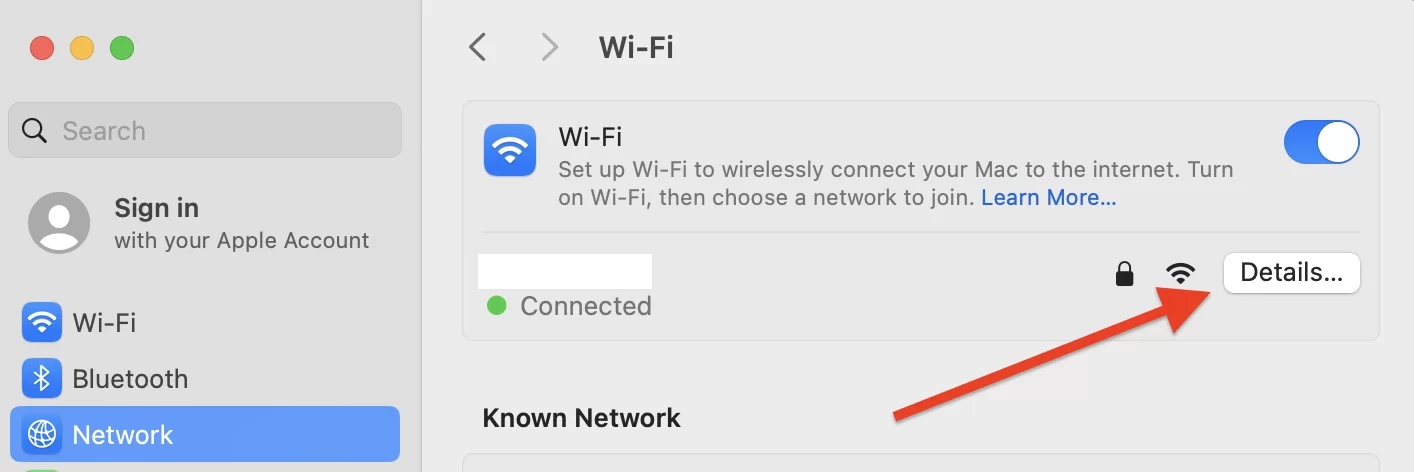
- Go to the “Proxies” tab and disable all enabled options.
- Confirm by clicking on “OK”.

Once this is done, try reloading the webpage to see if the ERR_CONNECTION_REFUSED error has been fixed.
If you are using a VPN, disable it. The tunnel may be misconfigured or the exit server banned. Test the connection directly with your real IP address to see if this resolves the problem, then reactivate your VPN.
Clear your DNS cache to fix the ERR_CONNECTION_REFUSED error
Sometimes, the problem comes from the DNS resolution system used by your computer to access a site. In this case, clearing your DNS cache can help fix the ERR_CONNECTION_REFUSED error.
Clear the DNS cache on Windows:
- Run the command prompt as administrator.

- Run the command
ipconfig /flushdnsto clear old IP addresses stored locally. - Press “Enter”.
Clear the DNS cache on macOS:
- Open the Terminal.
- Type the following command:
sudo dscacheutil -flushcache; sudo killall -HUP mDNSResponder - Press “Enter” and enter your password.
Change your DNS server
By default, your device uses the DNS servers provided by your Internet Service Provider, but you can change them if needed.
If those servers are too slow or unreliable, they may cause an ERR_CONNECTION_REFUSED error.
To fix this, you can use public and reliable DNS servers such as those from Google or Cloudflare.
Change your DNS settings on Windows:
- Go to your Control Panel > Network and Internet > Network and Sharing Center.
- In the left menu, click on “Change adapter settings”.
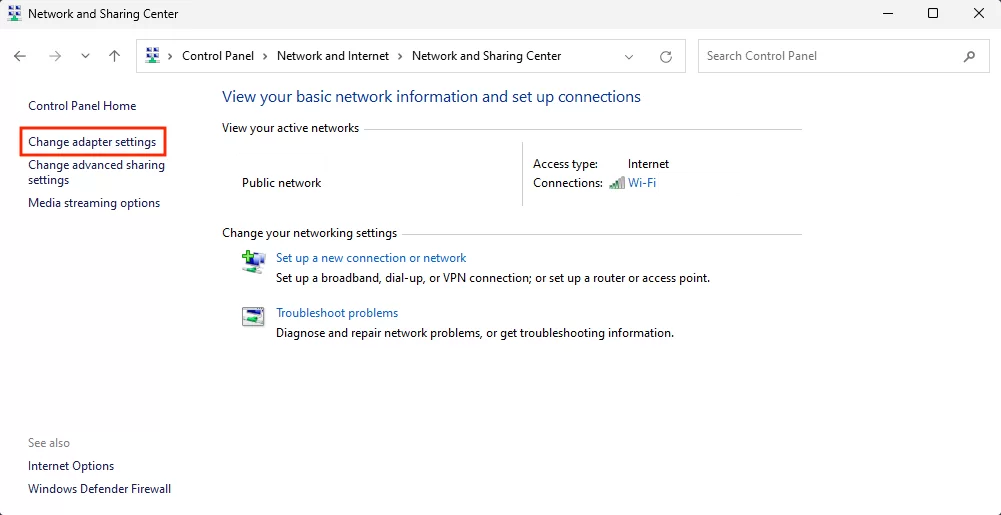
- Right-click on your current connection, then click “Properties”.
- Select “Internet Protocol Version 4 (TCP/IPv4)” and click “Properties”.
- Click “Use the following DNS server addresses” and enter:
- Preferred DNS server:
8.8.8.8 - Alternate DNS server:
8.8.4.4
- Preferred DNS server:

- Click “OK” to save the changes. Restart the browser and check if the ERR_CONNECTION_REFUSED error is resolved.
Change your DNS settings on macOS:
- Click on the “Apple” icon at the top left of your screen and click on “System Settings” then “Wi-Fi”.
- Select your current local connection, and click on the “Details” button.
- Click on the “DNS” tab and the “+” button.

- Enter the following addresses one after the other, then click “OK”:
8.8.8.88.8.4.4
- Restart your browser to check if the ERR_CONNECTION_REFUSED error has been fixed.
If the problem persists, you can also check our guide on the DNS_PROBE_FINISHED_NXDOMAIN error to rule out a possible domain name resolution problem.
Update your browser
If none of the previous solutions worked, the issue may come from your browser itself. An outdated or corrupted version can prevent proper network connections.
Start by making sure your browser is up to date. If the problem continues, you can try uninstalling your browser and then reinstalling the latest version (from the official site).
This operation allows you to start with a healthy configuration and eliminate any potential internal conflicts.
Conclusion on the ERR_CONNECTION_REFUSED error
The ERR_CONNECTION_REFUSED error typically indicates an immediate connection refusal, often related to:
- a stopped service,
- an inaccessible port,
- a misconfigured firewall or proxy,
- a network restriction.
By following some easy progressive steps (checking site availability, clearing your browser, and reviewing network and DNS settings), you can usually identify the cause of the problem and restore access to your favorite site quickly.
If however none of the solutions mentioned in this article allow you to resolve the ERR_CONNECTION_REFUSED error, consider contacting your Internet Service Provider or your hosting provider for further assistance.
Have you ever encountered this error? If yes, how did you fix it? Do you know any other solutions we didn’t cover in this post? Share your experience in the comments. 😉

Receive the next posts for free and access exclusive resources. More than 20,000 people have done it, why not you?


Continue reading
Articles posted in WordPress TutorialsHow to manage and optimize WordPress menus like a pro
It is crucial for many websites. It is in four letters. And we often see it very quickly at the top of the page, when we land on a new site. This essential element is the menu. A website menu…
How to update the PHP version of your WordPress site
What comes to mind when you think of WordPress speed and security? Your favorite plugins, perhaps? You should also think about… PHP! If you’re looking for a site that loads fast, while offering a solid shield against hacker attacks, there’s a…
How to create an effective HubSpot conversion funnel on WordPress (complete guide)
In the drawers of a kitchen, there are often two very useful utensils lying around. The first is the colander. And to illustrate, some WordPress sites unfortunately resemble it. Why? Well, because visitors arrive on the site in question… then…