
I’m sure you experience it every day. Creating a WordPress site often means juggling a thousand tasks: structuring your pages, finding the right words, refining the design, handling technical details, and so on.
Result: you move forward… but not always as fast as you hoped.

That’s where Elementor’s AI features (Elementor AI) comes in. Integrated directly into the editor, they promise to save you valuable time without complicating the way you normally work.
Layout generation, writing assistance, optimized images, code snippets, ready-to-use sections: the range of possibilities is vast.
In this article, we explain it all, without getting lost. You’ll learn how to take advantage of these AI tools to create a WordPress site faster, more efficiently and with a truly professional result.
Ready to go? Follow my lead!
- Overview of Elementor and its main features
- What is Elementor AI and why use it to create your WordPress site?
- How to plan your site's structure and pages with AI Site Planner?
- How to customize your site with Elementor AI?
- Angie and Elementor One: going even further with AI on Elementor
- How much does AI cost on Elementor?
- Our final review of Elementor's AI tools
Transparency point: This article is sponsored. Some links are affiliate links. In other words, if you purchase an Elementor subscription via one of these links, WPMarmite will earn a commission. This helps remunerate the research and writing work of the blog’s editors, as well as building a budget to purchase and test other WordPress plugins. To find out more about our editorial policy, check out this resource.
Overview of Elementor and its main features
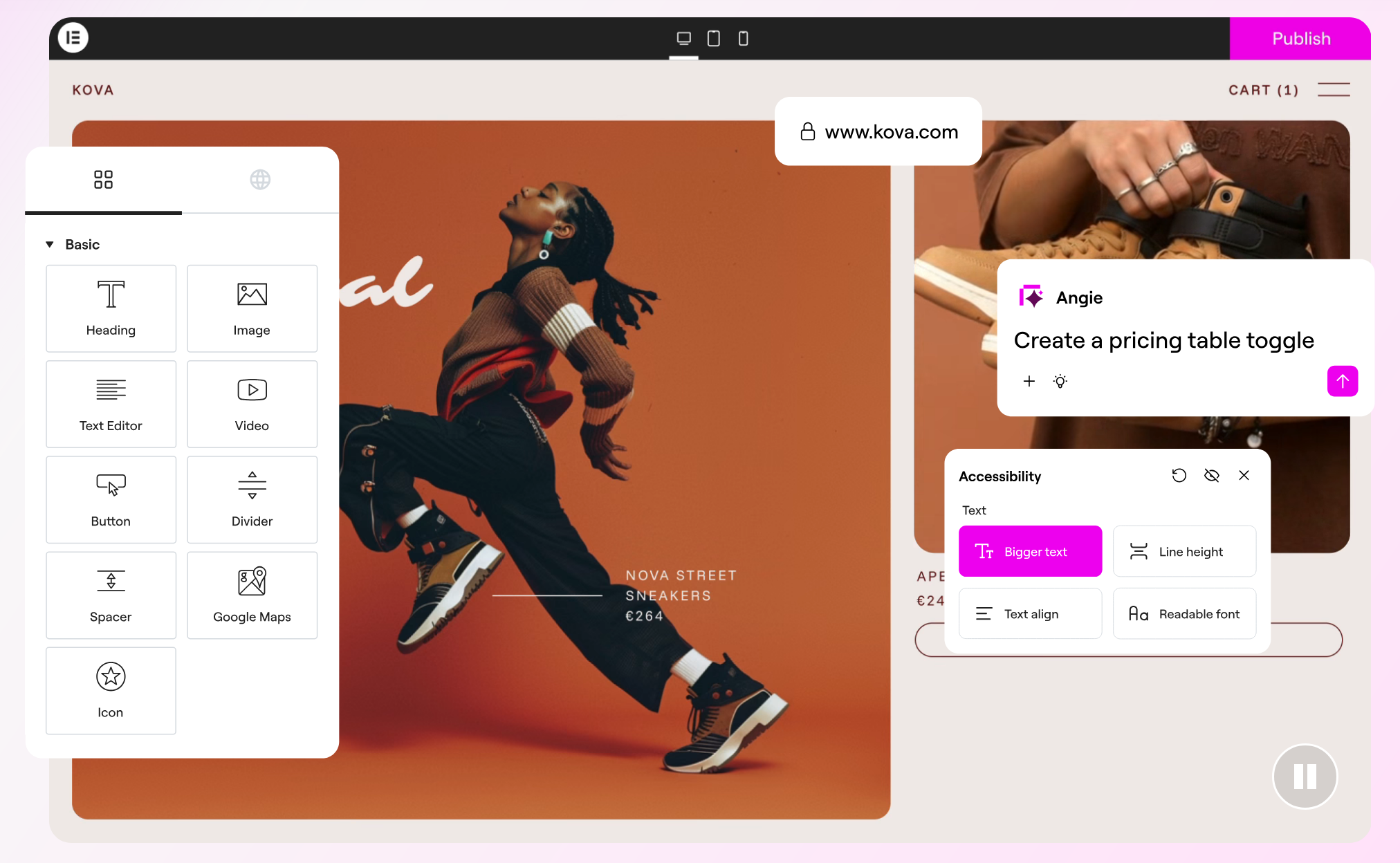
To get us started, let’s begin by introducing Elementor, which has changed a lot since its launch as a “simple” page builder in 2016.
Today, Elementor has entered a new era. Its page builder is just a small part of the range of features it offers.
It is more accurate to describe Elementor as a comprehensive platform that structures its services around three major areas:
- WordPress website creation. For this, you can rely on Elementor’s drag-and-drop visual editor (the plugin in free or Pro version), the Hello theme and artificial intelligence to design text and wireframes (functional mockups of your future WP site).
- WP site optimization, with in-house tools for optimizing images, improving accessibility and performance, etc.
- Management and hosting: secure, high-speed cloud hosting, domain name registration, email deliverability (and a WordPress site management and maintenance tool being delivered at the time of writing).
In just ten years, Elementor has evolved from an editor to a “complete infrastructure” offering a “unified experience”, according to its CEO, Yoni Luksenberg.
The tool’s growth and evolution have been remarkable, as reflected in what it represents today (data from the company’s About page):
- 19 million active installations, making it the most-used plugin in the entire official WordPress directory (out of more than 60,000 plugins!)
- 200,000+ members in the Elementor community.
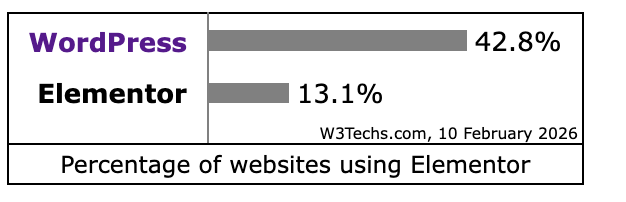
Think about it: more than one in ten websites worldwide now runs on Elementor (13.1%), compared with the figures for WordPress, the most widely used CMS in the world (42.8% of websites run on WordPress).
To stay on top and continue growing, Elementor needs to keep up with the latest trends. And today’s trend in website creation (and many other industries) has a name: artificial intelligence (AI).
Naturally, like many of its competitors, Elementor has embraced it and invested heavily in this direction. Let’s see how in the next section.
What is Elementor AI and why use it to create your WordPress site?
If you already use Elementor, you know how quickly things move there. New features are released constantly. And with AI, there’s plenty to do… and get a little lost, too.
From AI Site Planner to Angie and Ally, AI is everywhere.
Finding your way around is simple. The heart of AI at Elementor is Elementor AI.
What exactly is it? It’s a suite of AI-powered features directly integrated into the editor (the Elementor plugin) offered by the platform.
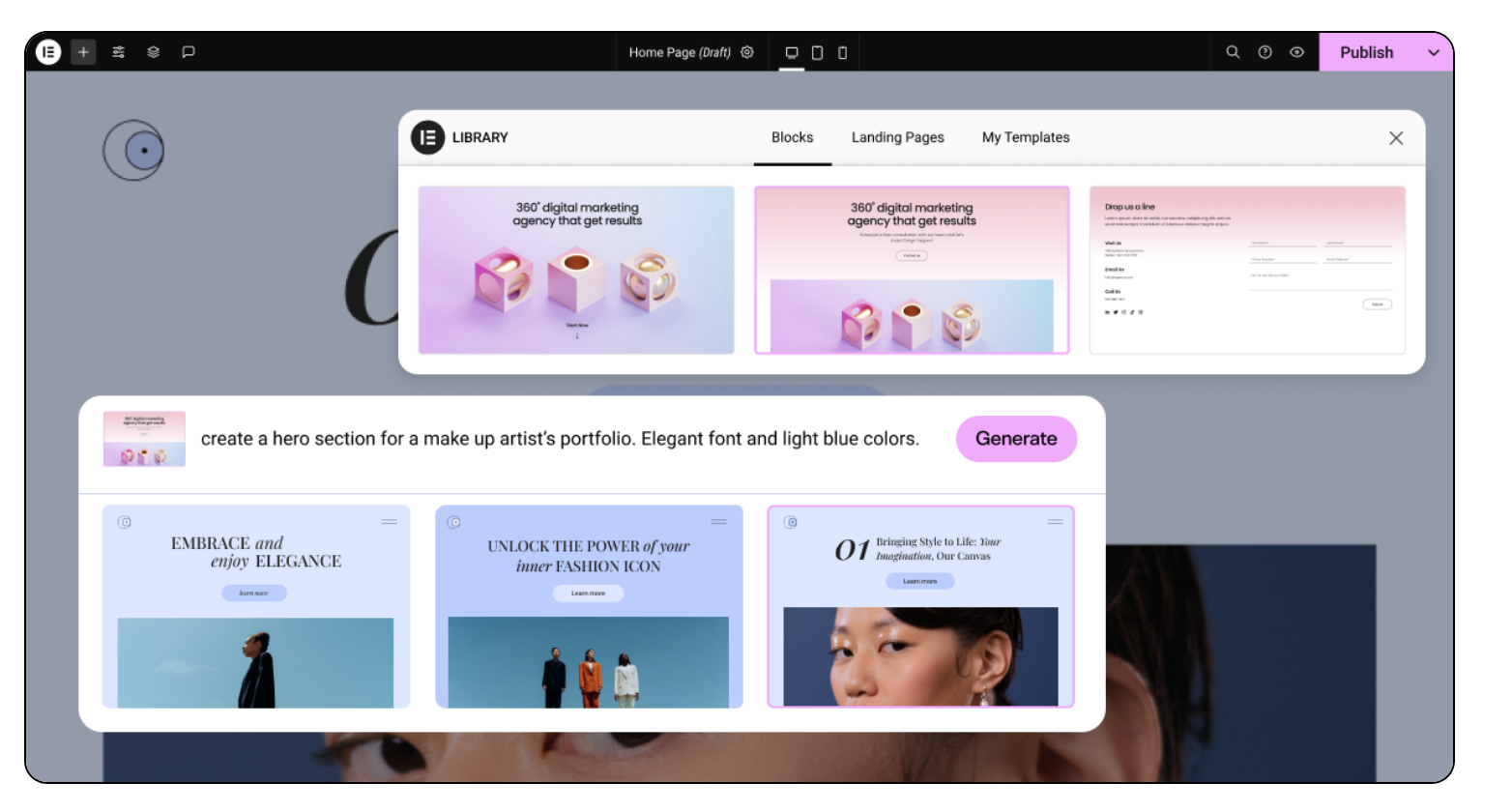
What can Elementor AI do?
Is that clearer for you? Now let’s look at what you can actually do with Elementor AI, through its main components:
- designing containers (parts of your page)
- AI Copilot: a configuration wizard that suggests improvements and ideas for the next section of a page, based on what you’ve already created on your site
- text generation: write all types of content (texts, introductions, headings, product descriptions, etc.), rewrite it or translate it
- image creation and editing: generate images with AI and change their style, colors, or composition (for example, removing the background)
- custom CSS code generation.
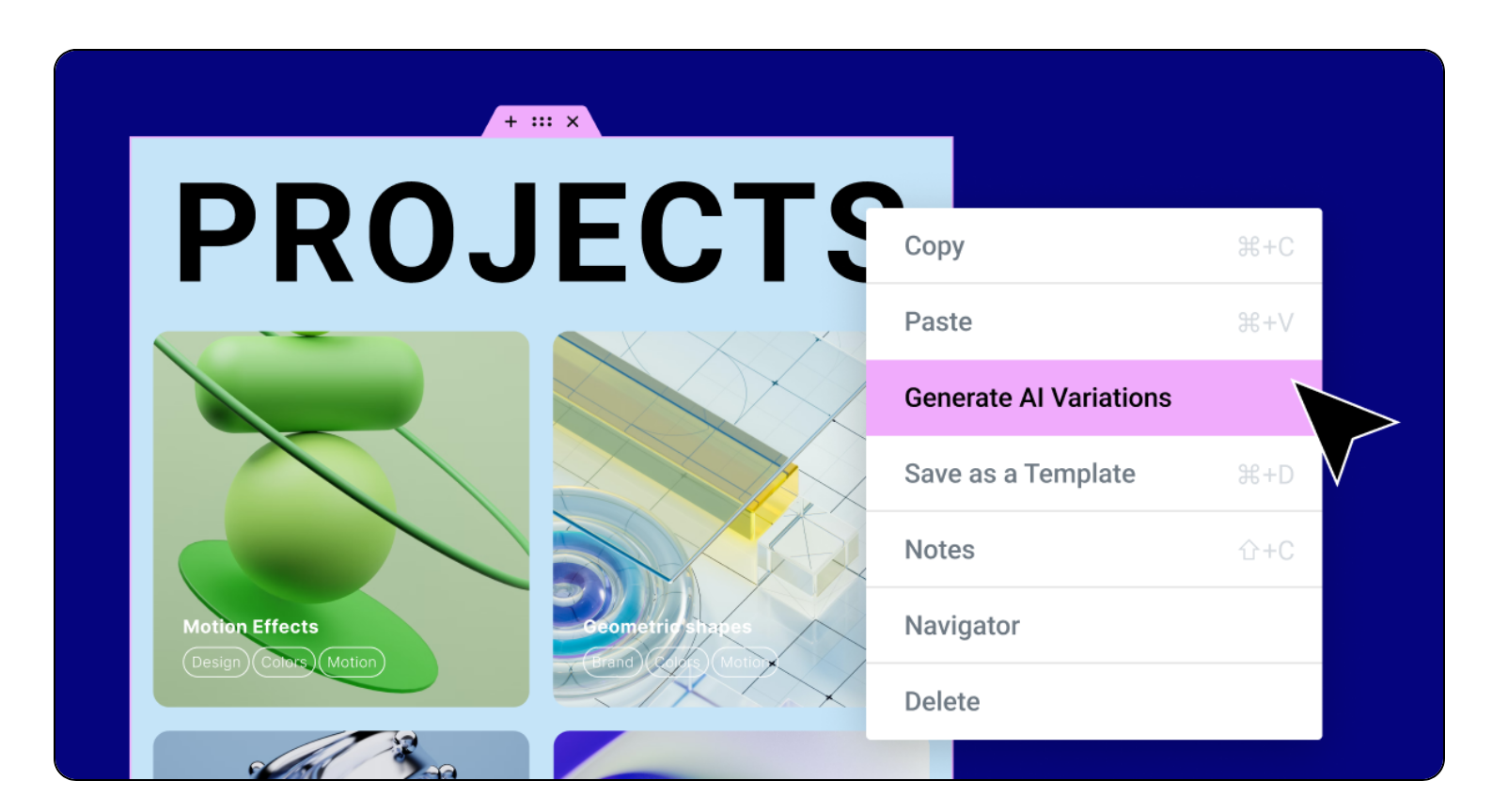
One of Elementor AI’s biggest advantages is its seamless integration with the editor. All your creation and editing tools are available within a single dashboard.
As a result, you no longer need to constantly switch between different interfaces (for example: Elementor, an LLM, a code editor, etc.).
On top of that, new features are added regularly.
Now that we’ve covered the theory, let’s move on to the practical part. In the rest of this guide, I’ll show you step by step how to create a WordPress site using Elementor’s AI tools, from scratch.
How to plan your site’s structure and pages with AI Site Planner?
Let’s imagine you’re starting from scratch so we can go through the whole process together. The first step is to lay the foundations of your future site.
To do that, you need to design the overall architecture of your pages (layout and design) using conceptual mockups, also called wireframes.
Elementor’s dedicated tool for doing just that is called AI Site Planner. It’s free and can be accessed from this page.
Creating your sitemap and wireframes with Elementor’s AI Site Planner
To get started, you have two options for generating a brief describing the website you want to create:
- Start with AI Chat. Use an AI assistant in the form of a conversational chat.
- Use an AI Notetaker. Record a Google Meet meeting with your client or team. The Notetaker will analyze the conversation and create a detailed summary.
The classic way is AI Chat. Click on the “Start with AI chat” button to launch the creative process:

Next, answer the questions asked by the AI assistant as you go:
- your site name
- your site’s topic or industry
- specific products and/or tools you offer
- key features and elements
- the tone of the website
- communication style
- the list of pages you want to include.
To respond, you can type directly in the provided field and/or use the suggestions offered by the assistant.
You don’t have to answer every question (click on “Skip question” if you want to skip it), but the more detailed your answers, the better the results.

Customize your site’s architecture and layout
Once Site Planner has done the job, you’ll see two main options displayed as tabs at the top of the page:
- Sitemap: your site’s architecture.
- Wireframe: the design of each page.
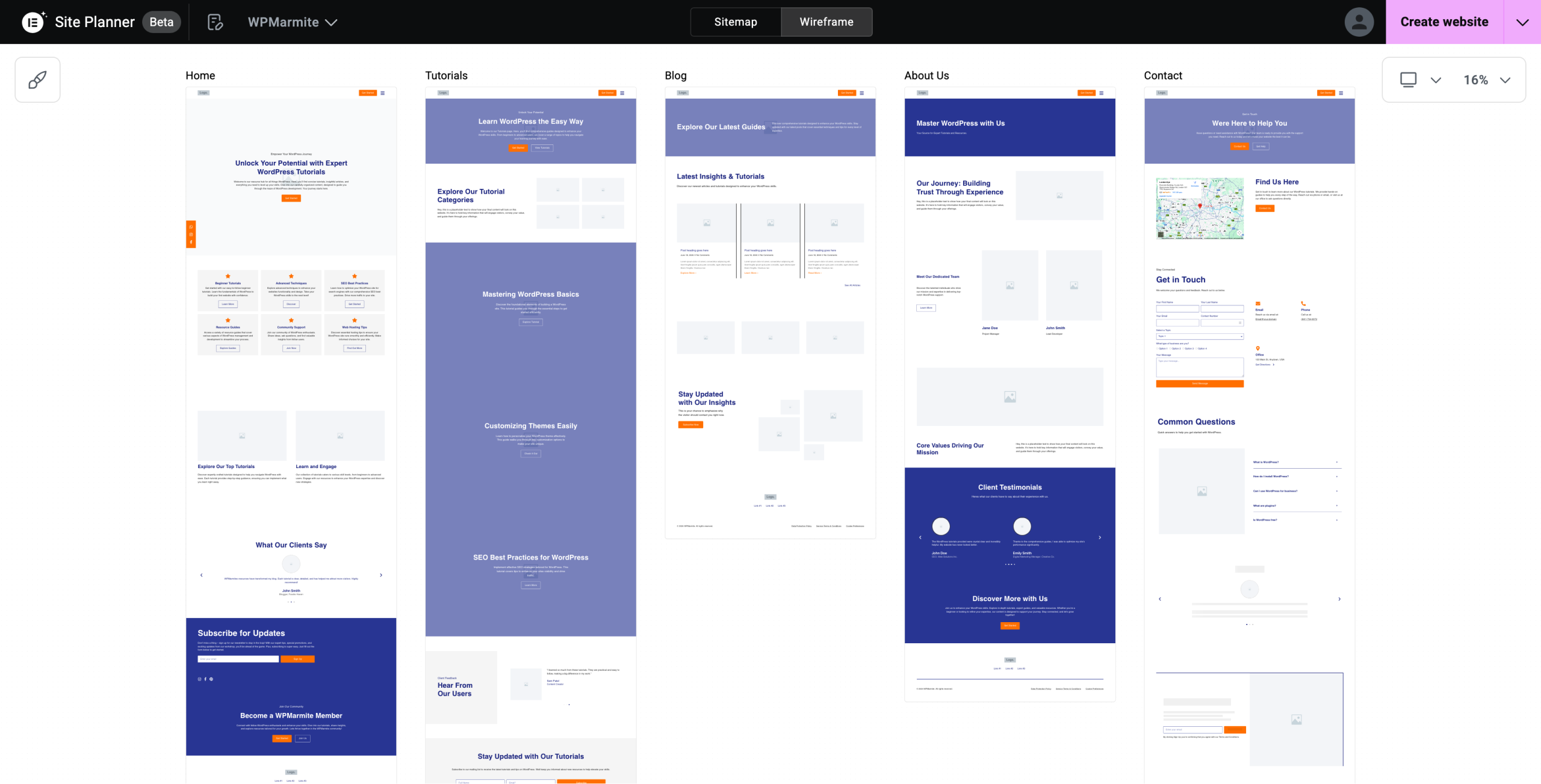
In the “Sitemap” tab, you can zoom in to get a closer look, and add pages or sections within each page by clicking the small “+” icon:
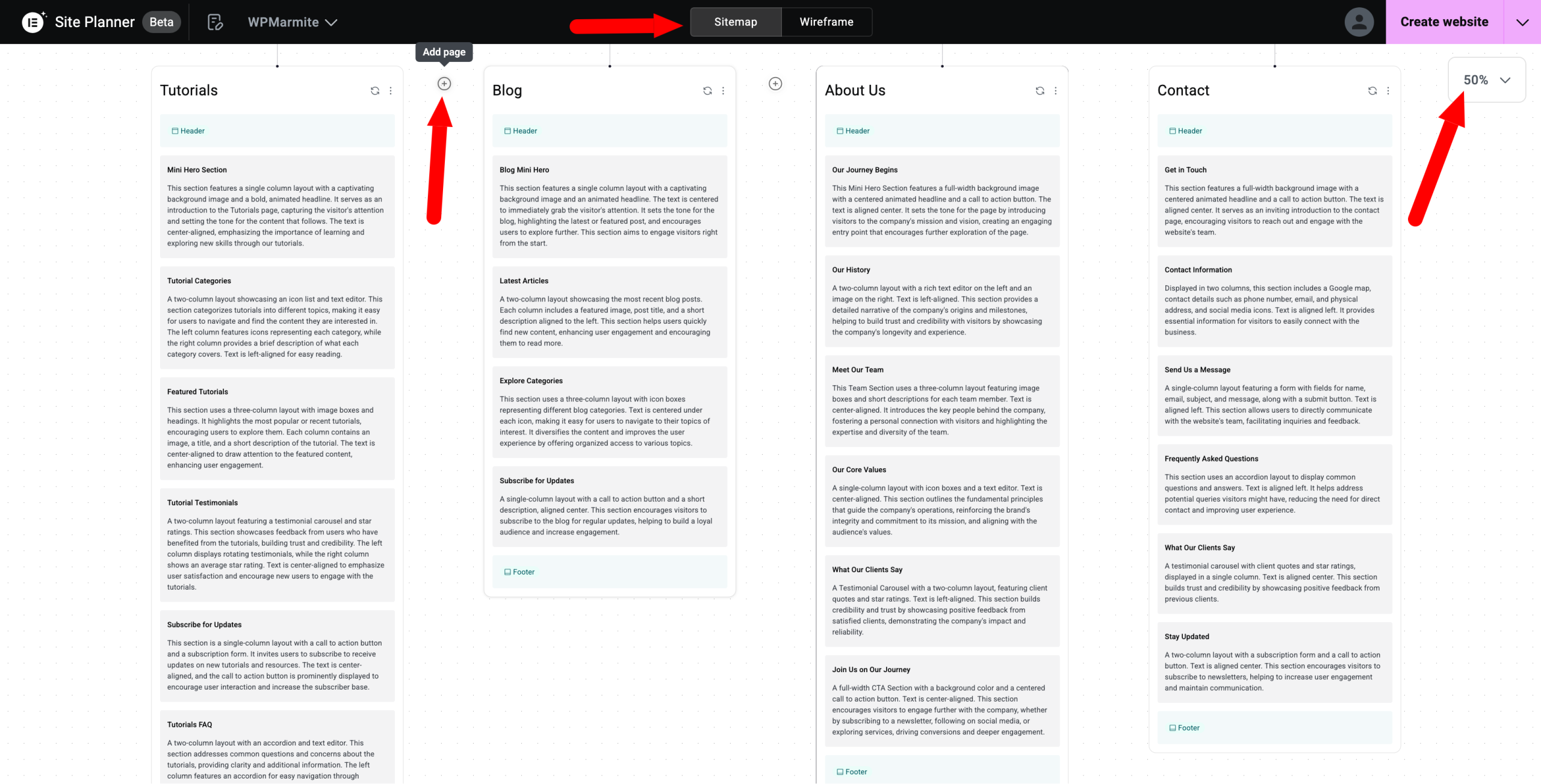
Now let’s switch to the “Wireframe” tab, where you can also zoom in and select a responsive preview for each page (desktop, smartphone and tablet).
If you wish, you can already modify the style (colors, font, logo) of your pages by clicking the paintbrush icon.

If required, you can also edit the visual appearance and content of each section of your pages:

To edit text, for example, simply click the area you want and type new words (editing happens visually and in real time).
You’re free to add or remove any sections and pages you want. On the “Sitemap” tab, you can also ask the AI to regenerate a page that doesn’t suit you:

Upload your wireframe to your WordPress site
Finished making your edits? Now it’s time to add everything to your WordPress site, don’t you think? Let’s get started.
Click on the “Create website” button, then on “Import your kit to a site”:

Next, enter your site’s URL (domain name) in the dedicated field, and let Elementor automatically integrate everything you’ve just created into your site.

The AI Context alternative
As you’ve just seen, AI Site Planner is very useful when it comes to creating the architecture and design of your pages while following your instructions and brand identity.
It’s more personalized than installing a generic site template for your industry (e.g. marketing, hospitality, fashion, construction, etc.), which you can also do with Elementor, of course.
Now, if you’re not starting from scratch and already have your site online, you can share information about your business and the tone of your website, much like you did with Site Planner.
To do this, click on “AI Context” in the “Settings” section of the Elementor editor:
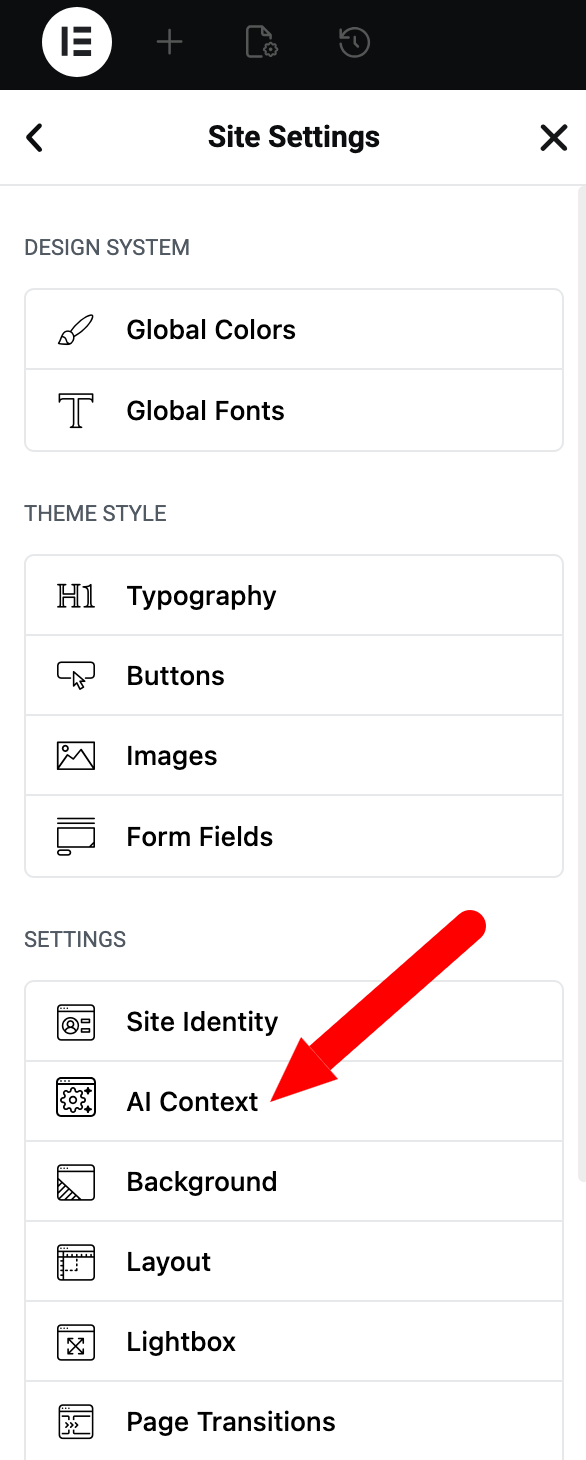
Then, enter the information of your choice in the pop-up window that opens:

How to customize your site with Elementor AI?
At this point, your site is live and includes either your current design or the one you created using AI Site Planner.
Now it’s time to explore the Elementor AI features you can use to customize your pages and save valuable time.
Content creation
With Elementor AI, you can easily create content at several levels:
- Generating headlines, descriptions, and body text. The AI can suggest catchy headlines, persuasive product descriptions and even engaging blog introductions to hook your readers
- Editing and rewriting text. Artificial intelligence suggests improvements to vocabulary, semantics, sentence structure, spelling and grammar
- Translating your content. Make your site multilingual using AI-powered translation.
How does it work?
To use the AI text options, click on the heading or text you want to edit, then click the small “Edit with AI” icon.
In the pop-up window that appears, you’ll see that you can, for example:
- simplify the language
- make the text longer
- make it shorter
- correct spelling and grammar
- change the tone
- translate it into the language of your choice.
For better results, you can even add additional context.

Image generation and optimization
Great text always looks better with the right image. With Elementor’s image generation and editing tool, you can handle both at once.
For example, you can:
- create images from text descriptions. The AI then generates multiple variations you can choose from
- produce image variations, i.e. variations in style, color or composition of an existing image
- replace or remove a background. With just a few clicks, AI can isolate elements and place them perfectly on new backgrounds
- enhance existing images, with the ability to enlarge them, for example.
How does it work?
Click the image you want, then click the “Edit with AI” icon (just as you did with text before).
Then, select the option of your choice:
- Expand image
- Generated fill
- Resize
- Variations
- Remove background
- Replace background
- Cleanup
- Isolate object.

For the example, look, I’ve removed the background. Pretty effective, don’t you think?

For image creation, you provide a prompt describing:
- the type of image you want: photo, vector, logo, background, hand-drawn, digital, etc.)
- the style: landscape, portrait, macro, etc.
- the aspect ratio: square, landscape, portrait, etc.

Custom code generation
Does the sight of a line of code give you hives? Don’t worry, the AI-powered custom code generator (HTML, CSS) is here to help.
Even though Elementor already provides extensive styling options for elements like text and images, you can go even further by generating specific CSS adjustments for the elements of your choice.
How does it work?
Let’s take an image as an example (the process is the same for text). Select it, then go to Advanced > Custom CSS, then click on the “Edit with AI” icon:

Describe the code you want to generate by explaining the action you want it to perform. You can also rely on Elementor’s suggested prompts or its prompt library.
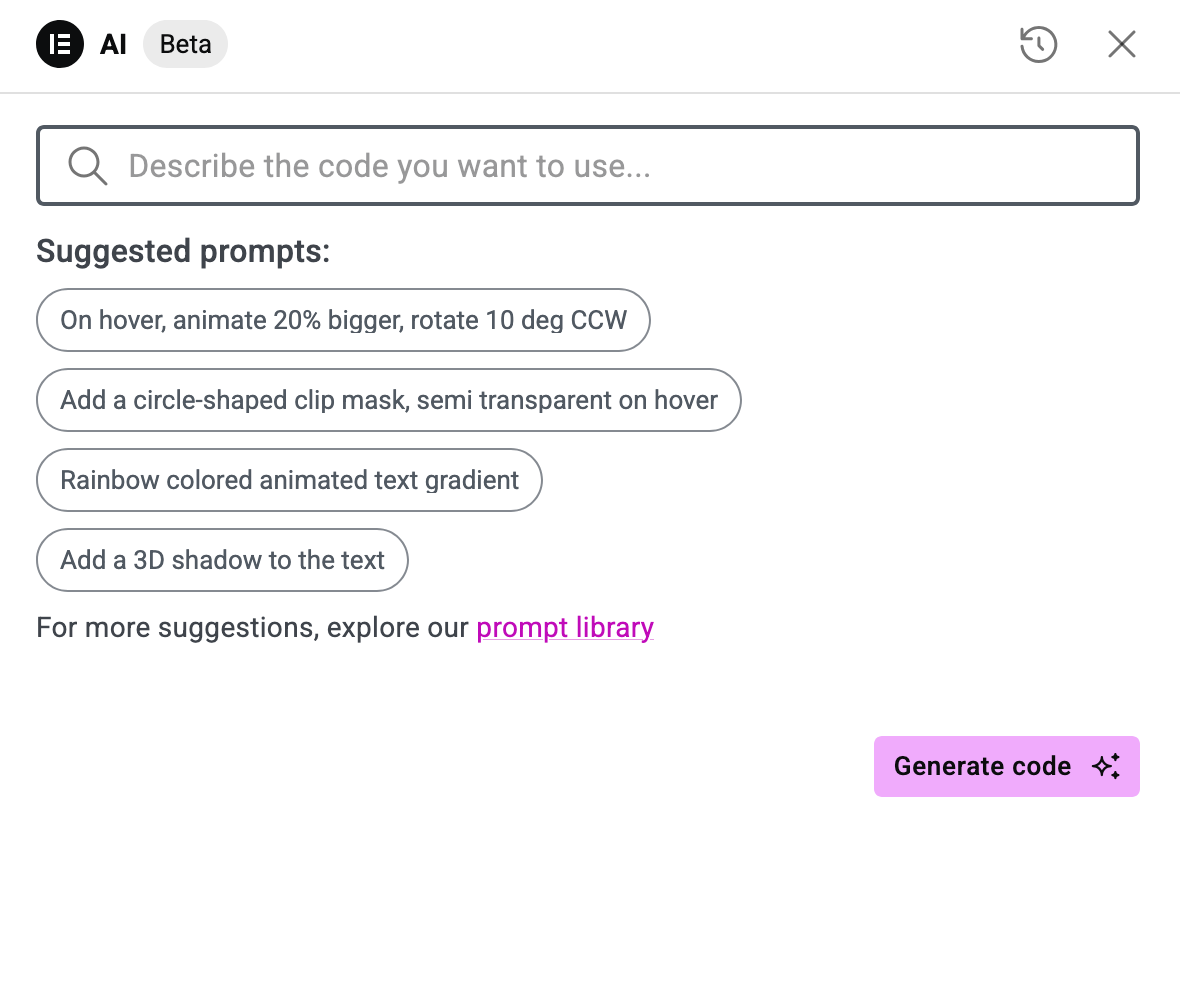
Note that AI is also available within the “HTML Code” widget. And to go even further, you can generate custom code from the Elementor > Editor > Custom Elements > Code menu accessible from your WordPress admin.

Generating content sections
Let’s finish with the last option offered by the Elementor AI feature suite: creating and customizing ready-to-use content sections.
How does it work?
When building the layout of your next section, click the “Build with AI” icon.

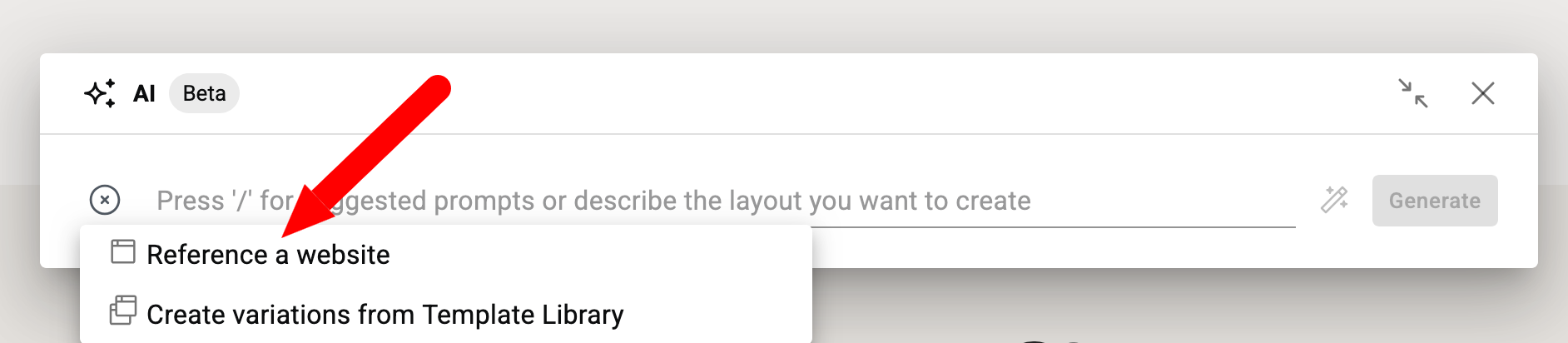
Then, describe the layout you want to create, or use the slash command on your keyboard (“/”) to use suggested prompts. Click on the “Generate” button when you’re finished:

That’s already quite powerful, but you can go even further with another great creative feature: the “Reference a website” option, which name can be misleading.
The idea is simple: enter the URL of a page whose design you like, then let Elementor AI replicate the part of that site you like on your own site. To do so, click the “+” button:
And last but not least, you can also generate wireframe variations based on your layout:

Angie and Elementor One: going even further with AI on Elementor
Congratulations: now you know how to create and customize a WordPress site using Elementor’s AI features.
To be completely thorough, AI and Elementor go even further than what you’ve just discovered.
Angie, Elementor’s native AI layer for WordPress
Ever heard of Angie? Nothing to do with your neighbor or friend Angela here, this is a native AI designed for WordPress by the Elementor team (technically, you can even use it without the Elementor editor, an Elementor account is all you need).
Angie works as a native AI generator, creating or optimizing pages, as well as custom widgets within the WordPress ecosystem.
With her, you can, for example, create:
- custom widgets with the Elementor editor
- WordPress admin snippets
- website snippets
- visual apps
- custom post type and fields.
Compared to Elementor AI, Angie is even more powerful, since it understands your entire WordPress site, including its structure, plugins and data.
This allows you to perform site management tasks such as installing WordPress plugins and themes, creating and managing user roles, categories, tags and other custom taxonomies.
You can use Angie for free (with renewable AI credits) by activating the dedicated plugin:

Elementor One
Another thing to know about Angie: it will soon become part of the Elementor One ecosystem. Released in January 2026, this all-in-one subscription brings together all the tools offered by Elementor to create, optimize and manage your WordPress sites from a unified dashboard.
All Elementor AI options are included inside (content, code, sections and images generation and optimization), not to mention exclusive features to Elementor One such as media performance optimization, email deliverability and accessibility (with an AI-powered control system).
Instead of paying separately for several plugins and services already offered by Elementor as a one-shot package, you get everything bundled together, at a price that’s generally lower than buying them separately.
To find out more about Elementor One, check out our full review, with our opinion on this unified subscription.
How much does AI cost on Elementor?
Finally, let’s address an important point: Elementor AI pricing.
To put it simply, you have 3 options if you want to use Elementor:
- use the Editor only (the free Elementor or Elementor Pro plugin). In this case, you won’t have access to AI features, whatever plan you choose (rates range from $5/month to $17/month, depending on the plan).
- subscribe to Elementor One, which “unlocks” all Elementor’s AI features through a system of monthly credits. The number of credits depends on the plan you choose: 25,000 credits for the $19/month One plan (excluding discounts) and 350,000 credits for the One Agency plan.
- combine the Elementor Editor with a $4/month Elementor AI plan, limited to the annual generation of 24K text or code snippets, 725 images or 600 content sections. Suffice it to say, it’s often worth switching to an Elementor One plan.

Our final review of Elementor’s AI tools
After this comprehensive overview, one thing is clear: AI on Elementor is not just a gimmick.
It integrates intelligently into the existing ecosystem to meet the real needs of WordPress site creators like you.
Whether you’re planning a site’s structure with AI Site Planner, writing and enhancing your content, generating or optimizing images, creating ready-to-use sections or even producing custom code without technical knowledge, Elementor’s AI tools save you precious time at every stage of your project.
Personally, we like:
- the native integration within the editor, which avoids the need for multiple external tools
- the progressive uses, suitable for both beginners and more advanced users
- Elementor’s long-term vision, with solutions like Angie and Elementor One that go far beyond simple page creation.
In short, if you’re already using Elementor (or plan to), enabling AI is a logical evolution.
It doesn’t replace your expertise, but it amplifies it, as long as you don’t fall into the all-AI trap: you work faster, test more ideas and focus on what really matters: the content, design and performance of your site.
To take full advantage of AI on Elementor without frustrating limitations, Elementor One is currently the most complete and consistent solution.
To discover it, click on the button below:

Receive the next posts for free and access exclusive resources. More than 20,000 people have done it, why not you?


Continue reading
Articles posted in WordPress TutorialsHow to manage and optimize WordPress menus like a pro
It is crucial for many websites. It is in four letters. And we often see it very quickly at the top of the page, when we land on a new site. This essential element is the menu. A website menu…
How to update the PHP version of your WordPress site
What comes to mind when you think of WordPress speed and security? Your favorite plugins, perhaps? You should also think about… PHP! If you’re looking for a site that loads fast, while offering a solid shield against hacker attacks, there’s a…
How to create an effective HubSpot conversion funnel on WordPress (complete guide)
In the drawers of a kitchen, there are often two very useful utensils lying around. The first is the colander. And to illustrate, some WordPress sites unfortunately resemble it. Why? Well, because visitors arrive on the site in question… then…