
“Only the leading brand in the ecosystem can make such a move this bold: consolidating an entire infrastructure into a single, unified experience.”
These words, spoken in early 2026 by Elementor CEO Yoni Luksenberg, herald a major shift for the brand.
Elementor recently launched a single subscription designed to help you create, optimize and manage your WordPress sites from one centralized dashboard.
The name of this revolution? Elementor One.

If you’ve always thought of Elementor as “a simple page builder”, read on. Because this is a major change.
In this article, we’ll cover everything you need to know about Elementor One (features, target audience, pricing, and more) and show you how to use it to build a WordPress site.
You’ll see, we’ll be talking about AI, accessibility, image optimization, email marketing and even… a few surprises.
I won’t say any more. Stay tuned to find out if this new subscription can truly simplify the way you build and manage your WordPress sites.
- What is Elementor One?
- What features are included with Elementor One?
- Who is Elementor One designed for?
- How to install and set up Elementor One to start a WordPress site?
- Key steps for customizing a WordPress site with Elementor One
- Support with Elementor One
- Elementor One pricing and subscription options
- Our final opinion on Elementor One
Transparency note: This article is sponsored. Some links to Elementor One are affiliate links. This means that if you purchase a subscription through one of these links, WPMarmite will earn a commission. This helps us remunerate the research and writing work of the blog’s editors, as well as building a budget to purchase and test other WordPress plugins. To find out more about our editorial policy, check out this resource.
What is Elementor One?
A single subscription to create, optimize and manage your WordPress sites
Elementor One is an all-in-one subscription that brings together all the tools offered by Elementor to help you create, optimize and manage your WordPress sites from a unified dashboard.
Released in January 2026, Elementor One includes the brand’s flagship drag-and-drop visual editor (Elementor Pro), coupled with a monthly credit system that lets you use features on the fly such as:
- content and code generation by AI
- image optimization
- email deliverability
- accessibility
- and more.
Instead of paying separately for multiple plugins and services already offered by Elementor as standalone products, you get bundled features at a price that’s generally lower than purchasing them separately.
In short: everything is included in a single plan “to power your entire workflow”, says Elementor.
What’s the idea behind Elementor One?
Elementor One is a small revolution (or a big one, depending on how you look at it).
The idea is to reposition a tool still seen as a real-time visual editor (page builder) into a powerful, multi-purpose platform.
The ultimate goal? Capture more value, increase user retention, and reinforce its leadership against competing themes, plugins and no-code SaaS solutions (Webflow, Wix, Shopify, Loveable, etc.).
Today, the direction is clear: “Our mission has grown with you. We aren’t just giving you an Editor anymore; we are providing the complete infrastructure to lead the future of the web.”
It’s worth noting that Elementor currently carries significant weight in the ecosystem. Here are some of the figures highlighted on its About page:
- used in over 150 countries
- 200,000+ members in the Elementor community
- 19 million active installations, making it the most widely used plugin in the entire official WordPress repository (out of a total of over 60,000 plugins!).
In terms of usage, Elementor continues to gain market share month after month. According to the very serious W3Stats website, Elementor powers more than 1 in 10 sites worldwide (13.1%). For comparison, WordPress, the most widely used CMS on the planet runs 42.8% of all websites.

What’s next? In our opinion, Elementor One represents a step towards strategic emancipation.
The aim is not to leave WordPress, but to abstract itself from it as much as possible by moving the value out of the open source WordPress Core and into its own proprietary layer.
Be careful not to confuse Elementor One with…One Elementor, a theme compatible with the page builder!
Good. So much for our first Elementor One presentation, which has enabled us to put this new platform into context.
Let’s continue with a detailed presentation of its features.
What features are included with Elementor One?
To put it simply, Elementor One offers features in 3 main areas:
- creation
- optimization
- management.
Elementor One creation tools
Let’s start with the creation tools. The flagship feature here is the website builder.
Elementor Pro is included in every Elementor One subscription, giving you access to options such as:
- Theme Builder
- Dynamic content
- Global styles
- Website and page templates
- WooCommerce integration
- Popup Builder
- Advanced marketing widgets
- And more.

Anyway, we won’t go into too much detail here. For the record, we explain how to use Elementor Pro like a pro in our dedicated guide.
But the Pro page builder is just the tip of the iceberg. Beneath the surface, there’s much more going on. We’re thinking in particular of all the artificial intelligence (AI) features offered by Elementor, which we’ll explore in more detail later in this article.
Currently, Elementor One gives you access to several AI features directly within the editor. Soon, you’ll also have access to Angie, Elementor’s native AI layer, which will enable you, for example, to create pages, blocks, custom widgets, forms, images or even code snippets in just seconds, through a text-based chat interface.

Optimization tools
After creation, it’s time for optimization. With Elementor One, you can use your monthly credits included in your subscription to:
- Optimize your images. In concrete terms, it’s the Pro version of their in-house Image Optimizer plugin (normally billed at $60/year in its Pro version) that is integrated into Elementor One. It automatically compresses your images and converts them into next-generation formats such as WebP. In short, it’s a competitor to Imagify or Smush.
- Improve your site’s accessibility. Here, the Pro version of their Ally accessibility plugin (normally at $120/year) is included. It scans your WordPress site for accessibility issues, which you can then fix with the help of AI.
- Enhance page loading speed through caching and lazy loading features (among others).

Management tools
The third and final set of features focuses on site management. With Elementor One, you get access to:
- priority support, with dedicated Elementor experts. Response times are supposed to be faster than with other Elementor plans (Essential, Advanced Solo or Advanced)
- collaborative notes
- access to Site Mailer, Elementor’s premium plugin (normally at $60/year) to improve email deliverability
- an Elementor site management tool (coming soon) similar to ManageWP or WP Umbrella.
A shared credits system
Elementor One also features a shared credits system. Instead of paying for multiple premium subscriptions (e.g. Site Mailer, Image Optimizer, etc.), you get a single pool of monthly credits that you can use freely based on your needs.
Each month, you recevie 25,000 flexible credits (for the 1-site plan) or 350,000 credits (for the Agency plan) that can be used for:
- AI features
- image optimization
- accessibility fixes
- email deliverability
- new features as they are released.
No credits are required to use the page builder (Editor Pro). As Elementor explains, you can “allocate resources exactly where your project needs them most”.
For example, you might choose to use 15,000 credits one month for image optimization, then only 2,000 credits the following month for the same task. The choice is yours.
To give you an idea, Elementor provides the following table:
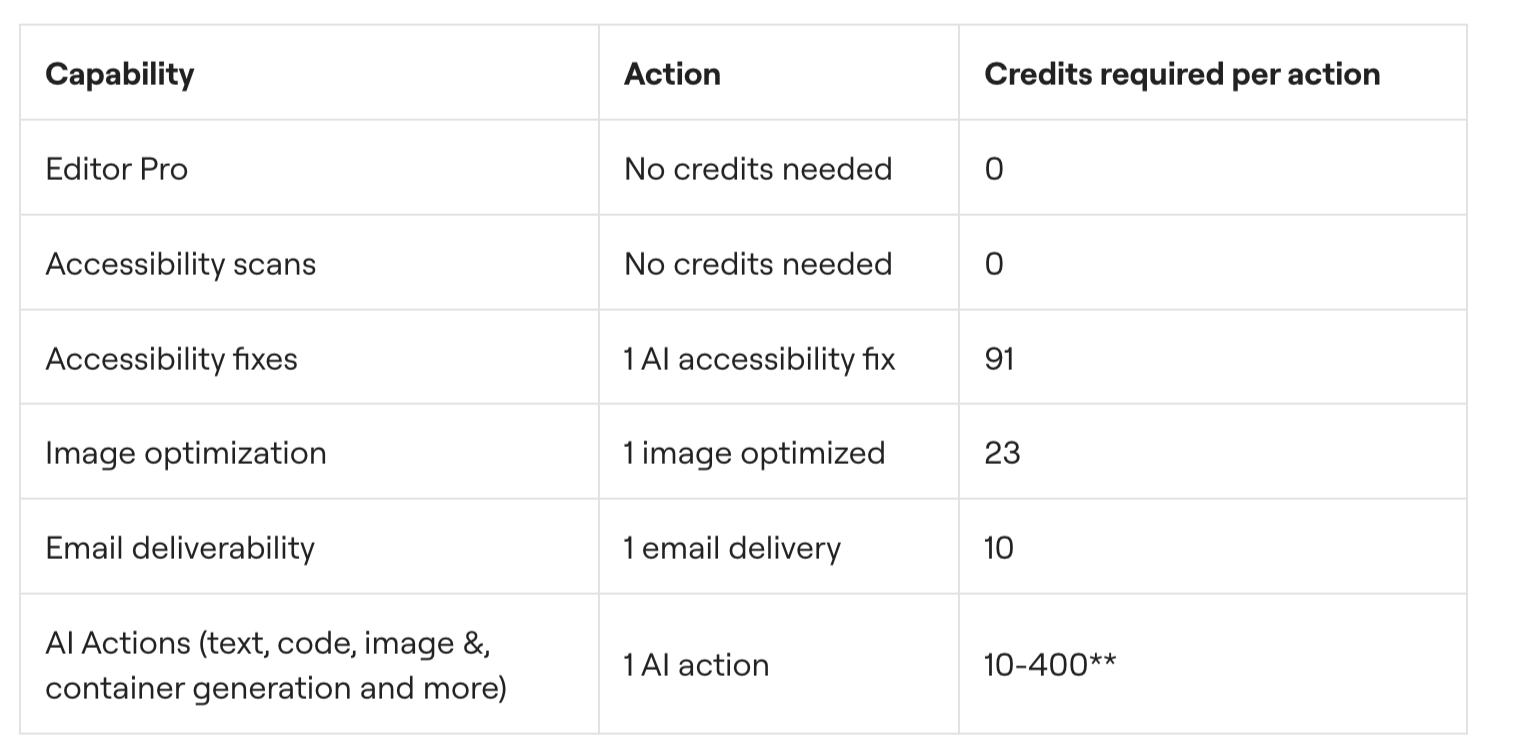
Finally, please note that all new features released by Elementor are automatically added to your subscription at no extra cost. At the time of writing, upcoming additions include:
- Cookie Consent, a privacy-friendly consent management solution without external scripts
- Manage, a centralized hub for monitoring site performance and performing bulk updates across multiple sites from a single dashboard
- an overhaul of the editor (Editor V4). This “atomic” editor, built on a professional CSS-first framework, will introduce atomic components: modular, lightweight building blocks based on cleaner code.
Who is Elementor One designed for?
At this point, after digesting all this information, you may be wondering who Elementor One is made for?
That’s a very good question, and the answer has several layers.
First and foremost, Elementor One is primarily aimed at regular Elementor users who are starting to stack multiple plugins and services around their WordPress site.
If you’re already using Elementor Pro, an image optimization solution, an emailing tool, maybe an accessibility plugin or an AI service, then Elementor One clearly aims to simplify your daily workflow.
Secondly, it’s clear from their sales page that Elementor targets two main profiles.
On the one hand, users who use Elementor on a single site, often their personal or corporate showcase or ecommerce site.
On the other hand, WordPress agencies and freelancers managing multiple clients and regularly building and maintaining several professional websites at once.
For them, Elementor offers the “One Agency” plan, “built for scale”.
It’s their “most powerful plan built specifically for scale”. With it, you can create, optimize and manage an unlimited number of sites, while distributing your credits flexibly across your entire client portfolio.
Stay right here for full details and prices later in this article.
In short, Elementor One will probably be oversized for complete beginners or very simple showcase sites.
Its real audience is professional creators who want to go faster and further without leaving the Elementor ecosystem.
Without further ado, it’s time to get hands-on. In the next section, you’ll learn how to activate and use Elementor One to create and/or improve an existing WordPress site.
How to install and set up Elementor One to start a WordPress site?
Purchase an Elementor One plan
To get started, purchase one of the two Elementor One plans available on Elementor’s official website.
To do so, go to the “Products” menu and click the “Get Elementor One” button.

Select the plan of your choice:
- “One”: for use on a single site, with 25,000 monthly credits
- “One Agency”: for unlimited sites, with 350,000 monthly credits.
Follow the on-screen instructions to complete your payment.
Install and activate Elementor Pro on your WordPress dashboard
Once your purchase is complete, download Elementor One from your Elementor account. Click the small download icon located in the black bar at the top right of the page:

In fact, you’re about to download a zip file containing Elementor Pro (the page builder). Then, connect to your WordPress back-office, and go to Plugins > Add Plugin.
First, activate the free Elementor plugin. Continue by uploading Elementor Pro to your site, then activate it:

Connect your Elementor One subscription to Elementor Pro
Finally, link your Elementor One subscription to Elementor Pro.
Go to Elementor > Home, then click the “Let’s start” button.
On the page that has just opened, click the “Activate it here” link to activate Elementor One.
Follow the instructions on the screen. If everything goes smoothly, you’ll land on a confirmation page indicating that the activation was successful.
By the way, you can choose to install the features of your choice (Accessibility, Image Optimization, Site Mailer, Native AI for WordPress) by checking the checkboxes of your choice.
Key steps for customizing a WordPress site with Elementor One
Now that this complete infrastructure is installed on your site, let’s put it to work.
To see what it’s capable of, we’ll focus on the core features offered by Elementor One:
- AI-powered generation of content, images, custom code and CSS, and layouts
- image optimization
- accessibility.
Understanding the Tool Manager
When you’re on the Elementor One home page, you’re presented with 15 tools in a manager, with 3 main families:
- Tools to create
- Tools to manage
- Tools to optimize
You can browse everything available by navigating through the dedicated tabs. To use a tool, simply click “Open.”

You can also enable or disable specific tools by clicking the “Tool Manager” button.
Adding a template
Once you’re familiar with how the Tool Manager works, it’s time to install a template for your brand-new WordPress site. To do so, click “Go to site setup.”

Here, you’ll find all the customization options offered by Elementor. In the left-hand column, click “Site templates” to add the template of your choice.
Once you’ve selected the demo you’re interested in, click the “Apply” button to install it:

Content creation with Elementor IA
Once you’ve installed and activated your favorite template, all that’s left to do is customize it as you wish.
And inevitably, there’s a bit of work involved. You’ll need to translate texts from English to French, adjust colors, apply your brand guidelines, add text sections, images, etc.
In short, all of this takes time, and Elementor knows this. To speed things up and optimize your workflow, you can rely on AI to generate code, text, images and layouts.
And this is only possible with an Elementor One subscription (it’s not included with the Editor Pro alone).
You can also purchase an individual subscription for $4/month, but it’s more limited and less cost-effective than Elementor One if you work at scale.
For example, you can edit existing text on your page (headings, paragraphs) by selecting the text and clicking “Edit with AI”:

You’ll then be able to use the options offered by Elementor (translation, change of tone, simplification, shortening, etc.) and even go further by adding your own context:

With AI on Elementor One, you can also start from scratch, of course. Simply click the pink “Build with AI” icon when adding a widget or a layout:

You can start by describing the layout you want to create, use the examples provided or make use of a prompt library.
Next, you can use AI whenever you see the little 3-star icon in the Elementor editor.

For instance, you can use it to generate a unique image by specifying:
- a text prompt describing the desired result
- the image type
- the style
- the aspect ratio.

Want to add custom code? The process is the same. Select the “HTML” widget, for example, and enter your prompt (or use those suggested by Elementor).
The killer hidden AI option
When it comes to AI integration on Elementor, there’s one feature I absolutely have to mention: “Reference a website.”
You’ll find it by clicking the “+” button when you open the AI creation panel.
Its name is bit misleading. It’s not about SEO or helping a site rank higher on Google.
The idea is rather to enter the URL of a page whose design you like, then let Elementor AI replicate the section that you like directly on your own Elementor site. Pretty impressive, isn’t it?

To find out more about all the creative possibilities with AI on Elementor, check out our dedicated article on the topic.
Image optimization
Let’s move on to another feature exclusive to Elementor One: image optimization.
Exit the Elementor editor and return to your WordPress dashboard, in the Elementor > Image Optimization menu.
At the top of the page, you’ll see how much storage space has been saved after image optimization, along with the number of optimized images.
You can configure optimization settings such as:
- compression level (lossless or lossy)
- automatic optimization for every new upload
- backup of original images
- conversion to a different format (WebP, AVIF).

You can also bulk optimize your images in the “Bulk optimization” menu.
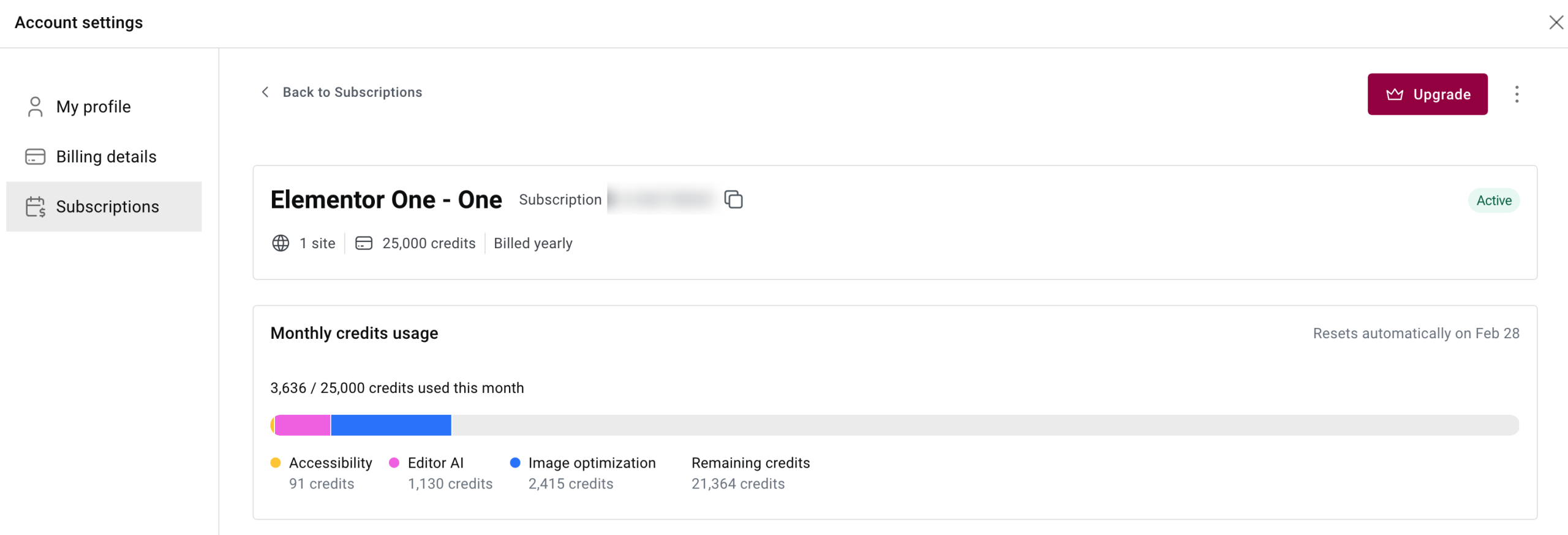
As you go, you’ll see an overview of the credits you’ve used. In your Elementor customer account, select “View related subscription” for the site of your choice.
You’ll see a “Monthly credits usage” box detailing the credits already used (AI and image optimization) and those remaining:
Accessibility
Let’s get down to accessibility. In Elementor > Accessibility, you can scan your homepage to detect potential issues:

In our example, Ally (the name of Elementor’s dedicated accessibility plugin) reports 30 issues.
You can then click on any issue to see the details, and use artificial intelligence to resolve it automatically:
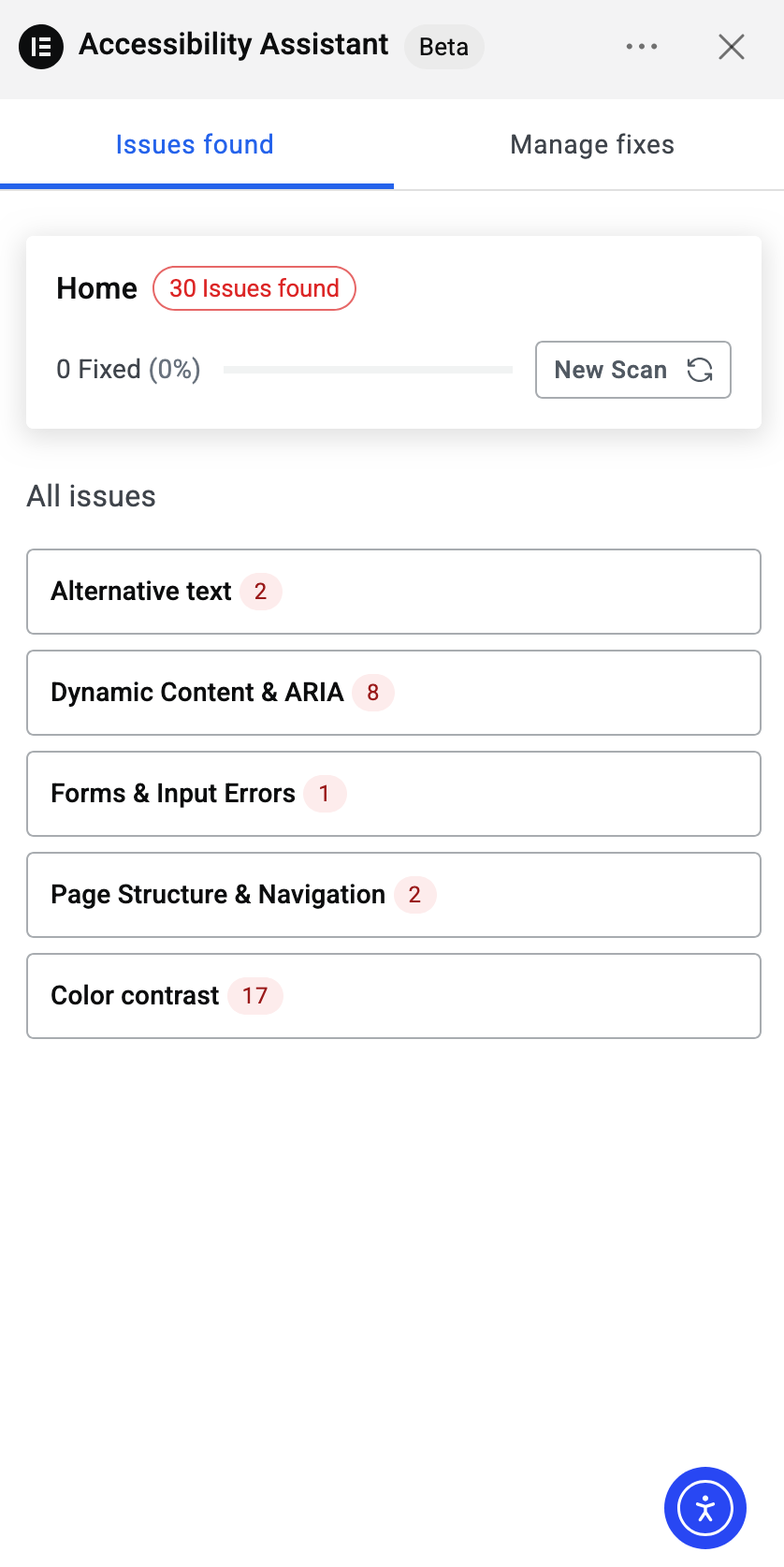
If you prefer, you can also rely on a dedicated accessibility chatbot in the bottom-right corner of your screen (the small blue icon shown above) to quickly configure different settings: text, visual and orientation.
Angie
Last but not least, Angie, Elementor’s native AI layer for WordPress, will soon be integrated into Elementor One.
Still in Beta at the time of writing, it goes even further than the features offered by Elementor AI, allowing you to create custom widgets, landing pages and snippets using AI, through a text-based chat interface.

Support with Elementor One
As you’ve seen so far, there’s no shortage of features in Elementor One.
But if you get lost at some point, or encounter a technical problem, what happens?
First, you get priority expert support, ensuring faster issue resolution than if you use a non-One subscription plan.
Then, you always have access to useful free resources to find a solution on your own:
Elementor One pricing and subscription options
Now let’s talk pricing: how much does Elementor One cost? Two subscription plans are available:
- “One” (for building a single site for yourself) at the regular price of $19/month ($228/year). Usage is limited to one site, with 25,000 monthly credits
- “One Agency” (for building sites for clients) for $45/month ($540/year). You can use it on unlimited sites, with 350,000 monthly credits.
Choosing between the two plans is simple: if you plan to use Elementor One on three or more sites, go with the “One Agency” plan.
How does it compare to other Elementor plans?
Elementor One is the only plan that includes all currently available Elementor features. As a result, it’s inevitably the most expensive.
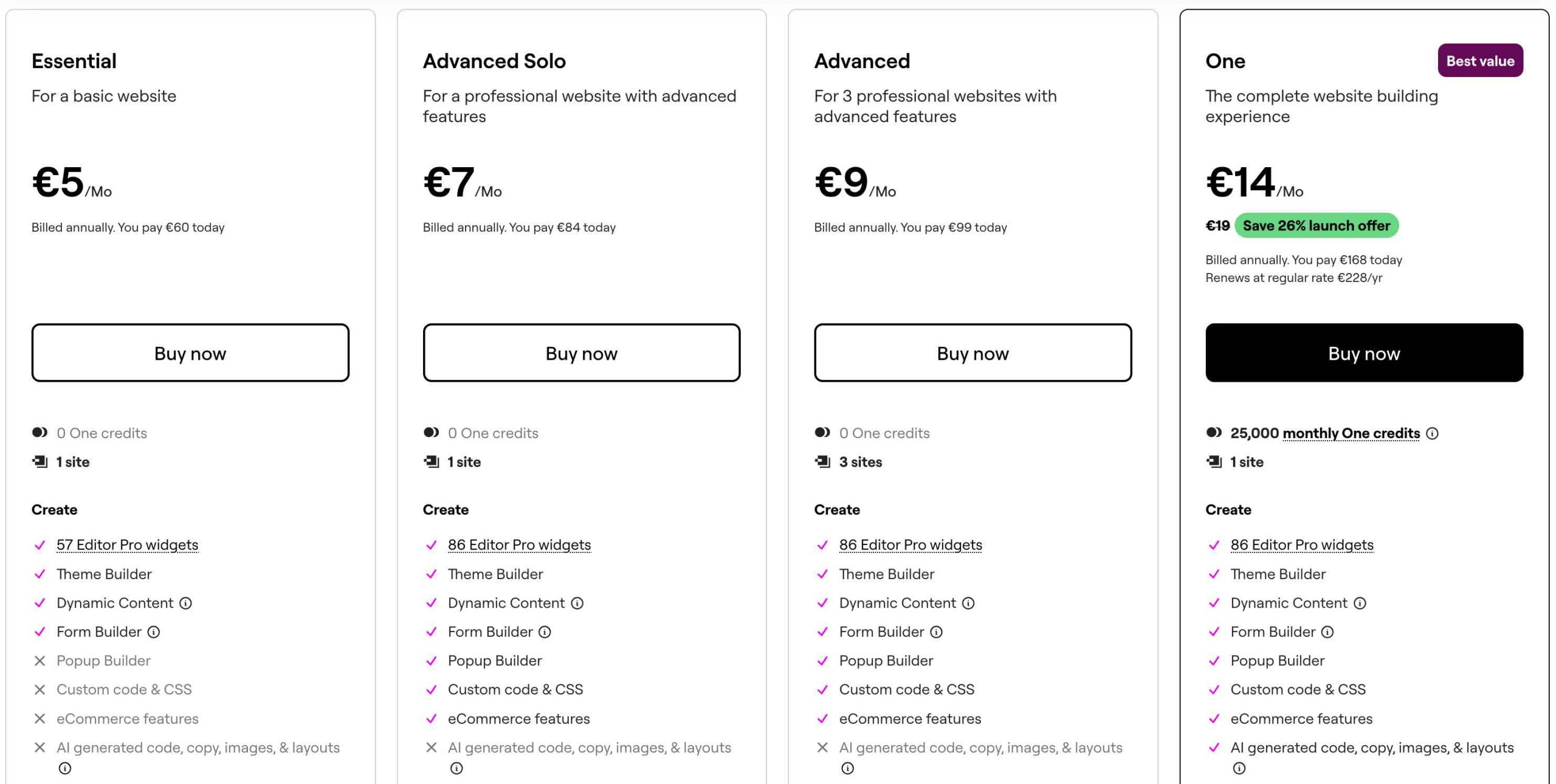
If you don’t need to use the AI, image optimization, accessibility or email deliverability features, you can still get the page builder on its own.
Prices are lower (from $60/year for one site), but you have no access to AI, image optimization, email deliverability and accessibility features, which are exclusive to Elementor One.
You also have fewer features within the editor (no Popup Builder, no custom code and CSS, and fewer available widgets, for example):
Is the credit system paid separately?
Since we’re discussing pricing, let’s take a closer look at the credit system. You don’t have to pay anything extra every month to use them.
Unused credits do not roll over to the next month. They reset every month. If you run out of credits during the month, you cannot purchase additional credits individually.
Your only option is to upgrade to a higher plan to receive more monthly credits.
Finally, if you have a “One Agency” subscription plan, you can use your credits across all your clients’ sites.
Our final opinion on Elementor One
Advantages of Elementor One
- A coherent all-in-one plan, designed from the ground up to work seamlessly together (creation, optimization, management).
- Full Elementor Pro integration, with no functional limitations.
- Advanced tools (AI, image optimization, accessibility, email deliverability) natively integrated into WordPress, without external APIs or heavy configuration required.
- Significant time savings on repetitive tasks (content, images, technical fixes).
- A flexible credit system that allows you to allocate resources according to your current priorities.
- A long-term vision: all future features are included at no extra cost.
- Centralized support: a single contact, a single editor, fewer technical conflicts.
- A solution particularly well suited to large-scale operations (multi-site, clients, agencies).
- A credible alternative to stacking multiple third-party premium plugins that don’t always integrate well together.
Limitations
- A higher price tag than standard Elementor plans, which may be hard to justify for simple use cases.
- Increased dependency on Elementor’s proprietary ecosystem.
- A credit system that may not be easy to understand at first, especially for non-technical users.
- Unused credits don’t roll over from one month to the next and can be consumed quickly, especially if you generate a lot of text content.
- No clear indication of how many credits a specific action will consume.
- A real learning curve if you want to exploit the platform’s full potential. There are many options, and it can be challenging at first to navigate between features available on your WordPress dashboard and those offered on the Elementor editor.
- Not suited for beginners or very basic showcase sites.
WPMarmite’s review of Elementor One
With Elementor One, Elementor has taken a major step forward. We’re no longer just talking about an enhanced page builder, but a comprehensive platform designed to professionalize the use of WordPress.
It’s an ambitious approach, but one that addresses a very concrete reality: today, creating and managing a high-performing website involves a wide range of tools, settings, and scattered services.
Elementor One’s strength lies in simplifying that reality. Centralized tools, all-in-one logic, native integration of AI, optimization, accessibility and management: everything is designed to save you time on a daily basis and reduce technical friction.
If you use Elementor seriously, regularly or professionally, Elementor One is the most comprehensive offer available.
It’s not essential for everyone (for occasional or very simple use cases, the page builder alone may be enough), but for agencies, freelancers and professional site creators, it’s clearly an option to be considered very seriously.
Want to take Elementor One to the next level? Click on the button below to find out more about the platform and its features:

Receive the next posts for free and access exclusive resources. More than 20,000 people have done it, why not you?


Continue reading
Articles posted in WordPress PluginsUpdraftPlus: The must-have plugin to back up, migrate, and restore your WordPress site
I’ll never forget that day. And not just because I thought I was going to throw my computer out of the window… Ah, if only I’d used a plugin like UpdraftPlus to avoid catastrophe. The catastrophe? Let me tell you…
WPML review: Ultimate test of the plugin to make WordPress multilingual
A second job. For a long time, creating and managing a multilingual WordPress site often meant doing the same work twice. Once you’d written a piece of content, you had to translate it. Then you had to check each version,…
Our review of B2BKing: A WooCommerce plugin built for B2B commerce
“Hi, I need 200 units of this product with fast shipping please”. As an online store owner, receiving this kind of message puts a smile on your face. Answering it, on the other hand, becomes a lot less fun… Basically,…