
Do you use Airtable and WordPress? Then some of your days probably look something like this. In the morning, you update your Airtable database as soon as something changes.
In the afternoon, you copy and paste the same data into your WP site. Multiply that by dozens of product sheets, ads, or articles: it all takes time. A lot of time. And it takes energy.

The good news? There’s a solution to put an end to all these time-consuming actions.
With the Air WP Sync plugin, your Airtable data is automatically synchronized with your WP site, without the need for third-party tools or a single line of code.
We can see you jumping for joy in front of your screen. Hold your horses: you don’t know what this plugin is worth yet!
We’ve put it through its paces for you. Features, step-by-step configuration (with a concrete use case), strengths, limitations, pricing: you’ll know it all after reading our review of Air WP Sync – Airtable to WordPress.
And, of course, you’ll know if it deserves a place in your toolbox. So let’s get cracking!
Transparency point: This article is sponsored. This allows WPMarmite to remunerate the research and writing work of the blog’s editors. That said, we remain impartial. If a tool isn’t worth it, we’ll say so (or we don’t tell you about it).

What is Air WP Sync – Airtable to WordPress?
Air WP Sync is a no-code freemium plugin that connects the Airtable database tool to your WordPress site, so you can synchronize your data there without having to use a third-party automation tool like Make or Zapier.
The Air WP Sync plugin imports and dynamically displays Airtable content on WordPress to manage your content (creation of posts, pages, products, custom post types, taxonomies, etc.), your users, and your SEO.
All in all, the plugin helps you design professional, personalized websites, while managing your data from the Airtable interface.
For example, Air WP Sync – Airtable to WordPress can be used in the following situations (non-exhaustive list):
- Websites and blogs: Import posts and pages on your site from your Airtable database (we’ll show you how to do this in several concrete cases in the rest of this article).
- Real estate sites: Generate your real estate ads from your Airtable database.
- Job boards: Manage your job offers in Airtable, then import and display them on your WordPress site.
- Directory websites: Import your directory listings from Airtable to WordPress in just a few clicks.
- Private blog networks: Manage your private blog networks in Airtable and integrate them with WordPress.
Airtable is a super flexible, no-code, SaaS database tool. It can be used for CRM, project management, inventory management, and much more.
How does Air WP Sync work?
To synchronize your data from Airtable to WordPress without you touching a single line of code, the Air WP Sync team relies on the WordPress REST API, a dedicated developer interface that enables third-party applications (like Airtable) to interact with your WordPress site.
As the creators of Air WP Sync explain, “Thanks to the API connection, you can use data from external applications to create, publish, modify, and delete WordPress content without going through the admin dashboard.”
In technical terms, this API interconnection is made accessible via the Air WP Sync plugin.
Who’s behind the plugin?
Air WP Sync – Airtable to WordPress is a plugin designed and developed by the WP Connect studio via its company Digital Korner, a web agency specializing in the creation of no-code WordPress sites in Nantes, France.
Behind Air WP Sync is Stéphane Menet, who has been creating WordPress websites since 2006.
As stated on the “About” page of the WP Connect website, Stéphane Menet “wanted to create WP connect after being confronted with a challenge for one of the clients he was working with at the time. He seized the opportunity of No-Code to develop and create the WP connect studio,” thus offering WordPress users the best of both worlds.
Alongside him is a team of about ten people (developers, UX specialists, support, and translators), including some well-known faces in the French-speaking WordPress ecosystem, such as Vincent Dubroeucq (developer) and Jenny Dupuy (co-responsible for WordPress documentation in French).

WP connect also offers other no-code add-ons to integrate your work tools with WordPress, such as:
- Notion WP Sync – Notion to WordPress, to automatically synchronize your data from Notion to WordPress
- Add-ons for WPForms, Contact Form 7, and Gravity Forms integrations without relying on tools like Make or Zapier
- TimeTonic for WordPress, to automate data flows between TimeTonic, the French database tool, and WordPress
- And the latest addition, WooCommerce for Airtable, to synchronize your orders in real time and manage your inventory from within Airtable
What are the main features of Air WP Sync?
So, having set the scene, let’s move on to a presentation of Air WP Sync’s main features. What can you do with this plugin?
Well, a whole host of things, in fact! First of all, there’s a distinction to be made between the free version and the Pro version.
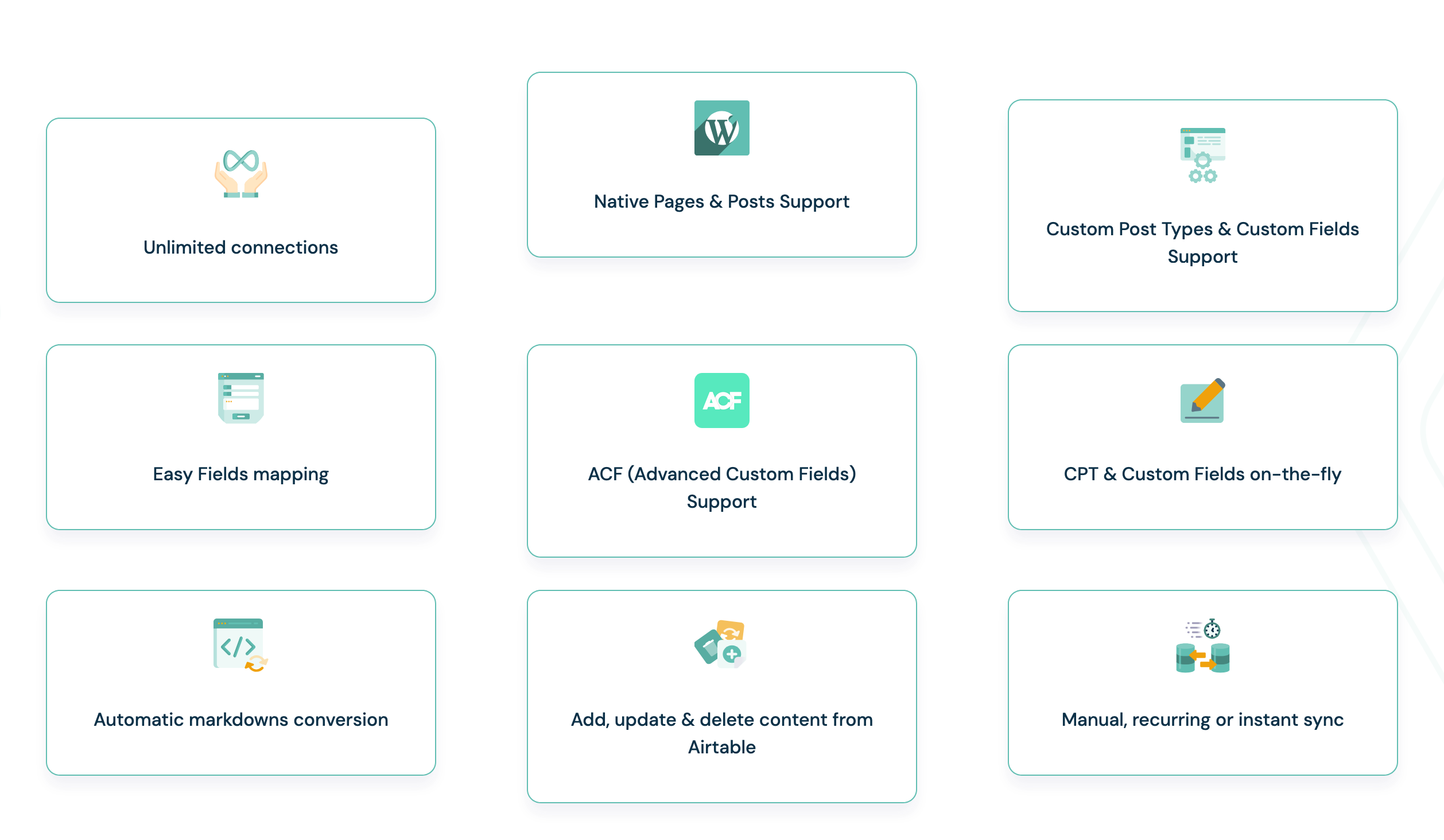
To put it simply, the premium package gives you unlimited connection publishing (versus single connection publishing with the free version), as well as support for plugins such as ACF (to synchronize your custom post types) and SEO (Yoast, Rank Math, SEOPress, All in One SEO).
Having said that, take a look at what you can do:
- Create connections with your Airtable tables
- Choose the type of content you wish to import (articles, pages, users, taxonomies, custom publications, custom fields)
- Synchronize your personalized data, with, for example, the creation of new personalized fields (with the Pro version)
- Define your synchronization configurations, e.g. manual, recurring, or instantaneous. You can also set the synchronization method of your choice (add, update, delete).
- Add, update, and delete content in Airtable
- Automatic markdown conversion
- Easy field mapping
- Support for third-party plugins with the pro version: ACF, JetEngine CPT, Yoast, Rank Math, SEOPress, All In One SEO, The Events Calendar, WooCommerce
Why should you use this plugin?
As you can see, the range of possibilities offered by Air WP Sync is very wide.
One of the major advantages of this made-in-France solution can be summed up in one word: simplicity.
It makes automation child’s play, since no technical skills are required. No need to touch the code: you can access advanced functions via an intuitive interface, accessible to beginners and experienced users alike.
WP connect also emphasizes reliability and security. “Our solutions comply with WordPress security and development standards,” they say, including regular plugin updates and the use of clean code that respects WordPress development standards.
If we were to elaborate a little, we’d highlight several major advantages of using Air WP Sync – Airtable to WordPress:
- The ability to link Airtable to WordPress without using a third-party automation service like Make or Zapier. Fewer tools, fewer dependencies, less complexity: everything is simplified for you.
- Automatic data synchronization. The deal is simple: every time you add or modify data in your Airtable database, your WordPress site is automatically updated.
- Centralize your data management. With Air WP Sync, Airtable becomes your data back-office, and WordPress your showcase. You manage your data in a flexible, collaborative tool (Airtable), then display that data cleanly on your site.
- Save time and increase productivity. Each automation eliminates the need for repetitive data copying and pasting, manual updates, and potential oversights or errors.
And, of course, you can now create dynamic sites without complex development.
Normally, the design of a dynamic site connected to an external database requires solid technical skills or the work of a developer.
Air WP Sync makes this approach accessible to non-developer WordPress users. By coupling the plugin with custom post types, custom fields (ACF), or a page builder like Elementor or the Divi Builder, you can create:
- A professional directory
- A real estate catalog
- A filterable resource base
- An automatically updated events site
It works like a magic trick. You don’t even have to get your hands dirty!

Who is Air WP Sync designed for?
Now that you know what Air WP Sync can do, a logical question arises: is this plugin right for you?
Spoiler: not necessarily! (Sorry if we disappoint you.) Good news, though: for some users, it’s a minor revolution.
On its website, WP Connect indirectly mentions 4 targets: “Air WP Sync helps creators, entrepreneurs, website builders, and developers create professional websites with WordPress and Airtable,” it says.
Personally, after using it, we think the plugin is aimed at four kinds of users:
- WordPress users of all levels (from beginner to advanced) who are already working with Airtable. If you’re already using the Saas tool to manage certain aspects of your business (product catalog, editorial planning, CRM, directory, etc.), Air WP Sync lets you automatically synchronize your data without having to re-enter it manually on the CMS.
- Freelancers and agencies specializing in WordPress who want to automate without having to bother with multiple tools (e.g., Make and Zapier).
- Designers of dynamic WP sites who wish to remain in a no-code environment. If you already know how to create custom post types (with ACF, for example) but don’t have a back-end developer’s profile, this plugin is for you.
- Teams that collaborate on data (agencies, collaborative projects, corporate marketing departments). Since not everyone knows or wants to use WordPress, Ar WP Sync lets your teams manage content and data directly in Airtable, without using the WordPress admin panel.
And for the sake of completeness, let’s also mention the cases in which Air WP Sync is not suitable:
- If you don’t work with Airtable
- If you run a simple blog without structured data
- If you have no need for automated synchronization
In these cases, WordPress alone is more than enough. So, are you a prime target for Air WP Sync? If so (or if you’re just curious), read on.
Right away, we’ll show you how to link Airtable to WordPress, and above all how to use the WP Connect team’s plugin, with a concrete use case: importing Airtable content as an article in WordPress.
How do you install and configure Air WP Sync to synchronize Airtable with WordPress?
Install the plugin on WordPress
First, install the plugin on your WordPress dashboard. You can start with the free version to test the plugin.
To do this, go to Plugins > Add Plugin, and enter “Air WP Sync” in the search bar:
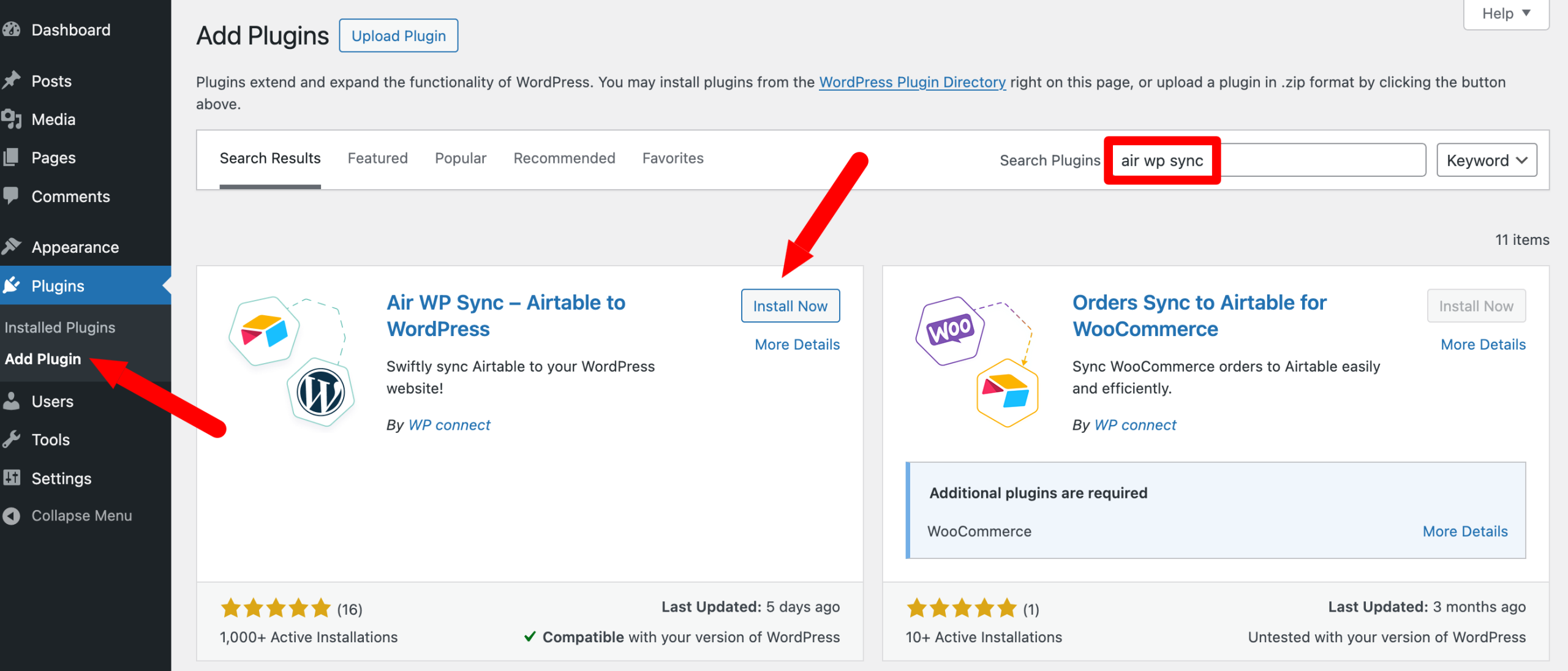
Click on the “Install now” button and remember to activate the plugin. If you’ve purchased the Pro version, enter your license key and activate it in the Air WP Sync > Settings menu:

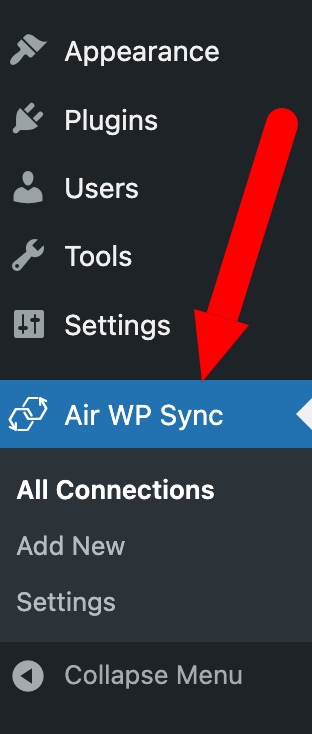
You’ll then see a dedicated menu, where you’ll find a list of your connections (All connections) and, of course, the option to add new ones (Add New):
Setting up your data on Airtable
WordPress is ready to receive data. So we’re good on the receiving end. Let’s move on to the transmitter: Airtable.
Logically, you need an account on the online database tool to be able to synchronize your data with WP. Note that a free account will do to get you started.
In technical terms, Air WP Sync uses the Airtable access token to link columns to fields and then send data to your site.
Go to the official Airtable website and click on the “Sign up for free” button to create your account. Follow the on-screen instructions.
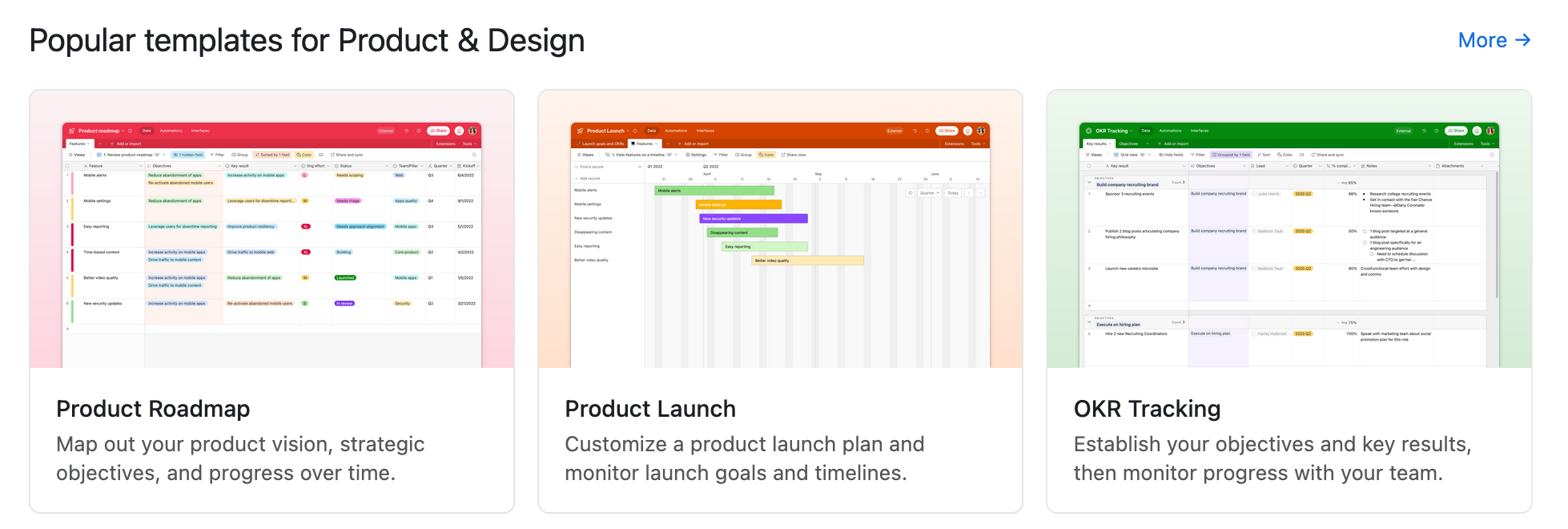
Then it’s up to you to create what you want, according to your needs. To avoid having to start from scratch, Airtable offers templates to get you started.
Generate a personal access token on Airtable
Next, you’ll need to obtain a personal access token on Airtable in order to link it to WordPress.
To do so, click on this link, then on the “Go to developers’ area” button. Then click on “Create token”:

Give your token a name (e.g. WPMarmite) and then click on the “Add a scope” link to determine the perimeter of your token.
To use Air WP Sync, the plugin documentation explains that your token must be able to:
- data.records:read (displays data associated with entries)
- schema.bases:read (to display the structure of a database, e.g. table names or field types)
Select these two options in turn. Then, in the “Access” section, add the workspaces and databases for which you wish to grant access to your token:

Copy and paste the generated token in a safe place and save your document. As you can see, you’ll need your token to create a new connection to your Airtable account.
We’ll look at that in the next section.
Creating a connection
On your WordPress dashboard, go to Air WP Sync > Add New. Give your connection a name at the top of the page.
For this example, I’ve chosen “Events Calendar” because I’m going to import the calendar template Airtable has provided for my WordPress site.
If you scroll down the page that’s in front of your eyes, you’ll see that there are 4 settings inserts for creating a connection.
Let’s take a look at that for a moment.
Airtable settings
In the “Airtable Settings” box, start by entering your personal access token.
Next, select the Airtable content you wish to connect to WordPress (the plugin will automatically recognize your Airtable databases and data):
- Base: To select the database you wish to connect (only those entered when creating your token, please!).
- Table: To select your database tables. In my case, I have several choices via my template (Schedule, Speakers, Attendees, Budget).
- View: To select a specific view within your database. To import everything, select “No View (all records)”.
- Filter By Formula: To filter your data even more finely. You can filter by formula or using the Airtable filter interface that the plugin has replicated on the back office. Leave as is unless you know what you’re doing.
- Include “Link to another record” fields: The “Link to another record” functionality allows you to create connections between fields or records and perform calculations seamlessly. You won’t always need it, but it’s very useful in certain cases, as explained here.

Import settings
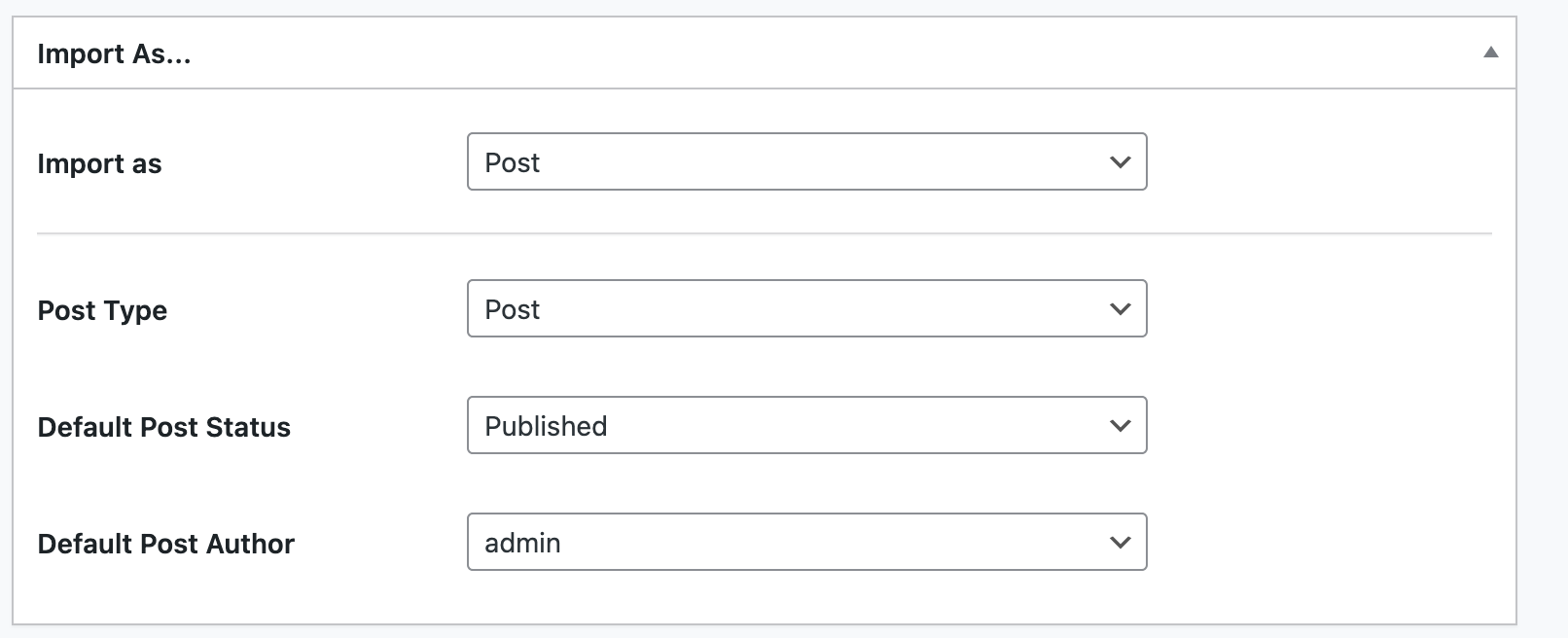
Next is the “Import As” insert, which lets you select the settings for importing your content from Airtable to WordPress, with 3 main options: post, user, or taxonomy.
Once you have made your choice (e.g. post), you can select:
- Post type: Post, page, custom publication type (CPT)
- Post status: As in WordPress, content imported from Airtable can have different statuses (Published, Draft, Scheduled, Pending, or Private)
- Default post author
Mapping settings on Air WP Sync
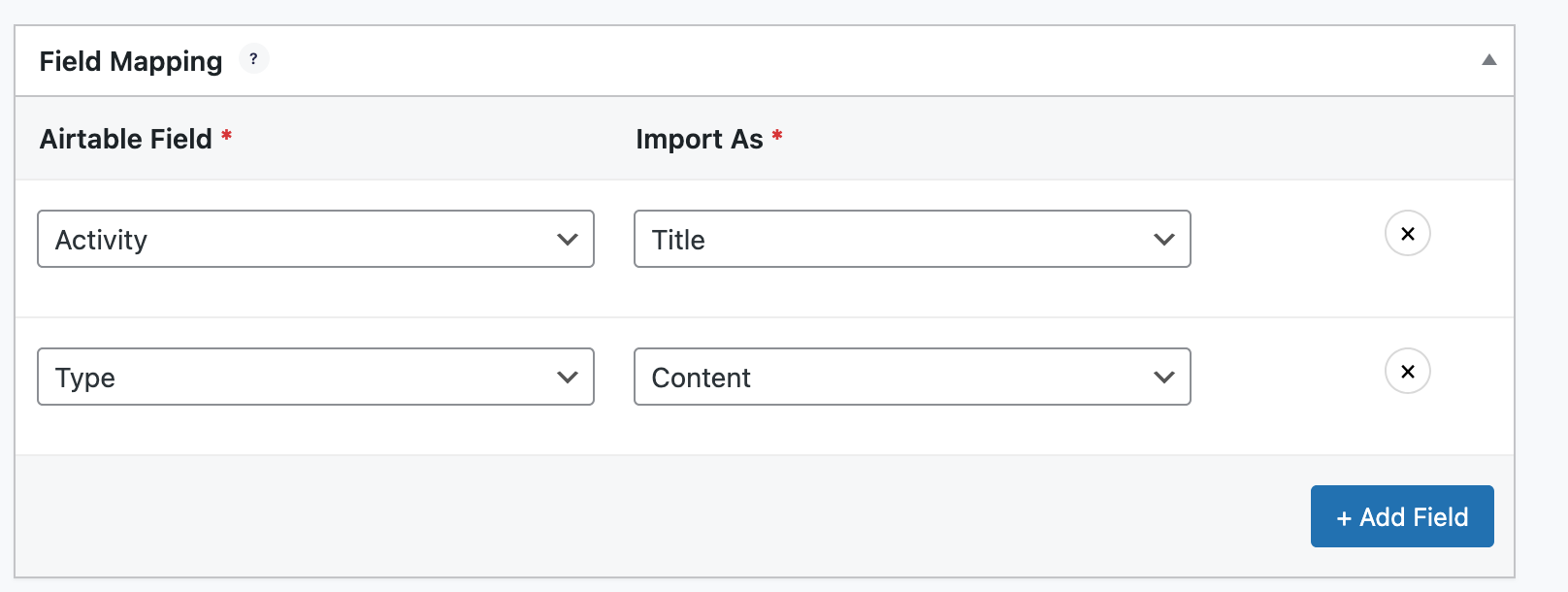
The third and penultimate section concerns mapping settings. This is where you configure the fields in your database that you wish to link to those in WordPress.
Click on the “Add field” button to add a field. You’ll then have two drop-down lists.
On the left (Airtable Field), the list shows the fields in your Airtable database.
On the right (Import As), you’ll find the WordPress fields with which you can match them.
There are those offered by default by WordPress (e.g., publication title, content, excerpt, slug, author, publication date, etc.), but also your taxonomies (categories, tags) and custom fields if you use the Pro version of Air WP Sync.
In my case, for example, I choose to make the “Activities” field in my Airtable database the title of my WordPress post:
Sync settings
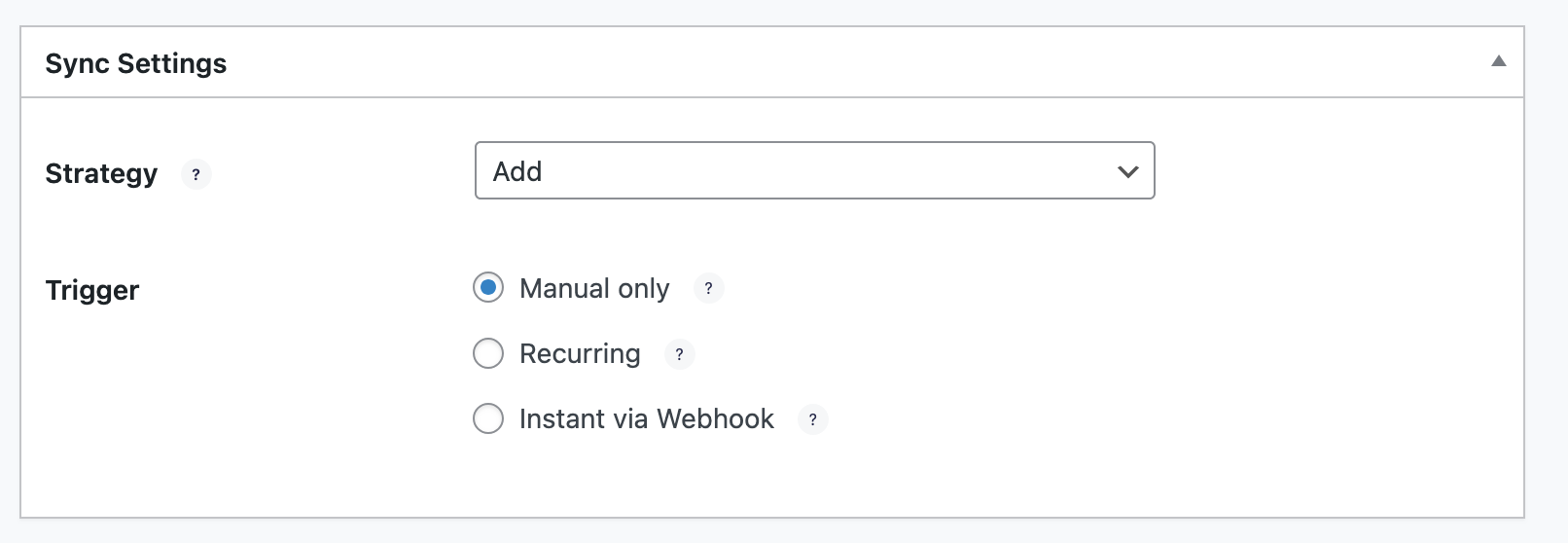
Let’s finish with the last section, on synchronizing your settings. First, you can choose between 3 synchronization strategies:
- Add, to add new content to your website without affecting existing content
- Add & Update, to add new content and update existing content if it has been edited in Airtable
- Add, Update & Delete, to add new content, update any existing content if it has been edited in Airtable, and delete any content that has been deleted in Airtable
Just below, you can set a trigger, which will control when data is imported from Airtable to WordPress.
You can choose from:
- Manual: Triggers on request
- Recurring: To schedule data import at regular intervals (once a week, once a day, twice a day, once an hour, every 30 minutes)
- Instant: Import data as soon as it is added or updated in Airtable
The designers of Air WP Sync point out that their plugin offers one-way synchronization: from Airtable to WordPress only. If you make changes in WordPress, they won’t be synchronized with Airtable.
Publish and synchronize Air WP Sync – Airtable to WordPress
When you have finished, click on the “Publish” button at the top right of the page:

You can also synchronize your data by clicking on the “Sync now” button in the “Actions” box. If the “Successful” message is displayed in green, synchronization has been successfully completed:
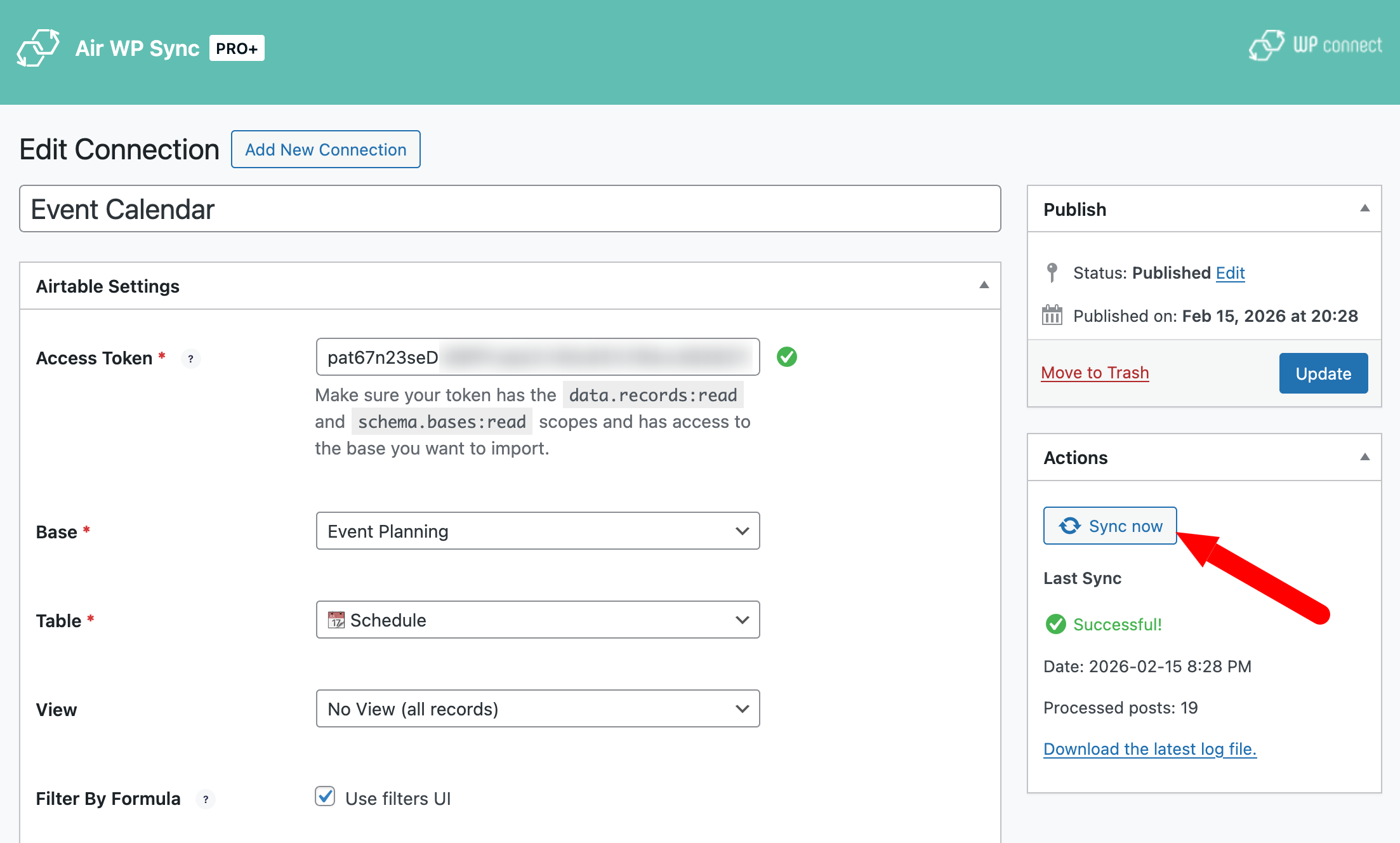
If I now go to the WordPress “Posts” menu, I see that the plugin has created 19 posts as requested, corresponding exactly to the number of activities contained in my Airtable database:


Well, now you know how to create a connection between Airtable and WordPress and import content in just a few simple steps. You see, it wasn’t that complex.
If you ever need to modify an existing connection, go to Air WP Sync > All Connections, then click on “Edit” on the connection of your choice:

To take things a step further, you should know that the creation and synchronization mechanics are the same for other types of data you might want to synchronize between Airtable and WordPress.
For example, you can:
- Create WordPress users from Airtable
- Create WP taxonomies from Airtable
- Translate your site with Air WP Sync and Weglot
- Synchronize Yoast SEO, Rank Math, SEOPress, or All in One SEO data from Airtable to WordPress
- Create a custom post type
In general, don’t hesitate to browse the tool’s documentation, which includes a number of practical case studies in the form of articles and videos.
WP connect’s YouTube channel is also a valuable resource to dip into.

How much does Air WP Sync cost?
Comparison between free and paid versions
After the technical set-up, it’s time to look at the wallet (yours, that is). How much will you pay for Air WP Sync – Airtable to WordPress?
First of all, you can enjoy the plugin as a free version. But of course, there are limits compared to the Pro version.
For example, Air WP Sync Free does not support third-party plugins (ACF, Yoast, etc.), custom post types, or custom fields. It is also impossible to create custom post types on the fly.
For a complete overview of the differences between the two versions, see this summary table of their features:

Air WP Sync Pro+ price
Are you planning to go straight to Air WP Sync Pro+? You have several options:
- Annual subscription: $200/year for 1 site, $600/5 sites, $800/10 sites
- 6-month subscription (for 1 site) at $120
- Lifetime access: $600 for one site

Each Pro package includes:
- Unlimited connections
- All plugin features and future compatibilities
- Support for advanced custom fields
- Compatibility with Yoast, All In One, Rank Math, SEOPress, The Events Calendar
They offer a 14-day money-back guarantee. You can also change your package at any time.
Our final review of Air WP Sync
After testing, configuring, and synchronizing several types of content with Air WP Sync, here’s our full verdict.
Benefits
- Direct connection between Airtable and WordPress, without using Make or Zapier.
- Intuitive, accessible interface, even if you have no development skills. Air WP Sync offers efficient native integration with WordPress. There are no unnecessary complications, and that’s a big plus!
- Easy to learn and use, even for beginners.
- Powerful automatic synchronization (add, update, delete).
- Support for custom post types and custom fields (ACF) in Pro version.
- Compatible with all major SEO plugins (Yoast, Rank Math, SEOPress, All in One SEO).
- Time saving and simplifies your work processes.
- Full WooCommerce integration with the WooCommerce for Airtable plugin.
- Instant synchronization via webhook, ideal for dynamic sites.
- 14-day money-back guarantee (reassuring when testing the Pro version).
- There’s a free version for basic needs, and a Pro version to go further without being restricted.
- Regular plugin updates.
- Clean, secure code.
- Expert, reliable support.
Air WP Sync limitations
- One-way synchronization (Airtable to WordPress only).
- The free version is limited for advanced projects (no ACF or SEO support).
- The price of the Pro option represents a definite investment (minimum $120 for 6 months), which may seem high for a small, simple project.
- To use the plugin, you need to structure your Airtable base properly beforehand.
WPMarmite’s opinion
And now, voilà, it’s time for the final verdict. So, what do we think of Air WP Sync, after our test?
Well, we approve 100%. But not for everyone, remember! If you’re running a simple WordPress blog with no external database, Air WP Sync probably won’t be essential.
On the other hand, if you use Airtable as the heart of your organization (CRM, catalog, directory, planning, event management, etc.), then the WP connect plugin becomes a strategic tool.
What we particularly like about this plugin:
- It eliminates dependence on third-party automation tools.
- The tool reliably simplifies what are usually technical operations.
- It lets you create advanced, dynamic sites with a no-code approach.
- It saves you time by automating all your Airtable data without having to connect to WordPress (except for the initial setup).
Want to put Air WP Sync to the test? Test the free version first to validate your use case.
If your project is serious and structured, the Air WP Sync Pro+ version is clearly worth the investment.
To take action, check out the Air WP Sync offer and test their synchronization today by clicking on the button below:

Receive the next posts for free and access exclusive resources. More than 20,000 people have done it, why not you?


Continue reading
Articles posted in WordPress PluginsUpdraftPlus: The must-have plugin to back up, migrate, and restore your WordPress site
I’ll never forget that day. And not just because I thought I was going to throw my computer out of the window… Ah, if only I’d used a plugin like UpdraftPlus to avoid catastrophe. The catastrophe? Let me tell you…
WPML review: Ultimate test of the plugin to make WordPress multilingual
A second job. For a long time, creating and managing a multilingual WordPress site often meant doing the same work twice. Once you’d written a piece of content, you had to translate it. Then you had to check each version,…
Our review of B2BKing: A WooCommerce plugin built for B2B commerce
“Hi, I need 200 units of this product with fast shipping please”. As an online store owner, receiving this kind of message puts a smile on your face. Answering it, on the other hand, becomes a lot less fun… Basically,…