
“Hello, how are you?” “What do you think of this computer mouse?” For you, everything is easy to understand in these two sentences.
For someone living deep in the Shetland Islands or Yucatán, it’s probably a bit more complicated…
If your site attracts traffic – that’s good – but your visitors can’t understand a word of English, chances are they’ll leave as quickly as they arrived (not so good).
As a result, your pretty website remains invisible to part of your potential audience. Fortunately, there are solutions for reaching visitors beyond your site’s main language.

One of them is GTranslate for WordPress. This plugin lets you make your site multilingual in just a few clicks, without touching a line of code, and without blowing your budget.
The promise is appealing, but what is this tool really worth in practice, and can it meet your needs?
That’s exactly what you’ll discover in this in-depth review. All you need to know to make the right choice.
Ready? Vamos, dai! Let’s dive in.
Transparency point: This page is sponsored. This helps us remunerate the research and writing work of the blog’s editors. That said, we remain impartial. If a product isn’t worth it, we’ll say so (or simply not cover it).
What is GTranslate and how does it work?
Introducing GTranslate
GTranslate is an automatic translation service designed to make websites multilingual. It’s available as a WordPress plugin and connects directly to the Google Translate engine to automatically translate all the content on your site.
Here’s how it works: GTranslate “intercepts” your pages content and translates it on the fly into the language selected by your visitor.
For your part, you don’t need to manually create versions of each post or page. The tool handles everything automatically, and almost instantly.
There are two main ways GTranslate works.
Free mode: dynamic translation with GTranslate on WordPress
GTranslate’s free version relies entirely on browser-based dynamic translation.
Your content is translated in real time. In concrete terms, here’s how it works:
- A visitor lands on one of your pages (e.g. a post or a page).
- He selects a language by clicking on a flag.
- The content is instantly translated.
The original content remains unchanged, but the displayed text is translated.
It’s quick and easy to set up, but there’s one important limitation: the URLs of your content remain identical. As a result, translated pages are generally not indexed by Google.
Paid modes: SEO-friendly translation
With paid plans, you can generate dedicated URLs for each language (via subdomains or subdirectories) and make your translations available to search engines.
For example, your translated content can be available through subdirectories(https://example.com/es, https://example.com/fr) or subdomains(https://it.example.com, https://fr.example.com) or even hosted on a country-specific top-level domain or any other domain such as(https://example.fr, https://example.de).
This approach enables:
- indexing of translated pages (essential if you hope to rank well on search engines)
- better international SEO
- more advanced translation management.
For the record, Google often favors subdirectories or subdomains, as it recommends using dedicated URLs including a language indicator, as we explain in our guide on How to create a multilingual WordPress site.
Founded in 2008, GTranslate claims on its official website to have 20,000+ customers and powers more than one million websites.
The automatic translation solution supports over 100 languages and integrates natively with WordPress through its official plugin, which has 900K+ active installations, and an excellent overall rating of stars.
That’s a strong indicator of trust in the WordPress ecosystem.
An alternative to the Google Translate widget
If you’re still using the Google Translate Website Translator widget, heads up: Google has announced that it will no longer be supported from October 1, 2026.
This doesn’t mean Google Translate itself is going away, but it does mean the small widget that could easily be embedded on a website to let visitors switch languages is being retired. Instead, Google is now directing users toward its Cloud Translation API, which is more flexible but also more technical to implement.
If you’re looking for a simpler alternative, GTranslate offers its own Website Translator widget. The setup remains straightforward: choose your languages, customize the language selector, and add the code to your site.
On WordPress, GTranslate also provides a dedicated integration, while its paid plans add features such as separate translated URLs, editable translations, and multilingual SEO capabilities. You can find more details in GTranslate’s article about the discontinuation of the Google Translate website widget.
Why translate a WordPress site?
Before moving on, let’s take a quick look at the benefits of translating your WordPress site.
It’s a decision that’s anything but trivial, that’s not for everyone, and it’s not just for major international companies.
Translation can be a very interesting growth lever, especially in the following concrete situations:
- If you want to reach an international audience. Let’s say you have a WooCommerce store that sells products in France and abroad. Offering your content in the language of your visitors enhances their shopping experience and can help maximize your conversion rate and sales.
- If you want to improve your international SEO. Having pages indexed in multiple languages helps you appear in search results across different countries, increasing your traffic potential.
- If you want to boost your site’s credibility. A Spanish or German visitor who can read your site in their native language is more likely to trust your value proposition or commercial offer.
- If you need to meet a legal or professional requirement. Some industries (transport, logistics, legal, e-commerce, etc.) or regions require content to be available in multiple official languages.
Now that we’ve introduced GTranslate, let’s take a closer look at what the tool actually offers.
What are GTranslate’s main features?
The reason why the GTranslate plugin for WordPress is so popular within the ecosystem is that it offers a simple solution to a complex problem: making a site multilingual without manually translating every piece of content.
For you, the end user, it provides a wide range of features designed to simplify the management of a multilingual website.
In detail, the basics are covered in the free version, such as:
- Real-time, on-the-fly translation
- Pages, posts, categories, tags, menus, and widgets (now blocks) translation
- WordPress themes and plugins
- Support for both left-to-right and right-to-left languages.
Please note that the above list of options is by no means exhaustive. To give you an overview of the main features, we’ve grouped together the main features categories below.
Automatic translation powered by Google Translate
This is the core of the tool. GTranslate uses the Google Translate API to automatically translate your pages, posts, and more.
Translation quality has improved significantly in recent years thanks to machine learning, although it’s still not perfect for certain stylistic or technical nuances.
The biggest advantage is that you don’t have to do anything manually. The GTranslate WordPress plugin handles everything for you.
For your information, GTranslate.io also offers professional post-editing services for automated translations, with the option to request a quote on this page.
Customizable language selector
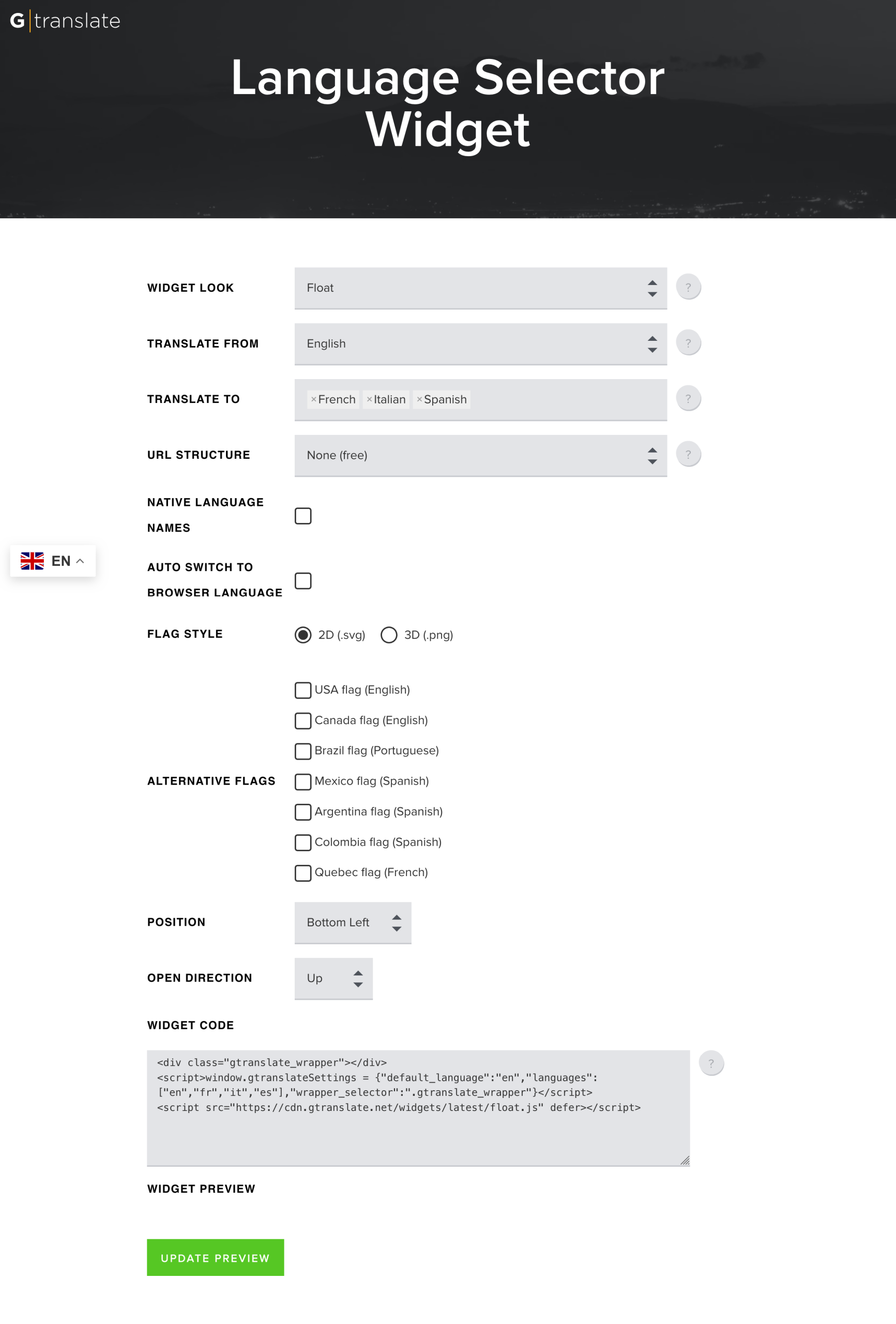
GTranslate allows you to add a language selector to your site, in the form of a drop-down menu or flags (among others).
You can customize its appearance to match your design, and display it in different locations (menu, sidebar, content area, footer, etc.).
Want a taste of what you can do with the language selector? GTranslate provides a demo to help you discover the tool:
Advanced SEO and translation management
For advanced SEO management in multilingual mode, the paid version of the tool (GTranslate premium) is mandatory.
With it, you can go much further and benefit from the following aspects (depending on the plan you choose):
- URL translation (with the option to edit them) and flexible structure (e.g. subdomain or subdirectory). Search engines can then index these pages as separate content
- manual correction of the translations to improve overall quality and adapt the tone to your target audience
- automatic generation of the hreflang tags needed to tell search engines which language version to display according to your user’s location. An important technical point for your international SEO strategy
- analytical tracking (statistics) of your translation traffic, directly on your GTranslate dashboard
- centralized translation cache to store new translated content for faster page loading.
Note that the paid version also offers superior translation quality. Technically, it uses highly accurate neural translations, which are very close to what a human can offer.
In contrast, the free version relies on statistical machine translations, which are slightly less accurate by default.
Compatibility with plugins and page builders
Last but not least, GTranslate is compatible with major page builders such as Elementor and Divi Builder (not to mention the native WordPress editor, Gutenberg).
If you opt for a paid plan, you’ll also benefit from advanced Yoast SEO integration, with the ability to translate your meta-description tags, Schema.org structure, or even your WordPress sitemap.
And let’s not forget the WooCommerce ecommerce plugin, with which GTranslate is compatible. A must-have for online stores looking to expand internationally.
With the paid version, you can even translate your WooCommerce products and emails.
Who is GTranslate for?
Let’s move on to GTranslate’s core target. Logically, you might think that this WordPress plugin is aimed at anyone who wants to make their site multilingual.
In reality, it’s a bit more nuanced. Depending on your project, the tool may be a perfect fit… or less relevant.
First, you should know that the tool’s team has a typical customer profile. On the company’s About page, it says the following: “We focus on small and mid-size companies with very tight translation budget.”
This assertion is reflected in the tool’s pricing, with the most expensive plan priced at $39.99/month for full access to all features the features of the translation service (more on this at the end of this post).
In our opinion, GTranslate is especially well suited for:
- Bloggers and content creators who want to reach an international audience without investing heavily in human translations.
- WooCommerce store owners who want to sell internationally and gain access to new markets.
- WordPress freelancers and agencies who manage multiple customer sites and wish to set up a multilingual showcase to cover the main languages of their target markets, without a large translation budget.
Now that we’ve covered how GTranslate works, its features, and its target audience, let’s move on to the practical side.
If you’re ready, let’s get into the details of using GTranslate.io on your WordPress site.
Keep reading to discover all its little secrets.
How to install and configure GTranslate on a WordPress site?
Installing GTranslate on WordPress
To get started, install the plugin on your WordPress admin interface. To do this, go to Plugins > Add Plugin.
In the search bar, enter “GTranslate”, then click on the “Install now” button. Don’t forget to activate the plugin at the same time:
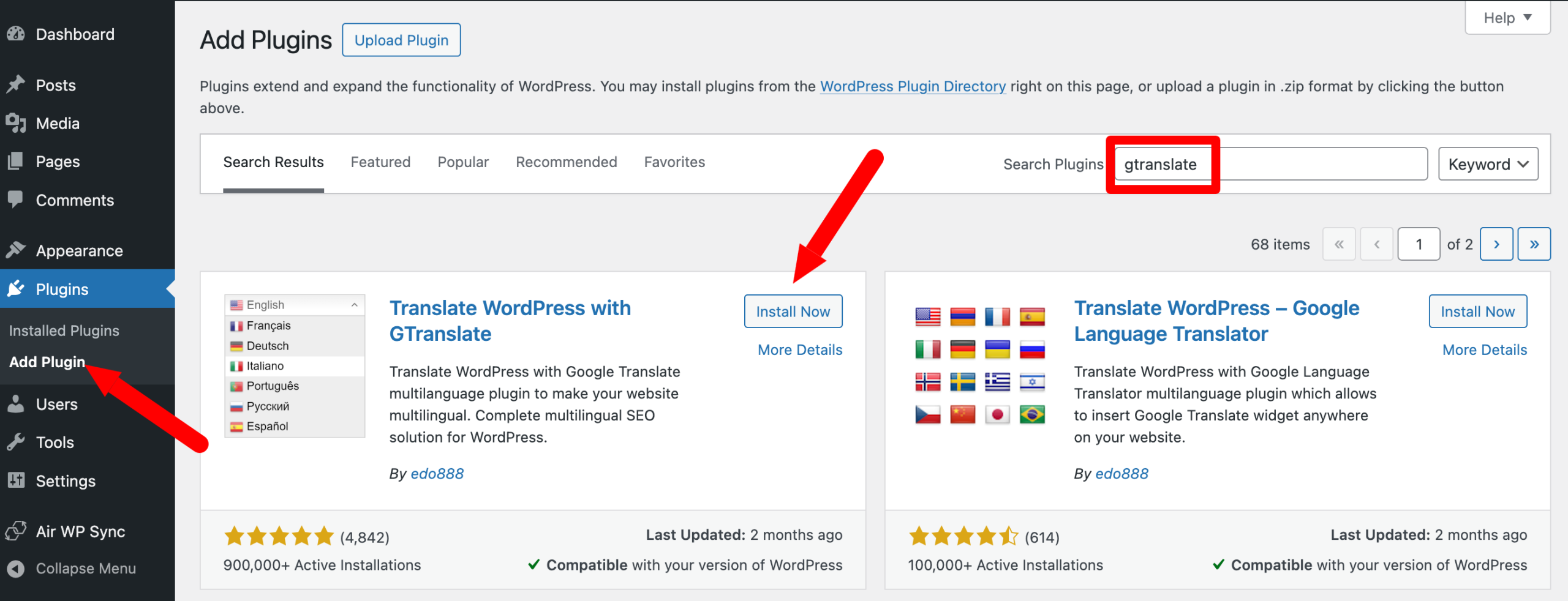
Once this is done, you’ll find the plugin settings in the Settings > GTranslate menu.
Speaking of which, let’s take a look at what’s on the menu.
Configuring GTranslate
When you’re in the Settings > GTranslate menu, you’re presented with a page listing all the plugin’s settings.
Here’s what you can do now:
- Widget look: lists the style options for your language selector. There are 11 options to choose from, including “flags”, “drop-down list”, “flags and drop-down list”, “floating”, “language names”, and so on. You can preview each option in the top right-hand corner, in the “Widget preview” box. Depending on the option you choose, you’ll have additional setting options.
For example, with the “Drop-down list with flags” option, you can play with the colors
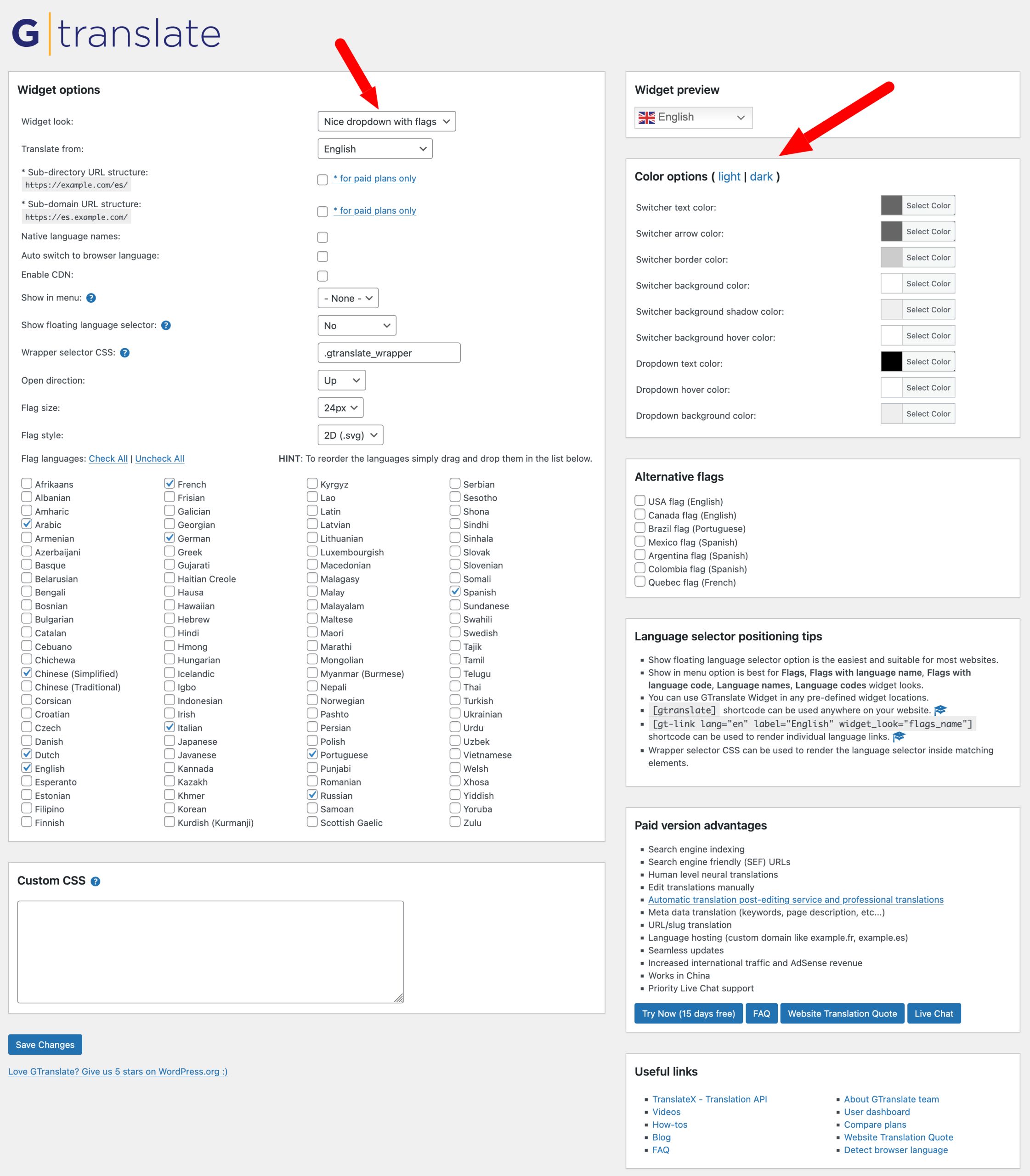
- Translate from: to select your site’s default language (before translation)
- Sub-directory and sub-domain URL structure: allows you to select either or both of these options (only with a paid plan)
- Native language names: your site’s default language, with language names in their native alphabet (e.g., German -> Deutsch, French -> Français, Chinese -> 简体中文)
- Auto switch to browser language
- Enable CDN: to activate a Content Delivery Network
- Show in the menu, to display your language selector
- Show floating language selector: allows you to define the location of your language selector (bottom left, bottom right, top left, top right)
- Wrapper selector CSS, which you can keep or modify if you ever want to customize its style with a little CSS code
- Open direction: to determine how your language selector will open (up, down, left, right)
- Flag style: SVG or PNG
- Flag languages: select the languages you wish to display as flags.
You can also add custom CSS code to further fine-tune the design of your language selector, if required.
Another interesting option: you can also choose other flags for your translation language (in the “Other flags” box). This is almost essential for languages spoken in multiple countries.
Let’s say you have an audience in Colombia and Spain. Well, thanks to this little setting, you can, for example, choose a flag from Argentina and Colombia, rather than using a generic Spanish flag only.
Once everything is set up, click on the “Save changes” button.
How to integrate the language selector on your WordPress site?
The next logical step is to set up your content settings. So, how does it work?
Whether you use the free or paid version, all your content will be translated automatically.
All that’s left is to position your language selector.
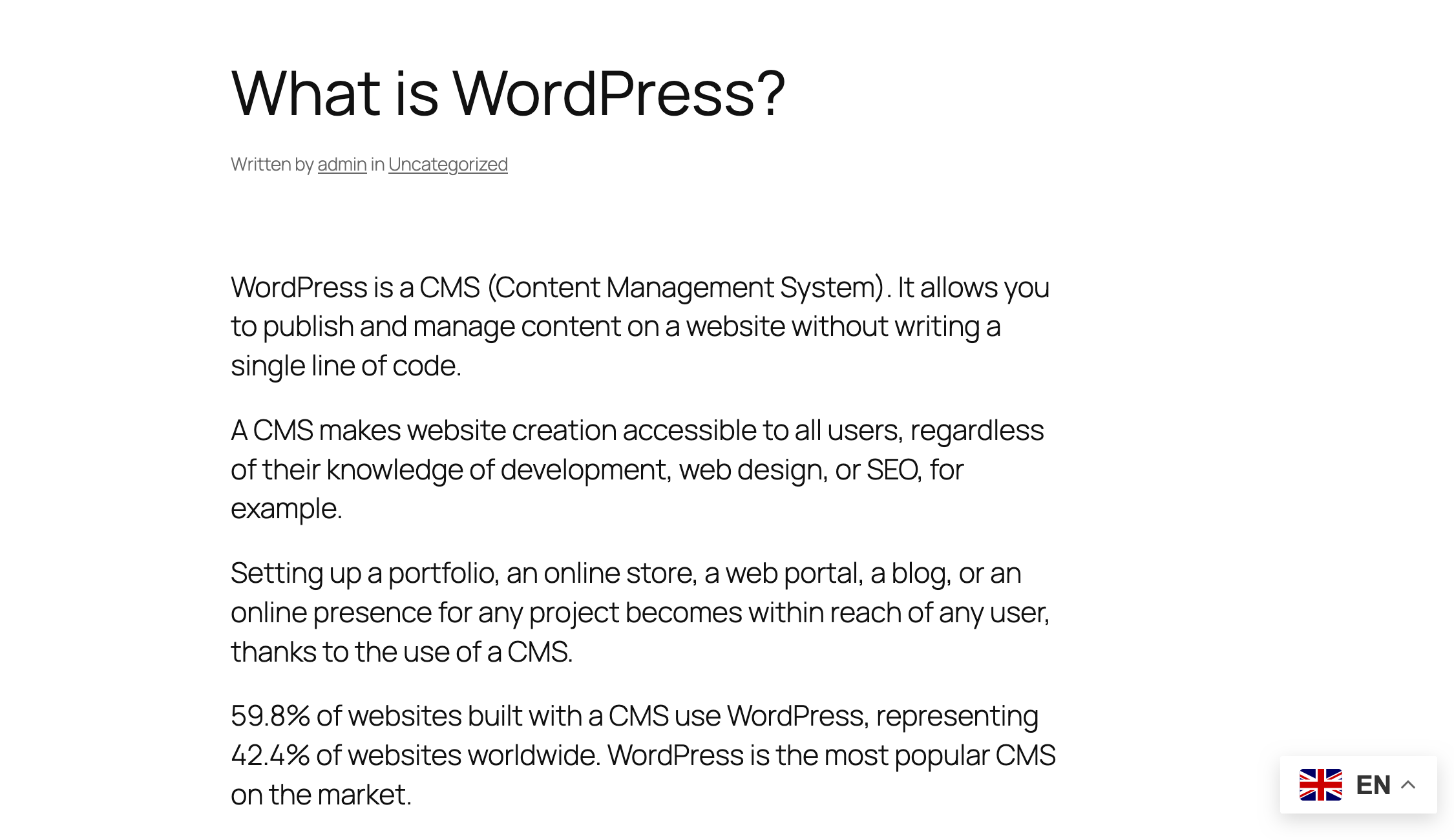
If you’ve chosen to display a floating language selector, the “simplest and most suitable option for most sites” according to GTranslate, you’ll see it appear in the location of your choice.
For our example, we placed it in the bottom-right corner of the screen. Here’s the result on our test site:
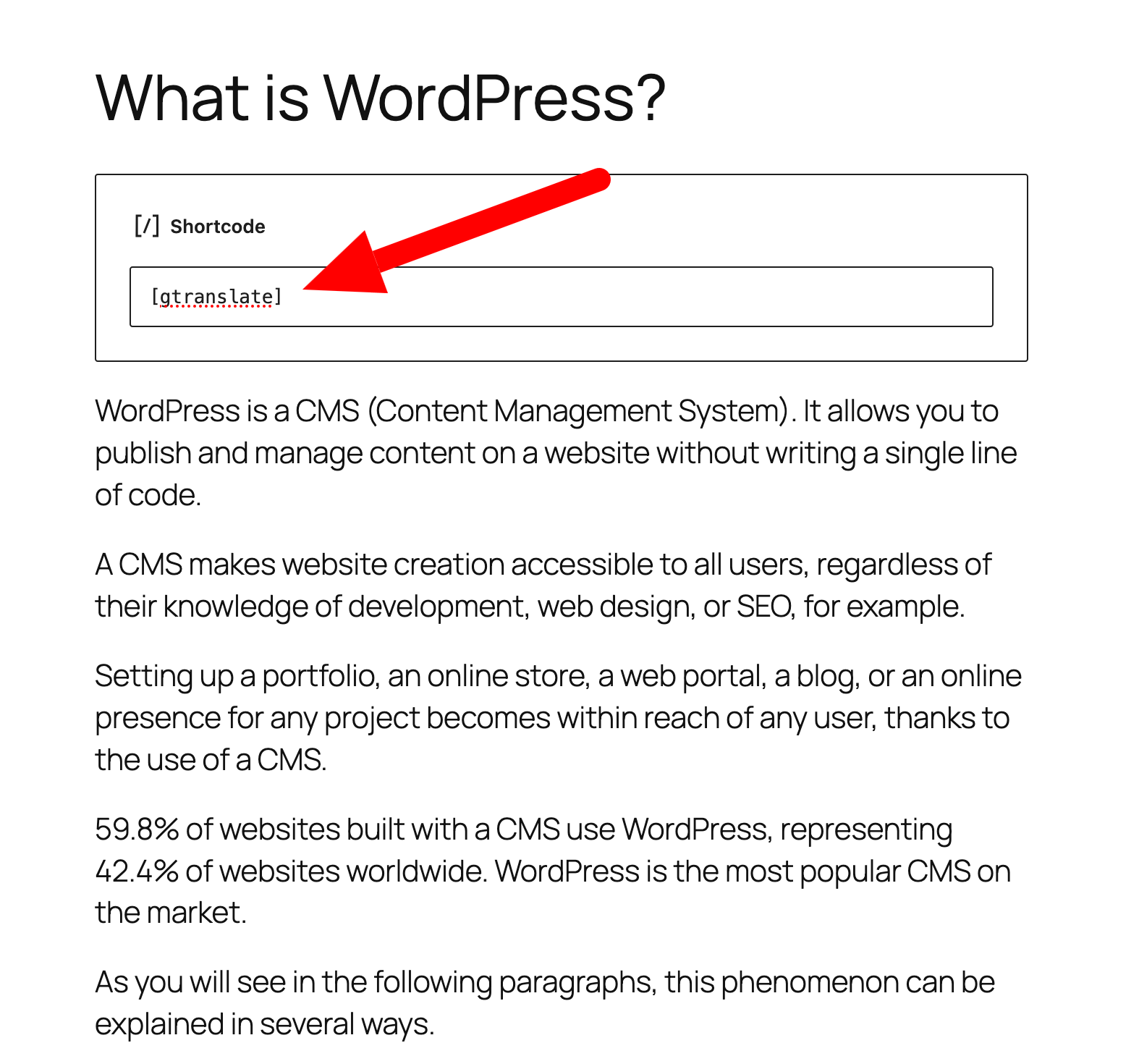
If the floating option doesn’t suit you, you can also embed your language selector in the location of your choice, using the following shortcode: [gtranslate].
For example, we’re going to add it to the top of our “What is WordPress” post by simply pasting this shortcode into a “Shortcode” block:
It’s also worth noting that the following shortcode [gt-link lang="en" label="English" widget_look="flags_name"] can be used to display links to individual languages.
In the example above, the word “English” will appear next to the language flag. If you click on “English”, the content will switch to English.
You can also use the php code to add the language selector to your template: <?php echo do_shortcode('[gtranslate]'); ?>
How to edit a translation?
With machine translation, the end result is already more than adequate. But it’s still a machine that does the job.
Even if the output is generally reliable to start with, you may notice a fewminor issues or slightly uncertain word translations, in certain places.
If you want to edit this manually, there’s only one solution: opt for GTranslate premium and one of the pro versions of your choice.
Remember: with the free version of GTranslate, you can’t edit translated texts.
Let’s take a look at how to edit a translation with GTranslate pro.
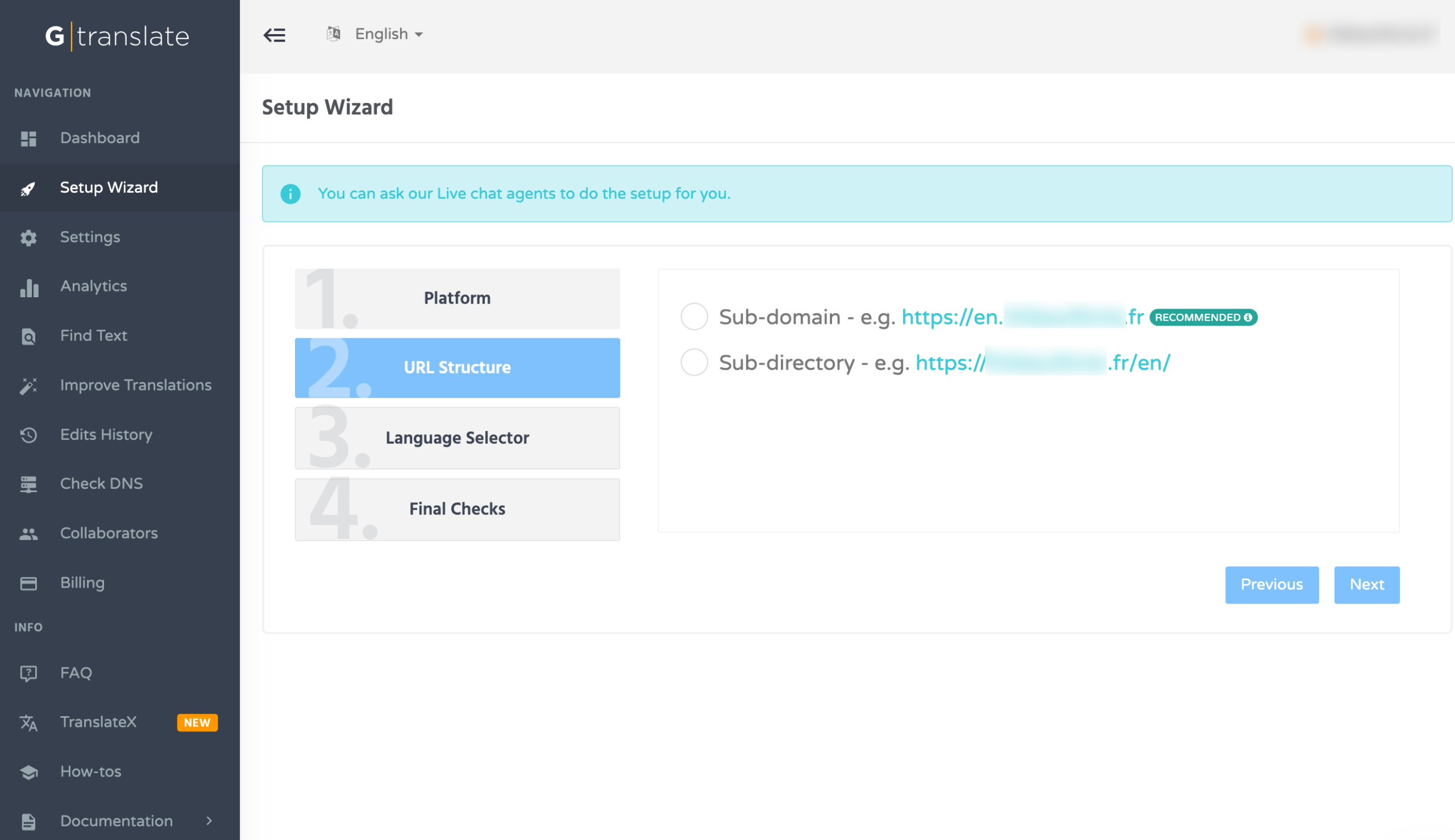
Once you’ve subscribed to a premium plan, you’ll land on GTranslate’s in-house interface.
A configuration wizard takes you through the initial settings. For example, you can choose your installation platform (in our case, WordPress), and the URL structure to be applied (subdomain or subdirectory):
Once everything is set up, all you have to do is go to the page of your choice, on the front-end (what your visitors see).
In the navigation bar, simply add ?language_edit=1 to the end of your page URL.
For example: https: //wpmarmite.com/en/?language_edit=1
An editing interface will then open, where you can make your changes.
Each text field you can edit is represented by a small pen, as shown below:
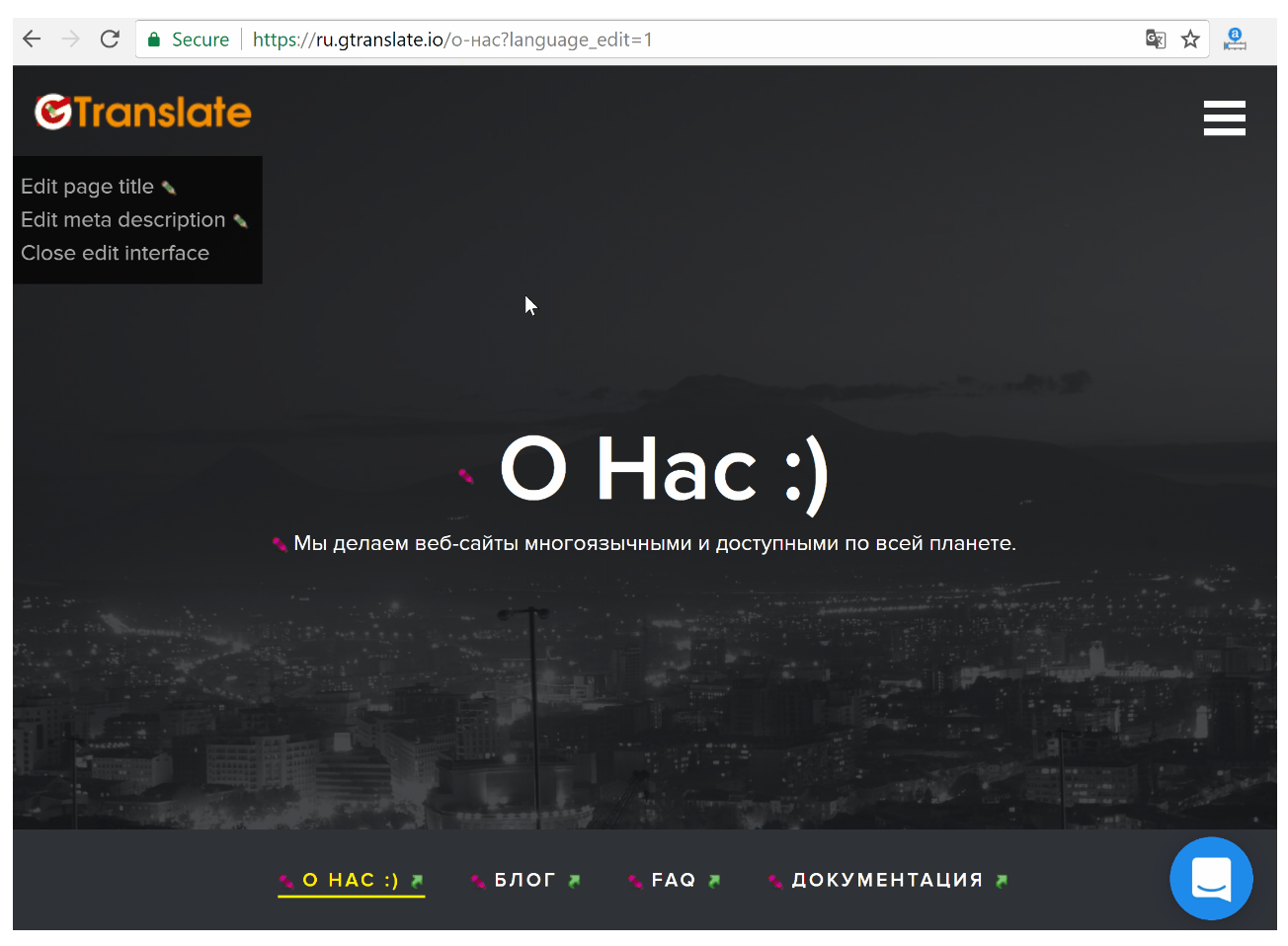
Then simply click on the pen of your choice to edit the text. Save by clicking on the “Save” button when you’re finished.
Note that if your GTranslate Pro plan includes URL translation, you’ll also be able to do this by following the same procedure.
To sum it all up, GTranslate has put together a short video that you may find useful:
If necessary, go to your GTranslate dashboard to make even finer adjustments.
For example, you can apply certain configurations, such as:
- add sentences and/or pages to be excluded from the translation (“Settings” menu)
- search for text to edit translations not accessible via GTranslate’s visual editor (“Find text” menu)
- improve translations on the fly for the languages of your choice (“Improve translations” menu). To do this, simply click on the little pen in the “Actions” section
- access statistics on your translations in the “Analytics” menu.

GTranslate is experimenting with AI-assisted translation review
GTranslate is also testing how AI agents can interact directly with translated websites. In a recent demo, GPT-6 Astra browses the Russian version of the GTranslate website, identifies translations that could be improved, and then uses GTranslate’s In-Context Editor to correct them directly on the page.
The AI no longer just suggests a better sentence in a chatbot: it navigates the site and edits the translation where it actually appears.
The idea could be especially useful for larger multilingual websites. AI could handle a first review pass and spot awkward phrasing or inconsistencies, while human translators remain in control of tone, cultural references, industry-specific terminology, and more sensitive content.
In other words, it combines machine translation, in-context editing, and human review.
You can see the full demonstration in GTranslate’s article on Astra and In-Context Editing.
Support and documentation
Now that GTranslate is up and running on your WordPress site, let’s talk about support.
If you encounter issues or have doubts or questions, what kind of help can you expect?
First, a live chat is available from Monday to Friday, from 2am to 6pm (UTC – 4).
With the free version, you can expect a reply within a day, as mentioned when you open the chatbot.
When we contacted them to get a better idea of the response time, we were given a reply in less than 2 minutes:

You can also rely on the official WordPress.org support forum, where both the community and the GTranslate team answer questions.
With a paid plan, you benefit from priority support. In addition to human assistance, you can also troubleshoot issues yourself, thanks to the official documentation available on the GTranslate website.
It includes practical tutorials covering common use cases for the tool (e.g. how to enable URL translation).
In addition, you also have access to a number of blog posts and videos on the tool’s website.
How much does GTranslate for WordPress cost?
GTranslate.io offers several pricing levels, ranging from free to premium. Here’s a quick overview.
Free version of GTranslate for WordPress
The free version of GTranslate allows you to test the tool without commitment. It includes automatic translation via Google Translate, the customizable language selector and basic WordPress compatibility.
However, its value for SEO is limited, since it doesn’t integrate:
- search engine indexing
- manual translation editing
- URL translation
- language hosting. This feature allows you to use a completely different domain name for a translated website. For example, if your website is available at https://example.com and is in English, you can use the multilingual hosting option to get https://example.es in Spanish, which can give you a better ranking in search engines results in Spain than http://es.example.com.
Paid versions
Paid plans are structured in tiers, based on the features. Each version can only be used on one site:
- Custom: $9.99/month if you pay monthly.
- Startup: $19.99/month.
- Business: $29.99/month.
- Enterprise: $39.99/month.
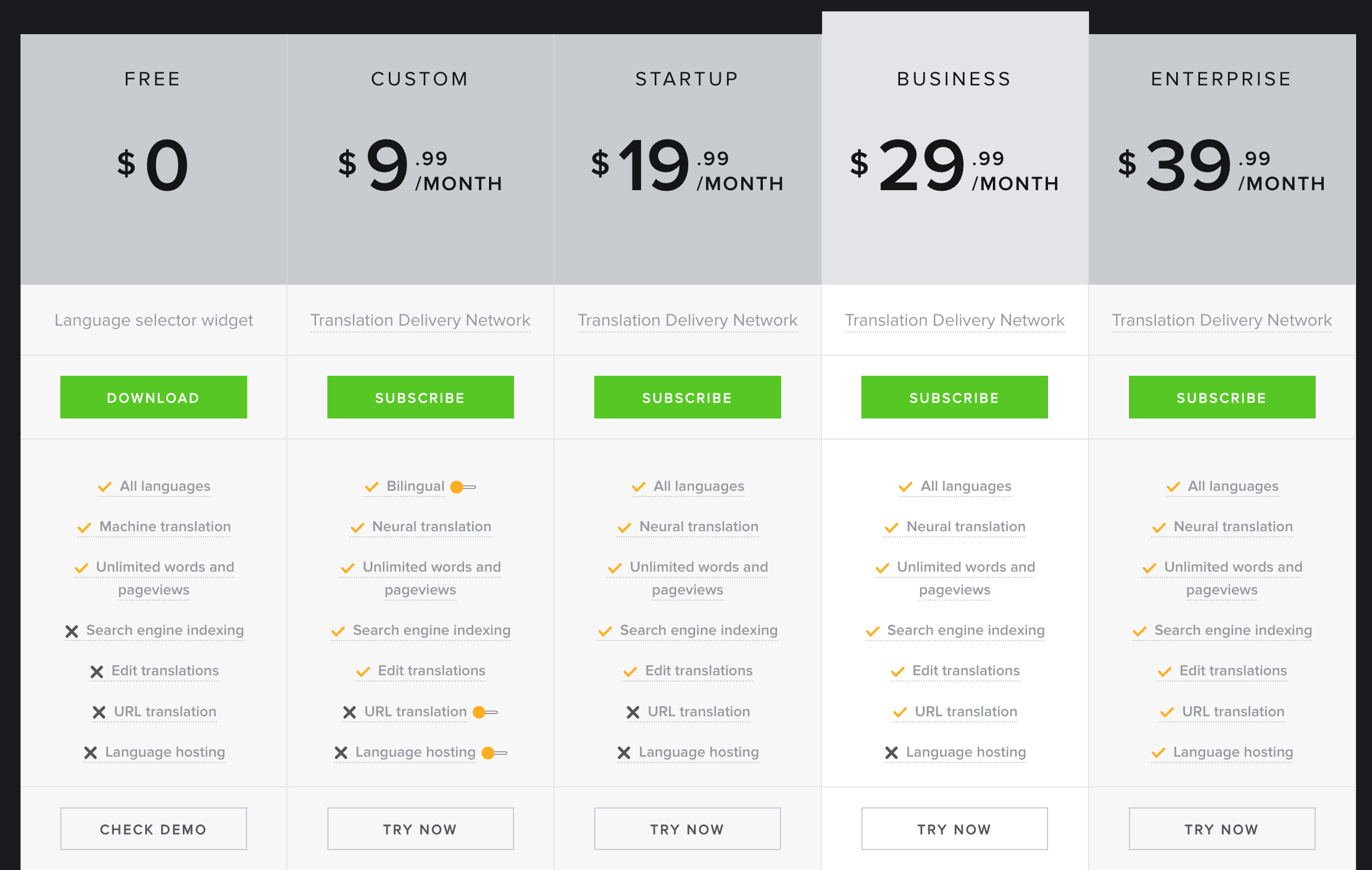
Which plan you choose depends on the options you need. For example, URL translation is only available from the “Business” plan.
To access language hosting and all available features, you’ll need the “Enterprise” plan.
Apart from that, each paid plan comes with the following options: translation into all supported languages, neural translations, unlimited words and page views (also included in the free version), search engine indexing, translation editing.
GTranslate offers a 15-day free trial which you can cancel at any time, at no cost. And if you choose annual billing, you’ll get two months free. You can also upgrade to a higher plan at any time as your needs evolve. Another nice bonus: GTranslate doesn’t pressure you to upgrade and won’t bombard you with emails or ads to encourage you to spend more.
What are the user reviews for GTranslate?
Now that we’ve covered pricing, let’s look at user feedback.
On WordPress.org, GTranslate has an excellent rating of 4.9/5 on a representative panel of nearly 4,900 reviews submitted at the time of writing this post.
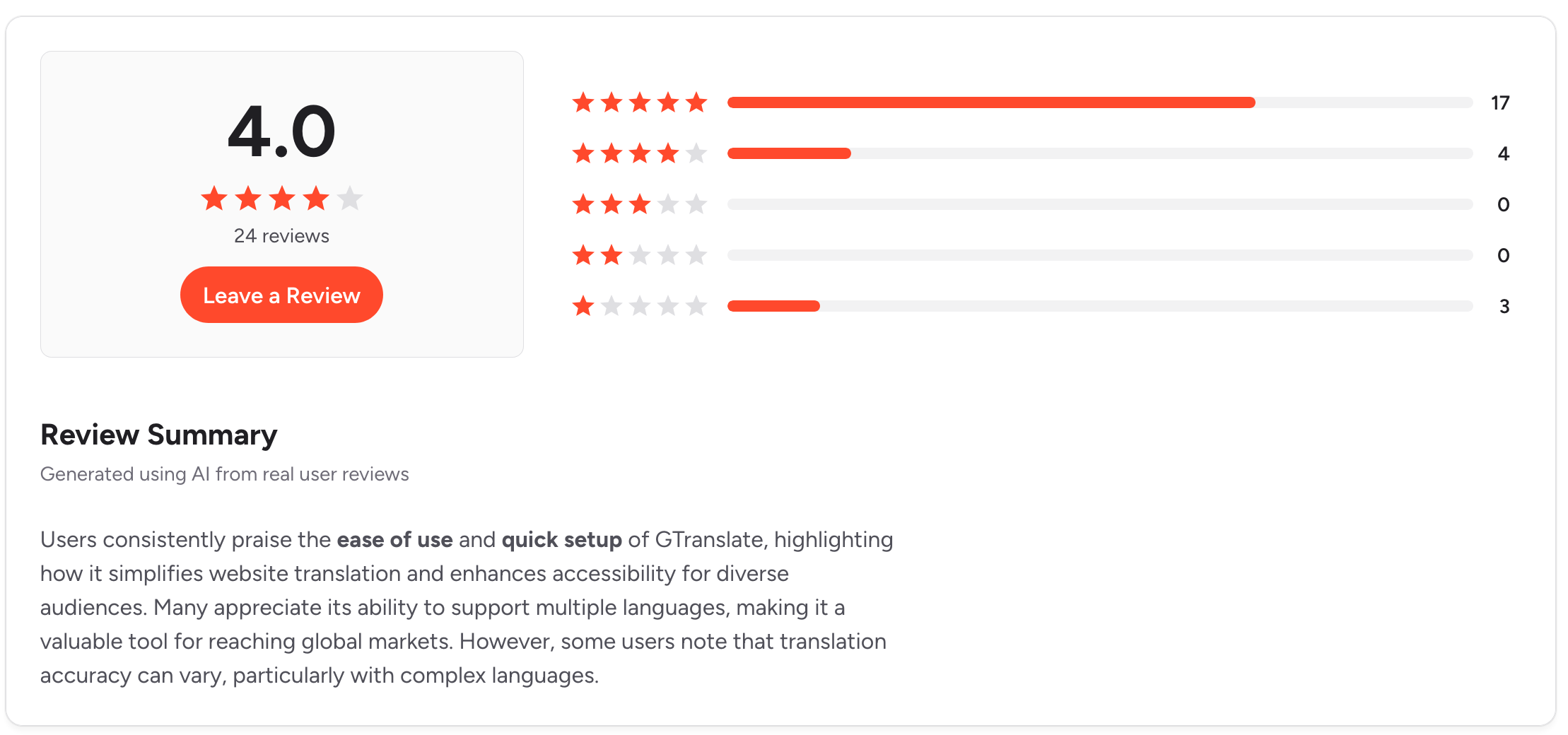
On G2, a platform for professional software reviews, there are fewer reviews (24), but overall feedback remains positive.
To give you a clearer idea of the content of the comments posted, G2 provides a summary of key pros and cons highlighted by users.
Our final review of GTranslate for WordPress
After thoroughly analyzing GTranslate, it’s time for a recap of its strengths and limitations. And of course, to tell you what we think of it, with our review of GTranslate to conclude.
Advantages of GTranslate for translating WordPress websites
- Easy to set up and use. In just a few minutes, your site can be available in several languages. No advanced technical skills required.
- Real-time translation of your content, without any manual intervention on your part.
- Over 100 languages supported, ideal for international projects.
- Extensive compatibility. The plugin works with the vast majority of WordPress themes and plugins, including WooCommerce and the most popular page builders.
- Solid free version. For basic use or testing, the free version is a good entry point.
- Competitive pricing. Compared to some of our competitors, GTranslate’s paid plans are still affordable, especially for small projects.
- Automatic updates and caching. GTranslate translates and hosts all translations in its cloud network, helping maintain performance.
GTranslate limits
- Variable machine translation quality. While Google Translate technology has improved, it remains imperfect. Highly technical, legal or creative content can suffer from approximations.
- Limited SEO in the free version. Without dedicated URLs for each language, your translations won’t be indexed by search engines. The true SEO potential of GTranslate is only available in the paid version.
- Dependence on Google Translate. GTranslate relies entirely on Google’s API. If this pricing policy or terms of use change, this could have an impact on the service offered (and the translations on your site).
- Interface for managing manual translations could be improved. Compared with tools such as Weglot or TranslatePress, the experience of manually editing translations is less fluid.
- Each premium plan is limited to one site. If you wish to activate GTranslate on another site, you will need to subscribe to another paid plan.
WPMarmite’s review of GTranslate
And now for the final verdict. After our in-depth test of the GTranslate WordPress plugin, our overall impression is positive.
In our opinion, GTranslate remains a serious and proven solution for making a WordPress site multilingual quickly and affordably.
Its major strength is undoubtedly its ease of use: in just a few minutes, any WordPress user can have their site available in several languages.
That said, we recommend you opt for one of the paid plans if you have international SEO ambitions.
The free version is useful for testing purposes, but it won’t allow you to take full advantage of the potential of multilingual translation for your SEO.
If translation quality is a top priority in your industry, consider combining GTranslate with human proofreading for the most strategic content.
For bloggers, freelancers and small businesses looking for a fast, accessible and comprehensive solution, GTranslate is a great place to start.
Ready to make your WordPress site multilingual? Visit the official GTranslate website to explore the available plans:

Receive the next posts for free and access exclusive resources. More than 20,000 people have done it, why not you?


Continue reading
Articles posted in WordPress PluginsFight against spam with Akismet
Askimet. Aksimet. A… what are you saying? Its name is not easy to pronounce, and sometimes confusing. But with no slip of the tongue, you should be able to get by without any trouble, trying to articulate this word. Try…
UpdraftPlus: The must-have plugin to back up, migrate, and restore your WordPress site
I’ll never forget that day. And not just because I thought I was going to throw my computer out of the window… Ah, if only I’d used a plugin like UpdraftPlus to avoid catastrophe. The catastrophe? Let me tell you…
WPML review: Ultimate test of the plugin to make WordPress multilingual
A second job. For a long time, creating and managing a multilingual WordPress site often meant doing the same work twice. Once you’d written a piece of content, you had to translate it. Then you had to check each version,…