
Looking to display your logo or icons in ultra-high quality, but WordPress won’t accept your SVG files?
It’s frustrating, but rest assured: you’re not alone. The subject of SVG on WordPress intrigues as much as it frustrates.

This lightweight format, ideal for all sizes and performance, is blocked by default.
Why is this? How can you activate it safely? And above all, how can you avoid the pitfalls that can put your site at risk?
In this article, you’ll discover best practices, risks to be aware of, and reliable methods for integrating your SVGs without compromising your site.
Follow along, and we’ll tell you all about it… starting now!

What is the SVG format?
You’ll often come across this acronym, but what does it mean? SVG stands for Scalable Vector Graphics.
It’s an open format based on XML (Extensible Markup Language) and created in 1998 by the W3C (a consortium that develops standards and guidelines for the web).
Remember this word: “scalable.” Unlike traditional formats such as JPEG, PNG, or GIF, which are based on pixels (known as “raster images”), SVG is a vector image.
What does this change? Quite a lot. A pixel image has a fixed size. Enlarge it, and you’ll see blurred squares. This is called pixelation.
An SVG is not a set of dots. It’s a set of mathematical instructions, XML code that tells the browser: “Draw a circle here, a line there, with this color.”
The result is stunning. You can stretch an SVG ad infinitum, but it will always remain perfectly sharp.
It’s ideal for logos, icons, and simple illustrations… In short, all those graphic elements that need to look impeccable on a small smartphone screen as well as on a huge 4K display.
For logos, icons, and simple graphics, SVG is the format of choice for a modern, high-performance website.
How do SVG files work?
Simply put, an SVG file is a text file. Yes, you read that right. If you open an .svg file with a simple text editor, you won’t see an image, but lines of code that look like HTML. It’s XML.
Think HTML. XML works on a similar principle, using tags to structure data. It is this textual structure that instructs the browser to “draw” the visual.
This textual nature also gives it superpowers:
- Lightweight: A simple SVG logo often weighs just a few kilobytes, far less than its PNG equivalent. This is a major advantage for page loading speed and SEO.
- Manipulation: Since it’s code, you can modify it directly with CSS or JavaScript. Change a color, animate a shape: anything is possible.
- Accessibility: The text contained in an SVG can be read by search engines and screen readers, which is a plus for accessibility.
This code-based structure is both its greatest strength… and its greatest weakness, especially in the WordPress ecosystem.
Why do you ask? Well, because the core of the problem is that WordPress was designed for raster images such as JPEGs or PNGs.
The world’s most popular CMS is not natively prepared to interpret and, above all, secure a file that may in fact be a potential script.

Does WordPress natively support SVG files?
The answer is simple and straightforward: no. If you’ve ever tried to upload an SVG file to your WordPress Media Library, you’re probably familiar with the frustrating message: “This file cannot be processed by the web server.”
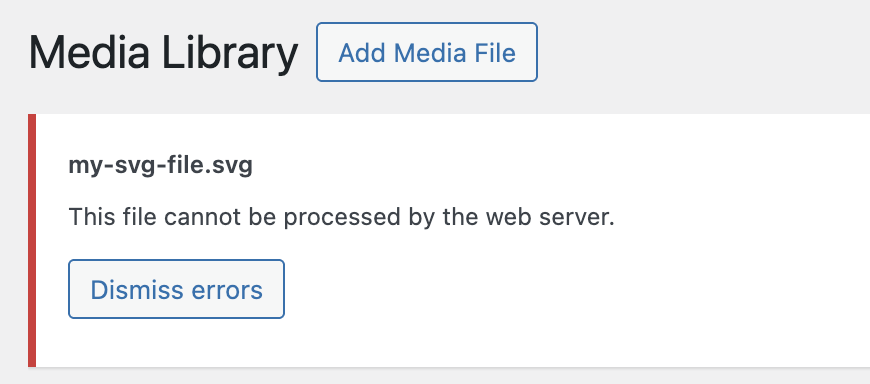
It’s infuriating, isn’t it? So, why the stalemate? The basic reason can be summed up in one word: security. WordPress blocks SVG uploads by default for a good reason. It’s to protect your site from major security risks.
Unlike JPG or PNG images, SVG files are based on XML code. This makes it vulnerable to attack.
To avoid the worst, WordPress prefers to close the door. But don’t panic, as we’ll be taking a closer look at the risks involved.
What are the security issues concerning SVGs in WordPress?
This is the heart of the matter. As we’ve seen, an SVG is an XML file. And where there’s XML, there’s the possibility of hiding code. Not just drawing instructions, but also potentially malicious scripts, such as JavaScript.
An attacker could create an SVG file that looks like a simple logo, but contains a script capable of stealing session information, redirecting your users to a fraudulent site, or exploiting other flaws in your site.
Simply uploading an SVG file to your WordPress server could open up a gaping security hole.
That’s why WordPress blocks everything by default. It doesn’t distinguish between a clean SVG and a dangerous one. It applies the precautionary principle.
The solution? Never authorize SVGs without a safety net. You must “sanitize” every SVG file before accepting it.
This process involves analyzing the file code and removing all potentially dangerous tags and attributes, leaving only legitimate drawing instructions.
We’ll explain how to do this simply in the next section. But before we get our hands dirty, let’s take stock of the most common threats if you’re using an SVG containing a script that’s ready to cause damage without your knowing it:
- XSS (Cross-Site Scripting) attacks: A JavaScript script hidden in the SVG can be executed in your visitor’s browser. It can then steal sensitive data, such as session cookies, or redirect them to a phishing site.
- XML External Entity (XXE) attacks: Simply put, a booby-trapped SVG can instruct your server to give it access to confidential files, such as the crucial wp-config.php file.
- Denial of Service (DoS) attacks: An SVG designed to be very complex can exhaust your server’s resources when displayed. As a result, your site becomes slow, or even completely inaccessible.
SVGs from unreliable sources are particularly dangerous. But even a file you’ve created can be compromised. All it takes is a flaw in your authoring software.
The solution is not to abandon SVG. No. The only viable solution is “sanitization.” This involves cleaning up the SVG code to keep only what’s necessary and removing any dangerous scripts. This is a non-negotiable step.
Stick around and in the next section, we’ll show you step-by-step how to do this very simply, with and without a plugin.

How to enable SVG file support on WordPress, with or without a plugin
So, are you ready to integrate SVGs into your WordPress site? But how do you go about it, since WordPress blocks them by default?
There are two main routes. One is simple, secure, and recommended for 99% of users. The other is more technical and, let’s face it, potentially risky if poorly mastered.
My expert advice? Don’t play with fire. Let’s see why the plugin method is the best way to combine simplicity and security.

Method 1: Add an SVG file to WordPress with the SVG Support plugin
Let’s talk about the easiest and safest way to upload an SVG file to WordPress: using a dedicated plugin.
SVG Support is the reference in this field (alternatively, there’s also Safe SVG).

It’s a very popular plugin (1M+ active installations), well rated (4.8 stars out of 5) and, above all, actively maintained, a guarantee of security.
The main advantage of this plugin? It doesn’t just open the door to SVGs. It does much more: it automatically sanitizes them each time they are uploaded.
To take advantage of this, go to the Plugins > Add Plugins menu in your WordPress administration interface.
In the search bar, type “SVG Support,” then install and activate it:

You can now upload the SVG file of your choice to your Media Library: no more blocking messages will be displayed.
Thanks to an integrated cleaning library, SVG Support neutralizes any malicious code that might be lurking in the file. Ain’t life grand?
If you wish, you can perform more advanced configuration via the Settings > SVG Support menu.
By default, only the site administrator can upload SVG files to WordPress (“Restrict SVG uploads to ?” option).
I advise you not to add any other user roles (Editor, Author, Contributor, Subscriber) so you can maintain control, which is very important.
If you ever need to add another user for a specific reason, this is the place to do it:

For the rest, you can make do with the default settings. That should put your mind at rest.
In principle, there is no longer any reason for you to encounter the message below when dragging and dropping a file in SVG format onto the WordPress content editor:

Method 2: Add an SVG file with a piece of code to functions.php
If you already have a solid technical grounding and a developer’s profile, method #2 involves adding a snippet of code to your WordPress theme‘s functions.php file.
To do this, you need:
- A code editor such as Notepad++, Visual Studio Code, Brackets or Sublime Text
- Access to your FTP client (Filezilla, Cyberduck, Transmit, etc.) to send the file to your online site
Important: Do not modify functions.php directly. You need to use a child theme. Alternatively, a plugin such as Code Snippets lets you add functionality from within the WordPress administration. In any case, this is for experienced users only.
Before I give you the code to use, there are two important points to bear in mind:
- Use this piece of code only if you’re confident and have a solid knowledge of PHP. Otherwise, avoid this method and opt for the peace of mind offered by a trusted plugin like SVG Support.
- Before adding any code, back up your site (files + database) with a dedicated plugin like UpdraftPlus or a specialized WP site maintenance tool like WP Umbrella.
Everything making sense? Let’s check out the piece of code in question:
SVG on WordPress: Best practices you should never forget
You now have a clear picture of the issues involved in using SVG files on WordPress.
It’s not so difficult, is it? It’s just a question of taking the right precautions to take advantage of their lightness and flexibility without opening the door to security problems.
To make sure you don’t forget anything, let’s end with a checklist of essential points to keep in mind. Think of it as your safeguard before every upload:
- Always clean up your SVGs: Whether via a plugin or manually, never upload an SVG without cleaning it up. This is non-negotiable.
- Limit permissions: Only site administrators should be allowed to upload SVG files. Configure your plugins accordingly.
- Use reliable sources: Give preference to SVGs you’ve created yourself or downloaded from reputable sources. Beware of random SVG files found on the Internet.
- Think of the display: If your SVG thumbnails are not displayed correctly in the media library, certain plugins or code snippets can correct this display problem by forcing dimension detection.
You now have all the tools you need to master the use of SVG files on WordPress.
By opting for a secure method like the SVG Support plugin and following best practices, you’ll combine the best of both worlds: impeccably sharp visuals and a fast website, without compromising its security.

Receive the next posts for free and access exclusive resources. More than 20,000 people have done it, why not you?


Continue reading
Articles posted in WordPress TutorialsHow to manage and optimize WordPress menus like a pro
It is crucial for many websites. It is in four letters. And we often see it very quickly at the top of the page, when we land on a new site. This essential element is the menu. A website menu…
How to update the PHP version of your WordPress site
What comes to mind when you think of WordPress speed and security? Your favorite plugins, perhaps? You should also think about… PHP! If you’re looking for a site that loads fast, while offering a solid shield against hacker attacks, there’s a…
How to create an effective HubSpot conversion funnel on WordPress (complete guide)
In the drawers of a kitchen, there are often two very useful utensils lying around. The first is the colander. And to illustrate, some WordPress sites unfortunately resemble it. Why? Well, because visitors arrive on the site in question… then…