
Like any WordPress site creator, you’re probably trying to eliminate time-consuming tasks. After all, it’s a cliché, but it’s so true: time is money.
There’s a highly effective remedy for optimizing your productivity, freeing up precious time, and saving costs: task automation.

You may be familiar with Zapier and Make, two well-known automation tools. Reputable but… expensive and not very accessible to the uninitiated.
What if I told you that there was a solution natively integrated into WordPress, affordable and both powerful and easy to use to automate your tasks?
You should be eager to believe me, because Bit Flows is the solution. We’ve tested it for you and summarized everything in this comprehensive guide.
Activate autopilot mode and read on for our honest review of Bit Flows.
Transparency: This article is sponsored. This allows us to remunerate the research and writing work of the WPMarmite blog editors. We remain impartial. If a product isn’t worth it, we’ll say so (or we don’t write about it).
What is Bit Flows?
Bit Flows is a freemium task automation plugin that integrates natively with your WordPress dashboard.
This no-code tool, launched in January 2025, lets you easily create advanced workflows using a visual drag-and-drop interface.
In marketing, the term “workflow” refers to a series of automated actions that follow one another after a trigger. This trigger may be, for example, the submission of a contact form or the purchase of a product on your WooCommerce store by one of your prospects or customers.
An alternative to Zapier without limitations
Bit Flows was conceived and designed to be “a true alternative to Zapier — without limitations, entirely self-hosted, and cost-effective,” as founder and CEO Abdul Kaioum explains.
He adds, “We realized that most automation tools come with restrictions, whether price levels, usage limits, or dependence on external servers. We wanted to remove these barriers and give users complete freedom to automate anything without worrying about limitations.”
The great thing about Bit Flows is that you don’t need to leave your WordPress admin to configure the settings and design your workflows. Everything happens natively.
In fact, Bit Flows is much more than a WordPress plugin. It can also be considered an SaaS (Software As A Service) tool, in the sense that it integrates with platforms like Shopify, for example.
Technically, Bit Flows is available as a plugin in two versions:
- A free version, accessible from your WordPress dashboard or the official directory (2K+ active installations).
- A premium version, available from $119/year for use on one site. We’ll give you full details of pricing in a dedicated section at the end of this article.
As a foretaste, Bit Flows lets you create an unlimited number of (premium) workflows, including the tasks, steps, and other triggers you wish to add.
What changes from one version to the next is the features included. Naturally, the choice is much more limited with the free version.
What can you automate with Bit Flows?
The idea behind this plugin is to simplify your life and save you precious time by automating repetitive tasks that you’re used to doing by hand.
With Bit Flows, the possibilities are legion. The tool integrates with nearly 170 platforms in total, so you can send data from your WordPress site to third-party platforms like HubSpot, Asana, Google Sheets, Open AI, Shopify, Telegram, and more.

Here are just a few examples of what you can achieve with Bit Flows.
Marketing automation with Bit Flows
With Bit Flows, you can automate lead capture without manual intervention (a lead is a person who has expressed an interest in your product or service).
How do you do it? By automatically sending form data from your WordPress site (Elementor Forms, Contact Form 7, WPForms, Divi Form Builder, Fluent Forms, etc.) to your CRM (like HubSpot) or emailing software (MailPoet, Brevo, Mailchimp, etc.).
As soon as a lead submits a form, their contact is added to a specific list in your emailing software.
If the user has ticked a box to subscribe to the newsletter, a personalized welcome email is sent.
On the same principle, you can, for example, send an automated email sequence after the purchase of a product on your WooCommerce store.

E-commerce automation
Bit Flows can help you manage your WooCommerce orders by automating notifications and stock updates (among other things). The aim is to reduce manual errors and speed up order processing.
In concrete terms, you could imagine the following: as soon as a new order is placed on your online store, all its details are sent to Google Sheets.
Then, an API would update the stock in your inventory management system. And finally, depending on the value of the order (for example, if it exceeds $100), an alert is sent to your customer service department.
API stands for Application Programming Interface. It enables software to connect to a different application or system “so that they can exchange functionality, services, technologies, and data.”
Automated customer support
A third possible scenario is the automatic creation of support tickets from your contact forms. The aim? Improve support responsiveness and customer satisfaction.
How could all this materialize? As soon as a contact form is submitted, you could create a ticket in the tool of your choice with the information provided.
A confirmation email would then be automatically sent to the customer, with a ticket number, to let them know that their request was being processed.
If the ticket is not resolved within a certain period of time (e.g., 24 hours), a reminder will automatically be sent to your customer support team.
Editorial
One final example: Bit Flows can be used to automate the publication of articles between your different WordPress sites, thanks to the WordPress REST API.
If you have a multisite installation or manage a network of sites on different themes, this can come in very handy.
What are the main features of Bit Flows?
Now that you have a clearer picture of what Bit Flows can do for you, let’s take a closer look at its features.
There are quite a few, which is good news. Among the most memorable are:
- A visual drag-and-drop interface that lets you create automated workflows without touching a single line of code
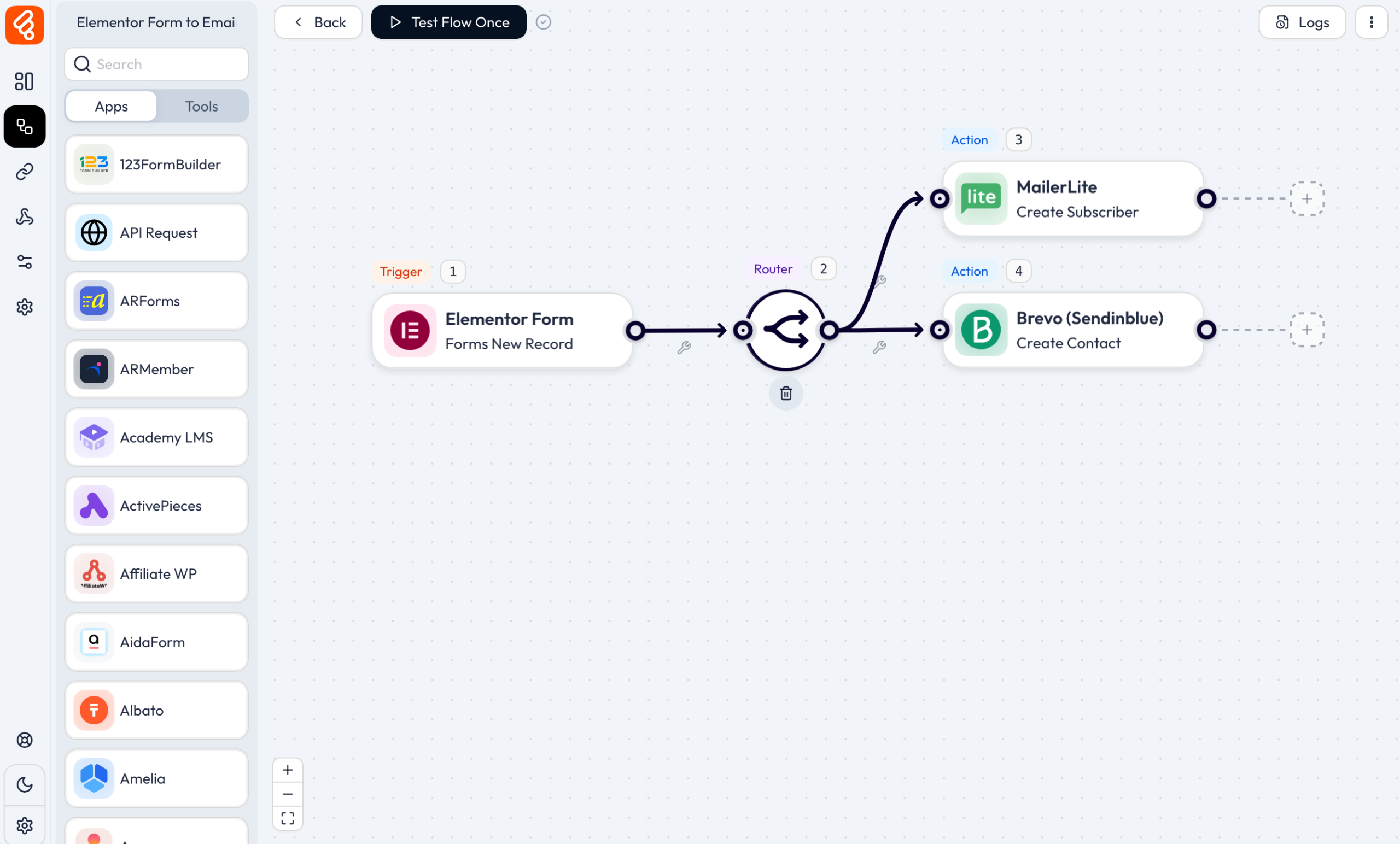
- Integration with nearly 170 platforms, such as Shopify, WP Forms, Elementor, Google Sheets, Mailchimp, and CRM tools (HubSpot, Salesforce, Zoho), etc.
- The ability to use custom actions and triggers
- A powerful logging system, so you can easily track every step of your workflows with real-time information
- The ability to add logical conditions (“If” type) to fine-tune your workflows
- Unlimited, not only in terms of the workflows you can create, but also in terms of the various steps, tasks, and other triggers
- A high-performance tool that won’t slow down your site. Bit Flows is optimized to avoid slowing down your site’s loading speed. It runs all workflows asynchronously in the background.
- Webhooks integration: Bit Flows makes it easy to connect your WordPress site with external platforms using inbound and outbound webhooks. For example, when a form is submitted on your site, Bit Flows can process this data and send it automatically to your CRM (no manual transfer required).
- The ability to create custom apps to create your own integration modules without being limited to the basic integrations offered by the tool. Custom apps let you design triggers and actions that interact with your specific systems, APIs, or platforms.
What advanced tools does Bit Flows offer?
When it comes to automating your workflows, let’s take a look at several options for simplifying even the most complex workflows:
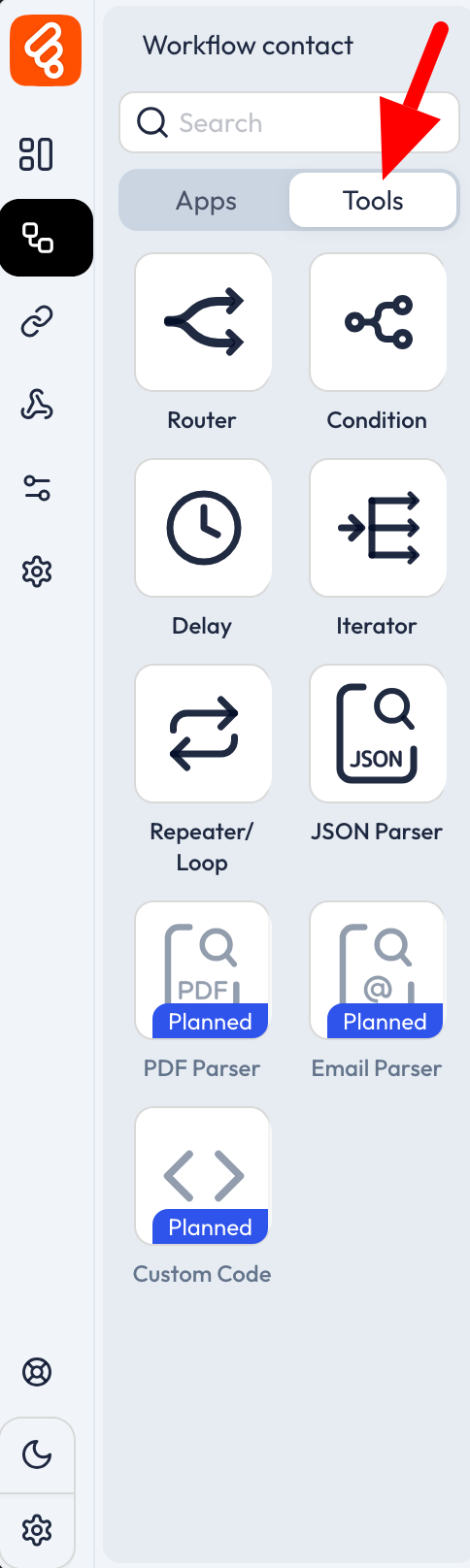
- Router: to send your data to the platforms of your choice.
- Conditions: to execute different actions/tasks according to specific conditions or values. For example, if a user buys a product, send them a welcome message; otherwise, add them to the email marketing tool or CRM.
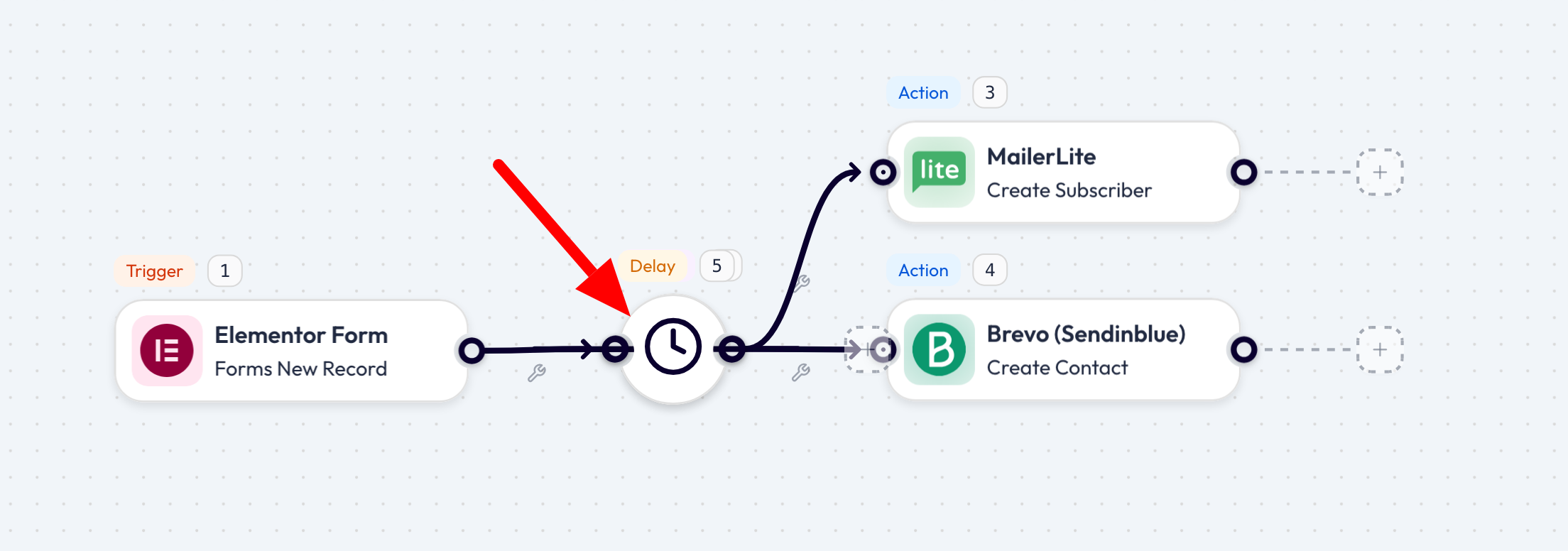
- Delay: to execute your workflow actions according to the timing of your choice. For example: Send a welcome email → Wait 10 minutes → Add the user to your CRM.
- Iterator: to automate actions on several items. For example, List products in an order → Iterate each product → Add to inventory.
- Repeater/Loop: to loop through a list or repeat actions a certain number of times in a workflow.
- JSON Parser: to extract specific data from a JSON response for use in your workflow. This can be used to process data from APIs or webhooks.
What’s the difference between Bit Integrations and Bit Flows?
If Bit Flows is on your radar, you may already have heard of Bit Integrations (20K+ active installations), another freemium plugin created by the same company, Bit Apps.
While both tools have similarities — they help you automate tasks — Bit Flows is more advanced and powerful.
With Bit Integrations, you can “simply” connect your WordPress site to the platform of your choice (nearly 300 are available), but you don’t have as many customization options as with Bit Flows.
Speaking of which, Bit Apps offers a total of 8 plugins, including:
- Bit Form, for drag-and-drop creation of contact forms
- Bit Social, for managing your social networks
- Bit File Manager, to manage your files on your WordPress site
Who is Bit Flows for?
As you can see, Bit Flows is an advanced plugin with multiple creative options. But is it too much for you? And can it really meet your needs?
Logically, Bit Flows is aimed primarily at anyone who wants to automate certain tasks on their WordPress site and save time.
Automation may not sound like much to you yet. But once you’ve had a taste of it, believe me, it’s hard to do without!
Next, the creators of Bit Flows indicate that their plugin is dedicated to two types of users:
- Non-technical profiles and beginners. The visual drag-and-drop interface makes it easy to create workflows intuitively, without touching a single line of code.
- More seasoned and advanced profiles, who can take advantage of API integrations and custom apps to create tailor-made workflows.
Ultimately, Bit Flows is aimed at just about everyone. In practice, we can confirm that the tool is suitable for beginners.
The main hurdle at the outset is understanding and mastering the mechanics involved in creating a workflow. Once you’ve got the hang of it, you’re in business.
In the next section, we’ll show you how to design your first workflow.
Nothing too complex, to start with: we’re “simply” going to send the data from a form filled in by one of your visitors to an emailing program.
This will enable you to understand and master the mechanics involved in creating a workflow. Once you’ve got the hang of it, you’ll be able to move on to more elaborate workflows.
How to create a step-by-step workflow with Bit Flows
Install and activate Bit Flows on your WordPress site
First, install the free Bit Flows plugin on your WordPress site.
To do this, go to Plugins > Add New and type “Bit Flows” in the search bar:
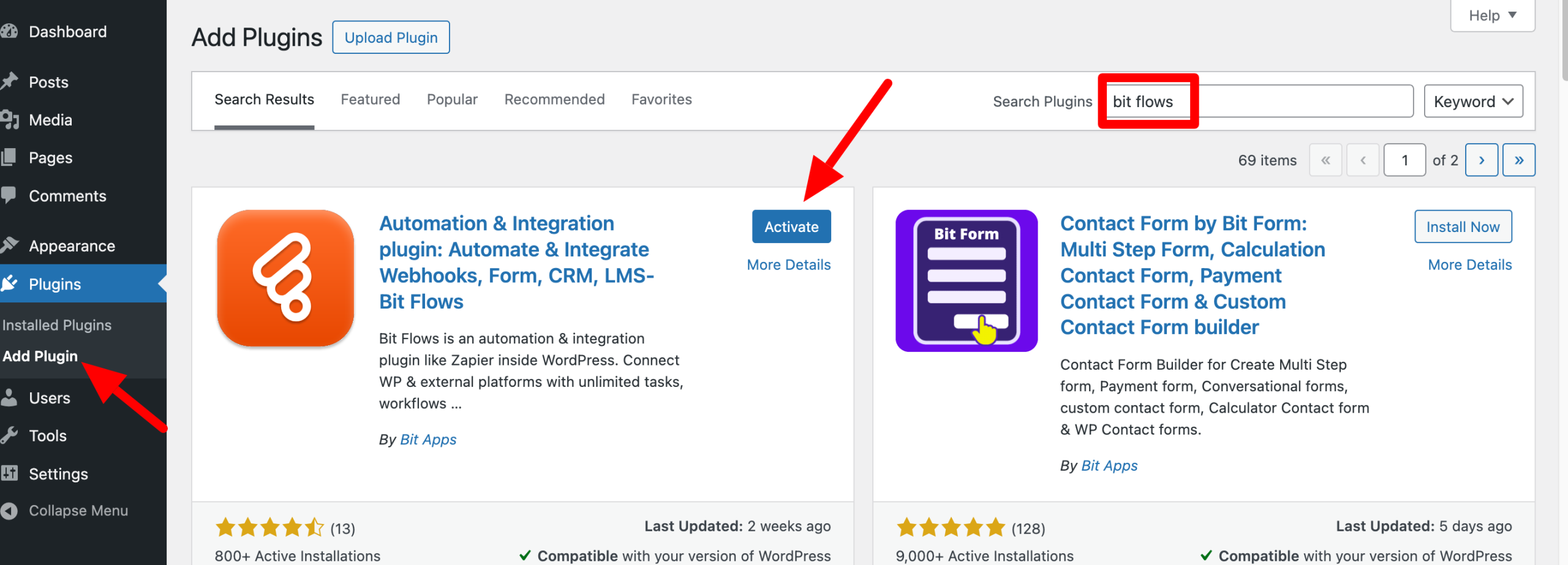
Click on the “Install now” button, then activate the plugin.
Bit Flows is now running on your WordPress site. You can access its menu in your sidebar, on the left of your screen:

To install the premium version, visit the official Bit Flows website, then click on the profile icon in the navigation menu:
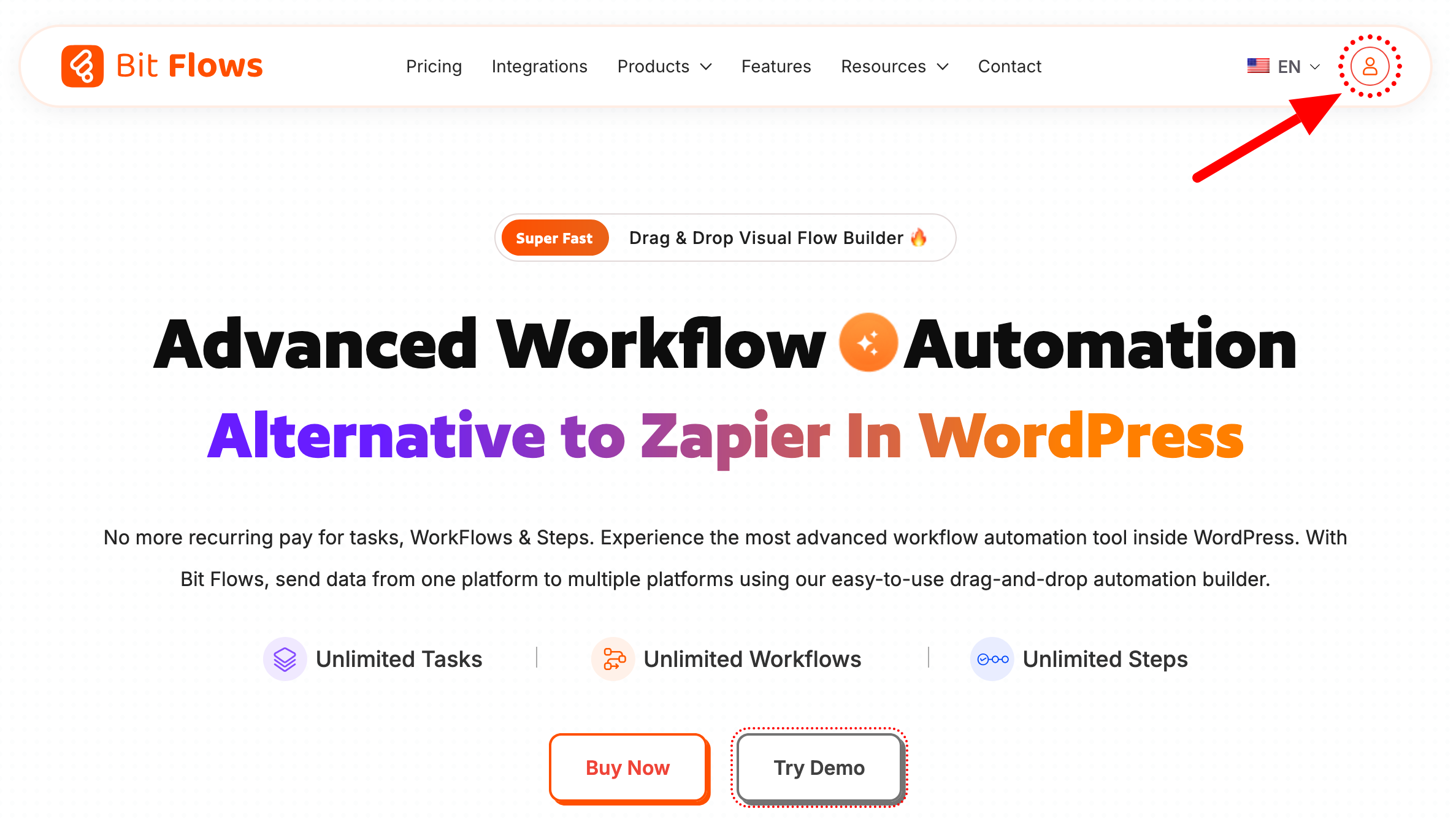
You must first have purchased one of the licenses offered by Bit Flows, of course. On your dashboard, go to the “My Purchased” menu, then select the Bit Flows insert.
Click on “Download Pro version” to download the premium plugin.
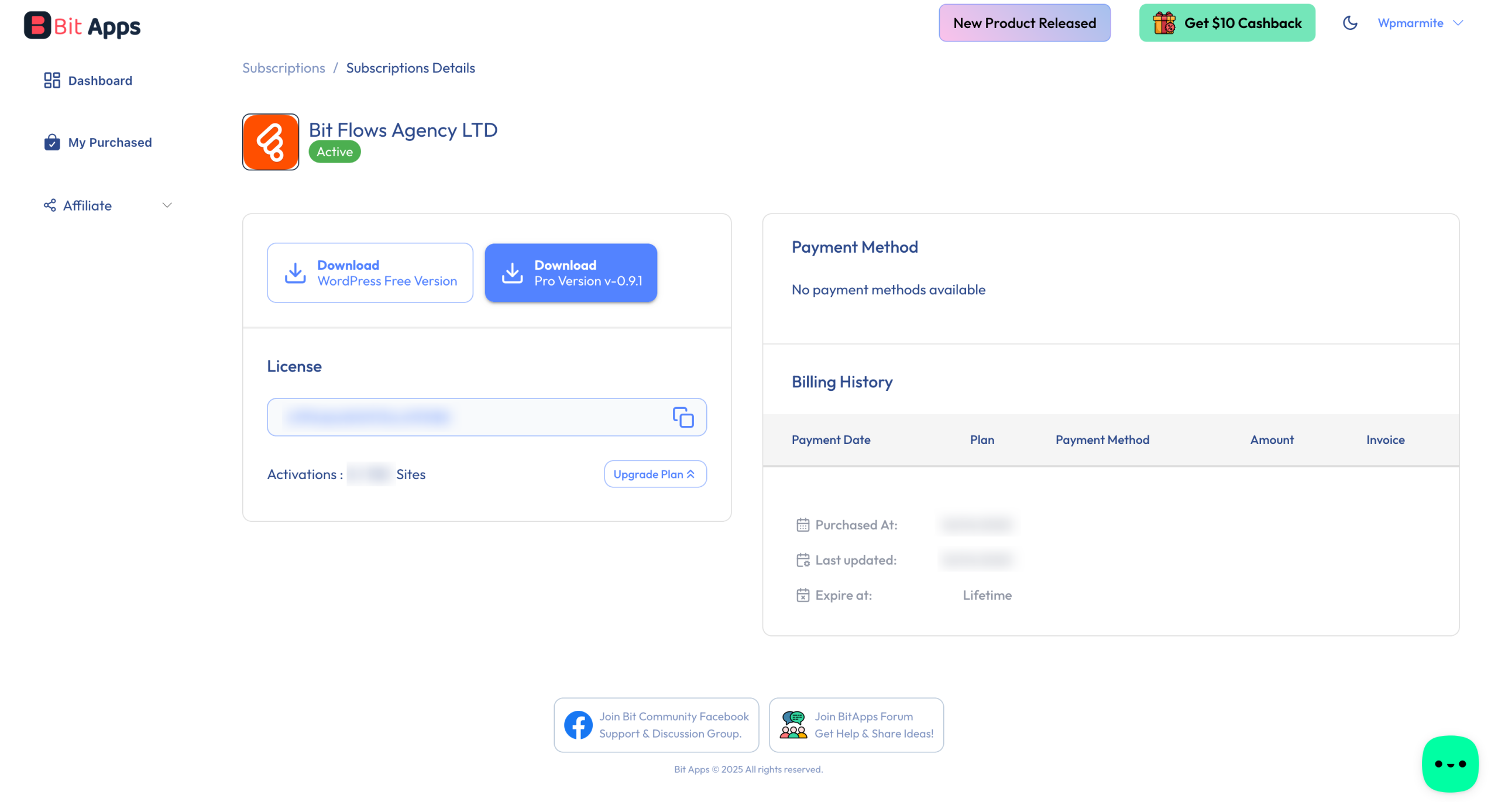
Then upload it to WordPress. Activate your license by clicking on the “Activate License” button, and you’re done.
Create a new workflow
Is everything making sense? Let’s move on to the creation of your first workflow. Go to the “Flows” menu, then click on “Create Flow”:
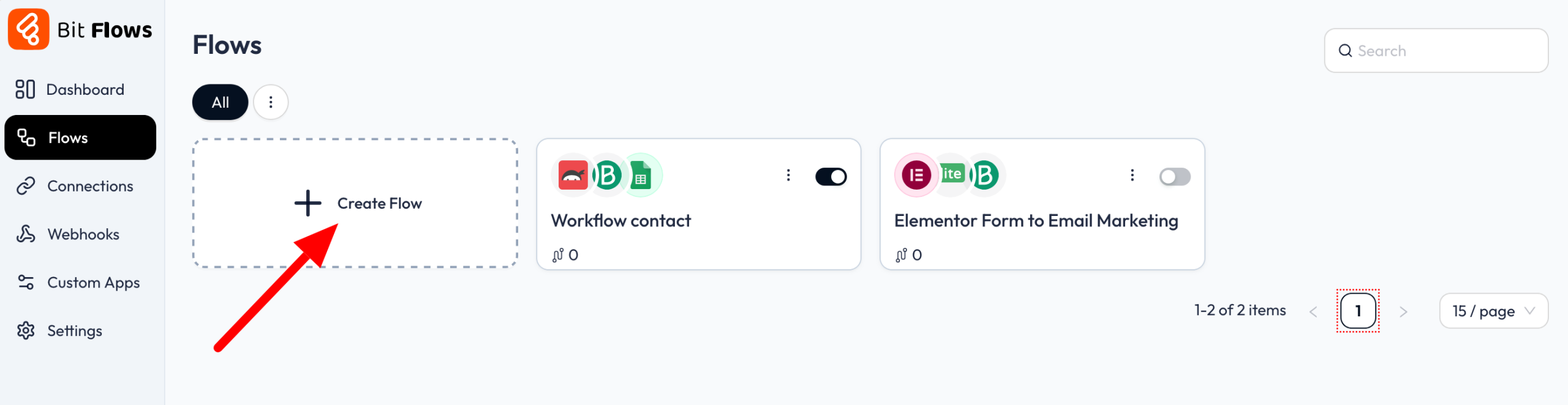
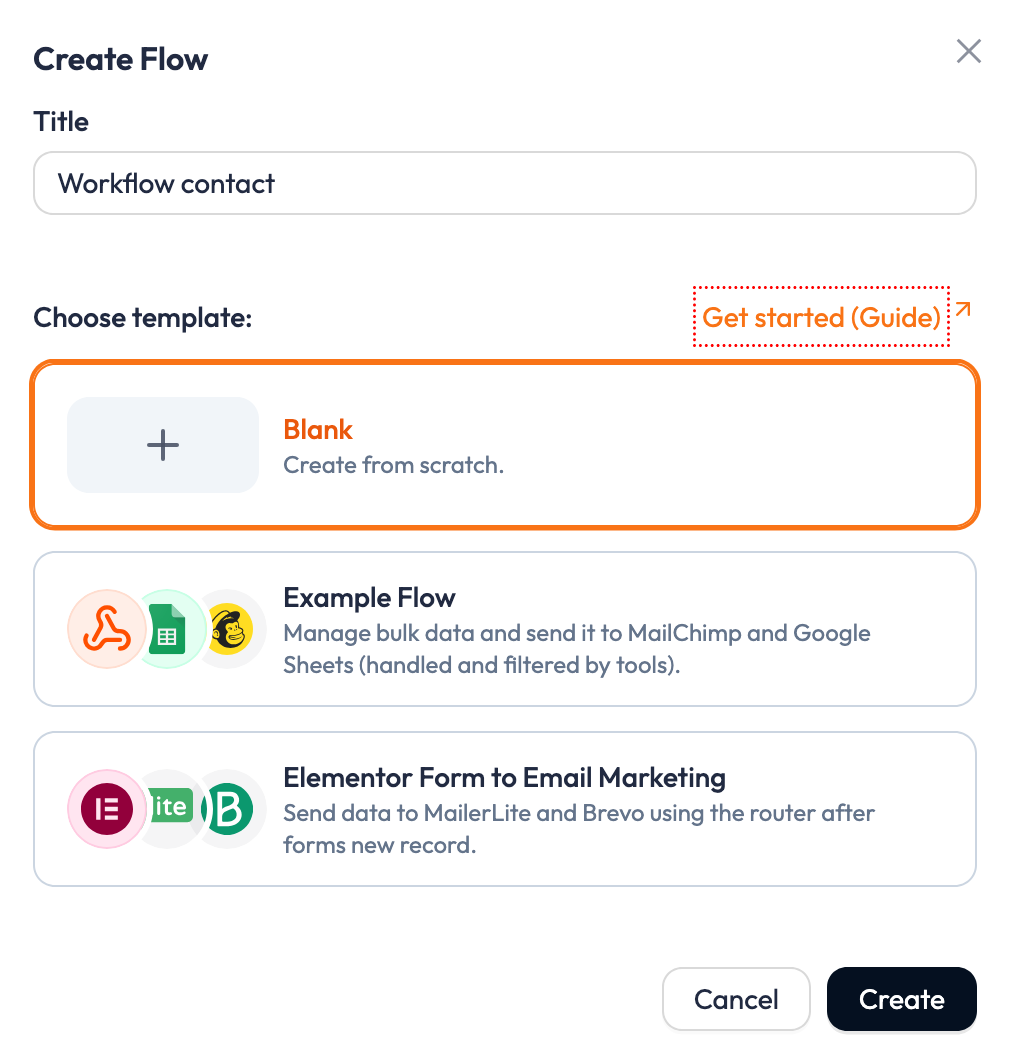
You then have several options:
- Start from scratch (Blank)
- Use one of the workflow templates they offer
For the purposes of this test, we’re going to start from scratch and work our way through each step. Choose “Blank,” then click on the “Create” button and give your first workflow a name:
Add a trigger
Once you’ve created your workflow, Bit Flows adds what they call a “trigger” to your workspace (canvas). The trigger is what triggers your workflow.
In our case, this will be when one of your visitors fills in and submits a contact form.
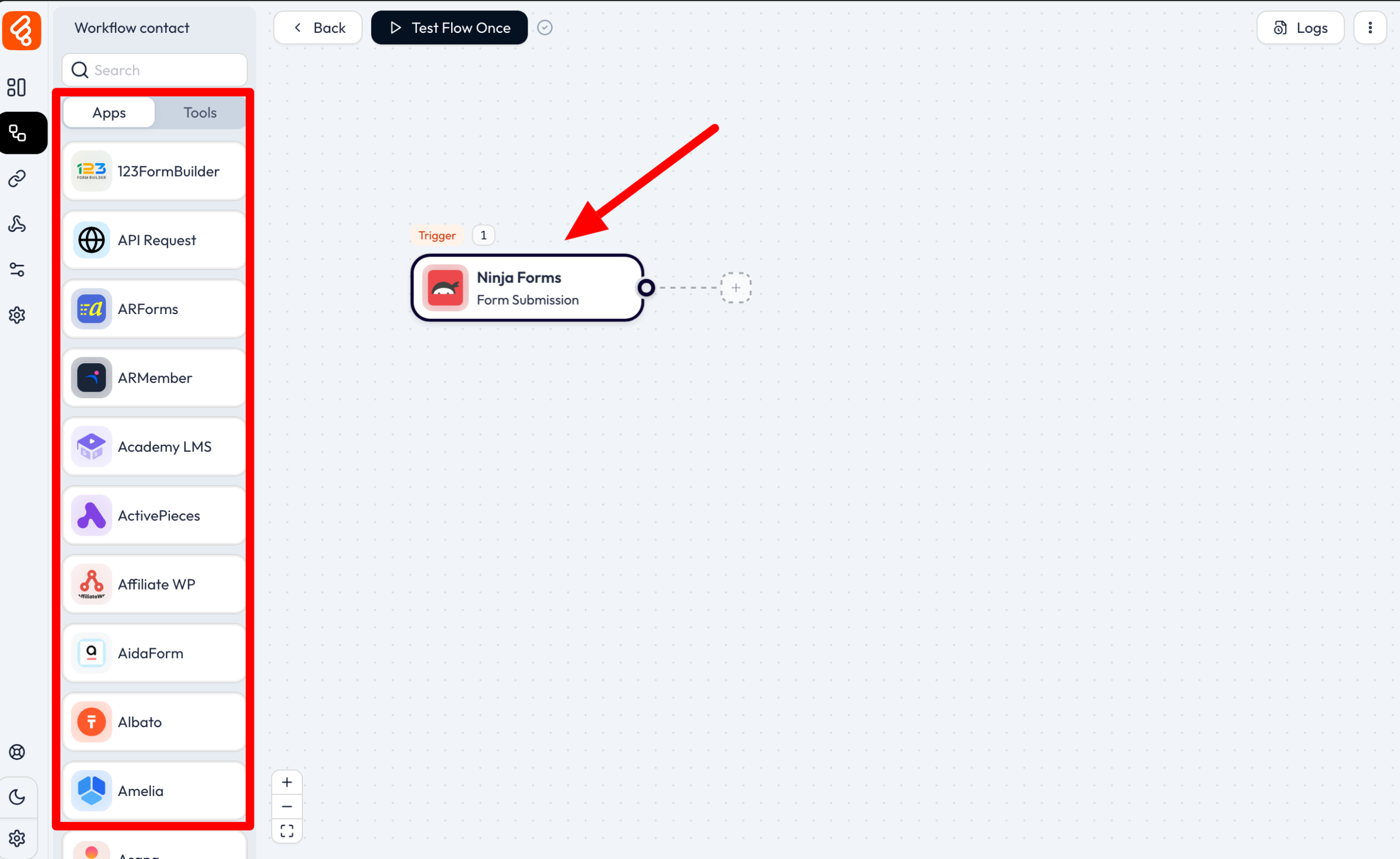
So first, you need to choose the contact form used on your WordPress site. Bit Flows calls it an “app,” and it offers you a very wide selection of apps, on the left of the screen.
Choose the contact form of your choice, for example Ninja Forms. Click on “Select an app,” then click on the Ninja Forms contact form. Then select the form name of your choice.
Create an action
You’ve got your trigger in place — perfect. Continue by adding an action by clicking on the little “+” button. An action is a specific step in your workflow.
Actions can follow one after the other, once the workflow has been triggered.
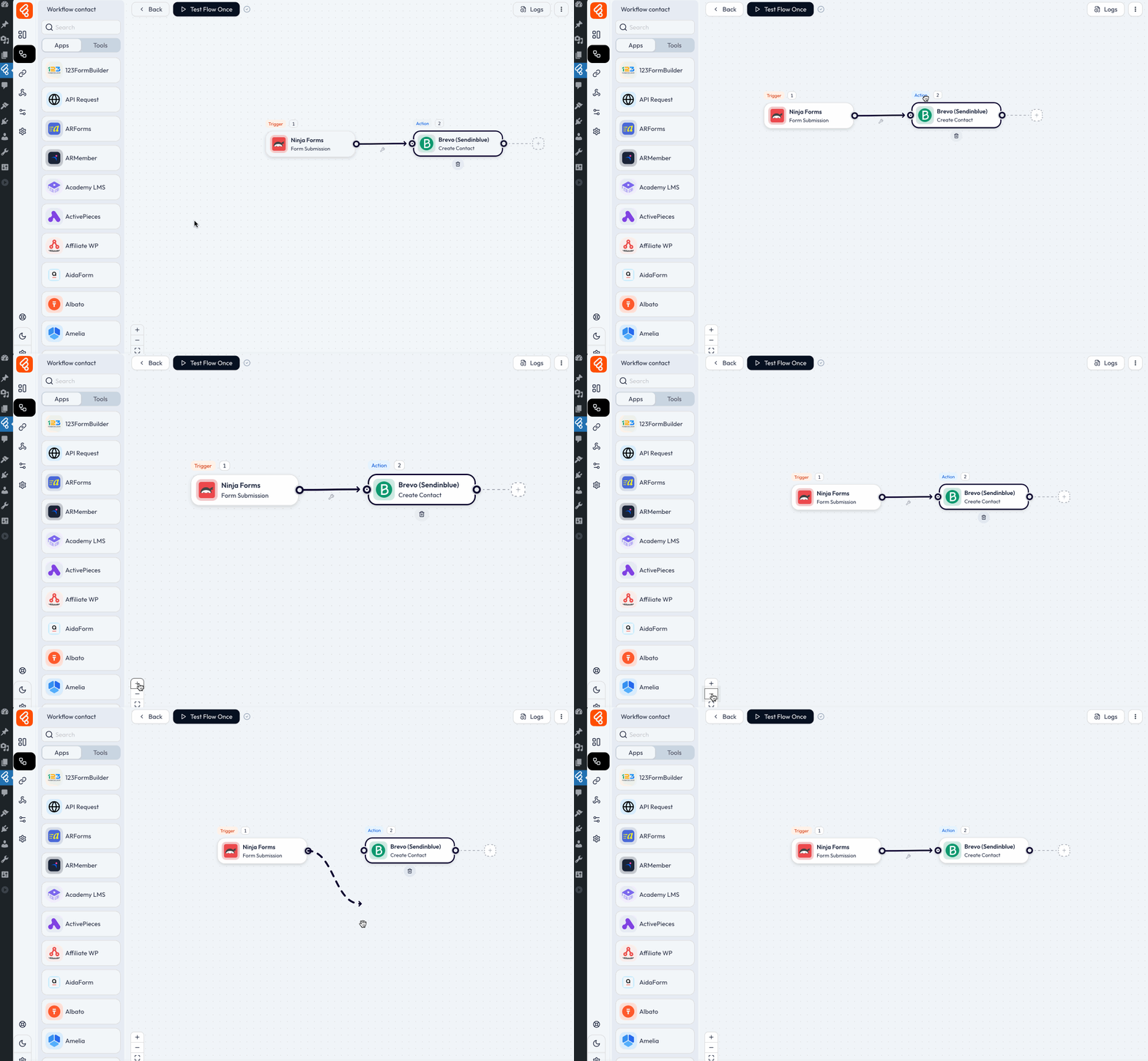
For our example, we chose to create a contact on the Brevo emailing tool (ex Sendinblue) in order to add the email address of the person who filled in your Ninja Forms form.
To do this, connect the app to your Brevo account (or the software of your choice). In most cases, you’ll need to add an API key.
Once this is done, you can choose to send the form fields of your choice to the emailing software (email, first name, last name, phone number, etc.).
Bit Flows’s interface is highly intuitive and ergonomic. You can easily increase or reduce the size of elements on your canvas by clicking on the “+” or “-” signs, and easily move your workflow by moving your mouse around the screen. Deleting an action is equally simple. Simply highlight it with your mouse and a trash icon will appear.
Customize your workflow
Your first workflow is already up and running, but it’s still pretty simple. You can go much further by customizing it using the tools offered by Bit Flows.
You’ll remember that I introduced these tools at the beginning of this article. From the “Tools” menu, you can, for example, add conditional logic, include delays between each action, and so on.
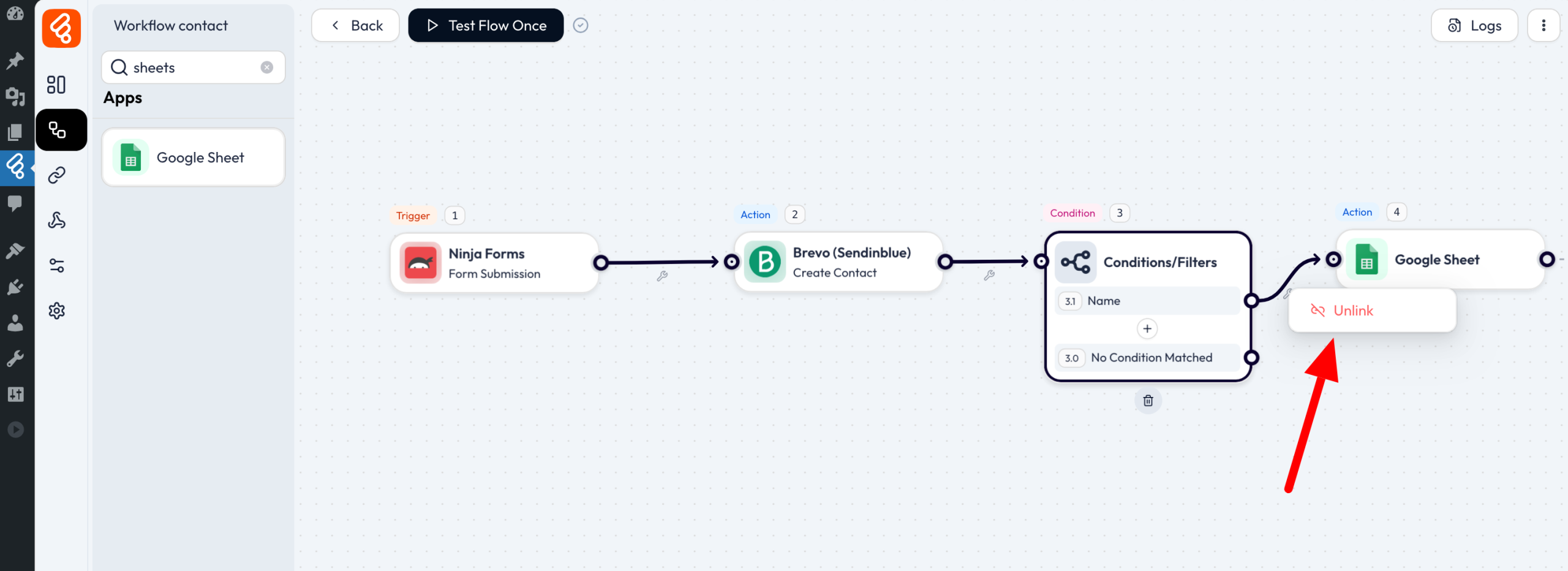
If you wish, you can also send the form data to a Google Sheets document. And if you ever want to remove a logical link between two actions, simply click on the wrench icon and choose “Unlink”:
Everything is saved automatically. When you’re finished, click “Back” at the top of the screen.
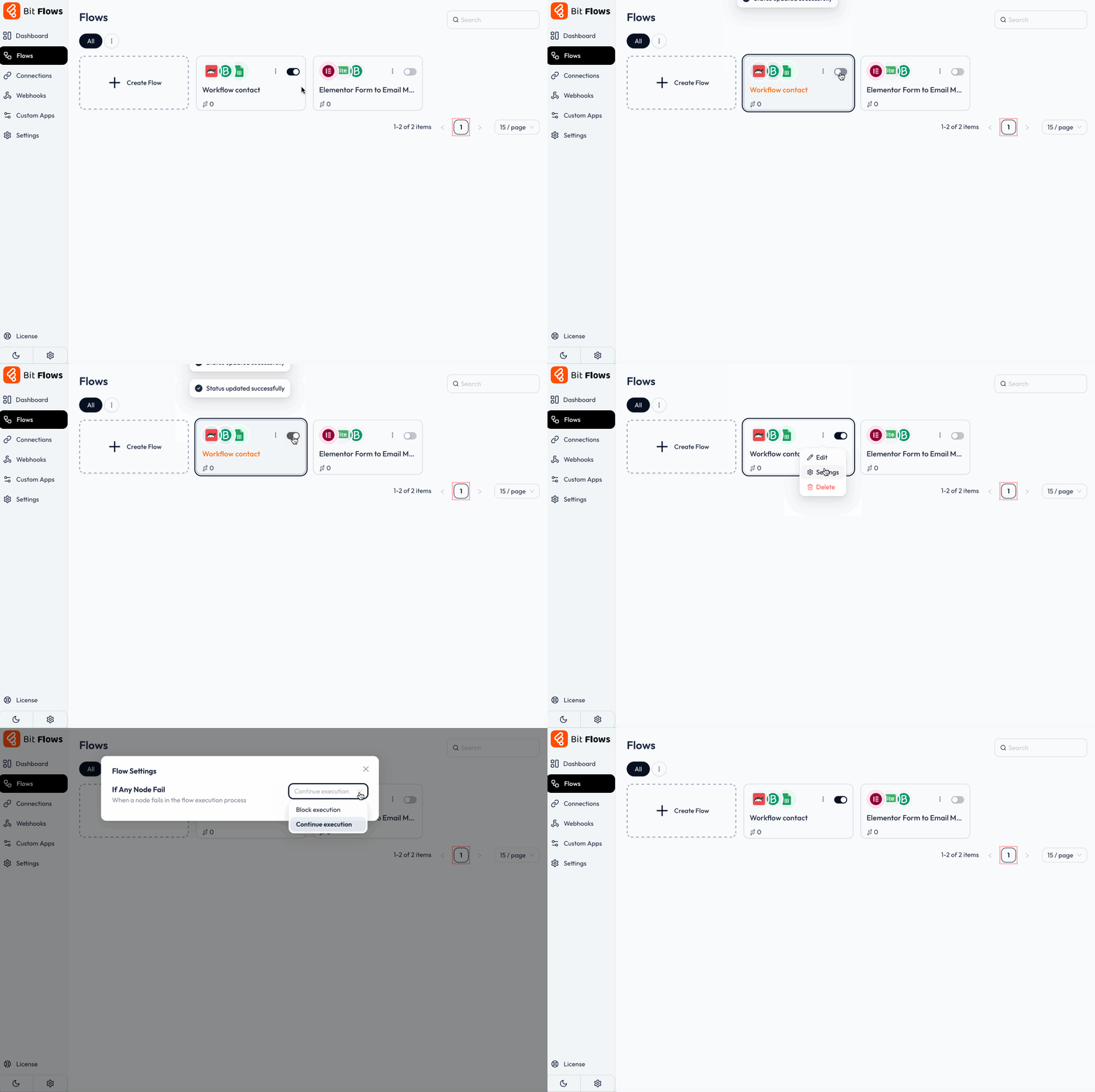
By default, your workflow will be active. When you no longer need it, you can deactivate it by clicking on the corresponding radio button.
By clicking on the three dots, you can also edit your workflow, delete it, and access its settings.
In particular, you can define what will happen if an action (node) is not executed. You can choose to block or continue workflow execution:
Finally, if you have a technical background and/or like to get your hands dirty, don’t hesitate to make use of Webhooks and Custom Apps.
How does Bit Flows support work?
With this first high-performance workflow, you’ve got enough to automate your first tasks. And a little bird tells me that you’re going to want more!
As you use the tool, you may encounter a few obstacles, bugs, or other bottlenecks. So how do you get out of the rut?
In addition to the user experience, Bit Flows has also focused on user support, with multiple resources to help you. Here’s what you can rely on:
- Plugin documentation. There aren’t tons of resources, but the essentials are there to help you get familiar with the tool and its settings. To help you out, there are a decent number of screenshots in most of the documentation articles.
- Video tutorials, presented on the Bit Apps YouTube channel. At the time of writing, there were around 50 videos, many of them explaining how to connect this or that tool to Bit Flows. For example? This short tutorial on how to connect Bit Forms to Google Sheets:
- Live chat assistance, Saturday to Thursday. Answers are given within 1 to 2 days. This support is included in the free version of the plugin.
- A private Facebook group with 5000 members at the time of publication of this article.
- A forum that brings together all the products marketed by Bit Apps, with various related topics.
- Support by ticket, by filling in a contact form on the site.
In short, the team in charge of support on Bit Flows makes the following point: “Benefit from unrivaled support from our dedicated team, who help you configure, troubleshoot, and optimize every step of the way.”
Support is one of Bit Flows’s strong points. You’re guaranteed to get help, even if you’re only using the free plugin.
As a Pro version customer, you receive priority (i.e. faster) support.
How much does Bit Flows cost?
Four licenses, with a lifetime option
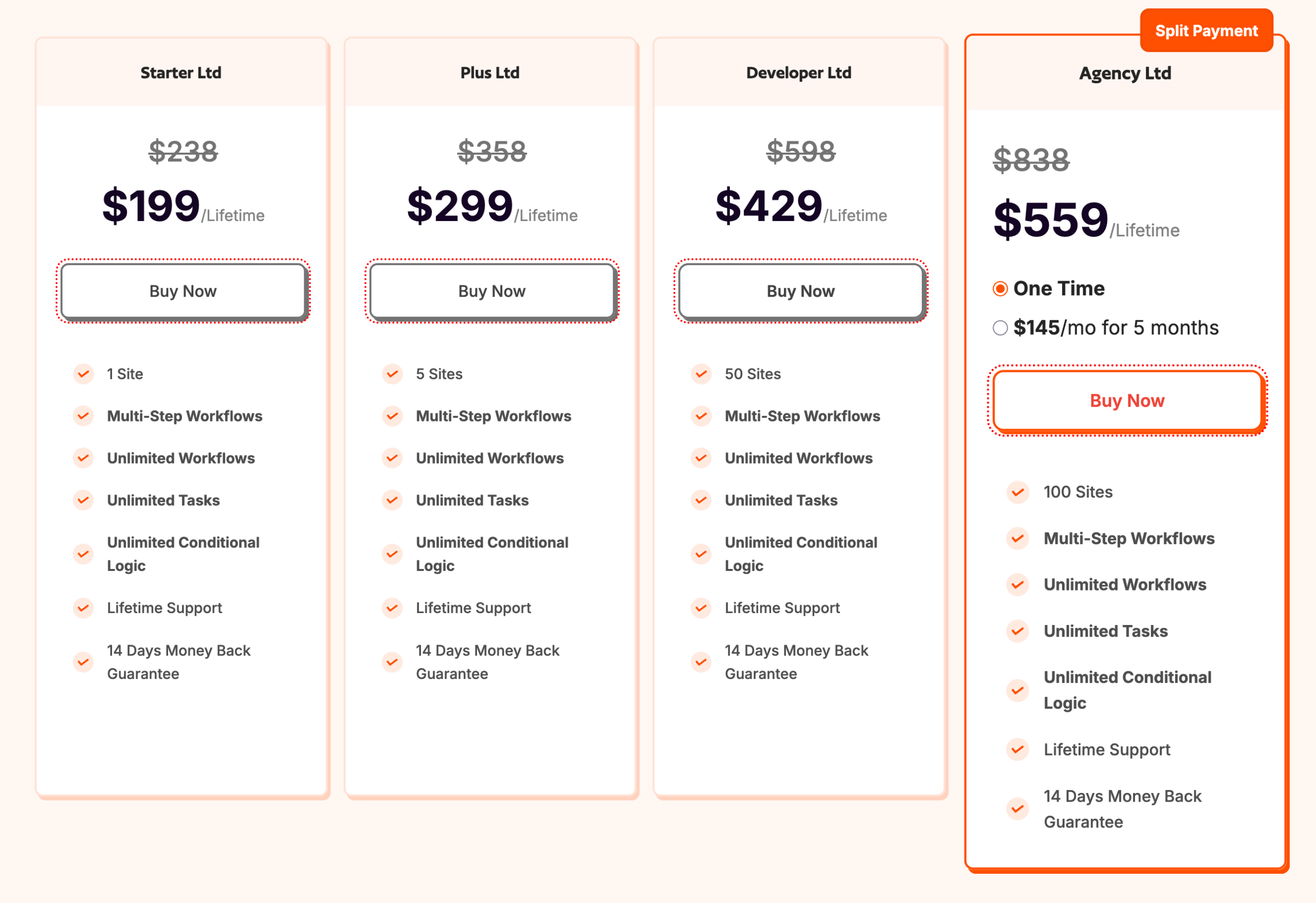
By the way, how much does the Pro version of Bit Flows cost? The plugin’s creators offer four different licenses, which you can pay for by the year or in one lump sum (lifetime).
The lifetime license is a little more expensive initially, but pays for itself after the second year. If you want to use Bit Flows for more than a year, it’s better to go for the Lifetime package.
Apart from that, all licenses contain exactly the same options. What makes the difference is the number of sites you can use them on:
- Starter: Use on one site (from $119/year)
- Plus: Use on 5 sites (from $199/year)
- Developer: Use on 50 sites (from $229/year)
- Agency: Use on 100 sites (from $329/year)
Bit Flows also offers a 14-day money-back guarantee, so you can test the tool without taking any risks.
And if you’d like to try things out before you buy, Bit Flows offers a free test server where you can try out Bit Flows without obligation.
How to choose between the free version and the Pro version of Bit Flows
If you’re just starting out in the world of automation, you may not want to create space in your monthly budget for a premium license.
But what if you still want to take advantage of features worthy of the name? In that case, would the free version of Bit Flows be enough for you?
It all depends on your needs, but let’s face it: the free version is bound to be more limited.
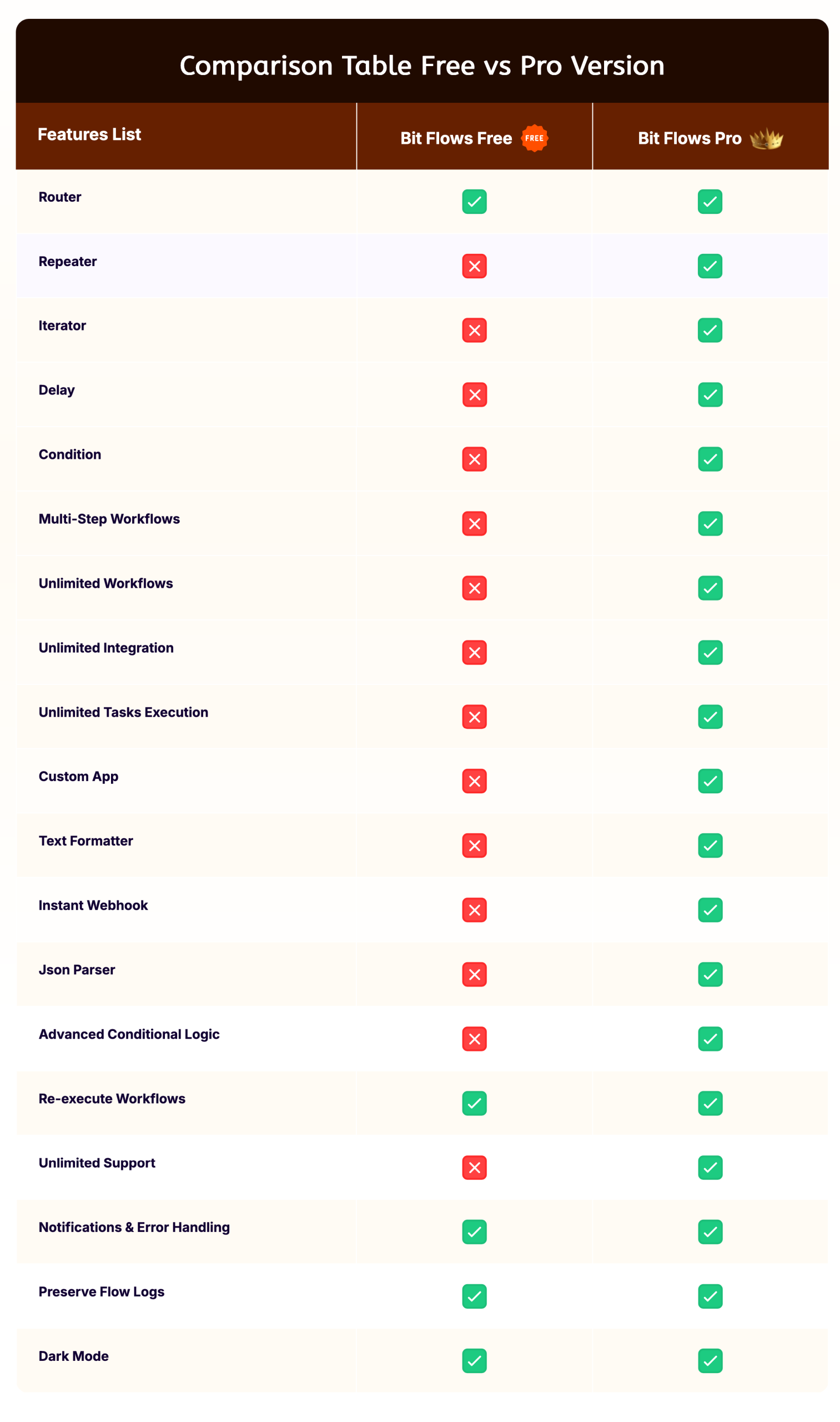
With the free plugin, you won’t be able to take advantage of unlimited workflows, custom apps, webhooks, and almost all Bit Flows tools (except the Router tool).
For example, you won’t be able to use conditional logic or iterators.
If you need to set up a few basic automations here and there, the free version will do the trick.
But as soon as you’re looking for a little more granularity, you may find yourself frustrated without the Pro version.
By way of summary, take a look at this table created by the Bit Flows team:
What are the alternatives to Bit Flows?
How does Bit Flows stack up against the competition in terms of price? Within the WordPress ecosystem, Bit Flows is obviously not the only one to offer task automation.
The plugin faces more experienced challengers, such as:
- FlowMattic
- Uncanny Automator
- Automator WP
- WP Fusion
Strictly in terms of pricing, Bit Flows claims to be 40–50% less expensive than its competitors, with the evidence to back it up:

The price difference is even greater with well-known SaaS tools such as Make and Zapier, which are not exactly known for their cheapness… Compared with these, Bit Flows claims to be 50 to 60% cheaper.

Nevertheless, when comparing prices, it’s a good idea to put what the product or service offers into perspective. If you pay more, but you have more options or features tailored to your needs, you’ll often win in the end.
To find out exactly what each tool offers, it’s best to visit their websites. If needed, Bit Flows also offers a small comparison table between different plugins on this page.
Our final review of Bit Flows
To conclude this article, let’s wrap things up with a list of the pros and cons of Bit Flows, as well as our opinion of this plugin.

Bit Flows pros
- An intuitive and easy-to-use plugin, thanks in part to its native integration with your WordPress dashboard and its drag-and-drop interface
- The ability to create an unlimited number of workflows (with the Pro version)
- A wide range of integrations with CRM, emailing tools, contact forms, e-commerce platforms, and more
- Tools for fine-tuning your workflows, such as conditional logic
- Native integration with your WordPress dashboard
- Support that can provide personal help even if you’re only using the free version
- The ability to automate actions that take place outside WordPress (for example, sending data to Google Sheets)
- Lower rates than the competition
- A solution integrated into your own hosting server, so you don’t have to rely on a third-party tool
Bit Flows cons
- Even if the tool is easy to learn, there’s still a learning curve involved in understanding how workflows work and the mechanisms associated with them (triggers, actions, etc.). Nor are some integrations easy to achieve.
- The free version is limited and quickly reaches the extent of its usefulness. If you’re looking for advanced automation, you’ll automatically have to opt for the premium package, which does require a certain budget.
What does WPMarmite think?
Brand new to the WordPress ecosystem (the tool was launched in January 2025), Bit Flows is a plugin that pleasantly surprised us.
Its UI (user interface) is clean and neat, with a real desire to make life easier for the user.
All in all, it’s a success: the tool is very easy to use, and you don’t get lost in the middle of endless settings. Everything is clear, concise, and well put together.
On the downside, we don’t think Bit Flows is really suitable for beginners.
This is not because of the plugin itself, which is easy to learn. Rather, it’s because automation remains a technical field, with its own subtleties that you need to understand in order to benefit from it.
In our opinion, Bit Flows is best suited to more experienced users. If this sounds like you, and/or if you’re looking for an efficient tool to automate your tasks that’s natively integrated with WordPress, give it a try.
We bet you won’t be disappointed, especially as the tool continues to evolve and improve over time!

Receive the next posts for free and access exclusive resources. More than 20,000 people have done it, why not you?


Continue reading
Articles posted in WordPress PluginsFight against spam with Akismet
Askimet. Aksimet. A… what are you saying? Its name is not easy to pronounce, and sometimes confusing. But with no slip of the tongue, you should be able to get by without any trouble, trying to articulate this word. Try…
UpdraftPlus: The must-have plugin to back up, migrate, and restore your WordPress site
I’ll never forget that day. And not just because I thought I was going to throw my computer out of the window… Ah, if only I’d used a plugin like UpdraftPlus to avoid catastrophe. The catastrophe? Let me tell you…
WPML review: Ultimate test of the plugin to make WordPress multilingual
A second job. For a long time, creating and managing a multilingual WordPress site often meant doing the same work twice. Once you’d written a piece of content, you had to translate it. Then you had to check each version,…