
When your visitors come across a 404 page on your WordPress site, the experience can be disappointing.
A generic error message like “Page not found” is likely to drive them away from your site, increasing your bounce rate and damaging your SEO at the same time.

Fortunately, WordPress offers flexible solutions to turn this error into an engagement opportunity. By creating a custom 404 page, you can guide your visitors to relevant content, strengthen your brand image, and optimize your SEO.
In this article, we’ll look at how to create a custom 404 page on WordPress, whether by using the native site editor, a dedicated plugin, or with code.
So if you want to provide the perfect user experience, even in the event of an error, follow the guide! 😉

Why create a custom 404 page on WordPress?
The default 404 page automatically generated by WordPress or your theme is often bland and uninviting. It displays a standard error message, without reflecting your site’s identity or guiding your visitors.
By customizing your 404 page, you can:
- Improve user experience: A well-designed 404 page redirects your visitors to key pages, such as the home page or your flagship articles, preventing them from leaving your site.
- Reinforce your brand image: A well-designed page with a friendly tone reflects your professionalism.
- Optimize SEO: By reducing bounce rates and encouraging navigation, a customized 404 page sends positive signals to search engines like Google.
With a custom 404 page on WordPress, you can turn errors into opportunities to captivate your audience and improve your SEO (yes, we mean that).
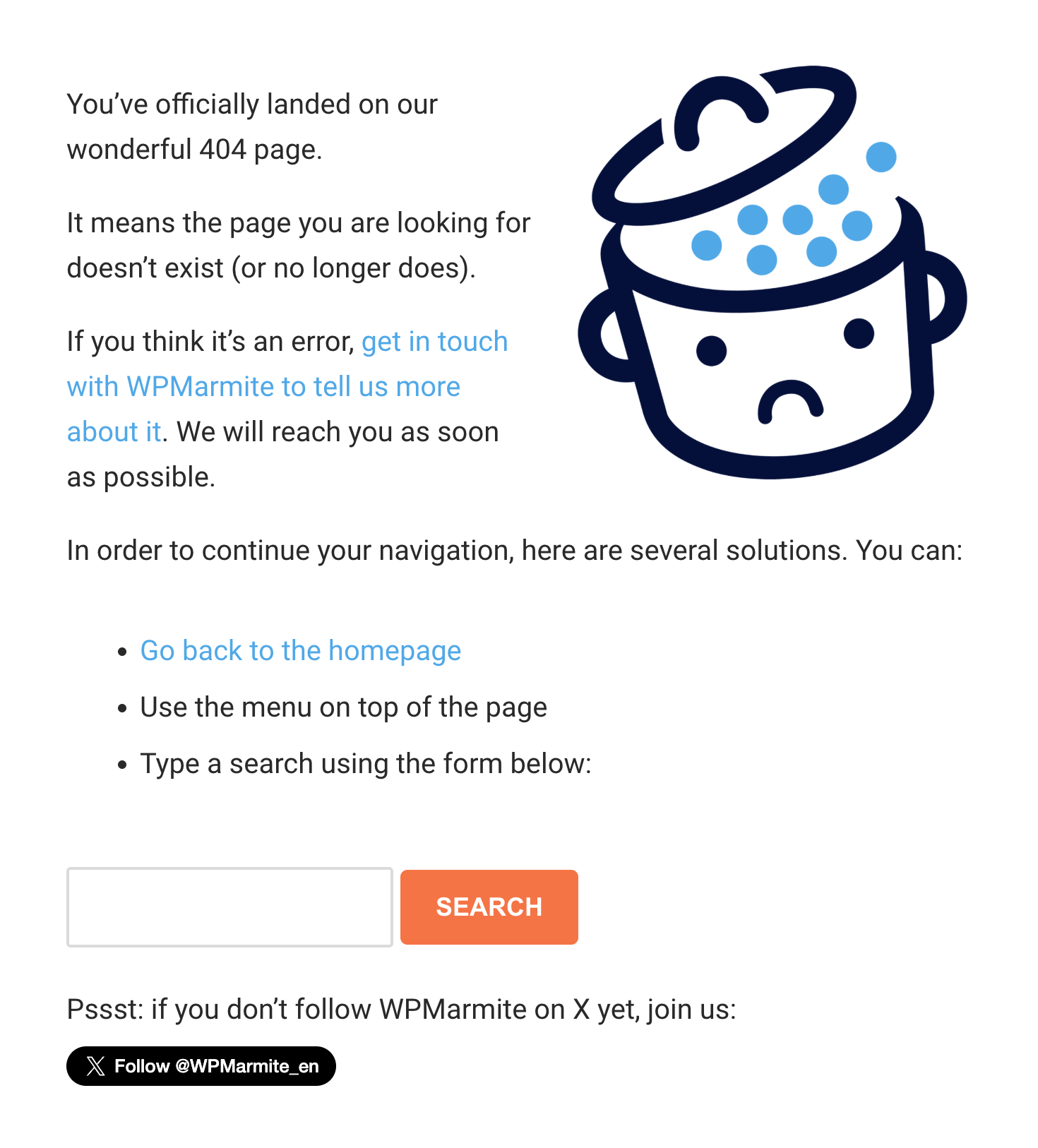
Want to know how? Read on.
How to create a custom 404 page on WordPress
There are several approaches to customizing your 404 page on WordPress, depending on your comfort level with code or visual tools.
Whether you’re using a block-based theme, a dedicated plugin, or prefer to code, there’s bound to be a suitable solution.
Method 1: Create a 404 page using the WordPress site editor (with a block-based theme)
If you’re using a Full Site Editing (FSE)-enabled theme like Twenty Twenty-Four, WordPress’ native site editor is the most modern and accessible solution for creating a custom 404 page without writing code.
This approach, based on the WordPress block editor, is particularly intuitive and guarantees visual consistency with the rest of your site.
To get started, access the site editor from your dashboard by going to Appearance > Editor. You’ll arrive in the site editor, a visual interface that lets you modify the entire structure of your WordPress site.
Click on the “Templates” tab in the sidebar and look for the template named “Page 404.”

If this template doesn’t exist, create a new one by clicking on “Add a template” in the top right-hand corner of the screen.
In the block editor, customize your 404 page by adding blocks to suit your needs. To add a new block, click on the “+” at the end of the line, for example.
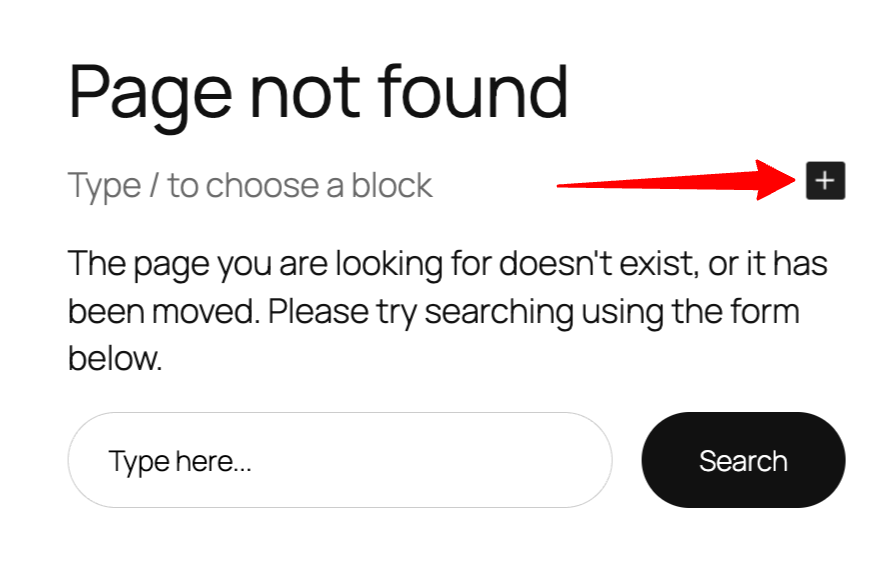
Here are some ideas for structuring your page:
- Opt for an engaging title: Use a Title block with a personalized message such as “Oops, this page has gone astray!”
- Insert a friendly message: Add a Paragraph block to explain the situation, for example: “It seems that the page you’re looking for no longer exists, but we’ve got plenty of other content for you to discover.”
- Facilitate navigation: Integrate a Buttons block with links to your home page, blog, or contact page.
- Add a search bar: A search block can help your visitors find content quickly.
- Integrate an attractive visual: Add an Image block with an illustration related to your brand to make the page more inviting.
The block editor lets you customize each element with precision. Use the style options to adjust colors, fonts, and spacing, to adapt the page to your visual identity.
To guarantee the best possible experience, preview your page on mobile and tablet devices using the options available in the site editor at the top right of the screen.
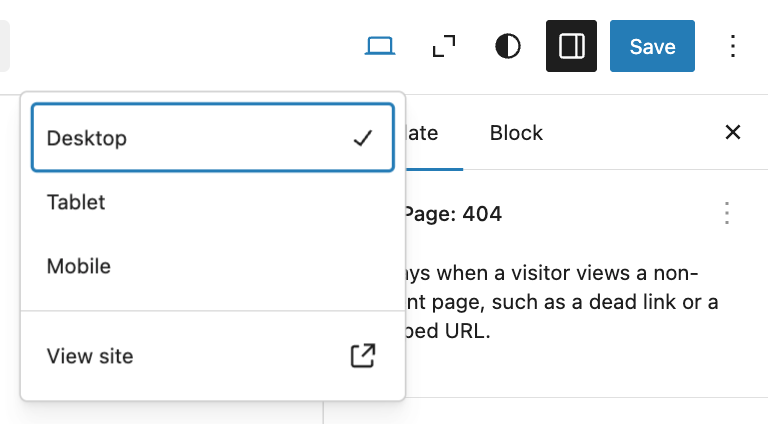
What’s more, the addition of dynamic blocks, such as article suggestions, can reduce the bounce rate and thus support your search engine optimization (SEO).
Once you’re happy with your beautiful 404 page, click on “Save” and test your page by entering an invalid URL, such as your-site.com/nonexistent-page.
Method 2: Use a dedicated plugin
Prefer to use a classic theme rather than the WordPress site editor? Plugins like Smart Custom 404 Error Page let you customize your WordPress 404 page in just a few clicks.
The procedure is very simple: start by creating your 404 page in the Pages > Add New menu of your WordPress administration, and customize it just like any other page, including a warm message, links to your top content, and a search bar, for example.
Then install and activate the Smart Custom 404 Error Page plugin in the Plugins > Add New menu.

Go to the Appearance > 404 error page menu that just appeared, and select the page you’ve just created as a 404 page, then save.
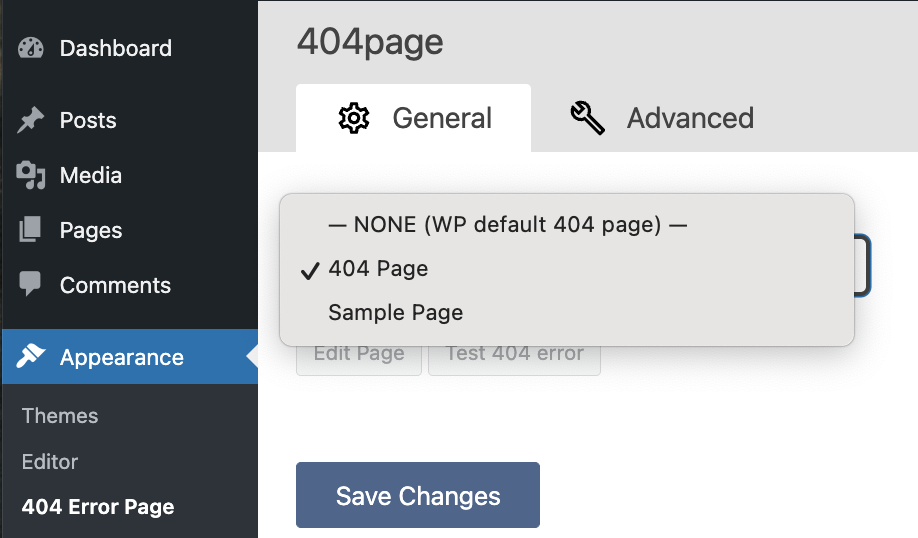
And that’s all there is to it! Your beautiful custom 404 page is in place. You can check this easily by entering an invalid URL.
Method 3: Modify 404.php for advanced customization
If you’re comfortable with code, modifying your theme’s 404.php file is a powerful way to create a custom 404 page on WordPress. This approach gives you total control over content and design, but requires some knowledge of PHP and CSS.
First of all, access your theme files via an FTP client like FileZilla or your hosting provider’s file manager.
Navigate to the /wp-content/themes/your-theme/ folder.
If a 404.php file already exists, open it and modify it. If not, create a new file with this name. This file will define the structure of your 404 page.
Here is an example of code for a simple but effective 404 page:
This code creates a 404 page with a clear message, useful links, and a search bar.
After saving your changes, test your page by entering an invalid URL.
Optimizing a 404 page
To maximize the impact of your 404 page on your SEO, follow these best practices:
- Adopt an engaging tone: A warm message encourages visitors to stay on your site.
- Include internal links: Redirect visitors to your main pages or to popular articles or categories to keep them engaged.
- Add a search bar: Allows users to quickly find relevant content.
- Monitor 404 errors: Use a tool like Google Search Console to identify problematic URLs and set up 301 redirects if necessary.
These adjustments reduce bounce rates and increase visitor engagement, two key factors for your WordPress site’s SEO.

Testing and improving a 404 page
Once your customized 404 page is in place, test it by entering an invalid URL, such as your-site.com/nonexistent-page. Check that the design is consistent with your site, that the links work, and that the page encourages navigation.
To take things a step further, use a visit-tracking tool like Google Analytics to analyze user behavior on your 404 page.
This will help you identify frequently untraceable URLs and optimize your link structure, for example by correcting broken links or adding redirects.
Conclusion
Creating a custom WordPress 404 page is more than just a technical task: it’s an opportunity to surprise your visitors and strengthen their connection with your site.
Whether you opt for the native site editor for a modern, code-free approach, modification of the 404.php file for advanced customization, or a plugin like Smart Custom 404 Error Page for a quick fix, each method allows you to turn an error into a positive experience.
By integrating internal links, a search bar, and a consistent design, you can reduce your bounce rate, optimize your site’s SEO, and improve the user experience.
Finally, if you have any questions, need some advice, or want to share your creation, don’t hesitate to leave a comment below. 😉

Receive the next posts for free and access exclusive resources. More than 20,000 people have done it, why not you?


Continue reading
Articles posted in WordPress TutorialsHow to manage and optimize WordPress menus like a pro
It is crucial for many websites. It is in four letters. And we often see it very quickly at the top of the page, when we land on a new site. This essential element is the menu. A website menu…
How to update the PHP version of your WordPress site
What comes to mind when you think of WordPress speed and security? Your favorite plugins, perhaps? You should also think about… PHP! If you’re looking for a site that loads fast, while offering a solid shield against hacker attacks, there’s a…
How to create an effective HubSpot conversion funnel on WordPress (complete guide)
In the drawers of a kitchen, there are often two very useful utensils lying around. The first is the colander. And to illustrate, some WordPress sites unfortunately resemble it. Why? Well, because visitors arrive on the site in question… then…