
Contact Form 7 is a popular WordPress plugin for creating contact forms, offering a simple and customizable solution for webmasters. With over 10,000,000+ active installations and an average rating of , this free tool effectively meets the communication needs of websites.
Designed to facilitate data collection, Contact Form 7 lets you quickly generate personalized forms. Key features include field configuration, anti-spam protection, multiple recipient management, and CAPTCHA integration, all without the need for advanced technical skills.
Advantages and disadvantages

| Advantages | Disadvantages |
|---|---|
| Free and open-source, with a large user base | Complex, unintuitive user interface |
| Highly customizable, with numerous form fields | Limited visual customization without CSS skills |
| Compatible with most WordPress themes | Limited functionality for complex forms |
| Native CAPTCHA and Akismet integration to combat spam | Requires technical skills for advanced configurations |
| Ajax-based form submissions for a smooth user experience | No built-in conditional logic |
| Large ecosystem of complementary plugins | Potentially slow performance with many fields |
| Support for multiple field types (text, email, date, files, etc.) | No integrated lead management system |
Contact Form 7 in numbers
| Latest version | 6.2.1 |
| Date of last update | |
| Active installations | 10,000,000+ |
| Average rating | |
| Launch date | 2007 |
| Founder | Takayuki Miyoshi |
| Country of development | Japan |
| Number of 5-star reviews | More than 1,000 |
| Available languages | Multilingual |
Contact Form 7 plugin rates
| Free plan |
|---|
| $0/ Free |
|
Contact Form 7 user reviews
Contact Form 7 remains a must-have WordPress plugin for creating contact forms, boasting over 10,000,000+ active installations. Its ease of installation and free availability make it a popular choice, but its limitations are also significant.
Users appreciate its initial simplicity, while pointing to its dated interface and limited functionality compared to more modern alternatives such as Ninja Forms or WPForms.
This plugin is really simple and easy to use for people new to wordpress. 100% recommended.
Livia
I’ve been using Contact Form 7 for years, and it’s one of the most reliable and versatile plugins for creating forms on WordPress. Its simplicity, compatibility, and lightness make it an excellent choice. Customization and integration with other tools are seamless.
Rizwan Khan
This is the only plugin I use on all my wordpress sites. It just keeps getting better. However, we would like to see more features like calendar and summary with this form with ease.
Danish Ali
More Contact Form 7 testimonials
Find out how Contact Form 7 ranks in terms of user satisfaction on various customer review platforms.
Alternatives to Contact Form 7
WPForms
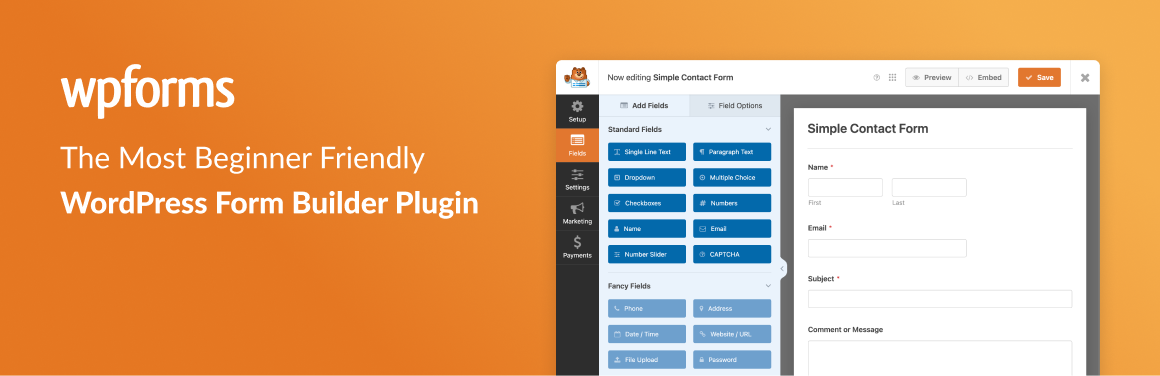
WPForms is a popular and powerful alternative to Contact Form 7, offering an intuitive drag-and-drop interface, pre-designed templates, and advanced functionality.
This plugin features multi-step forms and instant notifications. WPForms is regularly updated, boasts over 225 million downloads, and is known for its excellent support and outstanding user experience.
Formidable Forms

Formidable Forms is a powerful plugin for creating advanced forms. It features conditional fields and robust third-party integrations.
The plugin allows you to visualize submissions in the form of customized tables and graphs. It is ideal for complex applications and is regularly updated to ensure compatibility and performance.
Ninja Forms
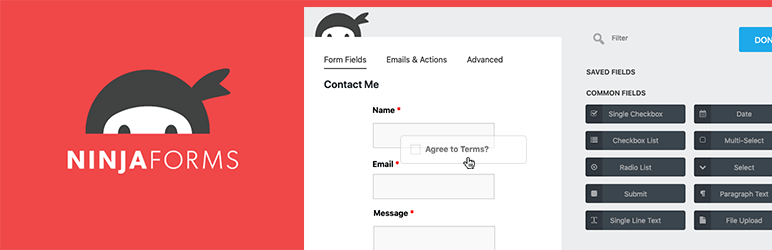
Ninja Forms is a popular WordPress plugin that lets you create custom forms with conditional fields and third-party integrations.
It has additional extensions to add functionality and is suitable for beginners and experienced users alike. Ninja Forms is regularly updated and benefits from a large community of users.
Contact Form 7 FAQs
How do I install and activate the Contact Form 7 plugin on WordPress?
To install and activate the Contact Form 7 plugin, go to the “Plugins” section of your WordPress dashboard, then click on “Add new.”
Use the search option to find Contact Form 7, install it, and activate it.
Once activated, you’ll see a new menu item called “Contact” in your dashboard, where you can manage your contact forms.
How do I create and add a contact form with Contact Form 7?
To create a new contact form, click on the “Contact” menu item in your WordPress dashboard, then on “Add new.”
You’ll be able to customize your form by adding or deleting fields using the buttons in the top menu.
Once you’ve created your form, copy the generated shortcode and paste it into the page or post where you want to display the form.
Finally, click on “Update” to save the changes and test the form on your site.
How do I configure mail settings in Contact Form 7?
To configure mail settings, go to your contact form management page and click on the “Mail” tab. You can define the email address to which form responses will be sent, as well as the content of the message.
You can also use the “Use HTML content type” field to send messages in HTML format. Don’t forget to save your changes once you’ve configured the settings to your liking.
How can I avoid spam with Contact Form 7?
Contact Form 7 offers a number of features to prevent spam. You can activate CAPTCHA validation to ask users to verify that they are not robots.
What’s more, the plugin integrates Akismet, a powerful anti-spam filter that helps block spam submissions. These features can be configured in your contact form settings.
How do I customize validation and submission messages in Contact Form 7?
To customize validation and submission messages, go to your contact form management page and click on the “Messages” tab.
You can change the default messages displayed for validation errors and input errors, as well as success and failure messages when submitting the form.
This allows you to tailor the user experience to your specific needs.
How do I integrate custom fields into a contact form with Contact Form 7?
To integrate custom fields, use the buttons in the top menu of the form editor to add fields such as phone numbers, addresses, or specific product requests.
You can easily add, delete, and customize these fields without any coding knowledge, allowing you to tailor the form to your company’s specific needs.
How do I upload and send files with Contact Form 7?
Contact Form 7 enables users to upload files via the contact form. To activate this feature, you need to add a file upload field to your form.
Uploaded files will then be attached to form submission messages and sent to the email address configured in the mail settings.
Thank you for visiting this page dedicated to Contact Form 7 🙏
The WPMarmite team hopes you’ve been able to learn more about this WordPress plugin!
To find out more, visit the official website and their social networks:
You can also share your experience with Contact Form 7 by writing a review below. 👇
Found an error on this page? Click here to report it.

