
If you’ve ever come across the ERR_NAME_NOT_RESOLVED error while browsing, you know how annoying it can be. Your screen displays this cryptic message, the site refuses to load, and you’re stuck with your hands in your pockets (or rather, on your keyboard).

But don’t panic! In this comprehensive guide, we’ll dissect the ERR_NAME_NOT_RESOLVED error for you: what it means, why it pops up, and above all, how to make it go away faster than a cookie in the kitchen.
Whether you’re on Windows, MacOS, or even running a WordPress site, we’ve got the solutions you need. So grab a coffee (or tea, as the case may be), and let’s get started!

What is the ERR_NAME_NOT_RESOLVED error?
Before we get our hands dirty, let’s take a moment to understand what’s behind this message.
The ERR_NAME_NOT_RESOLVED error occurs when your browser — Chrome, Firefox, Safari, or other — fails to transform a domain name (such as www.wpmarmite.com) into an IP address, those rather intimidating numbers (e.g. 192.168.1.1) that serve as the GPS for sites on the Internet.
This quasi-magical process is DNS (Domain Name System) resolution, a system that acts as the internet’s directory. When it crashes, you’re left with this error message on your hands.
Imagine you ask a friend to pick up a pizza, but he can’t find the pizzeria because the address can’t be found on his GPS.
It’s the same here: the browser doesn’t know where to go, and crashes with a DNS error message.

This outage can come from many places: your device, your connection, or even the site in question.
Understanding this mechanism is already a big step towards the solution. So, what are the roots of this problem? We’ll get right to it!
Possible causes of the ERR_NAME_NOT_RESOLVED error
To track down and eliminate this error, you need to play detective and identify the culprit(s). Here’s a list of the reasons why this error can occur, with a few details to help you understand what’s at stake.
1. An unstable Internet connection
Let’s start with the basics: your connection. If your Wi-Fi goes on strike or your router flickers like a broken Christmas tree, communication with DNS servers can fail.
No stable network, no address translation, and the error message shows up to the party.
2. Misconfigured or obsolete DNS settings
Your DNS settings, often supplied by your ISP (AT&T, Spectrum, etc.), are like the web’s signposts. If they’re incorrectly set, too slow, or out of order altogether, your browser won’t find the IP address.
For example, some ISPs (Internet Service Providers) have slow DNS servers, especially at peak times. This is a common cause, but one that’s easy to get around (we’ll look at this later in the article).
3. A corrupt DNS cache
Your device stores a DNS cache to speed up future connections — a bit like an address book. But if this address book is full of out-of-date or erroneous numbers, it can get stuck. As a result, a DNS resolution error message may appear.
4. An overzealous firewall or antivirus software
Your firewall or antivirus software are there to protect you, but sometimes they overdo it. They can block DNS requests from a site, mistaking it for a threat, and that’s when the browser blocks access to the site.
5. Server-side problems
Here, the problem isn’t with you, but with the site you want to visit. If its DNS servers (managed by the host or registrar) are down, misconfigured, or under maintenance, your browser won’t be able to establish the connection because of an ERR_NAME_NOT_RESOLVED error.
6. A malfunctioning system or software update
A recent update — whether to Windows, MacOS, or even a network driver — can wreak havoc with your DNS settings. These bugs are rare, but when they do strike, an unexpected ERR_NAME_NOT_RESOLVED error can pop up.
7. Malware or virus
It’s our least favorite cause, but it does exist. Malicious software can hijack your DNS settings, redirect your connections, or outright block certain sites. In this case, the ERR_NAME_NOT_RESOLVED error becomes a symptom of a more serious problem.
The impact of the ERR_NAME_NOT_RESOLVED error (especially on WordPress)
If you’re an ordinary user, an error of this type can simply prevent you from consulting your favorite sites. But if you’re running a WordPress site, it’s a different story.
Imagine your visitors stumbling across this message. They’re not going to wait long before looking elsewhere. And that’s a serious blow…
For a WordPress site, a breakdown like this can have serious consequences:
- Loss of traffic: Readers tend to quickly leave an inaccessible site.
- Falling SEO: Google doesn’t like to index pages that don’t respond. If your visitors report an error of this type, your positions are likely to plummet.
- Business impact: If you sell products via WooCommerce, every minute of downtime means fewer sales.
On the technical side, an ERR_NAME_NOT_RESOLVED error may reveal a DNS problem with your registrar (OVH, GoDaddy…) or a breakdown with your hosting provider.
In short, whether you’re a user or a site administrator, you need to act fast. So, you want to know how it’s done? Let’s get to it!
How to resolve the ERR_NAME_NOT_RESOLVED error: The plan of attack
We won’t leave you in doubt! Here’s an action plan to correct the ERR_NAME_NOT_RESOLVED error, with clear steps and examples.
Solution 1: Test your Internet connection
Your network is the foundation of everything. If your router is flashing red, or the data rate is particularly slow, the ERR_NAME_NOT_RESOLVED error may be due to an unstable connection. Unplug your router or modem for 30 seconds, then reconnect.
On Wi-Fi? Get closer to the router or test 4G on your mobile.
If the problem is still unresolved, move on to the following solutions.
Solution #2: Restart everything (including the device)
Sometimes all it takes is an old-fashioned reboot. Switch off your PC, Mac, or smart phone, wait 30 seconds, then switch it back on. This resets the counters to zero and can get rid of that annoying message.

Solution 3: Temporarily disable VPNs and security software
VPNs and other security software such as antivirus or firewalls can sometimes cause the ERR_NAME_NOT_RESOLVED error.
Even though they play a very important role in protecting your computer, they sometimes prevent access to certain websites without any clear justification. It may therefore be useful to temporarily disable these tools to identify the source of the problem.
Solution 4: Clear your browser’s cache
Your browser’s cache stores bits of sites to speed things up, but if it’s corrupted, things can get stuck.
On Google Chrome:
- Click on the 3 dots at top right, then on History > Delete browsing data.


- Check “Cached images and files” and confirm.

- Relaunch the page.
There are other ways to clear the Google Chrome browser cache. You can learn about them in our tutorial on clearing the WordPress cache.
Solution 5: Clear the DNS cache
The DNS cache is a bit like your device’s short-term memory. If it’s full of obsolete data, it can block resolution.
Here’s how to empty it.
Clearing the DNS cache on Windows:
- Open the command prompt (type “cmd” in the search bar, right-click, and click “Run as administrator”).

- Type
ipconfig /flushdnsand press “Enter.”
You’ll see a message confirming that “the DNS resolution cache has been cleared.”
Clear DNS cache on Mac:
- Start by opening the Terminal application, then enter the following command:
sudo dscacheutil -flushcache; sudo killall -HUP mDNSResponder - Press “Enter,” enter your administrator password, and press “Enter” again to confirm.

Solution #6: Change your DNS servers to correct the ERR_NAME_NOT_RESOLVED error
Your ISP’s DNS is not always in top form. If they’re slow or down, you may also see an ERR_NAME_NOT_RESOLVED error too often.
To correct the problem, you can switch to reliable public servers like Google or Cloudflare.
Changing your DNS servers on Windows:
- Go to your Control Panel > Network and Internet > Network and Sharing Center.
- In the left-hand menu, click on “Change adapter settings.”
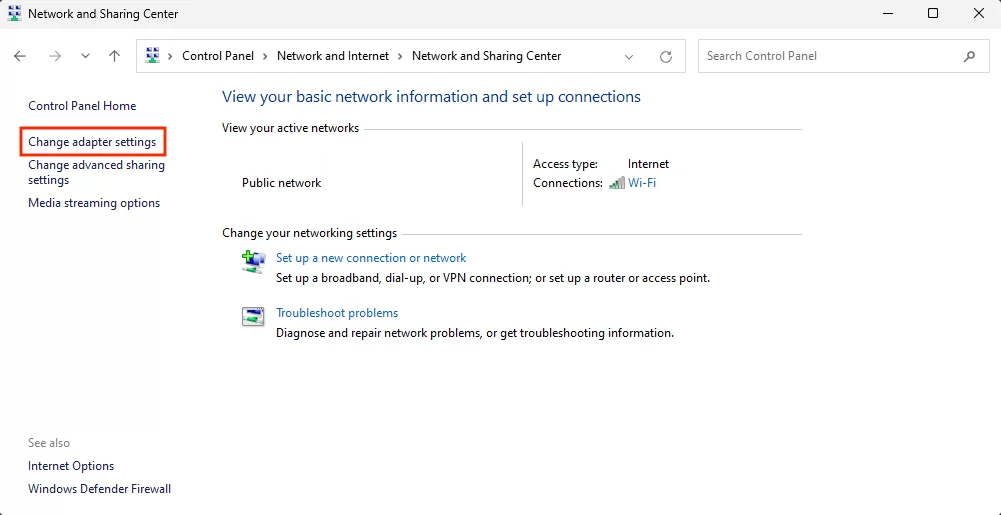
- Right-click on your current connection, then click on “Properties.”
- Then select “Internet Protocol version 4 (TCP/IPv4)” and click on “Properties.”
- At this point, click on “Use the following DNS server address” and enter the following data:
- Preferred DNS server:
8.8.8.8 - Auxiliary DNS server:
8.8.4.4
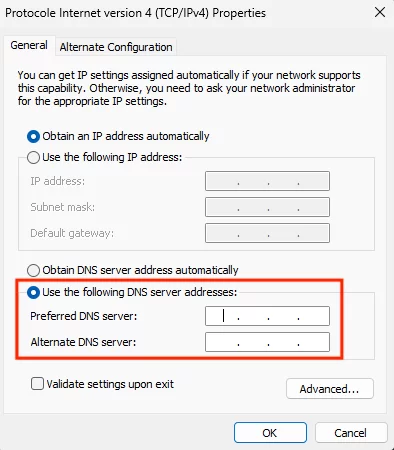
- Finally, click “OK” and restart the machine.
Changing your DNS servers on the Mac:
- Click on the “Apple” icon and go to “System Preferences,” then click on “Wi-Fi”.
- Select your current local connection and click on the “Details” button.
- Click on the “DNS” tab and on the “+” button.

- Enter the addresses of the new IPv4 DNS servers one after the other, then click on “OK”:
8.8.8.88.8.4.4
Solution 7: Modify the hosts file
Your device’s hosts file acts as a local mini-directory. It’s used to manually associate IP addresses with domain names, without having to go through a DNS server.
If it contains erroneous or malicious entries, it can block domains and trigger an ERR_NAME_NOT_RESOLVED error.
Here’s how to check:
Modifying the hosts file on Windows
- In the Windows search bar, type “Notepad” and select “Run as administrator.”
- Then click on “File” and “Open.” Change the file filter from “Text documents (*.txt)” to “All files.”
- In the search bar at the bottom of the window, enter this file name:
C:\Windows\System32\drivers\etc\
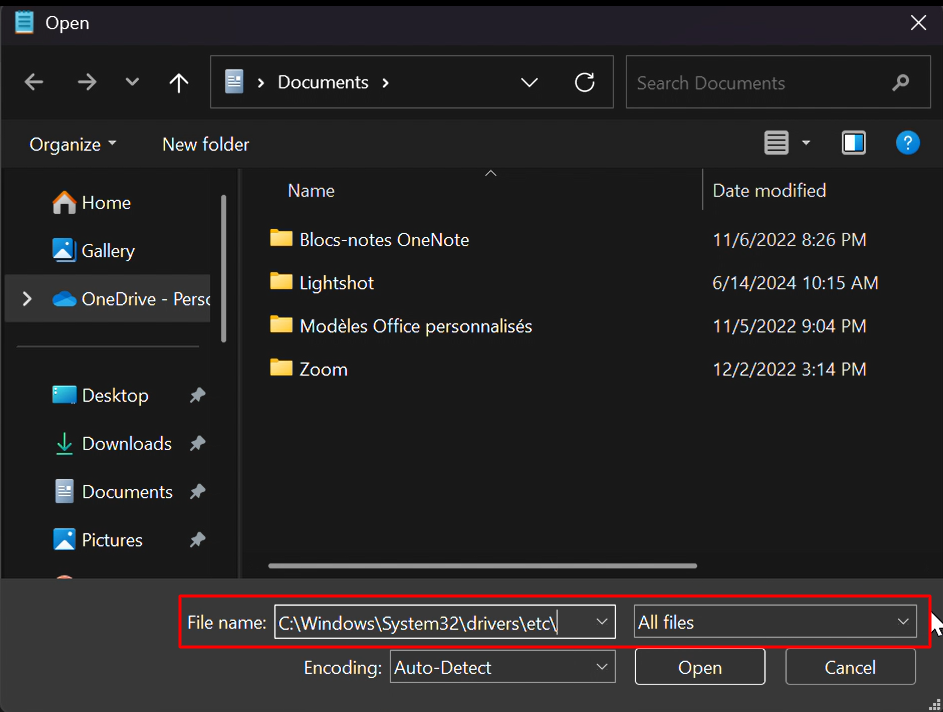
- Select and open the hosts file.
- Below lines beginning with
#, the file shows a list of blacklisted sites. - If the site you want to visit is in this list, you’ll need to delete it.
Edit hosts file on Mac
If you’re using MacOS, open Terminal, type sudo nano /private/etc/hosts (password required), and check the lines. You can see the blacklisted sites below the last line starting with ::1.
Modify if necessary (“Ctrl + X,” then “Y” to save).
Solution 8: Look for malware
A virus or malware can hijack your DNS and wreak havoc. With your favorite antivirus software, run a full scan and remove whatever it finds.
Then reboot. If the ERR_NAME_NOT_RESOLVED error disappears after that, the culprit was indeed an intruder.
Solution 9: Reset network settings (extreme solution)
If all else fails, then it’s time to bring out the heavy artillery: the network reset.
This solution resets everything, but beware: you will lose your Wi-Fi configurations.
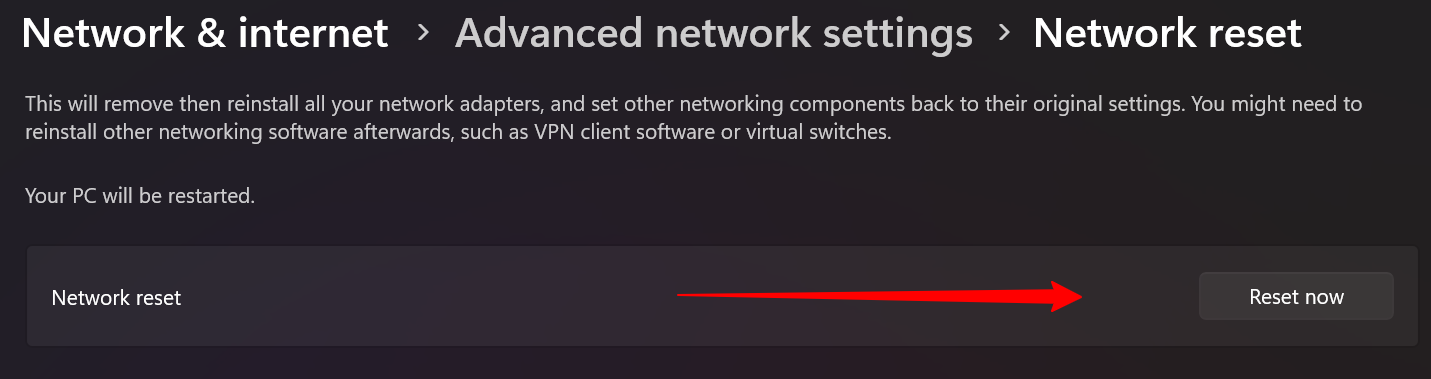
Reset network settings on Windows:
- Go to Settings > Network and Internet.
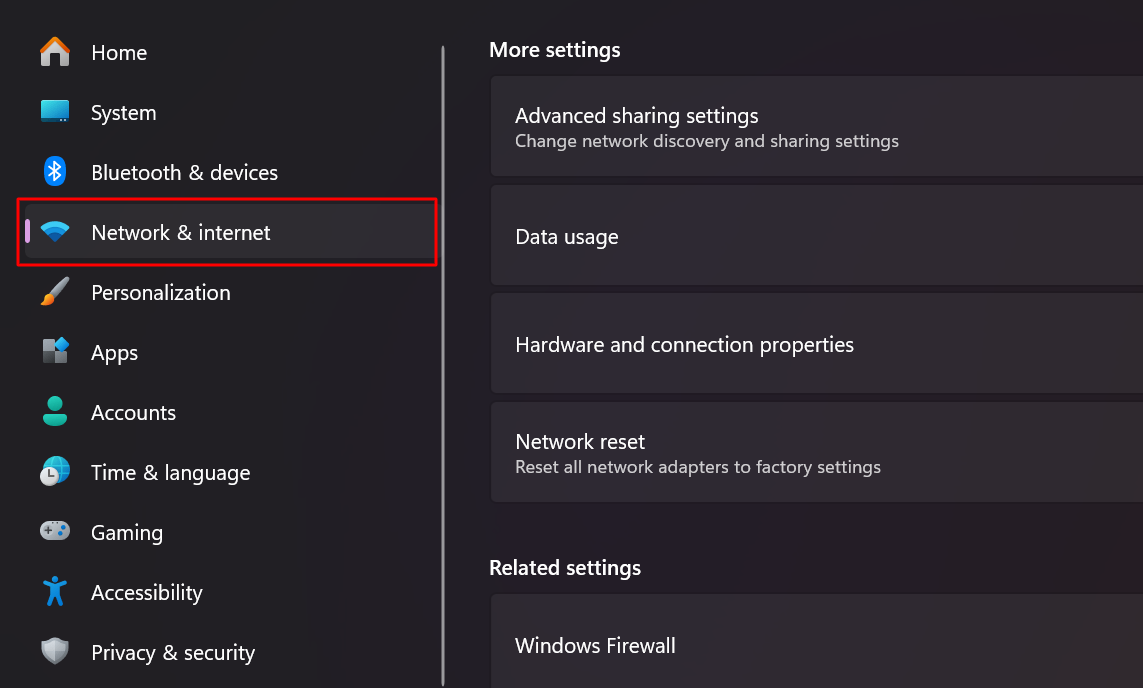
- Then go to “Advanced network settings” and click on “Network reset.”

- Click on “Reset now.”
Reset network settings on MacOS:
1. Click on the “Apple” icon, then on “System Preferences.”
2. Then go to the “Network” menu, select your current connection, and click on “Details.”
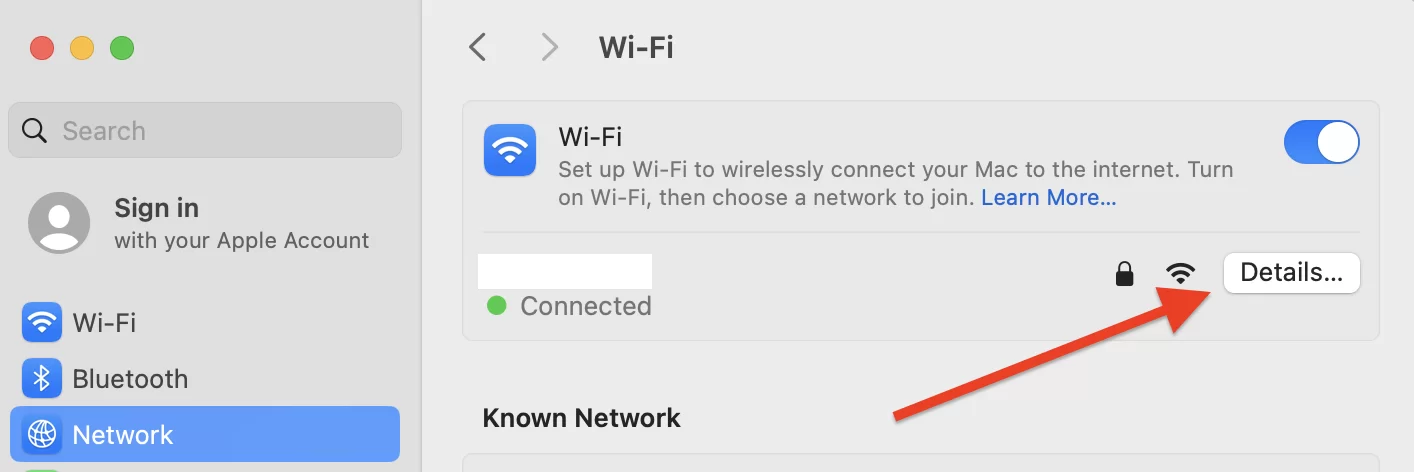
3. In the “TCP/IP” menu, click on the “Renew DHCP lease” button.

WordPress bonus: If you’re an admin
If your visitors are reporting an ERR_NAME_NOT_RESOLVED error on your WordPress site, you may be the one with the problem:
- Check your DNS: Log in to your registrar and make sure that the nameservers (NS) point to your host (e.g.
ns1.o2switch.net). An error here, and your domain becomes invisible. - Contact your host: A server failure or a DNS propagation delay (after a change) may be to blame.
- Monitor your site: If you’re an admin, use a service like UptimeRobot (free) to be alerted as soon as an ERR_NAME_NOT_RESOLVED problem appears.
- Optimize WordPress: A site that’s too heavy can make things worse. Install WP Rocket or WP Super Cache to reduce server load — it doesn’t directly solve the problem, but it can help stabilize your site.
In short: No more ERR_NAME_NOT_RESOLVED errors!
With this guide, you have a complete toolbox to say goodbye to the ERR_NAME_NOT_RESOLVED error and regain control of your navigation.
The problem is generally easy to solve, starting with the basics: connection, caches, and antivirus, for example. If the problem persists, move on to DNS, the hosts file, or a good malware clean-up.
And if you’re the site administrator, a quick look at the DNS or a phone call to your host can solve the problem.
Have you tried a trick that worked for you? Share your solution in the comments: you could save another reader’s day. 😉

Receive the next posts for free and access exclusive resources. More than 20,000 people have done it, why not you?


Continue reading
Articles posted in WordPress TutorialsHow to manage and optimize WordPress menus like a pro
It is crucial for many websites. It is in four letters. And we often see it very quickly at the top of the page, when we land on a new site. This essential element is the menu. A website menu…
How to update the PHP version of your WordPress site
What comes to mind when you think of WordPress speed and security? Your favorite plugins, perhaps? You should also think about… PHP! If you’re looking for a site that loads fast, while offering a solid shield against hacker attacks, there’s a…
How to create an effective HubSpot conversion funnel on WordPress (complete guide)
In the drawers of a kitchen, there are often two very useful utensils lying around. The first is the colander. And to illustrate, some WordPress sites unfortunately resemble it. Why? Well, because visitors arrive on the site in question… then…