
“There has been a critical error on this website.” That’s the kind of chilling message you don’t like to see on your screen.
When it’s displayed there, concern mounts. Your site is no longer accessible, not only to your visitors, but often to yourself. And you need to act fast to get it back up and running.
Without a functioning site, traffic, sales, and a bit of your brand image evaporate.

The good news is that behind this very annoying message often lies a problem that can be diagnosed using the right methods.
In this article, you’ll find out what this error really means, how to fix it step by step, and what best practices to adopt so that it doesn’t come back to haunt you.

What does the message “There has been a critical error on this website” mean?
WordPress displays the message “There has been a critical error on this website” on your screen to inform you that a piece of its code — a PHP script to be precise — has failed to run to completion.
This is a fatal error for this script, but not for your site. Which is rather good news: this message is not the sign of a hack or an irreversible catastrophe.
In fact, it’s a vast improvement on what used to be known as the “White Screen of Death.” Before WordPress version 5.2, released in May 2019, all you had was a hopelessly blank page, with no leads. Now, WordPress at least warns you that something is wrong. It’s a first step towards a solution.
The real concern is that this error often blocks public access to your site and your own dashboard. So how do you fix it if you can’t get into your administration interface? Don’t worry, there are backdoors available, and we’ll take a look at how to use them.
As you’ll see, the hardest part isn’t fixing the problem, but finding its source. It’s a real detective job, so let’s start investigating.
What causes the error “There has been a critical error on this website”?
So, who are the usual culprits behind this message? Generally speaking, the problem lies within a few large families.
The number one suspect, and by far the most frequent, is a conflict between plugins. A poorly coded, out-of-date or simply incompatible WordPress plugin can be enough to break everything. A simple update can sometimes trigger chaos.
Next, let’s take a look at your theme. As with plugins, your active theme may contain an error in its code. This is often the case if it has been modified — via the functions.php file for example — or if it is no longer compatible after a WordPress update.
Another common cause is an insufficient PHP memory limit.
Imagine your website is a car, and PHP is its engine. If the engine doesn’t have enough fuel (memory) for a heavy task, it stalls.
That’s what happens here. Power-hungry scripts or plugins can cause this overrun.
Finally, there are other, rarer, but not to be dismissed, possibilities, such as:
- An obsolete or incompatible PHP version
- Corruption of WordPress main files or database
- A caching problem
The good news? We’re going to go through each suspect, one by one, and show you how to exonerate or condemn them. Don’t panic, there are solutions.
How to fix a critical error on your WordPress site
Before any manipulation, a golden rule: make a complete backup of your site (files + database). Always. This is non-negotiable.
To do this, use a dedicated plugin or a maintenance tool like WP Umbrella.
If access to the dashboard is impossible, most hosting companies offer a one-click backup tool in their interface. This is your safety net, the only thing that guarantees you’ll be able to go back if something goes wrong.
Access the WordPress debugging email
Since WordPress 5.2 (by the way, we hope you’re using a more recent version of the CMS ^^), WordPress natively integrates a “recovery mode.”
Here’s how it works: during an update, if a theme or plugin crashes your site, the CMS automatically deactivates the theme or plugin associated with the bug.
It then displays this type of message rather than a White Screen of Death: “There has been a critical error on this website. Please check your site admin email inbox for instructions.”
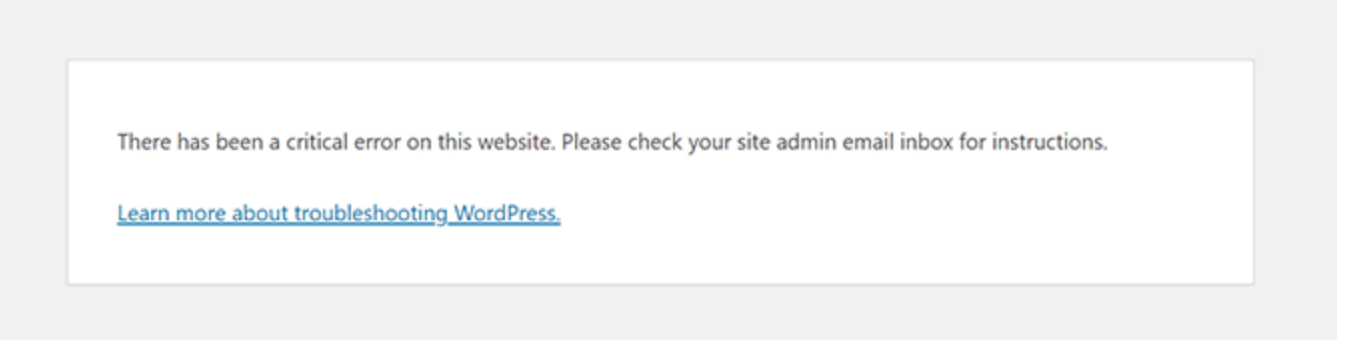
If this happens in your absence (via an automatic update, for example), you’ll receive an email with information about the bug and the fact that your site has gone into recovery mode.
This email is invaluable: it often indicates the exact plugin or theme responsible for the chaos, saving you from searching for a needle in a haystack.
The key element of this email is the link to Recovery Mode. This magic link allows you to connect to your dashboard in a secure mode that temporarily disables the offending component.
The procedure is simple:
- Check your inbox (and your spam).
- Click on the link, log into your WordPress back office, and deactivate the item.
With this, the problem is often solved in a matter of minutes. If, for whatever reason, you haven’t received this email, you’ll have to get your hands dirty and find the solution yourself.
We’ll help you see how right away.
Clear cache
Let’s try a quick first action: clear the cache (read our guide on the subject). The cache is a saved version of your site to speed up loading, but it can sometimes retain a “photograph” of the error.
If you’re using a caching plugin like WP Rocket, manually delete its contents via FTP or your server administration interface, deleting the contents of the wp-content/cache folder (assuming you can’t access your WordPress admin):
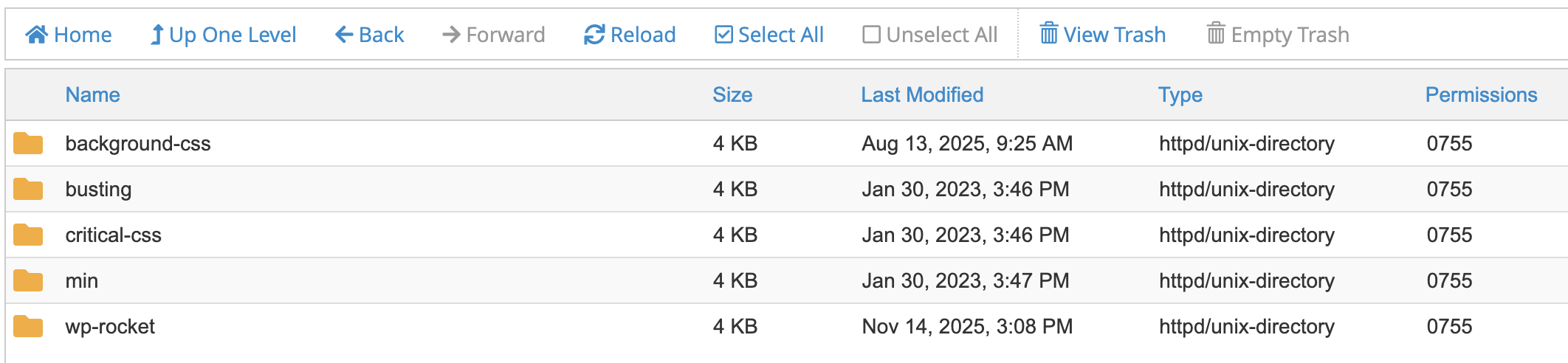
If the cache is managed by your web host, you can purge the cache directly from their settings interface, without having to use a plugin.
Deactivate all your plugins to fix the “There has been a critical error on this website” error
If nothing worked, let’s move on to manual troubleshooting, starting by deactivating all your plugins. This is the most common way to identify a conflict.
You’ll need access to the site’s files via FTP/SFTP (with a client like FileZilla or Cyberduck), or your host’s file manager (e.g. cPanel).
To connect to cPanel, you can either:
- Click on the connection link in the welcome email from your hosting provider
- Type your site’s URL, followed by :2083
- Use the backup address: When port 2083 is blocked, enter the URL of your site, and add cpanel. in front of your domain. Example: https://cpanel.your-domain.dev.
Then go to the “Files” tab, and click on “File manager.”
Navigate to the site’s root folder, called public_html (with some hosts, it may be called www or htdocs), then enter the wp-content folder.
Rename the plugins folder (call it plugins_test, for example):
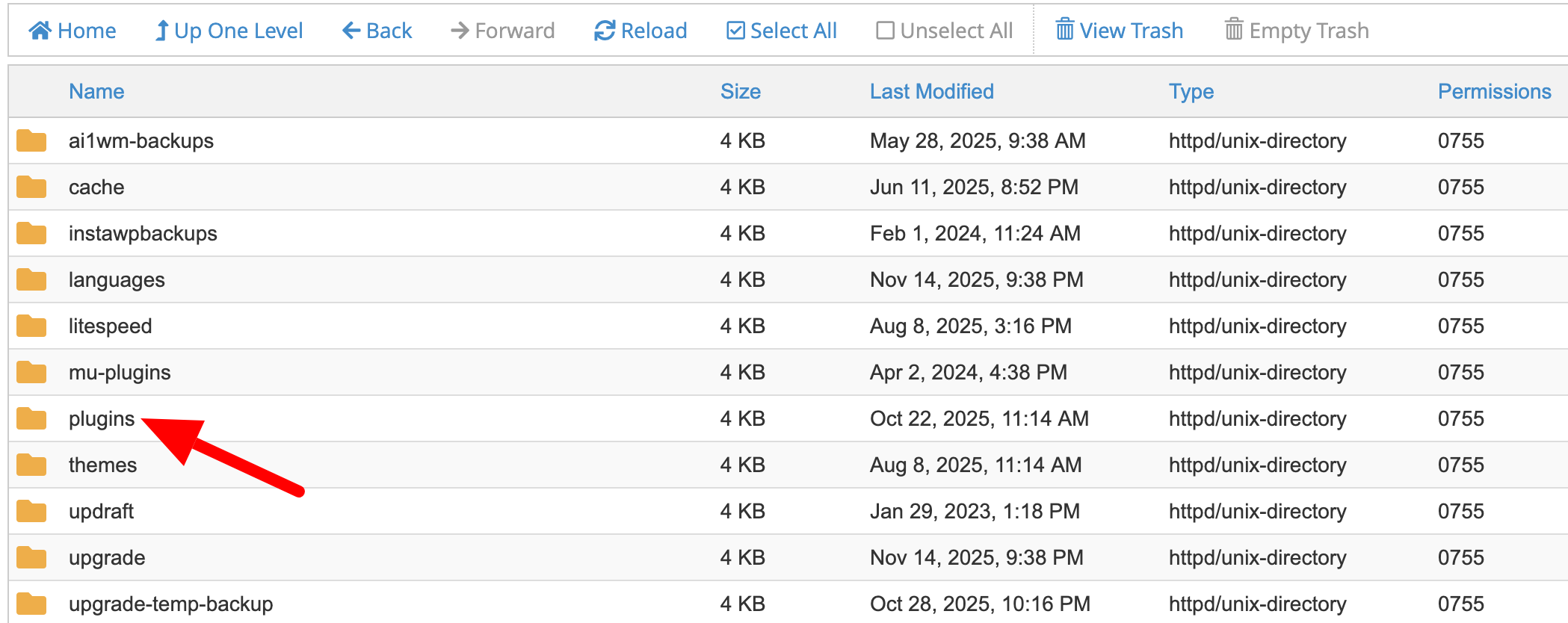
Once the folder has been renamed, try displaying your site again. If the site works, bingo! A plugin is at fault.
Rename the folder to its original name (plugins), then reactivate your plugins one by one from the dashboard, testing the site each time to identify the culprit.
Activate a default theme
If deactivating plugins doesn’t work, the next suspect is your theme. Faulty code or incompatibility can cause everything to crash.
The method is similar to the previous one. Instructions:
- Navigate to
wp-content/themes. - Locate your active theme folder.
- Rename it (for example,
my-theme_old).
If a default WordPress theme (such as Twenty Twenty-Five) is present, WordPress will automatically switch to it.
Alternatively, download one from the official WordPress website and upload it before renaming your own.
If the error disappears, the problem is with your theme. You’ll need to update it, contact the developer, or change it.

Restore a backup of your site
What if activating a default theme hasn’t changed anything, and the message “There has been a critical error on this website” continues to appear on the screen?
Try a new method: restoring your WP site. This is an option that can be very effective if the error occurred just after a specific change.
Technically, how do you go about it? First, you need a viable backup of your site.
To do this, you need to have them automated with plugins such as UpdraftPlus or WP Umbrella.
Another option? Take advantage of the automatic backups offered by your hosting provider. Quite a few of them have this option, including SiteGround (affiliate link).
SiteGround offers one-click backup restoration through their in-house version of cPanel, known as SiteTools.
Choose a date prior to the error and run the operation. Please note that this action will delete all modifications (new articles, comments, sales…) made between the date of the save and the present.
It’s a step backwards, but sometimes it’s the surest way to get your site back on its feet.
Activate WordPress debugging mode
If that still doesn’t work, let’s move on to a more technical method. To play detective, debugging mode forces WordPress to display the exact PHP error causing the crash. It’s a more advanced diagnostic that gives you concrete clues.
To be on the safe side, it’s best to use it on a test environment (but hey, if your site’s broken, you don’t have much to lose).
To activate it, go to the wp-config.php file, located at the root of the site.
Find the line define( 'WP_DEBUG', false ); and replace it with the following three lines:
The first line activates debugging, the second creates an error log (debug.log) in wp-content, and the third, crucially, prevents public display of errors. Download the file, reload the page with the error, then read the debug.log file.
The last line will show you the file and code in question. Don’t forget to deactivate debugging mode once the problem has been solved (replace the value true with false).
Increase PHP memory allocated to WordPress
If the debug.log file mentions an “Allowed memory size of… exhausted” error, WordPress is running out of RAM.
This often happens with greedy plugins. To remedy this, edit the wp-config.php file again.
Add the following line just before the comment /* That’s all, don’t touch what follows! */ :
This value can be increased (‘512M’), but if your host imposes a lower limit, this modification will have no effect.
In this case, you will need to contact your host to request an increase in this server limit.
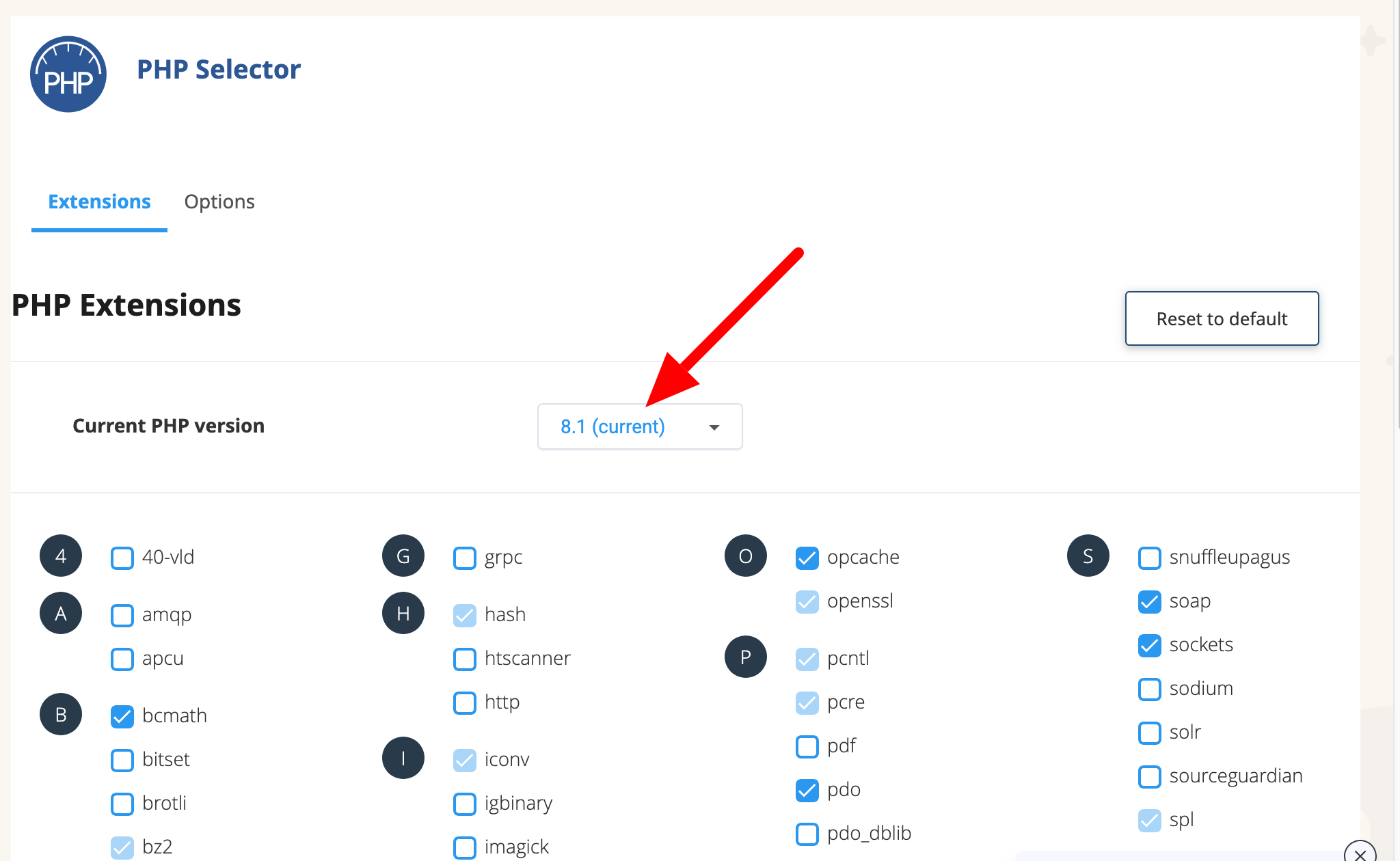
Update PHP version
Using a recent PHP version (ideally 8.x at the time of writing) is vital for security and performance. An older version can create fatal incompatibilities and result in the display of the error message “There has been a critical error on this website.”
To update your PHP version properly, you’ll need to follow the 6 steps detailed in this guide.
In summary, you’ll need to:
- Back up your site.
- Update WordPress.
- Check your site’s compatibility with the PHP version to be updated.
- Migrate your site to a test environment (staging or local).
- Update PHP on your production site.
- Test your site’s functionality.
Contact your hosting provider’s support
If you’ve tried everything and the “There has been a critical error on this website” message is still acting up, it’s time to hand over the reins.
Your hosting company’s technical support team has tools and access that you don’t have. To help them, be precise: describe the context, the exact error, and the steps you’ve already taken.
Provide the contents of the debug.log file if possible. The more information you provide, the faster they can help you.
They’ll get back to you as quickly as possible, and will do their utmost to find a solution to your problem.
Preventive measures to avoid “There has been a critical error on this website” message
Repairing is good. Not having to do so is even better. The secret to a serene WordPress site is to prevent the problem from happening in the first place.
To keep your WordPress site free from critical errors, adopt the following best practices (be careful, these aren’t magic formulas either ^^):
- Update your themes and plugins regularly and carefully. But never all at once. Proceed one at a time. Ideally, you should test these updates on a staging site before applying them to your production site.
- Choose quality themes and plugins. Choose plugins with good ratings, frequent updates, and good technical support. Avoid themes and plugins that have been abandoned or downloaded from dubious sources. These are breeding grounds for problems.
- Set up regular automatic backups — daily if your site is very active. From time to time, do a test restore to make sure they’re working properly. Don’t assume that it works. Just check!
- Keep an eye on your PHP version. WordPress relies on PHP. Make sure your hosting PHP version is up to date and recommended by WordPress. An obsolete version is a security and performance flaw.
- Limit the number of plugins. Every plugin is a potential gateway to problems. Install only what is strictly necessary. Clean house from time to time and deactivate, or even delete, those you no longer use.
Managing a WordPress site is a bit like maintaining a house. A little preventive maintenance will save you from major emergency work. Now you’ve got the tools to fix things, and the keys to prevent things from going wrong (although errors do occur, even so).
In short, the message “There has been a critical error on this website” may sound scary, but it simply indicates that a WordPress script has failed to execute correctly.
The most common causes are a conflict between plugins or themes, a lack of PHP memory, an obsolete PHP version, or a corrupt WordPress file.
Using the methods you’ve just learned about (deactivating plugins, changing theme, debugging mode, increasing memory, updating PHP), you can identify and then correct the source of the problem.
With a few good practices, you can even prevent it from reappearing. Now it’s up to you!

Receive the next posts for free and access exclusive resources. More than 20,000 people have done it, why not you?


Continue reading
Articles posted in WordPress TutorialsHow to manage and optimize WordPress menus like a pro
It is crucial for many websites. It is in four letters. And we often see it very quickly at the top of the page, when we land on a new site. This essential element is the menu. A website menu…
How to update the PHP version of your WordPress site
What comes to mind when you think of WordPress speed and security? Your favorite plugins, perhaps? You should also think about… PHP! If you’re looking for a site that loads fast, while offering a solid shield against hacker attacks, there’s a…
How to create an effective HubSpot conversion funnel on WordPress (complete guide)
In the drawers of a kitchen, there are often two very useful utensils lying around. The first is the colander. And to illustrate, some WordPress sites unfortunately resemble it. Why? Well, because visitors arrive on the site in question… then…