
Knowing the version of your WordPress site and your plugins is the basis for keeping a secure, high-performance site. Ignoring this step is like driving without checking your engine: the risk of an accident is very real.

Would you like to know how to check which version of WordPress you’re using, why it’s essential to stay up to date, and how to avoid the hassle of updates?
You’ve come to the right place! This guide will give you all the keys with clarity, along with 3 methods for checking your WordPress version and those of your plugins.
Ready to get your hands dirty? Let’s get started!
- Why is WordPress and plugin versioning serious business?
- How do you know which version of WordPress you're using?
- How can you find out the version of your plugins?
- Should you always strive for the latest version?
- Nuggets from the latest WordPress versions
- FAQ: We answer your burning questions
- Advanced tips for professionals
- Common mistakes to avoid
- And now it's your turn!

Why is WordPress and plugin versioning serious business?
WordPress is much more than a simple site-building tool: it’s a living, constantly evolving machine. Each new version brings improvements in everything from security and performance to functionality and even user-friendliness.
Your plugins are the workers that keep everything running, whether for SEO, e-commerce, or form management. But without an up-to-date version, your whole site is at risk of slipping.
Think of WordPress as a race car. If you don’t put the right fuel in it (the latest version), it won’t stand up to the challenges of the web: hacker attacks, search engine expectations, or user needs, for example.
Staying up to date means making sure your site stays on track, fast, secure, and ready to seduce your visitors.

WordPress dominates the CMS market, with a colossal share of the world’s websites.
What about your plugins? They need to keep pace to remain compatible and avoid turning your site into a field of bugs. Knowing their version lays the foundation for a reliable, optimized site that will stand the test of time.
The dangers of outdated WordPress versions
If you don’t check your versions, you’re playing with fire. Here are the risks:
- Shaky security: Older versions are easy targets for hackers, who exploit known vulnerabilities.
- Compatibility conflicts: A recent plugin or theme may refuse to work with an outdated version of WordPress, and vice versa.
- Lagging performance: Older versions are often slower, which irritates your visitors and drives Google away.
- Missing functionalities: you miss out on new features that make your site more modern, such as advanced editing tools or customization options.
In short, ignoring the version of WordPress or that of your plugins is like letting your site age prematurely. Let’s find out how to avoid this. 😉
How do you know which version of WordPress you’re using?
Not sure whether your WordPress is state-of-the-art or just dragging its feet? Don’t panic, here are three ways to find out, whatever your level.
1. In the dashboard: fast and efficient
This is the simplest method, perfect for those who want to get straight to the point:
- Log in to your WordPress dashboard.
- Click on Dashboard > Updates. The current version appears at the top of your screen, clear as day.

Alternative : Take a look at the bottom of any administration page. The version is often indicated in the footer, discreet but there.

WordPress version number not displayed? Perhaps your theme or a plugin is hiding the information for security reasons. Don’t worry, go on to the next method.
2. In the source code: for the curious
Don’t have access to the dashboard or want to play detective? This method is for you:
- Open your site in a browser.
- Right-click on the page and select “View source code” (or type Ctrl+U on Windows, or Cmd+Option+U on Mac).
- Use search (Ctrl+F on Windows, or Cmd+F on Mac) to find the
<meta name="generator" content="WordPress X.X.X" />tag (theX.X.Xbeing your version).
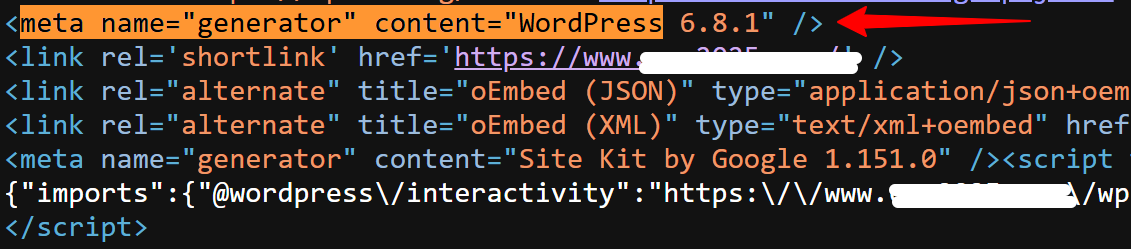
Please note: Some sites, for security reasons, suppress this tag. If you don’t find anything, don’t worry, there’s still one last option.
3. In the files: for tinkerers
For those who like to get their hands dirty, this method is infallible:
- Connect to your server via FTP (with a tool like FileZilla) or use your host’s file manager.
- Navigate to the root folder of your WordPress installation.
- Open
wp-includes/version.php.


- Look for the line
$wp_version = 'X.X.X'. The number shown is your version.
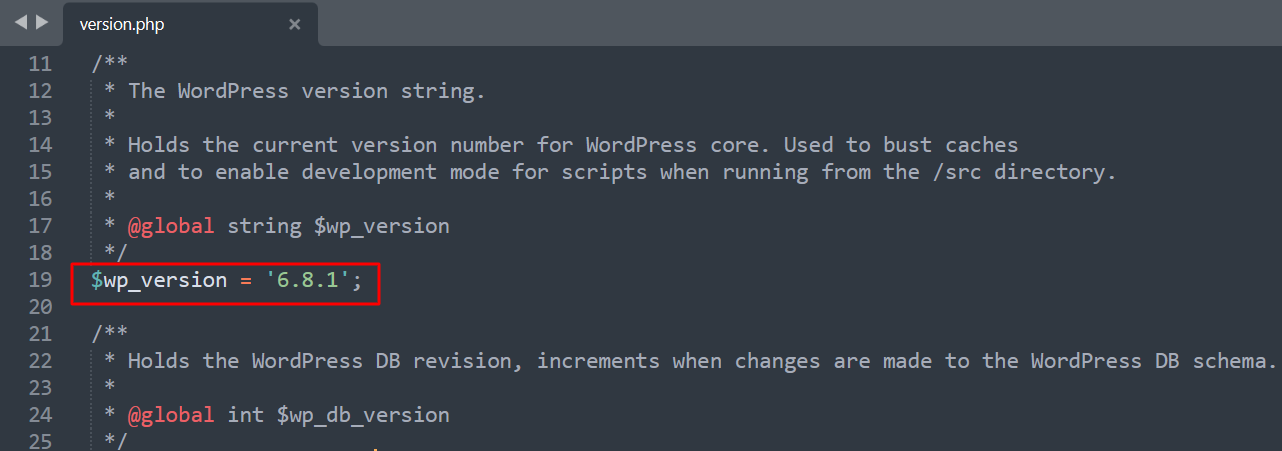
This approach is particularly useful if you don’t have access to the dashboard, or if your site is under maintenance. It requires a little more technique, but it never lies.
Bonus: Use Wappalyzer for fast detection
For Chrome users, the Wappalyzer extension is a handy tool that analyzes the technologies used by a site, including the version of WordPress and plugins.
To use it, install the extension, visit your site, and click on the “Wappalyzer” icon in your toolbar.
It instantly displays the WordPress version (if not hidden) and other technical details, such as detectable plugins. It’s a quick way to get an overview without diving into the code.
Why should you check your WordPress version regularly?
Checking your WordPress version shouldn’t be an occasional task. Make it a habit, like checking your tire pressure before a long drive. This will help you:
- Find out if you are up to date or if you have a vulnerable version lying around
- Anticipate updates by checking compatibility with your themes and plugins
- Diagnose problems (for example, a bug linked to an obsolete version)
A little regular checking can save you a lot of headaches!
How can you find out the version of your plugins?
Your plugins add key functionality to your WordPress site, from SEO to online store management. But do you know which version they’re running? Here are two ways to find out, for all profiles.
1. From the dashboard
It’s the fast, intuitive way:
- Go to Plugins > Installed Plugins.
- Under each plugin, the version is displayed (for example, “Version 25.0”).
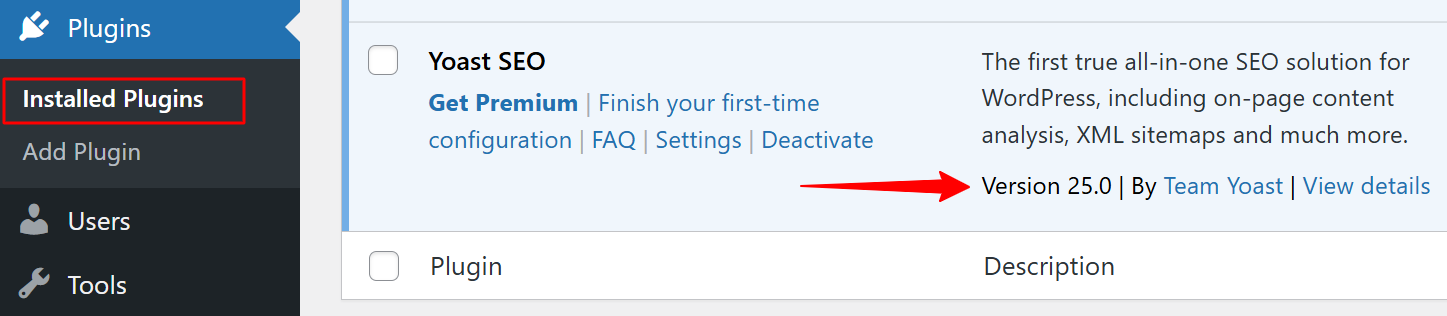
Bonus: if an update is available, an “Update now” link will appear, prompting you to take action.
Tip: Take two minutes to check the date of the last update, visible in the plugin description. A plugin that hasn’t moved in ages may have been abandoned by its developer. In that case, be careful: it could become a weak link in your site.
2. In the plugin files
Prefer to delve into the bowels of your site? This method is for you:
- Connect to your server via FTP or your host’s file manager.
- Navigate to the
wp-content/pluginsfolder.
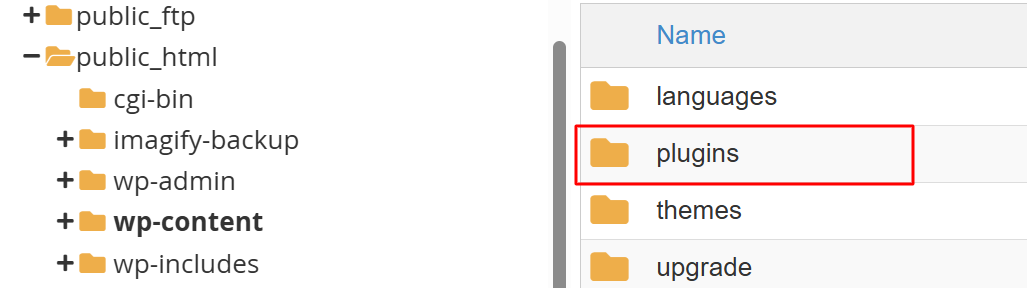
- Open the plugin folder you’re interested in.
- Find the main file, often named
plugin-name.php. - Open it and locate the line
* Version: X.X.X. This is the current version.
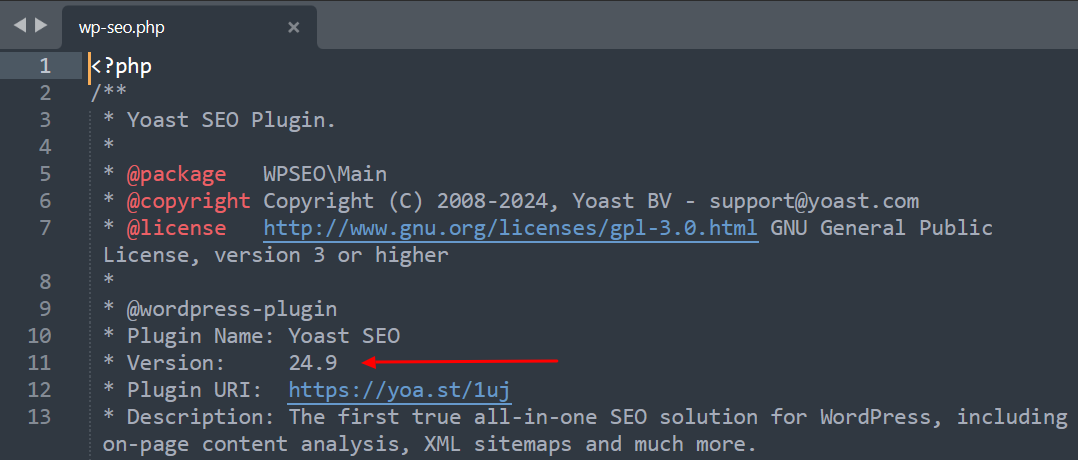
This approach is ideal if you don’t have access to the dashboard or want to check a deactivated plugin. It requires a little patience, but is ultra-reliable.
Why do plugin versions matter so much?
Plugins are often where security holes can be found. An obsolete plugin can become an entry point for hackers, even if your WordPress is up to date.
By checking their versions, you:
- Identify plugins that need urgent updating
- Identify those that may have been abandoned and should be replaced
- Ensure optimum compatibility with your WordPress theme and version
An up-to-date plugin is one that works for you, not against you.
Should you always strive for the latest version?
In 99% of cases, the answer is a resounding yes. A recent version is like armor against threats and a boosted engine for your site.
But, as with any rule, there are exceptions:
- Temporary incompatibility: If a key plugin or theme is not yet compatible with the latest version of WordPress, wait for the developer to update his tool — but don’t delay too long.
- Tailor-made code: If your site relies on very specific modifications, an update could break certain functionalities. In this case, a thorough analysis is required before taking action.
In these situations, caution is called for, but don’t let your site stagnate for too long. An obsolete version can become a time bomb.
To master updating without risk, dive into our dedicated guide: How to update WordPress safely.
Nuggets from the latest WordPress versions
Every new version of WordPress comes with its share of surprises, like a well-wrapped Christmas present. You might discover:
- A more fluid block editor, with design options that simplify page creation
- Performance improvements, for a site that loads at lightning speed
- Customization tools, to make your site unique without touching a line of code
As for plugins, stars such as Yoast SEO, WooCommerce, and Elementor regularly release updates that refine their functionality. For example, Yoast can improve its SEO analytics, while WooCommerce adds options to boost your sales.
To make sure you don’t miss a thing, check the changelogs on WordPress.org or the official sites of your favorite plugins.
How can you keep up to date with new releases?
To make sure you don’t miss out on the latest:
- Follow WordPress.org: The official blog and the “News” section announce each new version.
- Subscribe to plugin newsletters: Developers often send out emails to notify you of updates.
- Join the community: WordPress forums and social networking groups are a mine of information.

FAQ: We answer your burning questions
How do I know if my WordPress version or plugin is out of date?
Compare your version (visible in the dashboard or files) with the latest available on WordPress.org for WordPress, or in the plugin directory for your plugins.
If you’re behind, take action!
Can I go back to an earlier version?
Yes, that’s what we call a downgrade. But beware, it’s risky. You’ll have to restore a backup or install an older version manually. Incompatibilities may arise, so it’s best to think carefully beforehand.
Are updates free?
Updates to WordPress and the free plugins in the WordPress.org directory are free. For premium plugins or themes, an active license is often required to access the latest versions.
What if I can’t access my dashboard?
If your dashboard is down (error 500, maintenance, or other), use the FTP file method to check your WordPress version or plugins.
If the problem persists, contact your hosting provider or dive into our WordPress error troubleshooting guide on WPMarmite.
How do I know if a plugin has been discontinued?
A plugin that hasn’t been updated in over a year is suspect. Check the date of the last update in Plugins > Installed Plugins or on WordPress.org.
If the plugin is inactive and support is no longer available, consider replacing it with a newer alternative.
Advanced tips for professionals
For those who want to go one step further, here are some next-level tips:
- Use a test environment: Before any update, clone your site on a staging environment. Test new versions without putting your production site at risk.
- Automate checks: Tools such as WP Umbrella or ManageWP allow you to monitor WordPress and plugin versions on several sites at once.
- Monitor the logs: After an update, check your server’s error logs (often accessible via your hosting provider) to spot any conflicts.
- Document your plugins: Keep a list of installed plugins, with their versions and roles. This will prevent you from getting lost if a problem arises.
These practices require a little more effort, but they can make the difference between an amateur and a professional site.
Common mistakes to avoid
Checking and managing versions of WordPress and your plugins is easy, but there are some pitfalls to avoid:
- Not checking compatibility: Always check that your themes and plugins are compatible with the latest version of WordPress before updating.
- Forgetting backups: An update without a backup is like jumping without a parachute. Don’t tempt the devil!
- Ignoring inactive plugins: Even when deactivated, obsolete plugins can be exploited by hackers. Delete them if you no longer use them.
- Relying solely on the dashboard: If your site has been modified (by a developer or a security plugin), the dashboard may not display the correct version. Cross-reference your sources with source code or file methods.
Avoiding these mistakes will keep your site on track.
And now it’s your turn!
Checking the versions of WordPress and your plugins is like checking the oil in your engine: a simple reflex for a site that runs like a racing car. With these methods, a little curiosity, and a healthy dose of vigilance, your site will remain secure, high-performance, and cutting-edge.
Got a question? A plugin that’s throwing you for a loop? Tell us about it in the comments section. 👇

Receive the next posts for free and access exclusive resources. More than 20,000 people have done it, why not you?


Continue reading
Articles posted in WordPress TutorialsHow to manage and optimize WordPress menus like a pro
It is crucial for many websites. It is in four letters. And we often see it very quickly at the top of the page, when we land on a new site. This essential element is the menu. A website menu…
How to update the PHP version of your WordPress site
What comes to mind when you think of WordPress speed and security? Your favorite plugins, perhaps? You should also think about… PHP! If you’re looking for a site that loads fast, while offering a solid shield against hacker attacks, there’s a…
How to create an effective HubSpot conversion funnel on WordPress (complete guide)
In the drawers of a kitchen, there are often two very useful utensils lying around. The first is the colander. And to illustrate, some WordPress sites unfortunately resemble it. Why? Well, because visitors arrive on the site in question… then…