
Have you ever come across a 504 Gateway Timeout error while surfing the web or managing your WordPress site? If so, you know how frustrating this message can be.
A screen that refuses to load, a site that’s inaccessible, and you’re left wondering what’s wrong.
Don’t stress! In this comprehensive guide, we’ll break it all down for you: you’ll find out what a 504 Gateway Timeout is, why it occurs, and above all, how to correct it step by step.
Make yourself comfortable, and we’ll get down to business.

What exactly is the 504 Gateway Timeout error?
Let’s start with the basics. A 504 Gateway Timeout error is an HTTP status code indicating that an intermediate server (called a proxy or gateway server) has not received a timely response from the main server (the one hosting the site).
Imagine a deliveryman knocking on your door, but nobody answering: after a while (more or less), the nice deliveryman leaves.
Here, it’s the same thing: the proxy gives up, your screen displays that famous 504 Gateway Timeout error, and you’re stuck.

This error is part of the 5xx family of codes, all of which point to a problem on the server side (unlike 4xx errors, such as the famous 404, which point to a problem on your side).
So why is this timeout triggered? That’s what we’ll see next.
Main causes of the 504 Gateway Timeout error
To resolve a 504 Gateway Timeout error, you first need to identify the culprits. Here are the most common reasons for a 504 error.
1. A faulty proxy server
The proxy server is the intermediary between you and the site. If it’s badly configured, overloaded, or downright broken, it won’t be able to relay the data in time.
For example, a corporate proxy or public network (such as in a café or hotel) may be limited by strict rules or heavy traffic. Result: It takes too long to respond, and boom! Error 504.
2. An unstable network connection
Your Internet connection isn’t always up to scratch.
Unstable Wi-Fi, a tired router, or a saturated network (during a massive Netflix party in your neighborhood, for example) can slow down the data path.
If the proxy server doesn’t receive the data in time, it breaks off communication and triggers a 504 error.
This often happens at peak times, or if your ISP (Internet Service Provider) is going through a rough patch.
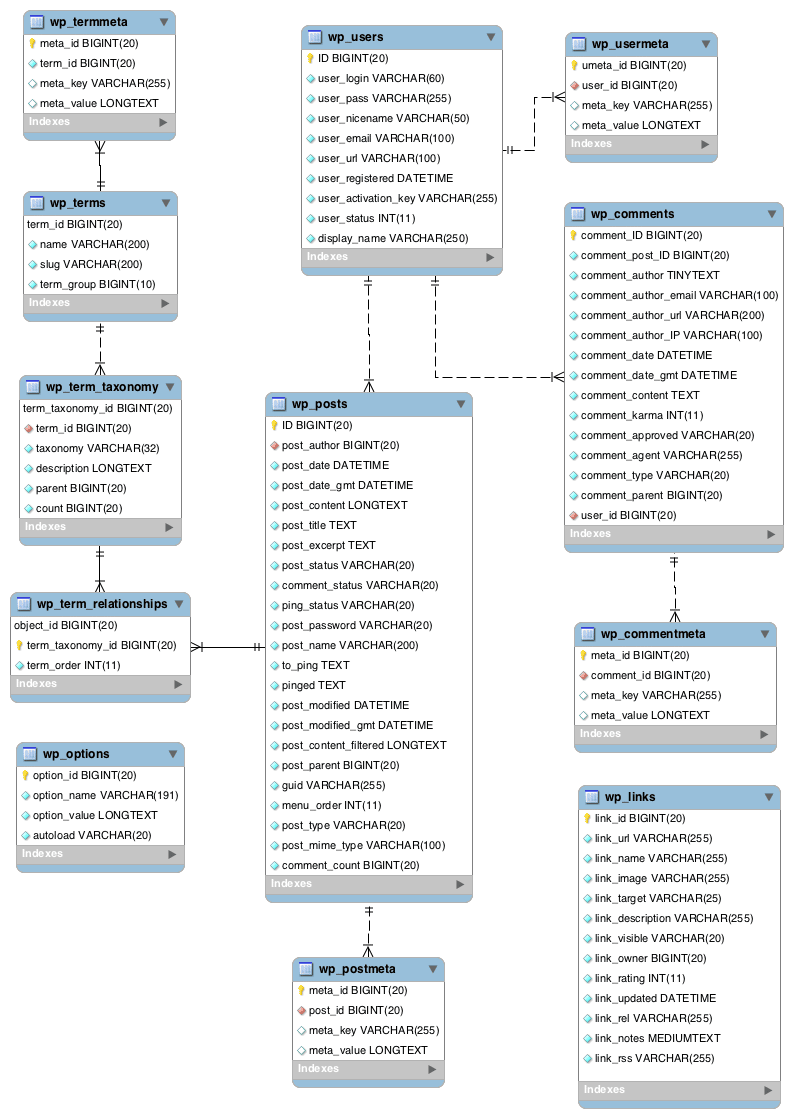
3. An overloaded WordPress database
Your WordPress site relies on a database that stores everything: posts, comments, settings…
When a visitor arrives, WordPress sends requests to this database to load the page. But if it’s cluttered (too many revisions, out-of-date transients, etc.) or poorly optimized, it takes too long to respond.
The proxy server, waiting patiently, finally gives up.
4. Overly greedy scripts or plugins
A poorly coded theme, a greedy plugin, or a script that runs in a loop: these are perfect candidates for crashing your server and causing a 504 error.
A classic example: a backup plugin that runs during your peak traffic times. The result? The server runs out of steam, and timeout arrives.
5. DNS problems
A problem with DNS (Domain Name System) servers can also trigger a 504 Gateway Timeout error.
If the DNS doesn’t resolve the site address correctly (for example, due to a slow server or poor configuration), the proxy doesn’t know where to go and eventually gives up.
6. Faulty firewall configurations
A firewall that is too strict or incorrectly set can block communications between the proxy and the main server. Certain firewall rules or overloading may prevent the server from properly establishing a connection with the site.
7. Hosting not up to scratch
We’ll come back to this later in the tutorial, but a low-cost host with overloaded servers or overly strict limits (such as a default timeout of 30 seconds) may be the root of the problem.
If your site attracts a lot of traffic, for example, a weak server is likely to fail you.
The impact of the 504 error on your WordPress site
If you’re running a WordPress site, a 504 Gateway Timeout error can do some damage. For a start, your visitors will flee: nobody likes waiting for a page that won’t load.
Secondly, Google doesn’t like it. Crawlers penalize slow or inaccessible sites, which can be a real blow to your SEO. And if you sell online on a WooCommerce store, for example, a 504 error damages your credibility.
And on the technical side, an error often highlights a weakness in your infrastructure: an overloaded database, a server on its last legs, or a poorly managed traffic spike are all red flags.
So how do you respond? Let’s get practical!
How to fix the 504 Gateway Timeout error
There’s no question of standing idly by when faced with a 504.
Here’s a handy guide to 12 solutions for diagnosing and solving the problem. Follow these steps in order, and you should be well on your way to overcoming this error.
Step 1: Refresh the page
A 504 Gateway Timeout error may be temporary (temporary server overload).
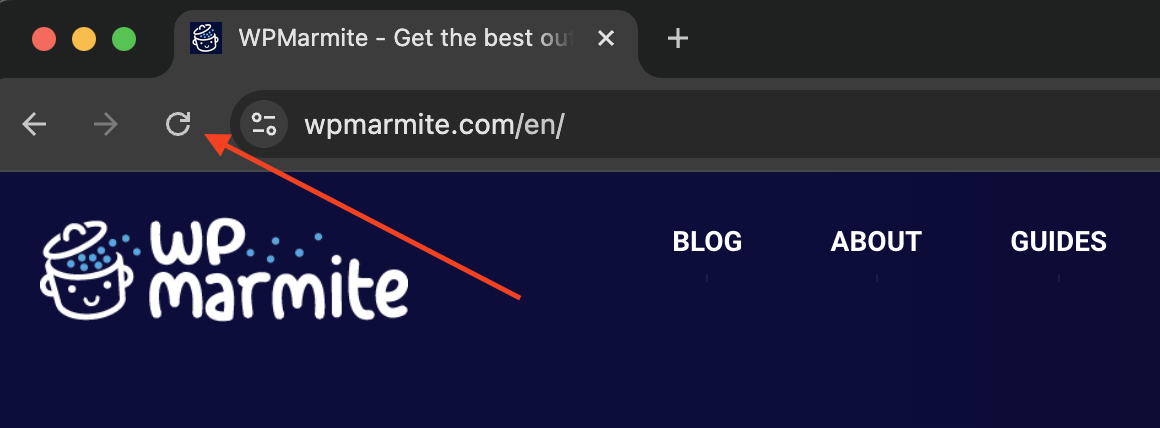
Before jumping into technical configurations, start by trying to refresh the page, by pressing F5 on Windows (or Cmd + R on MacOS) or your browser’s reload button.
Step 2: Check your Internet connection
Sounds basic, but that’s often where it gets tricky. Restart your router, switch to 4G on your phone, or connect to another network.
Reload the page in private browsing mode (Ctrl + Shift + N on Chrome) to avoid cache interference. If the site is displayed elsewhere, the problem lies with your local network.
If not, let’s dig deeper.
Step 3: Clear your browser’s cache
The browser’s cache is the memory that stores bits and pieces of a site so that they load faster. Sometimes, however, it stores obsolete files that disrupt the connection.
On Chrome, Firefox, or Edge, press Ctrl + Shift + Delete (or Cmd + Option + E on Mac), check “Empty cache,” and confirm.
Reload the page. If it works, it was just a temporary bug.
Step 4: Test on another device
Take a second computer, a tablet, or your smartphone, and try to access the site.
If everything works, your main device may be at fault (an overzealous antivirus or a blocking extension, for example).
If the error persists everywhere, the problem is on the server side.
Step 5: Check site status with an external tool
Free services like Down for Everyone or Just Me or Is Website Down for Everyone or Just You? can tell you in two clicks whether the site is inaccessible to all users, or just to you.

To check, enter the URL of the site in the search bar, validate, and you’ll have your first clue.
Step 6: Clear the DNS cache
A corrupt DNS cache can cause a 504 Gateway Timeout error. Here’s how to clear the DNS cache on Windows:
- Open the command prompt in administrator mode.

- Enter the following command: ipconfig /flushdns
- Press the “Enter” key.
On MacOS, go to Terminal and type the following command: sudo dscacheutil -flushcache
Confirm, restart your device, and try to access the site.

Step 7: Check proxy or CDN configuration
If you’re using a CDN (Content Delivery Network) or proxy, make sure the settings are correct.
A poorly defined rule or too short a timeout can cause a 504 Gateway Timeout error. Adjust the timeout or temporarily disable the CDN to see if it disappears.
Step 8: Optimize your WordPress database
Having a clean database is crucial for your WordPress site, and can help you reduce WordPress 504 Gateway Timeout errors.
Use a plugin like WP-Optimize (free) or WP Rocket, and run a database cleanup to remove:
- Post revisions (those drafts that pile up)
- Expired transients (useless temporary data)
- Spam or pending comments
Next, check your tables with phpMyAdmin (accessible via your hosting provider). If a table is too heavy, optimize it with the “OPTIMIZE TABLE” command.
Remember to back up your site first — you never know!
Step 9: Clean up your plugins to resolve a 504 error
In some cases, a WordPress plugin may be the cause of a 504 Gateway Timeout error.
Faulty, obsolete, or incompatible plugins can cause problems. Temporarily deactivating them will allow you to check whether one of them is responsible for the error.
Log in to your WordPress administration (or via FTP if your site is inaccessible), go to Plugins> Installed Plugins, and deactivate all listed plugins.
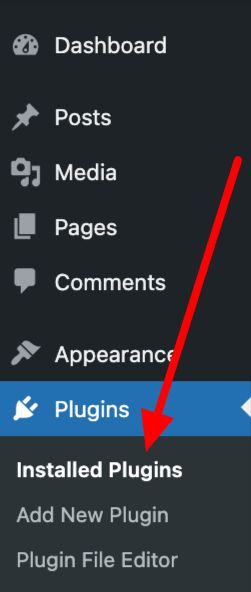
Test your site. If it works again, reactivate the plugins one by one until you find the culprit.
Step 10: Increase server resources
If you have access to your php.ini file or the host settings, try increasing the execution time limit. Look for the line:
max_execution_time = 30Increase it to 60 or 120 seconds. Do the same for PHP memory:
memory_limit = 128MIncrease to 256M or 512M if possible. Restart the server (or ask your host), and test.
Step 11: Check the error log
Check server logs (often found in cPanel under “Error Logs” or via SSH). Look for clues such as PHP errors, blocked requests, or explicit timeouts.
On WordPress, you can also enable debug mode by adding the following code to your wp-config.php file:
define( 'WP_DEBUG', true );
define( 'WP_DEBUG_LOG', true );
define( 'WP_DEBUG_DISPLAY', false );
This may help you understand the exact cause of the 504 Gateway Timeout error.
Step 12: Call your web host to the rescue
Despite all your efforts, is the error is still there? Don’t panic. Before you pull your hair out, contact your web host’s technical support.
A good hosting provider (like Kinsta) can analyze server logs and spot a traffic spike or a configuration error.
Give them as many details as possible so they can finally get rid of that pesky 504 error.
The crucial role of your hosting
A quality web host is your best shield against a 504 Gateway Timeout error. A low-cost shared server may be tempting, but the resources available will be limited.
If your site attracts 1,000 visitors a day or uses power-hungry plugins (such as WooCommerce), weak hosting won’t cut it. 504 errors can then become commonplace.
To avoid this situation, opt for a serious host with:
- Well-dimensioned servers (CPU, RAM)
- A recent PHP version (8.1 or 8.2 at the time of writing)
- An integrated CDN (Cloudflare, for example) to speed up loading times
- Responsive customer support, available if a problem arises
If you’re unsure of a good host to go with, check out our page with hosting providers we recommend.
With a good host, you can sleep soundly at night. 😉
Say goodbye to the 504 Gateway Timeout error
The 504 Gateway Timeout error is a signal that something is wrong, whether it’s the network, the server, or the database, for example.
With this guide, you’ll have everything you need to diagnose and correct it.
And with a stable connection, an optimized WordPress, and a solid hosting provider, you’ll knock it out of the park.
The result? A fast, reliable site with satisfied visitors. So it’s up to you!
Do you have an anecdote about a 504 error that made you sweat, or an additional tip to share? Go to the comments section. 👇

Receive the next posts for free and access exclusive resources. More than 20,000 people have done it, why not you?


Continue reading
Articles posted in WordPress TutorialsHow to manage and optimize WordPress menus like a pro
It is crucial for many websites. It is in four letters. And we often see it very quickly at the top of the page, when we land on a new site. This essential element is the menu. A website menu…
How to update the PHP version of your WordPress site
What comes to mind when you think of WordPress speed and security? Your favorite plugins, perhaps? You should also think about… PHP! If you’re looking for a site that loads fast, while offering a solid shield against hacker attacks, there’s a…
How to create an effective HubSpot conversion funnel on WordPress (complete guide)
In the drawers of a kitchen, there are often two very useful utensils lying around. The first is the colander. And to illustrate, some WordPress sites unfortunately resemble it. Why? Well, because visitors arrive on the site in question… then…