
A gray background. A white frame. And inside, this mysterious message: “Briefly unavailable for scheduled maintenance. Check back in a minute.”
This is what appears on your screen after you’ve launched an update on your WordPress site. Suddenly, your site is inaccessible.
Your pulse races. Doubts creep in, questions arise. “Did I break everything?” you ask yourself.
You refresh the page, again and again… nothing. Panic sets in.

It’s all a bit scary (yes, I’ve been there), but don’t worry: this blockage is not irreversible.
In this article, you’ll find out where this message comes from, how to make it disappear in a matter of seconds, and above all how to prevent it from coming back, even without being a technical expert.
Follow us to take back control of your site, stress-free.
- What is the WordPress error "Briefly unavailable for scheduled maintenance. Check back in a minute"?
- Why is WordPress maintenance mode activated?
- How to correct the error "Briefly unavailable for scheduled maintenance. Check back in a minute."
- What are the best solutions if deleting the .maintenance file isn't enough?
- How to avoid displaying the error "Briefly unavailable for scheduled maintenance. Check back in a minute."
- What plugins can you use to create a personalized maintenance page?

The quick solution
The message “Briefly unavailable for scheduled maintenance. Check back in a minute” is due to a temporary file, .maintenance, not getting deleted after an interrupted update. To unblock your WordPress site, connect to your server via FTP or your host’s file manager (such as cPanel). Find this file at the root of your site, and delete it manually. This is the quickest and most effective solution.
What is the WordPress error “Briefly unavailable for scheduled maintenance. Check back in a minute”?
The message “Briefly unavailable for scheduled maintenance. Check back in a minute” is not a real error, but a standard WordPress maintenance page.
It’s a protective mechanism, a sort of temporary shield.

So, what’s going on behind the scenes? Quite simple: when you update the WordPress Core, a theme, or a plugin, the system automatically creates a small temporary file.
Its name: .maintenance. It then places this file at the root of your site.
The purpose of this file is to display this unavailability screen. What’s the point? To prevent your visitors from coming across a potentially “broken” or unstable site while the files are being modified.
This is a perfectly normal and even desirable safety measure.
In an ideal world, the process takes just a few seconds. Once the WordPress update is complete, WordPress is programmed to delete the .maintenance file itself. The site is then accessible again, as if nothing had happened.
But then, sometimes things don’t go as planned. The error occurs precisely when this process is interrupted.
The .maintenance file is not deleted. Your site then becomes “stuck” in maintenance mode. Your visitors can no longer access the content of your pages.
And that’s where the trouble starts for you, because even access to your dashboard can be blocked.
Why is WordPress maintenance mode activated?
So why does your site get paralyzed by this message? The answer is simple: it’s almost always the result of a sudden interruption in the update script. That’s all there is to it.
Several scenarios can lead to this blockage. Some of the most common culprits include:
- Closing the browser tab. This is the #1 cause. You close the page before the end, and the script is stopped dead in its tracks.
- Mass updates. Launching the update of numerous plugins or themes at the same time can overload the server and cause a timeout.
- Server problems. Slow or poorly configured WordPress hosting may not allocate enough time or resources for the script to complete.
- Compatibility conflicts. A plugin or theme may come into conflict during its update, freezing the whole process.
But in the end, it doesn’t matter what the exact cause is (tab closure, slow server, or conflict). The consequence is always the same: the.maintenance file remains.
You’ll need to delete it manually to free up your site. We’ll look at this right away, step by step, in the next section.
How to correct the error “Briefly unavailable for scheduled maintenance. Check back in a minute.”
To repair the “Briefly unavailable for scheduled maintenance. Check back in a minute” error, you have two main paths to take:
- Via your host’s interface.
- With dedicated software.
To regain control of your WordPress site without any technical skills, simply delete the small .maintenance file that forgot to disappear using one of the options below.
Method 1: Delete the .maintenance file with cPanel
This is the most direct method if your host provides an interface such as cPanel or Plesk.
You’ll find a File Manager in cPanel, and that’s all you need to complete your deletion mission.
First connect to cPanel, by either:
- Clicking on the connection link in the welcome email you received from your host.
- Type your site’s URL, followed by
:2083. - Use the backup address: When port 2083 is blocked, enter the URL of your site, and add
cpanel.in front of your domain. Example:https://cpanel.your-domain.tld.
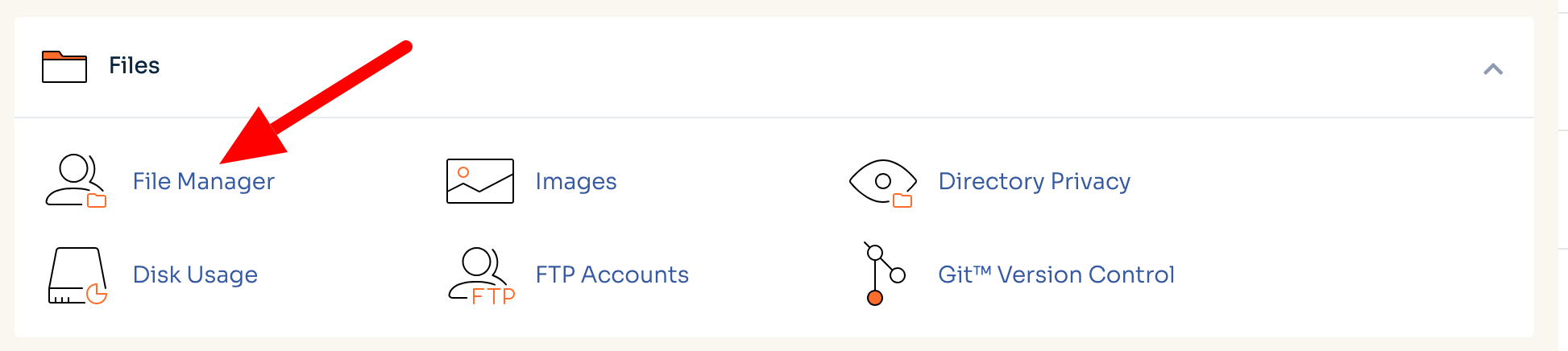
Then go to the “Files” tab, and click on “File Manager.”
Navigate to the site’s root folder, called public_html (some hosts may call it www or htdocs).
Locate the .maintenance file. Select it by clicking on it, right-click, and choose “Delete.”
Confirm deletion and reload your website immediately. The error message “Briefly unavailable for scheduled maintenance. Check back in a minute” should have disappeared. Simple, isn’t it?
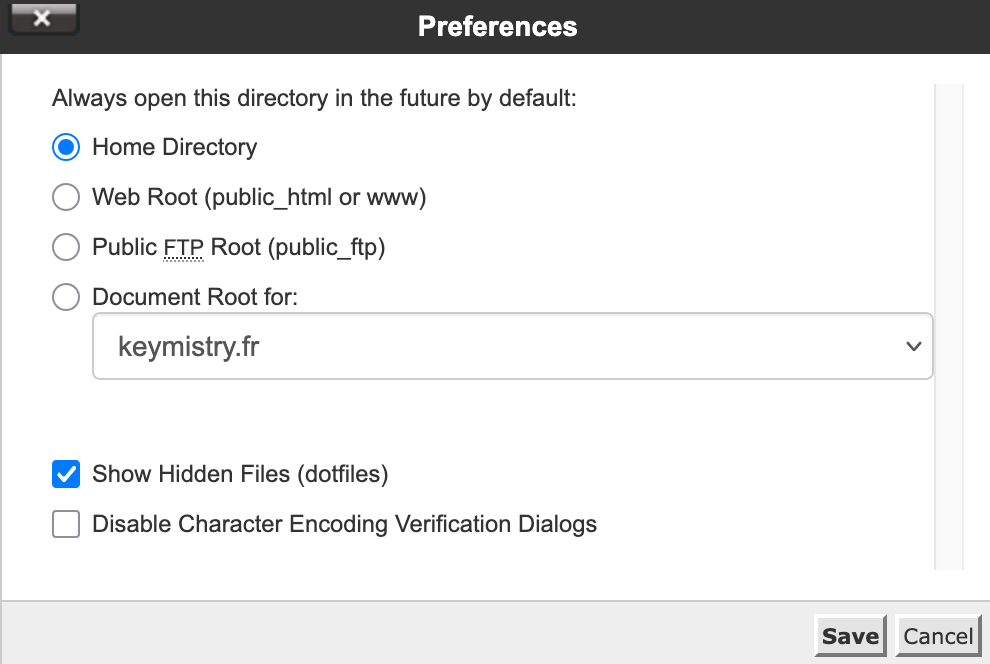
If the file is not displayed, it may be hidden in your settings. To make it appear, go to “Preferences,” then tick the “Show Hidden Files (dotfiles)” option.
Method 2: With an FTP client
You don’t have access to cPanel or any other server administration interface? Or you would prefer to use a tool you’re familiar with? No problem.
An FTP client like FileZilla or Cyberduck will do just fine. This is the classic alternative.
The procedure is very similar to that of the cPanel method. Connect to your favorite FTP client (more info on FTP clients in this resource).
Once logged in, navigate to the root of your site (the famous public_html folder with some hosts) and locate the .maintenance file.
If it is hidden, force its display. On FileZilla, go to the “Server” menu and click on “Force display of hidden files.”
Right-click on the file and select “Delete.”
That’s it! Once you’ve deleted the file, go back to your site and refresh the page. The maintenance message will have disappeared. Take a deep breath. Breathe out. Phew: your site’s back online.

What are the best solutions if deleting the .maintenance file isn’t enough?
You’ve deleted the .maintenance file, but your site is still blocked? No need to panic. This is a rarer case, indicating that an update has failed and left its mark.
Fortunately, there are other avenues to explore. Learn more about them below.
Before using any of these solutions, always back up your site (files + database), for example with a plugin like UpdraftPlus or a maintenance solution like WP Umbrella.
Solution 1: Check your plugins
Often, the culprit is a plugin. The easiest way to find out is to disable them all.
To do this, connect to your site via FTP or your host’s file manager. Go to the wp-content/ folder and rename the plugins folder to plugins_old.
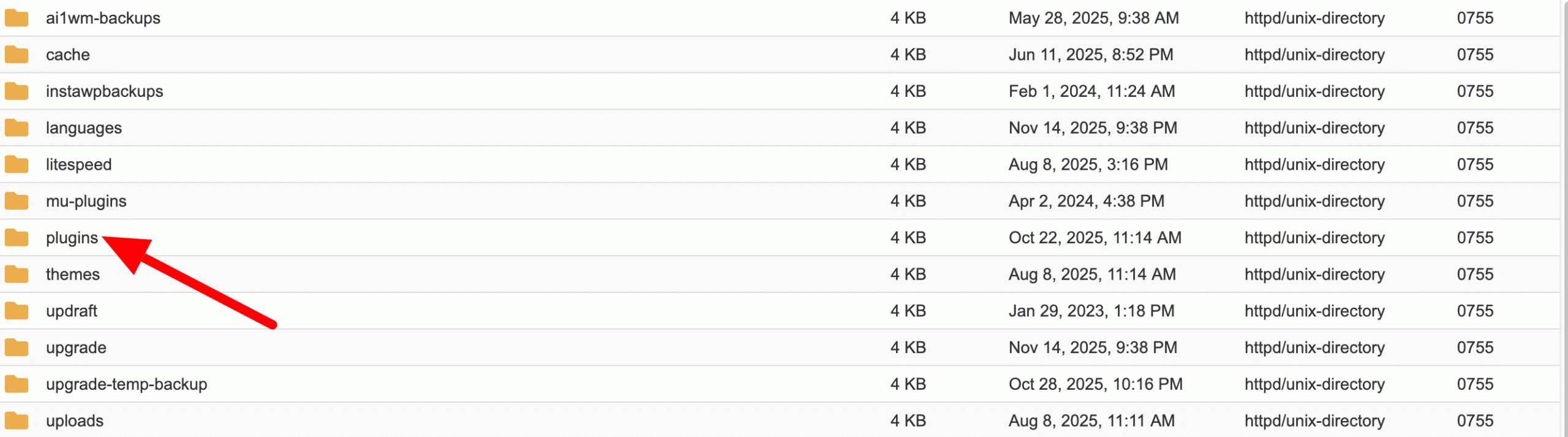
This action deactivates all your plugins. Refresh your site. If it becomes accessible again, you’ve found the source of the problem.
The message “Briefly unavailable for scheduled maintenance. Check back in a minute” is now a thing of the past.
All you have to do is rename the folder to “plugins,” then reactivate your plugins one by one from the WordPress administration to unmask the culprit.
Solution 2: Check your theme
This is less common, but your theme may also be at fault. The logic is the same as for plugins. Go back to your file manager, but this time to wp-content/themes/.
Locate your active theme folder and rename it. WordPress will then switch to a default theme (such as “Twenty Twenty-Five”). If the site works again, the problem is indeed with your theme.
Solution 3 (last resort): Modify wp-activate.php
If all else fails, there’s one last card you can play. It’s a little more technical, but often very effective. It forces WordPress out of its maintenance state.
Using your FTP client, find the wp-activate.php file at the root of your site. Edit it and look for the line:
define('WP_INSTALLING', true);
Simply change the value from true to false:
define('WP_INSTALLING', false);
Save the file. This tells WordPress that the process is complete, which should lift the block. Your site is now back online.
How to avoid displaying the error “Briefly unavailable for scheduled maintenance. Check back in a minute.”
You’ve taken your site out of maintenance mode. Perfect. Now, how do you make sure you never have to go through this situation again (the “Briefly unavailable for scheduled maintenance. Check back in a minute” situation)?
The good news is that there are simple steps you can take to make this error message a thing of the past.
Follow them, and you shouldn’t come across that infamous .maintenance file any time soon (at least, we hope you don’t):
- Never close the update tab. It’s the golden rule. When WordPress is working, let it do its job. Closing the window interrupts the process and the
.maintenancefile remains in place. - Use individual updates to reduce the load on your server and limit the risk of failure.
- Check compatibility before upgrading. This is crucial for major plugins (like WooCommerce) or complex themes. Take two minutes to read the changelog.
- Choose quality WordPress hosting. A high-performance host with sufficient resources (memory, execution time) is your best insurance against timeouts. A slow server is a frequent cause of failure.
- Empty the cache after correction. If you’ve deleted the
.maintenancefile, clear your site’s cache (via a dedicated plugin like WP Rocket) and your browser’s cache. This is essential if you want to see the functional version of your site.
By integrating these simple habits into your routine, you’ll turn a source of panic into a simple formality. Your site will thank you for it.

What plugins can you use to create a personalized maintenance page?
You don’t have to suffer the white, impersonal WordPress error message.
If you’re planning maintenance or simply want a more polished experience for your visitors, maintenance plugins are available. It’s a great way to regain control.
Instead of a blank screen, you can display an elegant page, reassure your audience, and even capture email addresses. It’s all about turning a technical constraint into an opportunity. You don’t need to be a developer to do this, and we’ve included a hand-picked list of plugins in this article.
If you’re in a hurry, here are three classic plugins for creating a stylish maintenance page:
- SeedProd. It’s a bit of a heavyweight in this category. A powerful plugin, it lets you build “coming soon” or maintenance pages via a drag-and-drop builder. Very intuitive, even for beginners.
- CMP. A free, intuitive, and effective option. It gets straight to the point, creating a basic but effective page with logo, text, colors, countdown timer, and form.
- Slim Maintenance Mode: The name says it all. If you’re looking for simplicity and lightness, this is the plugin you need to create a simple page in just a few clicks. On the other hand, it lacks the advanced options of its two competitors.
Using one of these plugins is a proactive approach. Your site will look more professional and you’ll bypass the native WordPress error message.
In short, you take back control of your communication, even when your site is offline.
Now you’ll never panic again when you receive a WordPress maintenance message (“Briefly unavailable for scheduled maintenance. Check back in a minute.”).
As we’ve seen, the solution is often simple: delete the .maintenance file. By following our preventive advice and using dedicated plugins, you’ll stay in control and ensure a smooth user experience.

Receive the next posts for free and access exclusive resources. More than 20,000 people have done it, why not you?


Continue reading
Articles posted in WordPress TutorialsHow to manage and optimize WordPress menus like a pro
It is crucial for many websites. It is in four letters. And we often see it very quickly at the top of the page, when we land on a new site. This essential element is the menu. A website menu…
How to update the PHP version of your WordPress site
What comes to mind when you think of WordPress speed and security? Your favorite plugins, perhaps? You should also think about… PHP! If you’re looking for a site that loads fast, while offering a solid shield against hacker attacks, there’s a…
How to create an effective HubSpot conversion funnel on WordPress (complete guide)
In the drawers of a kitchen, there are often two very useful utensils lying around. The first is the colander. And to illustrate, some WordPress sites unfortunately resemble it. Why? Well, because visitors arrive on the site in question… then…